> ## Documentation Index
> Fetch the complete documentation index at: https://devdocs.xbox.com/llms.txt
> Use this file to discover all available pages before exploring further.
# Unity で Google サインインから Google Play Games に移行する
> リンク付けと確認を含む、Unity プレイヤーを Google アカウント サインインから LoginWithGooglePlayGamesServices へ切り替えるための詳細な移行手順。
# LoginWithGooglePlayGamesServices API 移行手順
移行は、Google が開発者にこの認証方法への移行を推奨しているため、LoginWithGooglePlayGamesServices への切り替えで構成されます。プレイヤーを移行した後、LoginWithGoogleAccount API への依存はなくなり、開発者は最新のプラグイン バージョンにアップグレードできるようになります。
詳細については、[Google 公式ドキュメント](https://developers.google.com/games/services/android/signin#migrate_to_play_games_services_sign_in_v2) を参照してください。
## 全体的な手順
1. 適切なバージョンの "Play Games Plugin for Unity" を選択します。
2. Play Games プラットフォームを初期化し、ユーザーを認証します。
3. LoginWithGoogleAccount を使用して PlayFab にログインします。
4. Google Play Games プロファイルを PlayFab プレイヤー アカウントにリンクします。
5. ユーザーが LoginWithGooglePlayGamesServices API を使用してログインできることを確認します。
6. (オプション) Google アカウント プロファイルを PlayFab プレイヤー アカウントからリンク解除します。
## 移行手順
### 適切なバージョンの "Play Games Plugin for Unity" を選択する
Google は追加スコープの要求を許可しなくなったため、最新バージョンのプラグインは移行に使用できません。したがって、PlayFab の LoginWithGoogleAccount API は動作しなくなります。
これらの移行手順は、"Play Games Plugin for Unity" のバージョン 0.10.14 を使用してテストおよび文書化されています。次の場所にあります: [playgameservices/play-games-plugin-for-unity at v10.14 (github.com)](https://github.com/playgameservices/play-games-plugin-for-unity/tree/v10.14)
プラグインのインストールと構成手順については、プラグインの [README](https://github.com/playgameservices/play-games-plugin-for-unity/blob/v10.14/README.md) を参照してください
### Play Games プラットフォームを初期化し、プレイヤーを認証する
[README の Configuration & Initialization Play Games Services セクション](https://github.com/playgameservices/play-games-plugin-for-unity/blob/v10.14/README.md#configuration--initialization-play-game-services) を参照し、PlayGamesClientConfiguration の一部として "profile" スコープを要求します。
```csharp theme={null}
PlayGamesClientConfiguration config = new PlayGamesClientConfiguration.Builder()
.AddOauthScope("profile")
.RequestServerAuthCode(false)
.Build();
PlayGamesPlatform.InitializeInstance(config);
// recommended for debugging:
PlayGamesPlatform.DebugLogEnabled = true;
// Activate the Google Play Games platform
PlayGamesPlatform.Activate();
// authenticate user:
PlayGamesPlatform.Instance.Authenticate(SignInInteractivity.CanPromptOnce, (SignInStatus result) => {
if (result == SignInStatus.Success)
{
Debug.Log("Authentication Succeeded.");
}
else
{
Debug.Log("Authentication Failed. SignInStatus: " + result);
}
});
```
### LoginWithGoogleAccount を使用して PlayFab にログインする
[LoginWithGoogleAccount](https://learn.microsoft.com/en-us/rest/api/playfab/client/authentication/login-with-google-account?view=playfab-rest) 認証 API を使用して、既存のプレイヤーのアカウントにログインします。正常にログインするには、GetServerAuthCode メソッドを通じて要求できる Server Auth Token を提供する必要があります。
```csharp theme={null}
public void PlayFabLoginWithGoogleAccount()
{
var serverAuthCode = PlayGamesPlatform.Instance.GetServerAuthCode();
var request = new LoginWithGoogleAccountRequest
{
ServerAuthCode = serverAuthCode,
TitleId = PlayFabSettings.TitleId
};
PlayFabClientAPI.LoginWithGoogleAccount(request, OnLoginWithGoogleAccountSuccess, OnLoginWithGoogleAccountFailure);
}
private void OnLoginWithGoogleAccountSuccess(LoginResult result)
{
Debug.Log("PlayFab LoginWithGoogleAccount Success.");
}
private void OnLoginWithGoogleAccountFailure(PlayFabError error)
{
Debug.Log("PlayFab LoginWithGoogleAccount Failure: " + error.GenerateErrorReport());
}
```
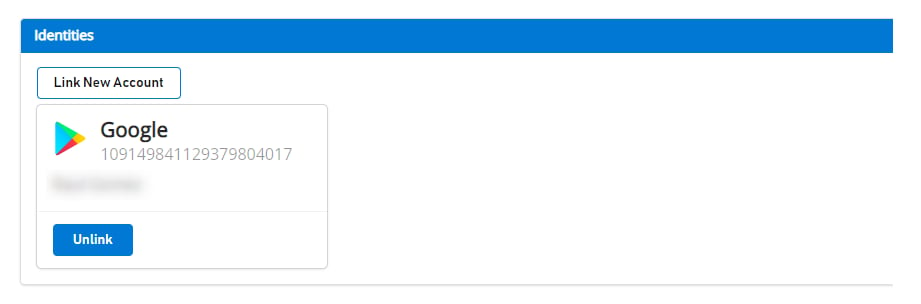
移行を行う前は、Google アカウントにリンクされているユーザーは、[Game Manager](https://developer.playfab.com) では次のように表示されます:
 ### プレイヤーの Google Play Games プロファイルを PlayFab プレイヤー アカウントにリンクする
このステップでは、これまで Google アカウントのみにリンクされていた既存プレイヤーの PlayFab アカウントに、プレイヤーの Google Play Games アカウントをリンクします。
```csharp theme={null}
public void LinkGooglePlayGamesAccount()
{
PlayGamesPlatform.Instance.GetAnotherServerAuthCode(true, (serverAuthCode) => {
var linkRequest = new LinkGooglePlayGamesServicesAccountRequest
{
ServerAuthCode = serverAuthCode
};
PlayFabClientAPI.LinkGooglePlayGamesServicesAccount(linkRequest, OnLinkGooglePlayGamesServicesAccountSuccess, OnLinkGooglePlayGamesServicesAccountFailure);
});
}
private void OnLinkGooglePlayGamesServicesAccountSuccess(LinkGooglePlayGamesServicesAccountResult result)
{
Debug.Log("PlayFab LinkGooglePlayGamesServicesAccount Success");
}
private void OnLinkGooglePlayGamesServicesAccountFailure(PlayFabError error)
{
Debug.Log("PlayFab LinkGooglePlayGamesServicesAccount Failure: " + error.GenerateErrorReport());
}
```
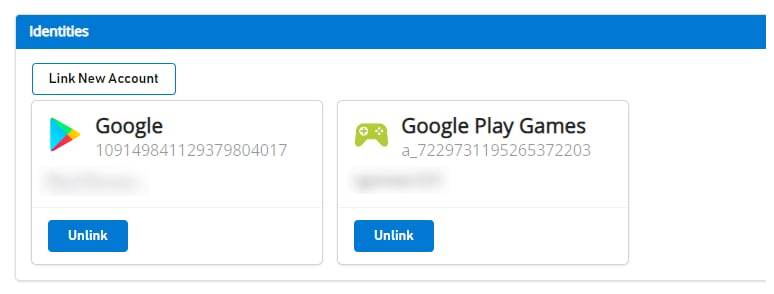
このステップの後、PlayFab 側で両方のアカウント プロファイルがプレイヤーに関連付けられるはずであり、今後は [LoginWithGooglePlayGamesServices](https://learn.microsoft.com/en-us/rest/api/playfab/client/authentication/login-with-google-play-games-services?view=playfab-rest) 認証 API を使用できるようになります。
[Game Manager](https://developer.playfab.com) に移動すると、次のように両方のアカウントがプレイヤーに関連付けられていることが確認できます:
### プレイヤーの Google Play Games プロファイルを PlayFab プレイヤー アカウントにリンクする
このステップでは、これまで Google アカウントのみにリンクされていた既存プレイヤーの PlayFab アカウントに、プレイヤーの Google Play Games アカウントをリンクします。
```csharp theme={null}
public void LinkGooglePlayGamesAccount()
{
PlayGamesPlatform.Instance.GetAnotherServerAuthCode(true, (serverAuthCode) => {
var linkRequest = new LinkGooglePlayGamesServicesAccountRequest
{
ServerAuthCode = serverAuthCode
};
PlayFabClientAPI.LinkGooglePlayGamesServicesAccount(linkRequest, OnLinkGooglePlayGamesServicesAccountSuccess, OnLinkGooglePlayGamesServicesAccountFailure);
});
}
private void OnLinkGooglePlayGamesServicesAccountSuccess(LinkGooglePlayGamesServicesAccountResult result)
{
Debug.Log("PlayFab LinkGooglePlayGamesServicesAccount Success");
}
private void OnLinkGooglePlayGamesServicesAccountFailure(PlayFabError error)
{
Debug.Log("PlayFab LinkGooglePlayGamesServicesAccount Failure: " + error.GenerateErrorReport());
}
```
このステップの後、PlayFab 側で両方のアカウント プロファイルがプレイヤーに関連付けられるはずであり、今後は [LoginWithGooglePlayGamesServices](https://learn.microsoft.com/en-us/rest/api/playfab/client/authentication/login-with-google-play-games-services?view=playfab-rest) 認証 API を使用できるようになります。
[Game Manager](https://developer.playfab.com) に移動すると、次のように両方のアカウントがプレイヤーに関連付けられていることが確認できます:
 ### プレイヤーが LoginWithGooglePlayGamesServices API を使用してログインできることを確認する
```csharp theme={null}
public void PFLoginWithGooglePlayGames()
{
PlayGamesPlatform.Instance.GetAnotherServerAuthCode(true, (serverAuthCode) => {
var request = new LoginWithGooglePlayGamesServicesRequest
{
ServerAuthCode = serverAuthCode,
CreateAccount = false,
TitleId = PlayFabSettings.TitleId
};
PlayFabClientAPI.LoginWithGooglePlayGamesServices(request, OnLoginWithGooglePlayGamesServicesSuccess, OnLoginWithGooglePlayGamesServicesFailure);
});
}
private void OnLoginWithGooglePlayGamesServicesSuccess(LoginResult result)
{
Debug.Log("PlayFab LoginWithGooglePlayGamesServices Success.");
}
private void OnLoginWithGooglePlayGamesServicesFailure(PlayFabError error)
{
Debug.Log("PlayFab LoginWithGooglePlayGamesServices Failure: " + error.GenerateErrorReport());
}
```
### (オプション) Google アカウント プロファイルを PlayFab プレイヤー アカウントからリンク解除する
このステップはオプションです。ただし、Google Play Games Services プロファイルがプレイヤー アカウントにリンクされていることと、PlayFab に正常にログインできることを確認した場合は、[UnlinkGoogleAccount](https://learn.microsoft.com/en-us/rest/api/playfab/client/account-management/unlink-google-account?view=playfab-rest) API を使用してプレイヤーのプロファイルにリンクされている以前の Google アカウント プロファイルをリンク解除し、[LoginWithGooglePlayGamesServices](https://learn.microsoft.com/en-us/rest/api/playfab/client/authentication/login-with-google-play-games-services?view=playfab-rest) API のみを使用するように移行したいと思われます。
```csharp theme={null}
public void UnlinkGoogleAccountFromPlayer()
{
PlayFabClientAPI.UnlinkGoogleAccount(new UnlinkGoogleAccountRequest(), OnUnlinkGoogleAccountSuccess, OnUnlinkGoogleAccountFailure);
}
private void OnUnlinkGoogleAccountSuccess(UnlinkGoogleAccountResult result)
{
Debug.Log("PlayFab UnlinkGoogleAccount Success.");
}
private void OnUnlinkGoogleAccountFailure(PlayFabError error)
{
Debug.Log("PlayFab UnlinkGoogleAccount Failure: " + error.GenerateErrorReport());
}
```
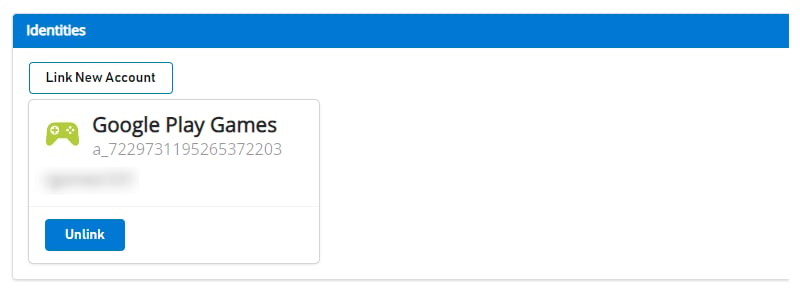
リンク解除後、プレイヤーの [Game Manager](https://developer.playfab.com) には Google Play Games Identity のみが表示されます:
### プレイヤーが LoginWithGooglePlayGamesServices API を使用してログインできることを確認する
```csharp theme={null}
public void PFLoginWithGooglePlayGames()
{
PlayGamesPlatform.Instance.GetAnotherServerAuthCode(true, (serverAuthCode) => {
var request = new LoginWithGooglePlayGamesServicesRequest
{
ServerAuthCode = serverAuthCode,
CreateAccount = false,
TitleId = PlayFabSettings.TitleId
};
PlayFabClientAPI.LoginWithGooglePlayGamesServices(request, OnLoginWithGooglePlayGamesServicesSuccess, OnLoginWithGooglePlayGamesServicesFailure);
});
}
private void OnLoginWithGooglePlayGamesServicesSuccess(LoginResult result)
{
Debug.Log("PlayFab LoginWithGooglePlayGamesServices Success.");
}
private void OnLoginWithGooglePlayGamesServicesFailure(PlayFabError error)
{
Debug.Log("PlayFab LoginWithGooglePlayGamesServices Failure: " + error.GenerateErrorReport());
}
```
### (オプション) Google アカウント プロファイルを PlayFab プレイヤー アカウントからリンク解除する
このステップはオプションです。ただし、Google Play Games Services プロファイルがプレイヤー アカウントにリンクされていることと、PlayFab に正常にログインできることを確認した場合は、[UnlinkGoogleAccount](https://learn.microsoft.com/en-us/rest/api/playfab/client/account-management/unlink-google-account?view=playfab-rest) API を使用してプレイヤーのプロファイルにリンクされている以前の Google アカウント プロファイルをリンク解除し、[LoginWithGooglePlayGamesServices](https://learn.microsoft.com/en-us/rest/api/playfab/client/authentication/login-with-google-play-games-services?view=playfab-rest) API のみを使用するように移行したいと思われます。
```csharp theme={null}
public void UnlinkGoogleAccountFromPlayer()
{
PlayFabClientAPI.UnlinkGoogleAccount(new UnlinkGoogleAccountRequest(), OnUnlinkGoogleAccountSuccess, OnUnlinkGoogleAccountFailure);
}
private void OnUnlinkGoogleAccountSuccess(UnlinkGoogleAccountResult result)
{
Debug.Log("PlayFab UnlinkGoogleAccount Success.");
}
private void OnUnlinkGoogleAccountFailure(PlayFabError error)
{
Debug.Log("PlayFab UnlinkGoogleAccount Failure: " + error.GenerateErrorReport());
}
```
リンク解除後、プレイヤーの [Game Manager](https://developer.playfab.com) には Google Play Games Identity のみが表示されます:
 ## Related topics
- [Unity ゲームを Google Play Games サインインに移行する](/ja-jp/services/playfab/identity/player-identity/platform-specific-authentication/google-play-games-sign-in-migration.md)
- [Google サインインから Play Games サインインへの移行フォールバック](/ja-jp/services/playfab/identity/player-identity/platform-specific-authentication/google-play-games-sign-in-migration-fallback.md)
- [Unity で Google Play Games サインインを使用した PlayFab 認証](/ja-jp/services/playfab/identity/player-identity/platform-specific-authentication/google-sign-in-unity.md)
- [Game Manager へのサインイン](/ja-jp/services/playfab/live-service-management/gamemanager/game-manager-login.md)
- [PlayFab Identity ドキュメント](/ja-jp/services/playfab/identity/index.md)
## Related topics
- [Unity ゲームを Google Play Games サインインに移行する](/ja-jp/services/playfab/identity/player-identity/platform-specific-authentication/google-play-games-sign-in-migration.md)
- [Google サインインから Play Games サインインへの移行フォールバック](/ja-jp/services/playfab/identity/player-identity/platform-specific-authentication/google-play-games-sign-in-migration-fallback.md)
- [Unity で Google Play Games サインインを使用した PlayFab 認証](/ja-jp/services/playfab/identity/player-identity/platform-specific-authentication/google-sign-in-unity.md)
- [Game Manager へのサインイン](/ja-jp/services/playfab/live-service-management/gamemanager/game-manager-login.md)
- [PlayFab Identity ドキュメント](/ja-jp/services/playfab/identity/index.md)