> ## Documentation Index
> Fetch the complete documentation index at: https://devdocs.xbox.com/llms.txt
> Use this file to discover all available pages before exploring further.
# Facebook と Unity を使用した PlayFab 認証のセットアップ
> Facebook アプリのセットアップとプレイヤー認証コードをカバーする、PlayFab SDK を使用して Unity プロジェクトに Facebook ログインを統合する手順ガイド。
このチュートリアルでは、Facebook と Unity を使用した PlayFab 認証の例を紹介します。
## 要件
* [Unity 5+](https://unity3d.com/) と作成済みのプロジェクト。
* テスト用の [Facebook アカウント](https://www.facebook.com/)。
* プロジェクトにインポートされた [Facebook SDK](https://developers.facebook.com/docs/unity/)。
* 登録済みの [PlayFab](https://developer.playfab.com/) タイトル。
* タイトル リファレンスが構成された、プロジェクトにインポートされた [PlayFab SDK](https://aka.ms/playfabunitysdkdownload)。
* [ログインの基本とベスト プラクティス](/services/playfab/identity/player-identity/login/login-basics-best-practices) に精通していること。
## 実装
### Facebook アプリケーションを登録する
まず、[Facebook 開発者ポータル](https://developers.facebook.com/) に移動します:
1. **My Apps** ボタンにマウス カーソルを合わせます。
2. 下の図のように、**Add a New App** を選択します。
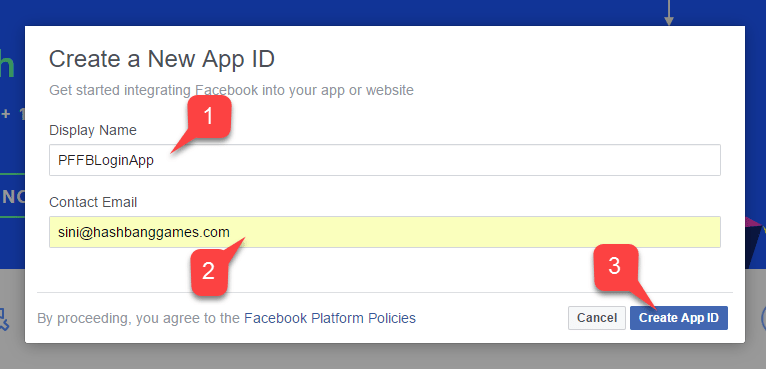
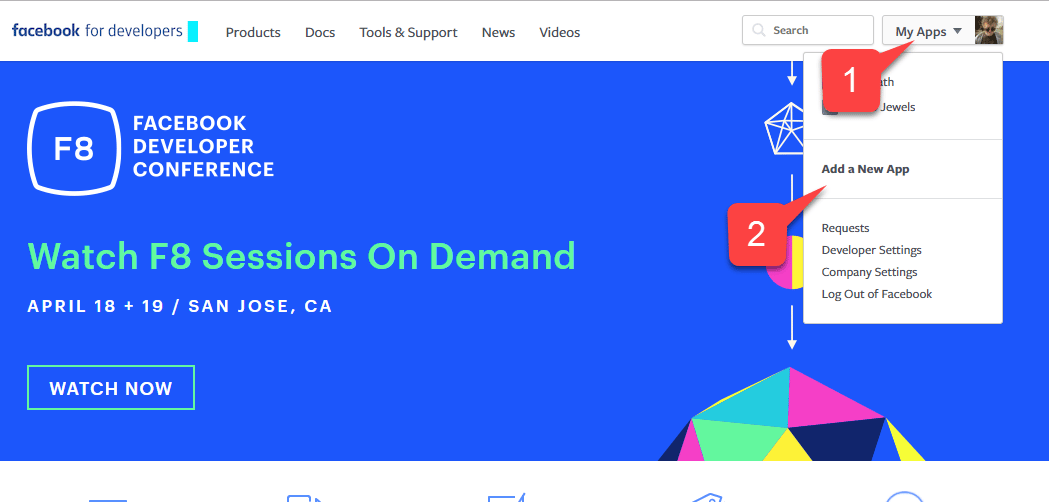 新しい **アプリケーション** ポップアップが開きます。
1. **アプリケーション** の名前を入力します。
2. **Contact Email** を入力します。
下の図のように、必ず独自の *一意な* **アプリケーション名** と **メール** を用意してください。
新しい **アプリケーション** ポップアップが開きます。
1. **アプリケーション** の名前を入力します。
2. **Contact Email** を入力します。
下の図のように、必ず独自の *一意な* **アプリケーション名** と **メール** を用意してください。
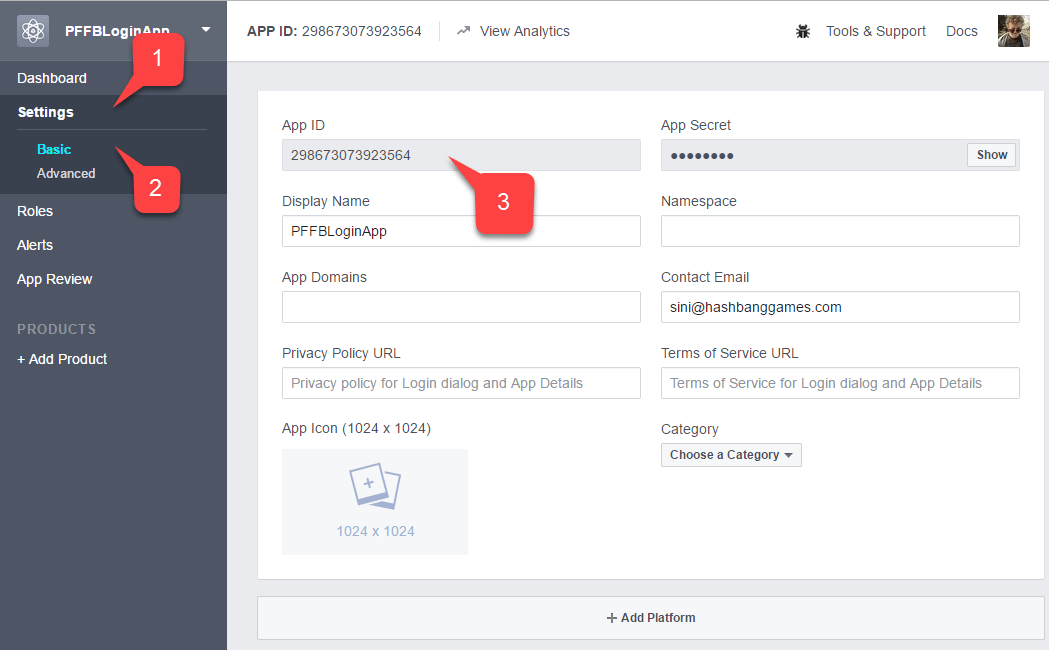
 1. **Settings** タブに移動します。
2. 次に **Basic** サブタブに移動します。
3. **アプリケーション ID** を見つけます。
* 簡単にアクセスできる安全な場所にコピーします。
これは後で Facebook SDK のセットアップに使用します。
1. **Settings** タブに移動します。
2. 次に **Basic** サブタブに移動します。
3. **アプリケーション ID** を見つけます。
* 簡単にアクセスできる安全な場所にコピーします。
これは後で Facebook SDK のセットアップに使用します。
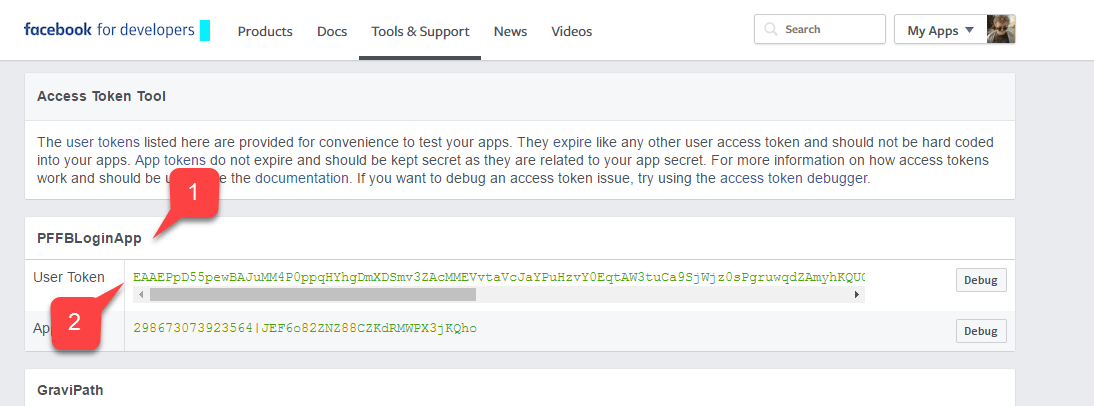
 [Facebook Access Token Tool](https://developers.facebook.com/tools/accesstoken/) に移動します。
1. リスト内で **アプリ** を見つけます。
2. 割り当てられた **User Token** があることを確認します。
ユーザー トークンが割り当てられて *いない* 場合は、画面右側のボタンを使用してリクエストしてください。新しいユーザー トークンが必要になるたびに、このページを参照してください。PC でのテスト中に認証が失敗した場合、トークンの有効期限切れが最も可能性の高い原因です。ページを更新して新しいユーザー トークンを取得し、再度テストしてください。
[Facebook Access Token Tool](https://developers.facebook.com/tools/accesstoken/) に移動します。
1. リスト内で **アプリ** を見つけます。
2. 割り当てられた **User Token** があることを確認します。
ユーザー トークンが割り当てられて *いない* 場合は、画面右側のボタンを使用してリクエストしてください。新しいユーザー トークンが必要になるたびに、このページを参照してください。PC でのテスト中に認証が失敗した場合、トークンの有効期限切れが最も可能性の高い原因です。ページを更新して新しいユーザー トークンを取得し、再度テストしてください。
 1. **Application Manager** ページで、**+ Add Products** に移動します。
2. **Facebook Login** エントリを見つけ、**Get Started** を選択します。
1. **Application Manager** ページで、**+ Add Products** に移動します。
2. **Facebook Login** エントリを見つけ、**Get Started** を選択します。
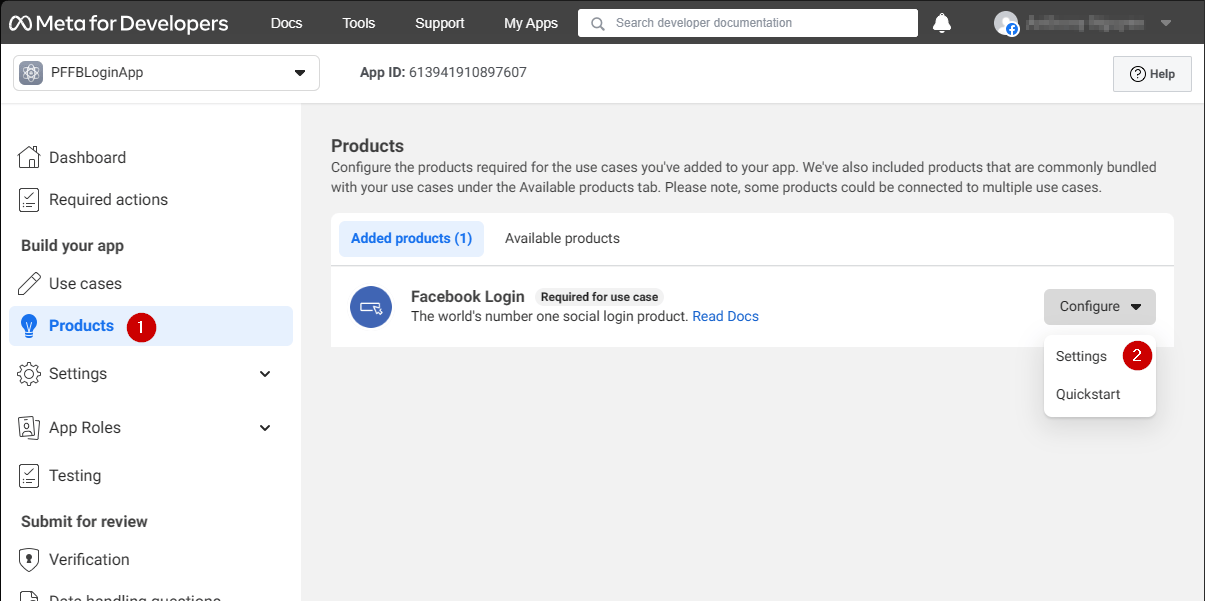 **Login** 製品の設定ページが開きます。
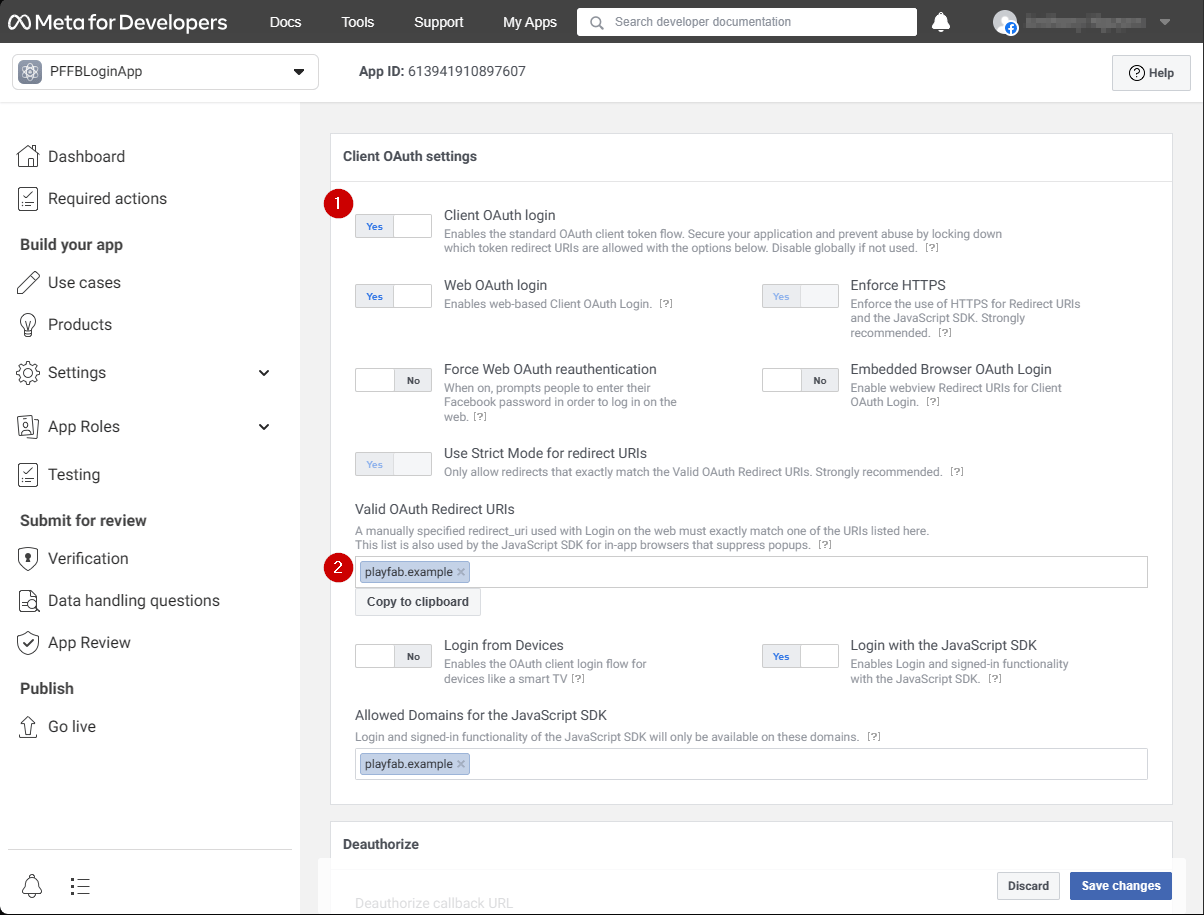
1. **Login** 製品の **Settings** ページが開いていることを確認します。
2. **Client OAuth** と **Web OAuth** の両方がオンになっていることを確認します。
**Login** 製品の設定ページが開きます。
1. **Login** 製品の **Settings** ページが開いていることを確認します。
2. **Client OAuth** と **Web OAuth** の両方がオンになっていることを確認します。
 ### Facebook SDK のセットアップ
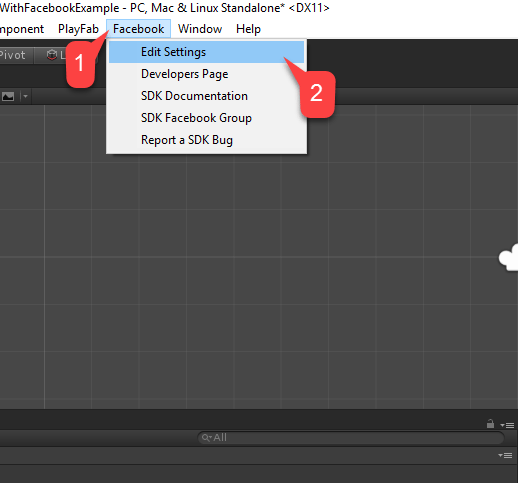
**Unity プロジェクト** を開きます:
1. ファイル メニューで **Facebook** を選択します。
2. 次に **Edit Settings** を選択します。
### Facebook SDK のセットアップ
**Unity プロジェクト** を開きます:
1. ファイル メニューで **Facebook** を選択します。
2. 次に **Edit Settings** を選択します。
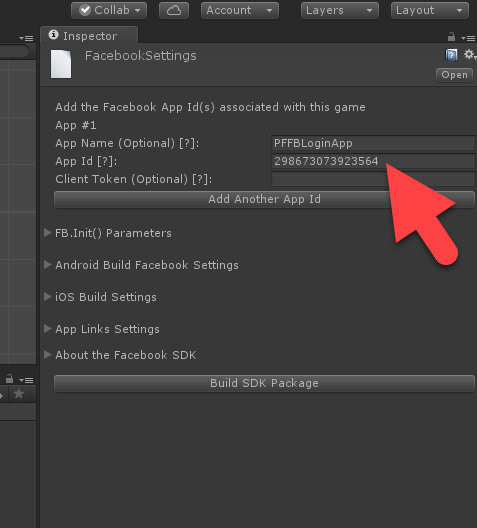
 **Inspector** ウィンドウに、現在の **Facebook SDK** 構成が表示されます。
* 次の図のように、対応するフィールドに **アプリケーション ID** を入力します。
**Inspector** ウィンドウに、現在の **Facebook SDK** 構成が表示されます。
* 次の図のように、対応するフィールドに **アプリケーション ID** を入力します。
 ### シンプルな認証スクリプト
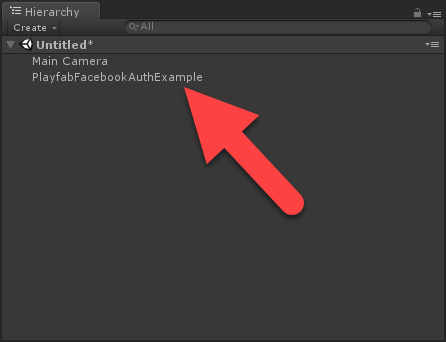
次の図のように、新しい **Game Object** を作成し、名前を **PlayfabFacebookAuthExample** に変更します。
### シンプルな認証スクリプト
次の図のように、新しい **Game Object** を作成し、名前を **PlayfabFacebookAuthExample** に変更します。
 1. **PlayfabFacebookAuthExample.cs** というスクリプトを作成します。
2. 下の図のように、それを **Game Object** に追加します。
1. **PlayfabFacebookAuthExample.cs** というスクリプトを作成します。
2. 下の図のように、それを **Game Object** に追加します。
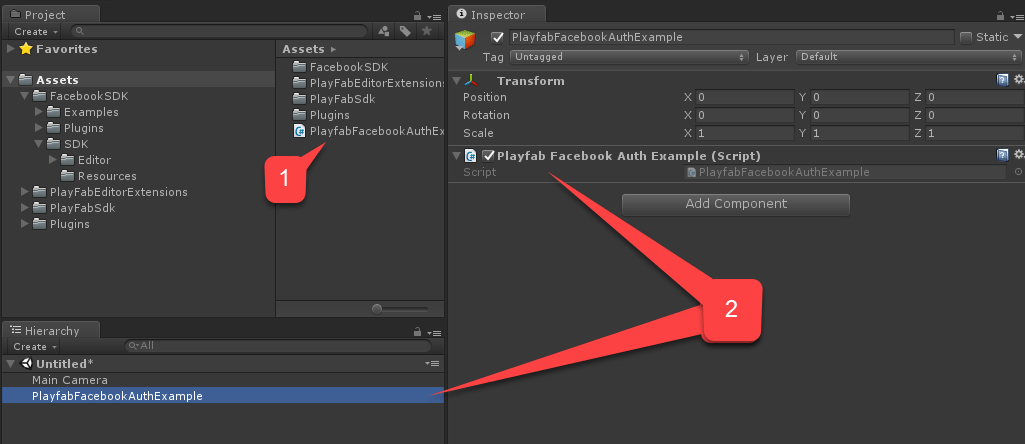 `PlayfabFacebookAuthExample.cs` 内に次のコードを配置します。
```csharp theme={null}
// Import statements introduce all the necessary classes for this example.
using Facebook.Unity;
using PlayFab;
using PlayFab.ClientModels;
using UnityEngine;
using LoginResult = PlayFab.ClientModels.LoginResult;
public class PlayfabFacebookAuthExample : MonoBehaviour
{
// holds the latest message to be displayed on the screen
private string _message;
public void Start()
{
SetMessage("Initializing Facebook..."); // logs the given message and displays it on the screen using OnGUI method
// This call is required before any other calls to the Facebook API. We pass in the callback to be invoked once initialization is finished
FB.Init(OnFacebookInitialized);
}
private void OnFacebookInitialized()
{
SetMessage("Logging into Facebook...");
// Once Facebook SDK is initialized, if we are logged in, we log out to demonstrate the entire authentication cycle.
if (FB.IsLoggedIn)
FB.LogOut();
// We invoke basic login procedure and pass in the callback to process the result
FB.LogInWithReadPermissions(null, OnFacebookLoggedIn);
}
private void OnFacebookLoggedIn(ILoginResult result)
{
// If result has no errors, it means we have authenticated in Facebook successfully
if (result == null || string.IsNullOrEmpty(result.Error))
{
SetMessage("Facebook Auth Complete! Access Token: " + AccessToken.CurrentAccessToken.TokenString + "\nLogging into PlayFab...");
/*
* We proceed with making a call to PlayFab API. We pass in current Facebook AccessToken and let it create
* and account using CreateAccount flag set to true. We also pass the callback for Success and Failure results
*/
PlayFabClientAPI.LoginWithFacebook(new LoginWithFacebookRequest { CreateAccount = true, AccessToken = AccessToken.CurrentAccessToken.TokenString},
OnPlayfabFacebookAuthComplete, OnPlayfabFacebookAuthFailed);
}
else
{
// If Facebook authentication failed, we stop the cycle with the message
SetMessage("Facebook Auth Failed: " + result.Error + "\n" + result.RawResult, true);
}
}
// When processing both results, we just set the message, explaining what's going on.
private void OnPlayfabFacebookAuthComplete(LoginResult result)
{
SetMessage("PlayFab Facebook Auth Complete. Session ticket: " + result.SessionTicket);
}
private void OnPlayfabFacebookAuthFailed(PlayFabError error)
{
SetMessage("PlayFab Facebook Auth Failed: " + error.GenerateErrorReport(), true);
}
public void SetMessage(string message, bool error = false)
{
_message = message;
if (error)
Debug.LogError(_message);
else
Debug.Log(_message);
}
public void OnGUI()
{
var style = new GUIStyle { fontSize = 40, normal = new GUIStyleState { textColor = Color.white }, alignment = TextAnchor.MiddleCenter, wordWrap = true };
var area = new Rect(0,0,Screen.width,Screen.height);
GUI.Label(area, _message,style);
}
}
```
## テスト
### エディターでアプリケーションを実行する
1. **Play** ボタンを選択します。**Facebook** が初期化される (そして認証呼び出しが行われる) と、ゲーム ビューに **Facebook** 認証ダイアログが表示されます。
2. **User Token** を入力します。
3. 下の図のように、**Send Success** ボタンを選択します。
`PlayfabFacebookAuthExample.cs` 内に次のコードを配置します。
```csharp theme={null}
// Import statements introduce all the necessary classes for this example.
using Facebook.Unity;
using PlayFab;
using PlayFab.ClientModels;
using UnityEngine;
using LoginResult = PlayFab.ClientModels.LoginResult;
public class PlayfabFacebookAuthExample : MonoBehaviour
{
// holds the latest message to be displayed on the screen
private string _message;
public void Start()
{
SetMessage("Initializing Facebook..."); // logs the given message and displays it on the screen using OnGUI method
// This call is required before any other calls to the Facebook API. We pass in the callback to be invoked once initialization is finished
FB.Init(OnFacebookInitialized);
}
private void OnFacebookInitialized()
{
SetMessage("Logging into Facebook...");
// Once Facebook SDK is initialized, if we are logged in, we log out to demonstrate the entire authentication cycle.
if (FB.IsLoggedIn)
FB.LogOut();
// We invoke basic login procedure and pass in the callback to process the result
FB.LogInWithReadPermissions(null, OnFacebookLoggedIn);
}
private void OnFacebookLoggedIn(ILoginResult result)
{
// If result has no errors, it means we have authenticated in Facebook successfully
if (result == null || string.IsNullOrEmpty(result.Error))
{
SetMessage("Facebook Auth Complete! Access Token: " + AccessToken.CurrentAccessToken.TokenString + "\nLogging into PlayFab...");
/*
* We proceed with making a call to PlayFab API. We pass in current Facebook AccessToken and let it create
* and account using CreateAccount flag set to true. We also pass the callback for Success and Failure results
*/
PlayFabClientAPI.LoginWithFacebook(new LoginWithFacebookRequest { CreateAccount = true, AccessToken = AccessToken.CurrentAccessToken.TokenString},
OnPlayfabFacebookAuthComplete, OnPlayfabFacebookAuthFailed);
}
else
{
// If Facebook authentication failed, we stop the cycle with the message
SetMessage("Facebook Auth Failed: " + result.Error + "\n" + result.RawResult, true);
}
}
// When processing both results, we just set the message, explaining what's going on.
private void OnPlayfabFacebookAuthComplete(LoginResult result)
{
SetMessage("PlayFab Facebook Auth Complete. Session ticket: " + result.SessionTicket);
}
private void OnPlayfabFacebookAuthFailed(PlayFabError error)
{
SetMessage("PlayFab Facebook Auth Failed: " + error.GenerateErrorReport(), true);
}
public void SetMessage(string message, bool error = false)
{
_message = message;
if (error)
Debug.LogError(_message);
else
Debug.Log(_message);
}
public void OnGUI()
{
var style = new GUIStyle { fontSize = 40, normal = new GUIStyleState { textColor = Color.white }, alignment = TextAnchor.MiddleCenter, wordWrap = true };
var area = new Rect(0,0,Screen.width,Screen.height);
GUI.Label(area, _message,style);
}
}
```
## テスト
### エディターでアプリケーションを実行する
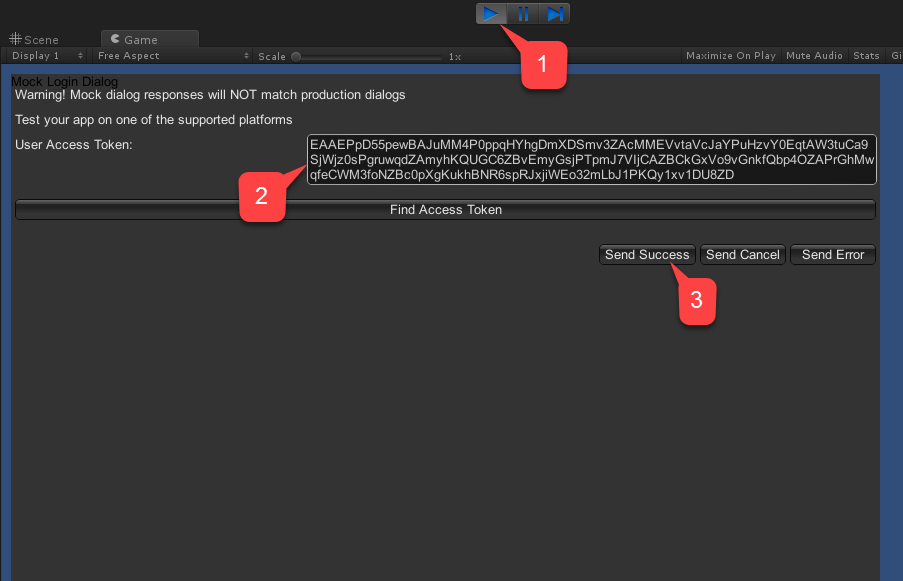
1. **Play** ボタンを選択します。**Facebook** が初期化される (そして認証呼び出しが行われる) と、ゲーム ビューに **Facebook** 認証ダイアログが表示されます。
2. **User Token** を入力します。
3. 下の図のように、**Send Success** ボタンを選択します。
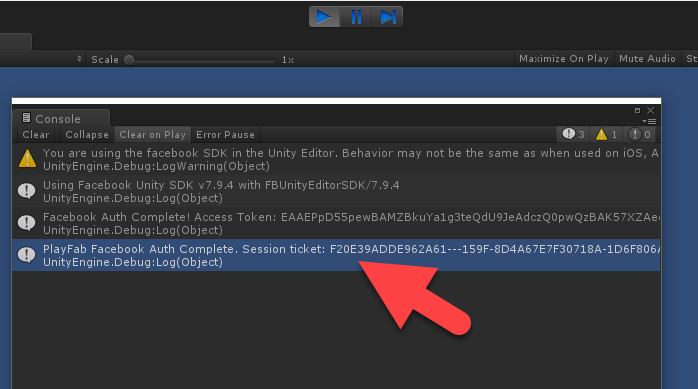
 * コンソール出力を確認します。下の図のように、デバッグ ステートメントがレンダリングされているはずです。
* エラーが表示されなければ、認証は成功しています。
* コンソール出力を確認します。下の図のように、デバッグ ステートメントがレンダリングされているはずです。
* エラーが表示されなければ、認証は成功しています。
 ### Android でアプリケーションを実行する
Android でアプリケーションを起動する前に、追加の構成手順を実行する必要があります:
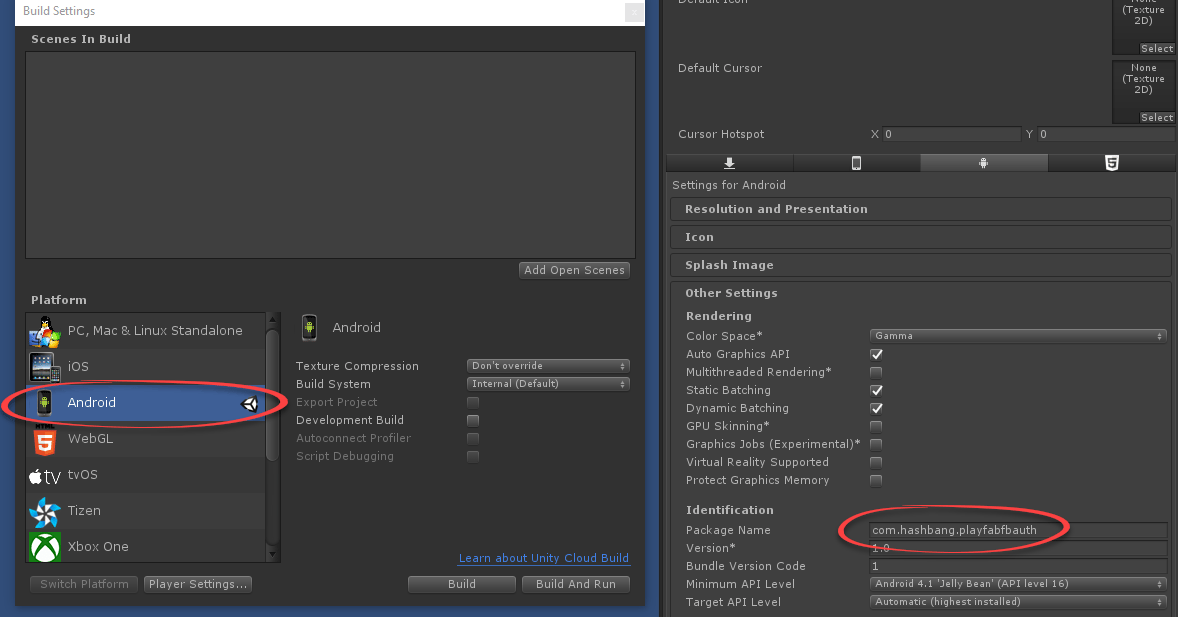
* まず、Android プラットフォームが選択されていて、以下の例のように一意な **Package ID** が設定されていることを確認します。
独自の *一意な* **Package ID** を作成してください。
### Android でアプリケーションを実行する
Android でアプリケーションを起動する前に、追加の構成手順を実行する必要があります:
* まず、Android プラットフォームが選択されていて、以下の例のように一意な **Package ID** が設定されていることを確認します。
独自の *一意な* **Package ID** を作成してください。
 **オプションの手順**: [Open SSL](https://wiki.openssl.org/index.php/Binaries) をインストールし、**PATH** 環境変数に追加します。これが不足している場合、Unity はビルド中に無害なエラーを生成します。このエラーはビルドを停止させず、実行にも影響しません。
次に、**Facebook アプリケーション** コンソールで:
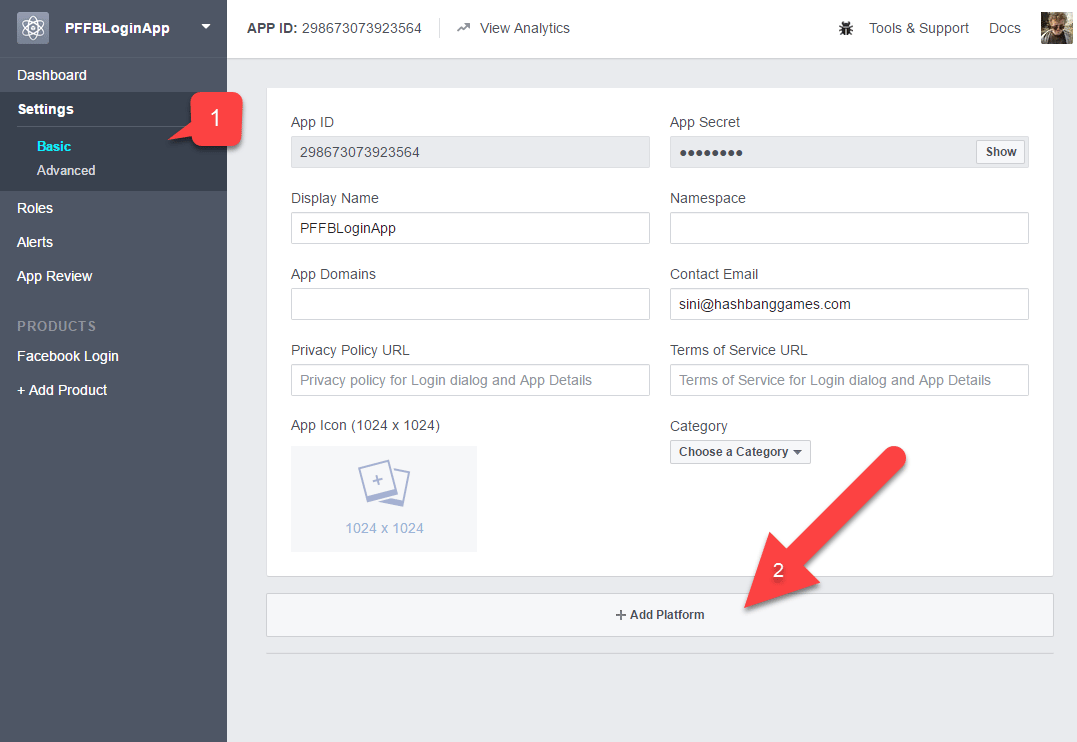
1. **Basic** 設定に移動します。
2. 以下の例のように、**+ Add Platform** を選択します。
**オプションの手順**: [Open SSL](https://wiki.openssl.org/index.php/Binaries) をインストールし、**PATH** 環境変数に追加します。これが不足している場合、Unity はビルド中に無害なエラーを生成します。このエラーはビルドを停止させず、実行にも影響しません。
次に、**Facebook アプリケーション** コンソールで:
1. **Basic** 設定に移動します。
2. 以下の例のように、**+ Add Platform** を選択します。
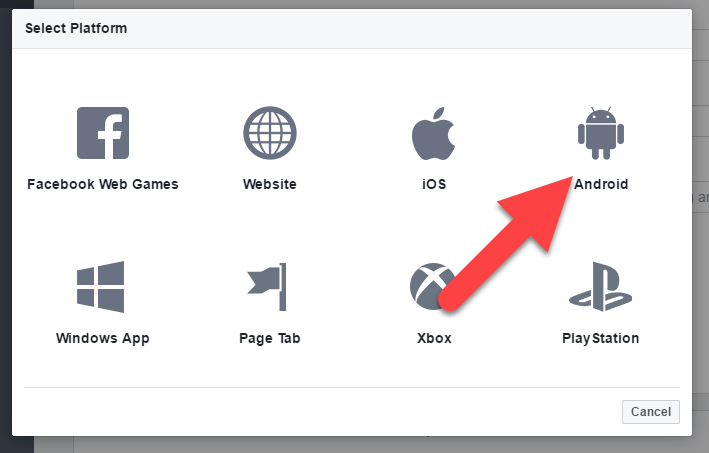
 * 次に、利用可能なプラットフォームの一覧から **Android** を選択します。
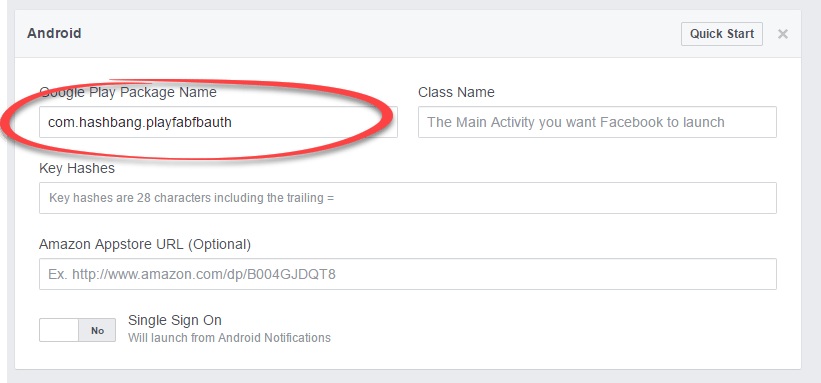
 プラットフォーム固有の設定パネルが表示されます。
* **Package ID** を入力します。
* **Save** を選択します (**Save** ボタンはページ右下隅に隠れています)。
プラットフォーム固有の設定パネルが表示されます。
* **Package ID** を入力します。
* **Save** を選択します (**Save** ボタンはページ右下隅に隠れています)。
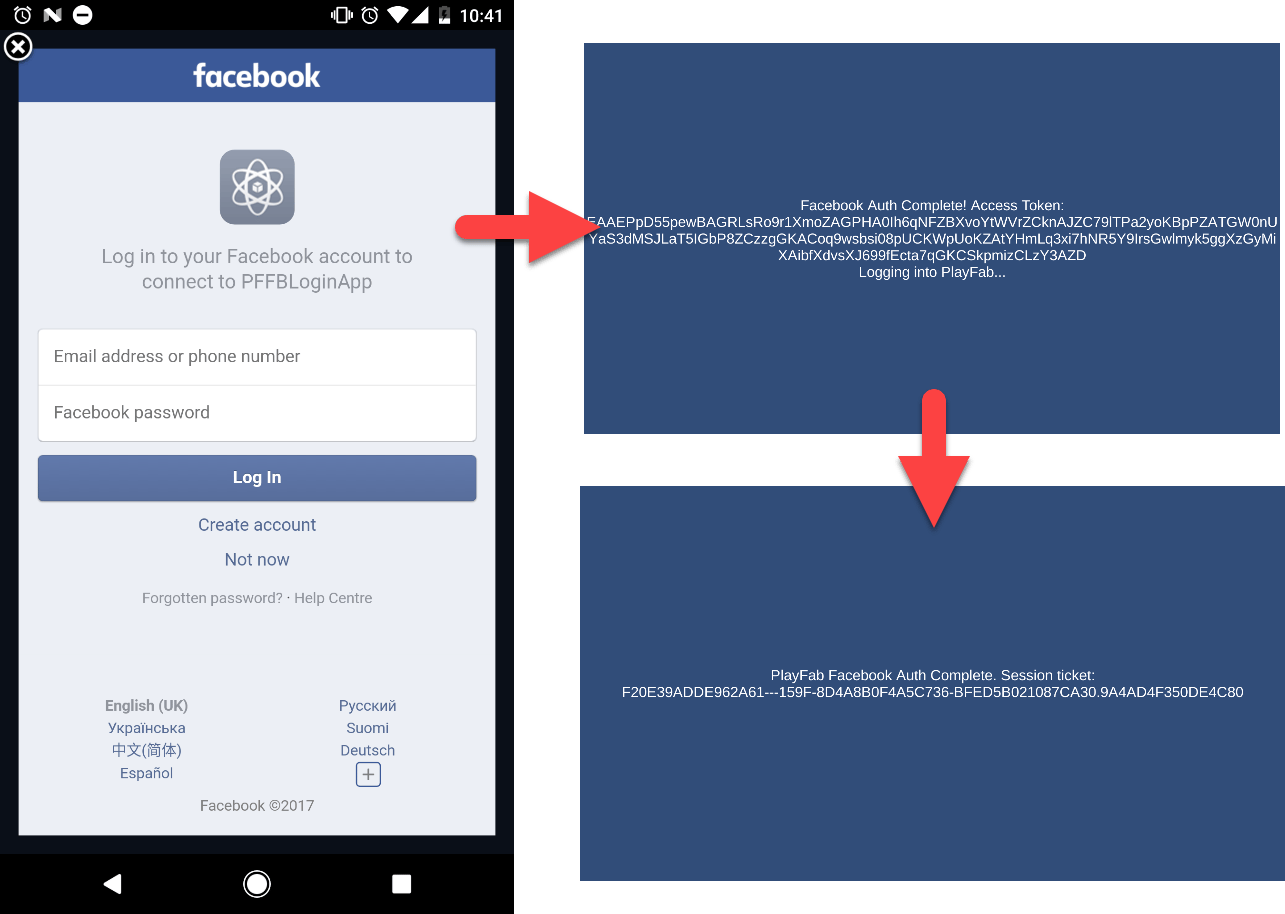
 Android デバイスでアプリケーションを通常どおりビルドして実行します。
* アプリケーションは Facebook サインイン ページを表示します。
* サインインすると、画面上のメッセージが変化するのを確認できます。
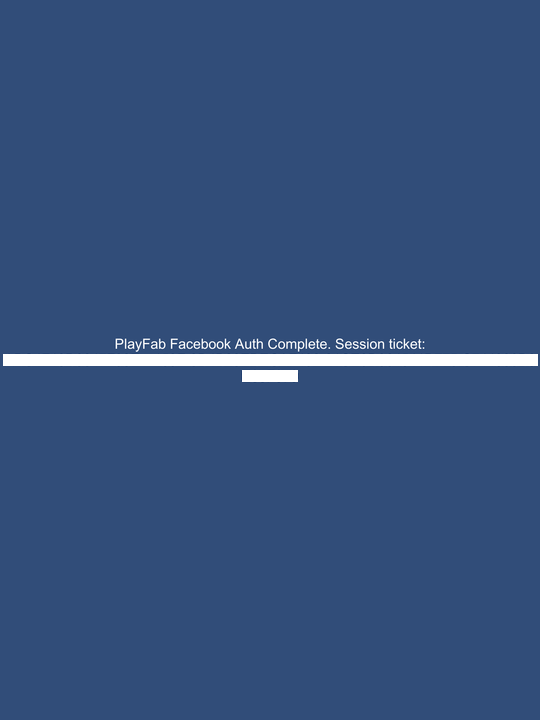
* 最後に、PlayFab で認証が成功したことを示すメッセージが表示されます。手順全体は以下の例で示されています。
Android デバイスでアプリケーションを通常どおりビルドして実行します。
* アプリケーションは Facebook サインイン ページを表示します。
* サインインすると、画面上のメッセージが変化するのを確認できます。
* 最後に、PlayFab で認証が成功したことを示すメッセージが表示されます。手順全体は以下の例で示されています。
 ### iOS でアプリケーションを実行する
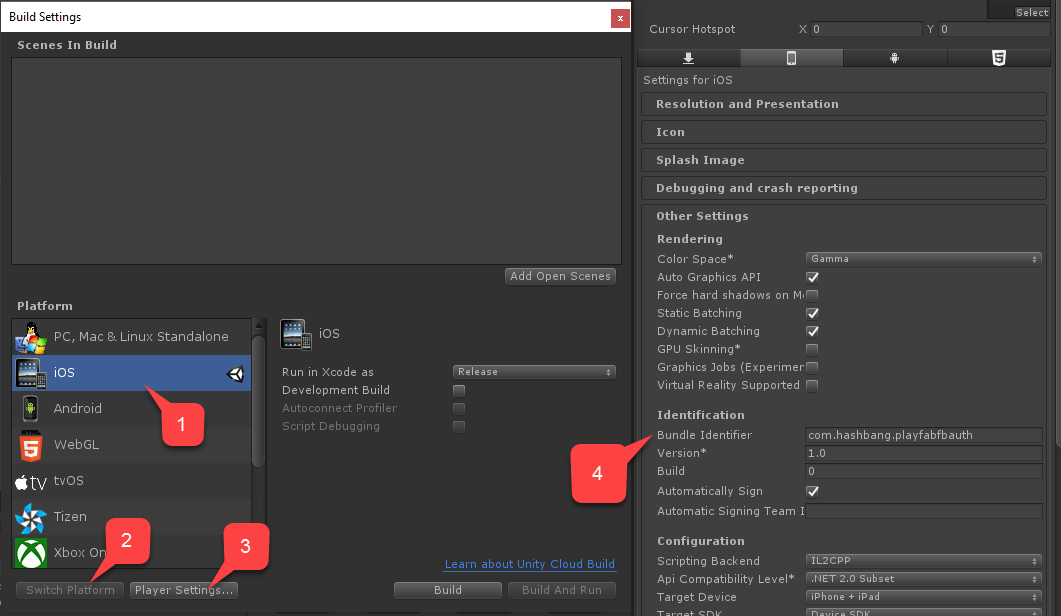
iOS でアプリケーションを起動する前に、追加の構成手順を実行する必要があります。
* まず、**iOS** プラットフォームが選択されていることを確認します。
* 次に、以下の例のように一意な **Bundle ID** を設定します。
* 独自の *一意な* **Package ID** を必ず作成してください。
### iOS でアプリケーションを実行する
iOS でアプリケーションを起動する前に、追加の構成手順を実行する必要があります。
* まず、**iOS** プラットフォームが選択されていることを確認します。
* 次に、以下の例のように一意な **Bundle ID** を設定します。
* 独自の *一意な* **Package ID** を必ず作成してください。
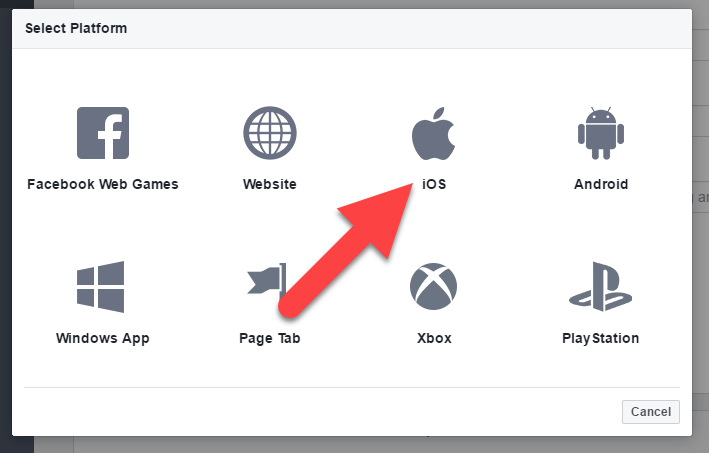
 次に、**Facebook Application Console** で:
1. **Basic** 設定に移動します。
2. 以下の例のように、**+ Add Platform** を選択します。
* 利用可能なプラットフォームの一覧から **iOS** を選択します。
次に、**Facebook Application Console** で:
1. **Basic** 設定に移動します。
2. 以下の例のように、**+ Add Platform** を選択します。
* 利用可能なプラットフォームの一覧から **iOS** を選択します。
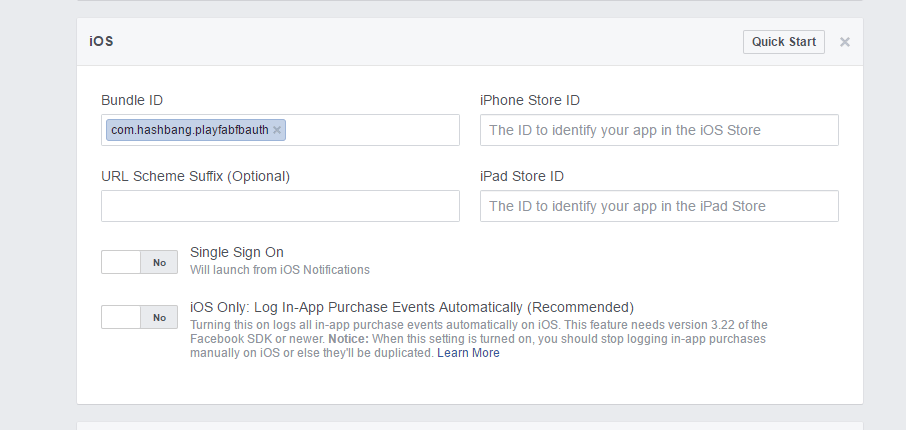
 プラットフォーム固有の設定パネルが表示されます。
* **Package ID** を入力します。
* **Save** ボタンを選択します (**Save** ボタンはページ右下隅に隠れています)。
プラットフォーム固有の設定パネルが表示されます。
* **Package ID** を入力します。
* **Save** ボタンを選択します (**Save** ボタンはページ右下隅に隠れています)。
 * 次に、通常どおりアプリケーションをビルドします。
* 完了したら、**XCode** を使用して **プロジェクト** を開きます。
* 次に、通常どおりアプリケーションをビルドします。
* 完了したら、**XCode** を使用して **プロジェクト** を開きます。
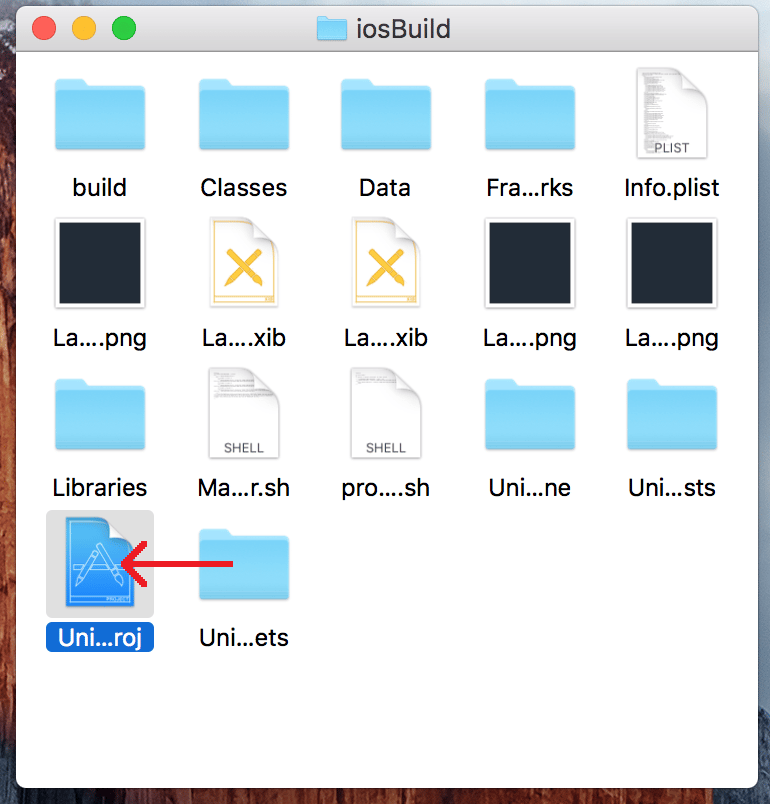 * **プロジェクト** を選択して **プロジェクト設定** を開きます。
* **Bundle ID** が独自の **Package ID** と一致していることを確認します。
* **プロジェクト** を選択して **プロジェクト設定** を開きます。
* **Bundle ID** が独自の **Package ID** と一致していることを確認します。
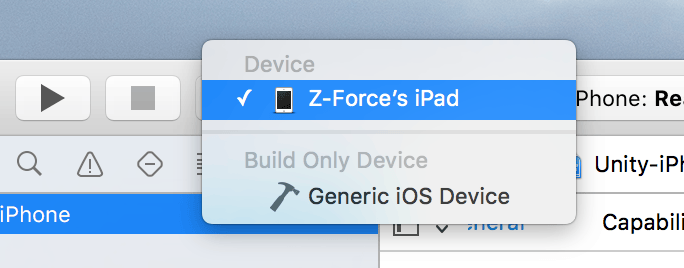
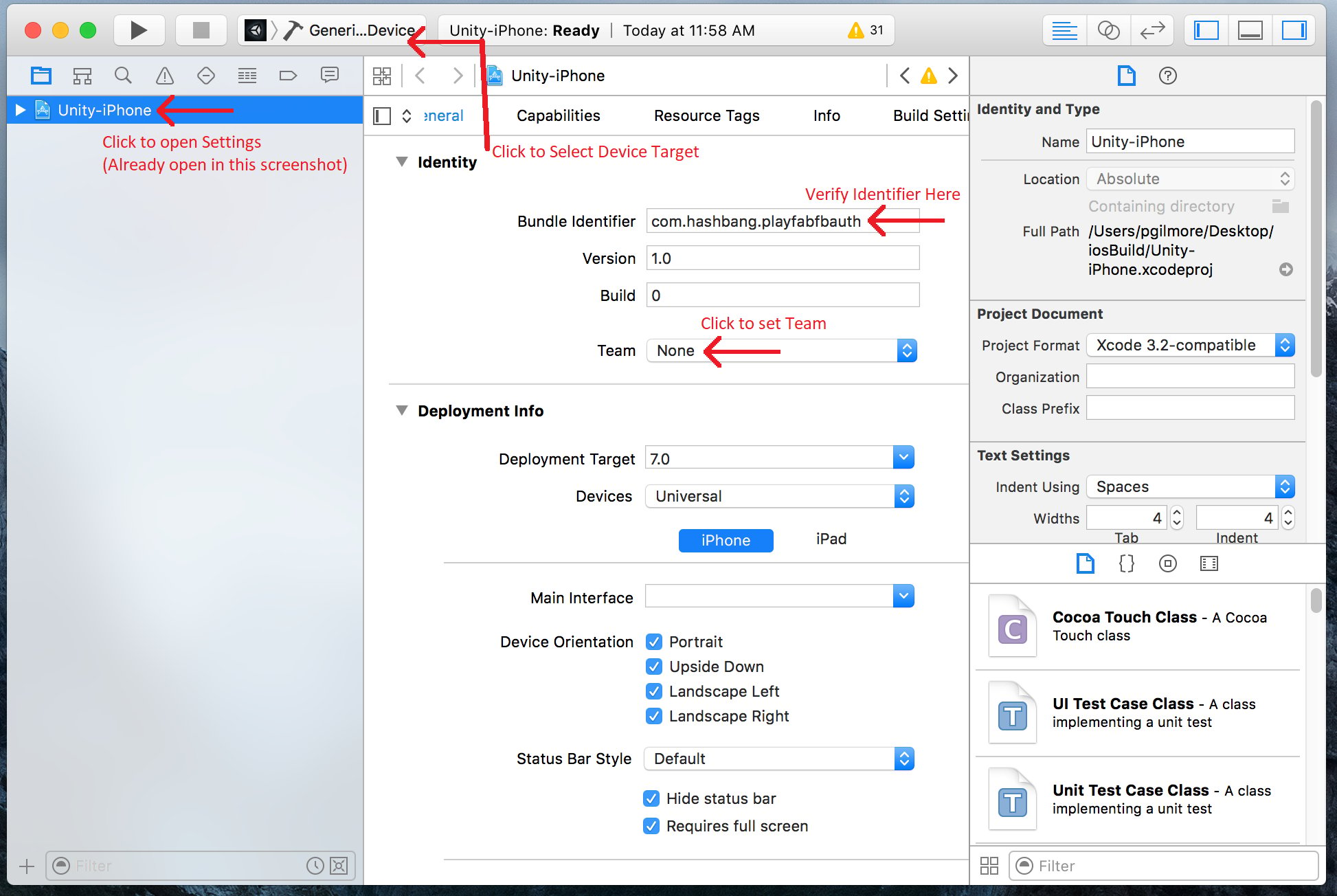 * 正しいデバイスを選択します。
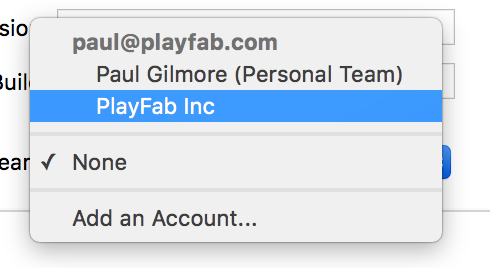
 * 正しい **Identity Team** を選択します。
 最後に、アプリケーションを通常どおり実行します。
* 起動すると、Web ブラウザーで Facebook にログインできるようになります。
* 完了すると、PlayFab 認証が呼び出され、結果を示すメッセージが表示されます。
最後に、アプリケーションを通常どおり実行します。
* 起動すると、Web ブラウザーで Facebook にログインできるようになります。
* 完了すると、PlayFab 認証が呼び出され、結果を示すメッセージが表示されます。
 ### PlayFab Game Manager を使用した確認
Game Manager で PlayFab タイトルを開きます。
* ダッシュボードに移動します。
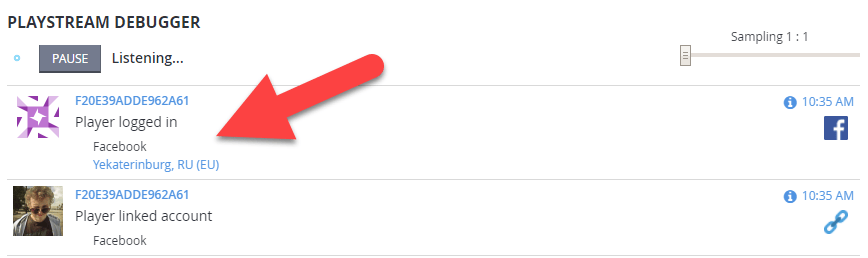
* **PlayStream Debugger** パネルを参照して、最新のイベントを確認します。次の例のように、Facebook 認証イベントが表示されるはずです。
### PlayFab Game Manager を使用した確認
Game Manager で PlayFab タイトルを開きます。
* ダッシュボードに移動します。
* **PlayStream Debugger** パネルを参照して、最新のイベントを確認します。次の例のように、Facebook 認証イベントが表示されるはずです。
 これで、PlayFab の Facebook 認証を正常に統合できました。
## Related topics
- [プラットフォーム固有の認証](/ja-jp/services/playfab/identity/player-identity/platform-specific-authentication/index.md)
- [Facebook と HTML5 を使用した PlayFab 認証のセットアップ](/ja-jp/services/playfab/identity/player-identity/platform-specific-authentication/facebook-html5.md)
- [Steam と Unity を使用した PlayFab 認証のセットアップ](/ja-jp/services/playfab/identity/player-identity/platform-specific-authentication/steam-unity.md)
- [Kongregate と Unity を使用した PlayFab 認証のセットアップ](/ja-jp/services/playfab/identity/player-identity/platform-specific-authentication/kongregate-unity.md)
- [Google と HTML5 を使用した PlayFab 認証のセットアップ](/ja-jp/services/playfab/identity/player-identity/platform-specific-authentication/google-html5.md)
これで、PlayFab の Facebook 認証を正常に統合できました。
## Related topics
- [プラットフォーム固有の認証](/ja-jp/services/playfab/identity/player-identity/platform-specific-authentication/index.md)
- [Facebook と HTML5 を使用した PlayFab 認証のセットアップ](/ja-jp/services/playfab/identity/player-identity/platform-specific-authentication/facebook-html5.md)
- [Steam と Unity を使用した PlayFab 認証のセットアップ](/ja-jp/services/playfab/identity/player-identity/platform-specific-authentication/steam-unity.md)
- [Kongregate と Unity を使用した PlayFab 認証のセットアップ](/ja-jp/services/playfab/identity/player-identity/platform-specific-authentication/kongregate-unity.md)
- [Google と HTML5 を使用した PlayFab 認証のセットアップ](/ja-jp/services/playfab/identity/player-identity/platform-specific-authentication/google-html5.md)