> ## Documentation Index
> Fetch the complete documentation index at: https://devdocs.xbox.com/llms.txt
> Use this file to discover all available pages before exploring further.

# Facebook と HTML5 を使用した PlayFab 認証のセットアップ

> Facebook アプリの登録とプレイヤー認証をカバーする、HTML5 と JavaScript を使用して PlayFab タイトルに Facebook ログインを追加する手順ガイド。

このチュートリアルでは、Facebook と HTML5/JavaScript を使用した PlayFab 認証について案内します。

## 要件

* テスト用の [Facebook アカウント](https://www.facebook.com/)。
* 登録済みの [PlayFab](https://developer.playfab.com/) タイトル。
* [サインインの基本とベスト プラクティス](/services/playfab/identity/player-identity/login/login-basics-best-practices) に精通していること。
* 静的 HTML ファイルを提供するための、有効なドメイン名を持つ最小限のサーバー。

<Note>
  このアクティビティに必要な要件を満たしているかどうか不明な場合は、[テスト用の HTTP サーバーの実行](/services/playfab/identity/player-identity/platform-specific-authentication/running-an-http-server-for-testing) チュートリアルをご覧ください。
</Note>

## サーバーとドメイン

PlayFab 認証をセットアップするための要件の一環として、有効なドメインを持つサーバーが必要です。登録済みドメインとリモート Web サーバーがまだない場合は、[テスト用の HTTP サーバーの実行](/services/playfab/identity/player-identity/platform-specific-authentication/running-an-http-server-for-testing) チュートリアルに従って、有効なドメイン名でローカル Web サーバーを実行してください。

このガイド全体を通じて、ドメインは `['http://playfab.example'](http://playfab.example)` であると想定します。

## Facebook アプリケーションを登録する

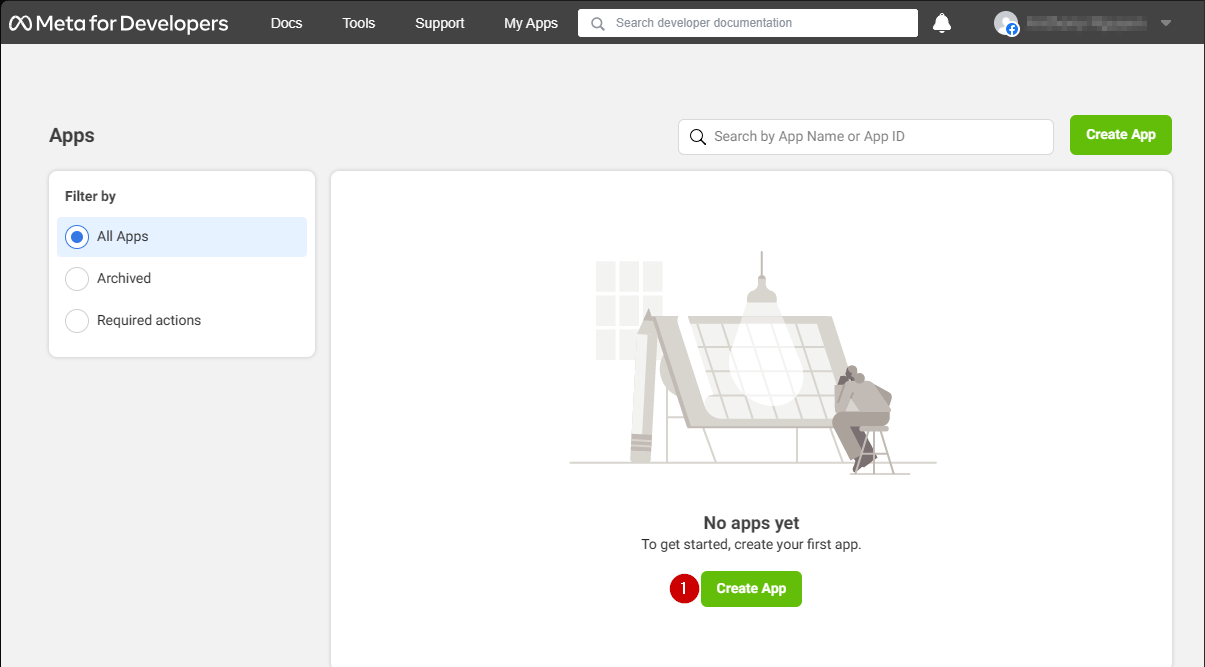
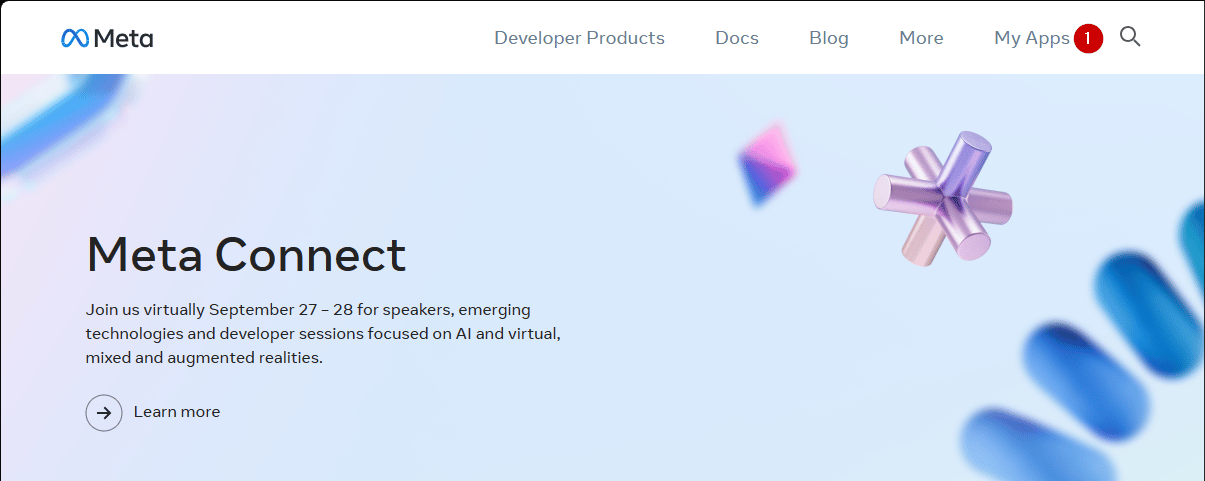
まず、[Facebook 開発者ポータル](https://developers.facebook.com/) に移動します。

1. **My Apps** ボタンを選択します。

<img src="https://mintcdn.com/microsoft-4404708b/mLCHf0iQv3VidfBe/images/playfab/identity/player-identity/platform-specific-authentication/tutorials/facebook-html5/my-apps.png?fit=max&auto=format&n=mLCHf0iQv3VidfBe&q=85&s=c533fd072cd7b47233fd2c7eb8c431a6" alt="Facebook 新しいアプリを追加" width="1205" height="481" data-path="images/playfab/identity/player-identity/platform-specific-authentication/tutorials/facebook-html5/my-apps.png" />

1. **Create App** を選択して、新しいアプリを作成します。

<img src="https://mintcdn.com/microsoft-4404708b/mLCHf0iQv3VidfBe/images/playfab/identity/player-identity/platform-specific-authentication/tutorials/facebook-html5/facebook-add-a-new-app.png?fit=max&auto=format&n=mLCHf0iQv3VidfBe&q=85&s=ab8793987c97a532fa9e970436afe2a3" alt="Facebook 新しいアプリを作成" width="1205" height="667" data-path="images/playfab/identity/player-identity/platform-specific-authentication/tutorials/facebook-html5/facebook-add-a-new-app.png" />

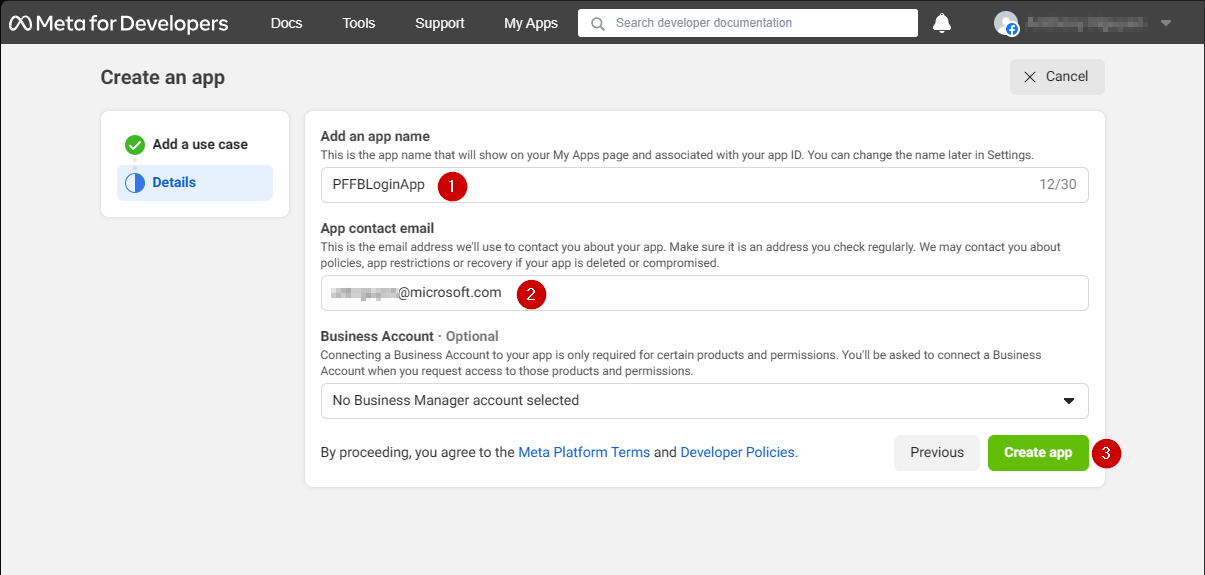
新しい **アプリケーション** ポップアップが開きます。

1. **Add an app name** の下のフィールドに **アプリケーション** の名前を入力します。
2. **App contact email** の下のフィールドに連絡先メール アドレスを入力します。
3. **Create app** ボタンを選択して保存します。
<Note>
  以下の例のように、独自の一意なアプリケーション名とメールを設定してください。
</Note>

<img src="https://mintcdn.com/microsoft-4404708b/mLCHf0iQv3VidfBe/images/playfab/identity/player-identity/platform-specific-authentication/tutorials/facebook-html5/facebook-new-app-id.png?fit=max&auto=format&n=mLCHf0iQv3VidfBe&q=85&s=43a15fe0906efcfb030b98c375ef610f" alt="Facebook new app ID" width="1205" height="575" data-path="images/playfab/identity/player-identity/platform-specific-authentication/tutorials/facebook-html5/facebook-new-app-id.png" />

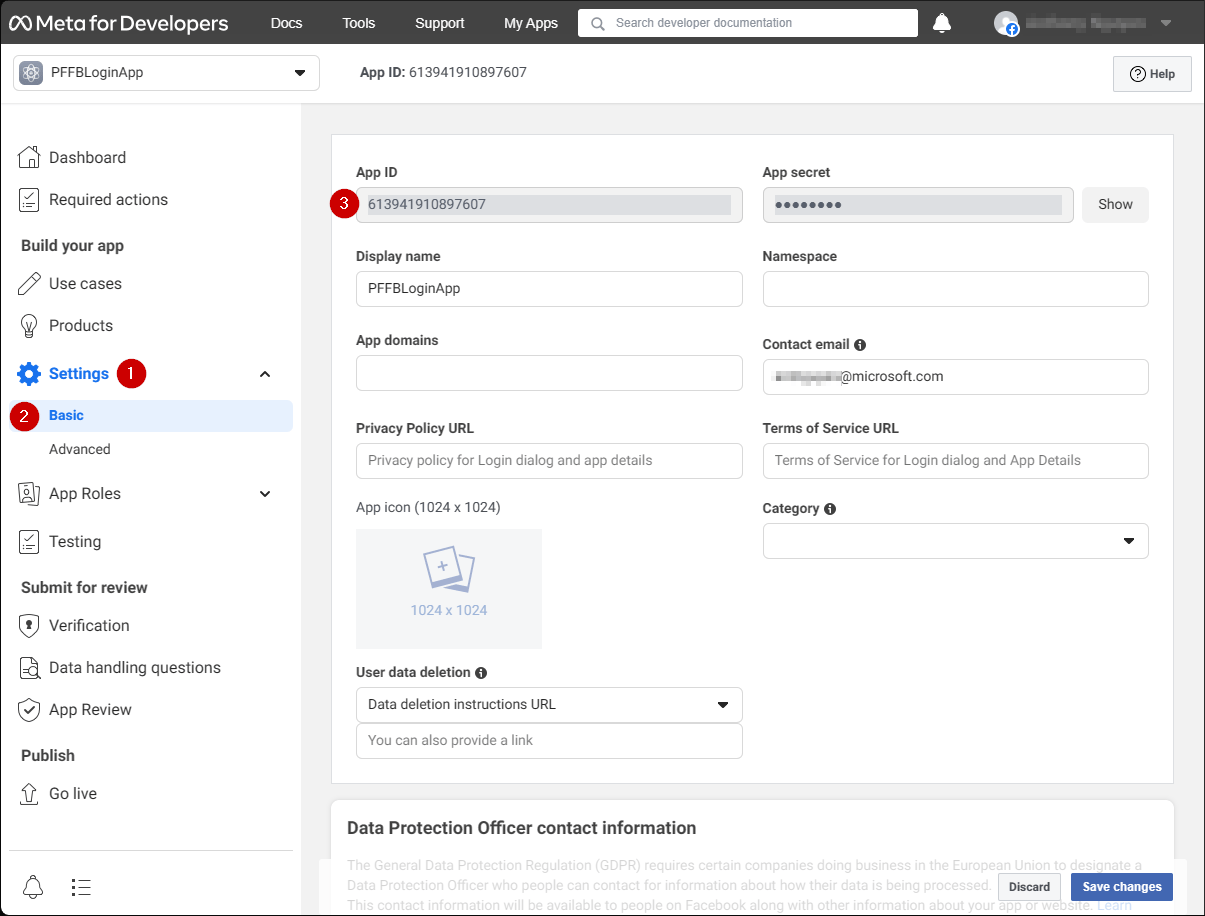
1. **Settings** タブに移動します。
2. **Basic** サブタブを選択します。
3. **App ID** を見つけます。
<Note>
  **App ID** を安全な場所にコピーしておいてください。後で **Facebook SDK** のセットアップに使用します。
</Note>

<img src="https://mintcdn.com/microsoft-4404708b/mLCHf0iQv3VidfBe/images/playfab/identity/player-identity/platform-specific-authentication/tutorials/facebook-html5/facebook-save-app-id.png?fit=max&auto=format&n=mLCHf0iQv3VidfBe&q=85&s=724d5c403c24e3077b1fe09f59791f46" alt="Facebook アプリ ID の保存" width="1205" height="916" data-path="images/playfab/identity/player-identity/platform-specific-authentication/tutorials/facebook-html5/facebook-save-app-id.png" />

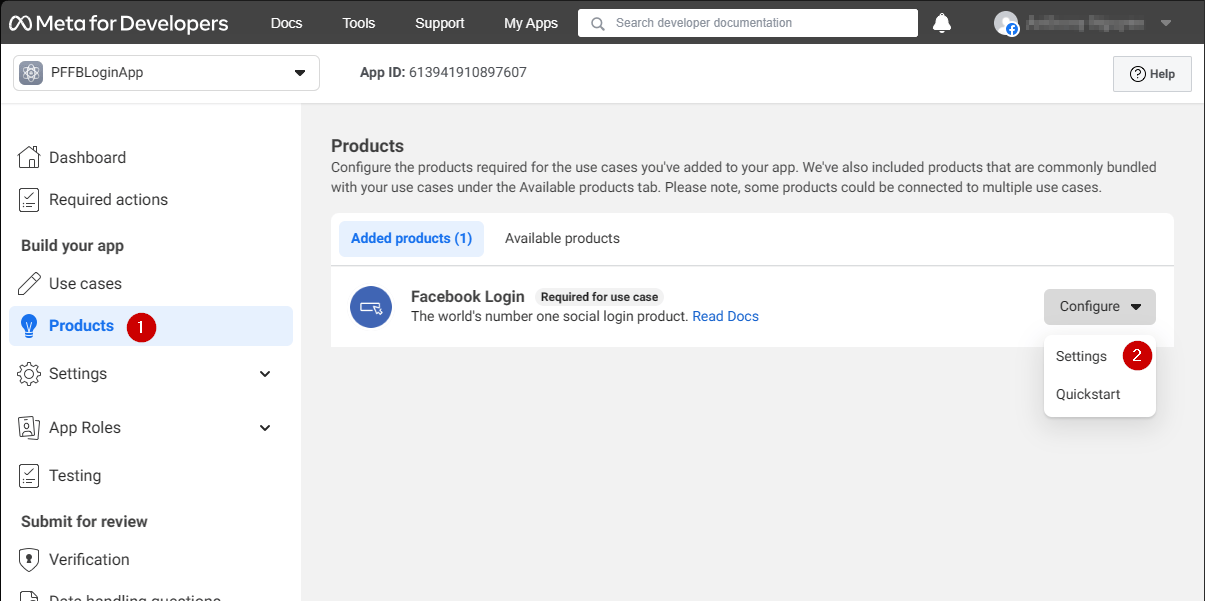
1. 画面の左側のメニューに移動し、**Products** 項目を選択します。
2. **Facebook Login** エリアで **Configure** を見つけ、ドロップダウン メニューから **Settings** を選択します。
<img src="https://mintcdn.com/microsoft-4404708b/mLCHf0iQv3VidfBe/images/playfab/identity/player-identity/platform-specific-authentication/tutorials/facebook-html5/login-get-started.png?fit=max&auto=format&n=mLCHf0iQv3VidfBe&q=85&s=bd346c82af2a1914bd8dfca79653f5c6" alt="Facebook ログイン 開始" width="1205" height="601" data-path="images/playfab/identity/player-identity/platform-specific-authentication/tutorials/facebook-html5/login-get-started.png" />

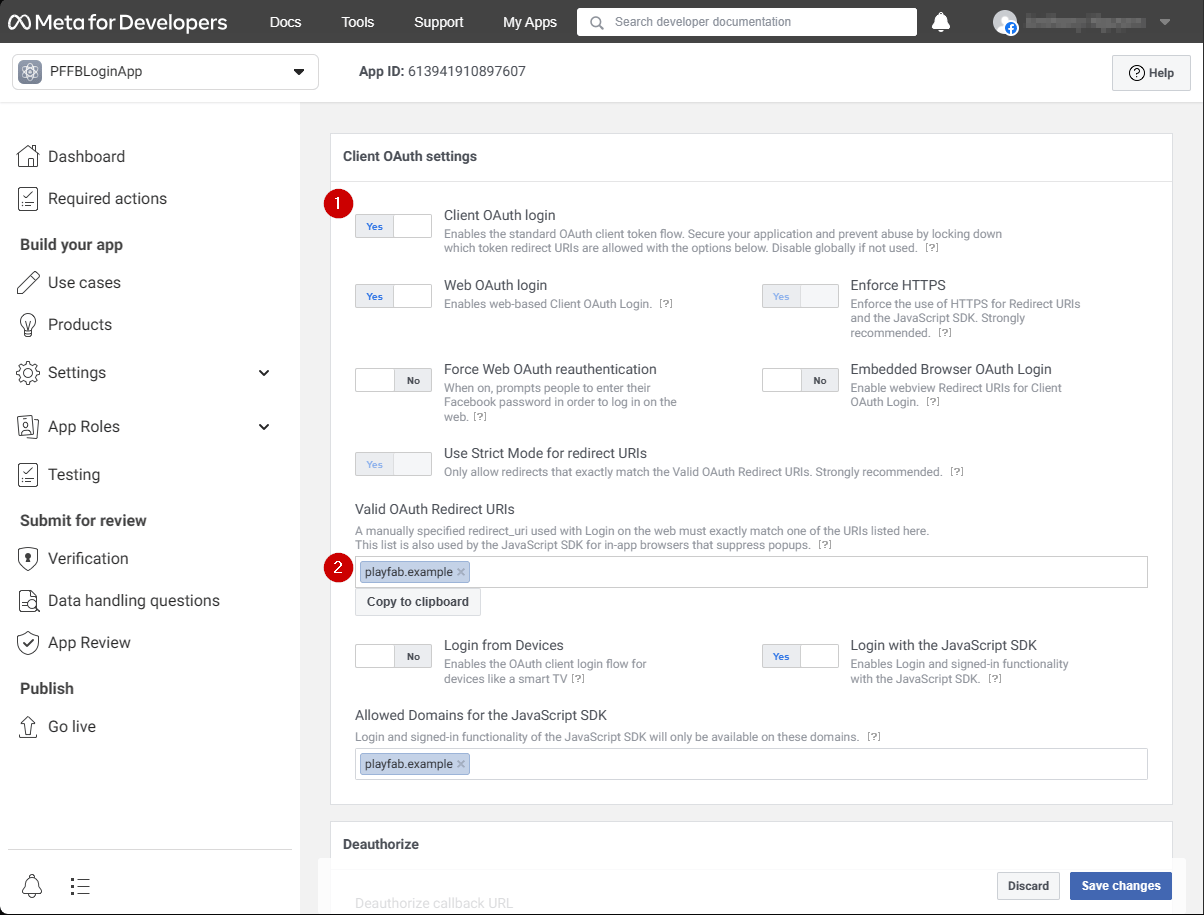
ページが開くと、次のような例が表示されます。

1. **Client OAuth** と **Web OAuth** の両方がオン (**Yes** としてマーク) されていることを確認します。
2. **Valid OAuth redirect URIs** を独自の認証ページ **URI** に設定します。
<Note>
  この場合、`playfab.example` になります。
</Note>

<img src="https://mintcdn.com/microsoft-4404708b/mLCHf0iQv3VidfBe/images/playfab/identity/player-identity/platform-specific-authentication/tutorials/facebook-html5/login-product-settings.png?fit=max&auto=format&n=mLCHf0iQv3VidfBe&q=85&s=493c1ca8600489493ca47ced5c579204" alt="Facebook ログイン製品設定" width="1204" height="915" data-path="images/playfab/identity/player-identity/platform-specific-authentication/tutorials/facebook-html5/login-product-settings.png" />

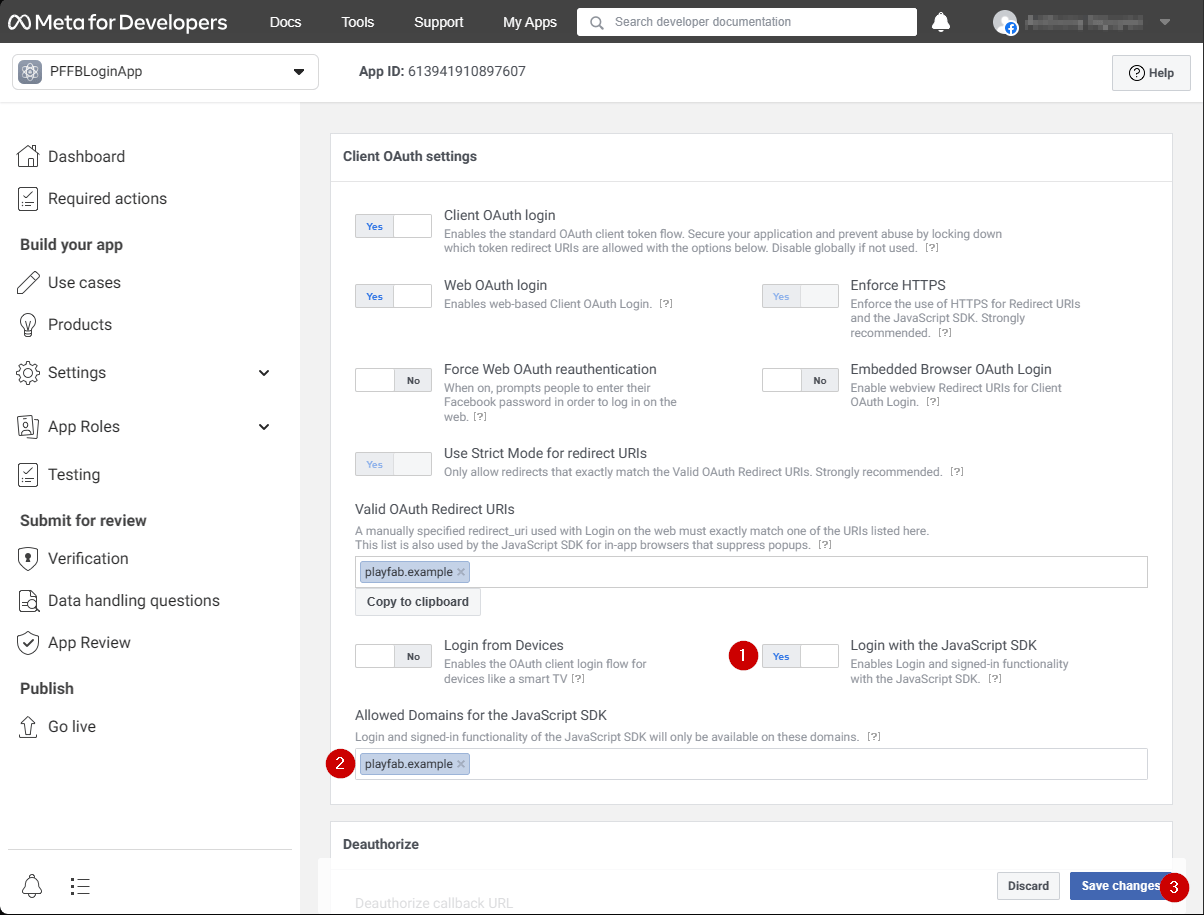
**Client OAuth Settings** 画面で:

1. **Login with the JavaScript SDK** がオン (**Yes** としてマーク) されていることを確認します
2. **Valid OAuth redirect URIs** を独自の認証ページ **URI** に設定します。
<Note>
  この場合、`playfab.example` になります。
</Note>

3. **Save Changes** を選択して確定します。

<img src="https://mintcdn.com/microsoft-4404708b/mLCHf0iQv3VidfBe/images/playfab/identity/player-identity/platform-specific-authentication/tutorials/facebook-html5/set-oauth-redirect.png?fit=max&auto=format&n=mLCHf0iQv3VidfBe&q=85&s=1d900349086b3efc854d19e7e394bbfa" alt="Facebook OAuth リダイレクト URI の設定" width="1204" height="915" data-path="images/playfab/identity/player-identity/platform-specific-authentication/tutorials/facebook-html5/set-oauth-redirect.png" />

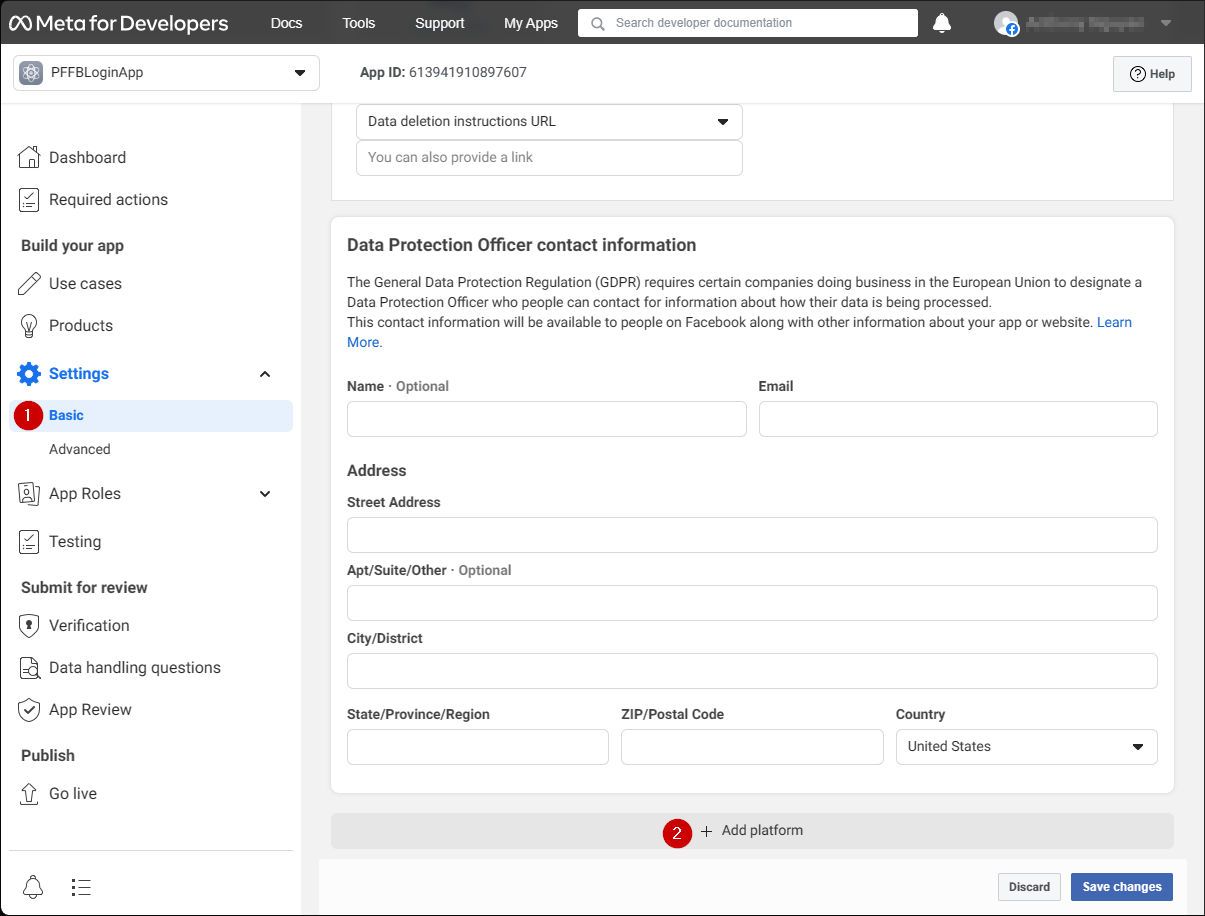
**Application Manager** ページで:

* メニューの **Settings/Basic (1)** を開きます。
* **Add Platform (2)** ボタンを選択します。
<img src="https://mintcdn.com/microsoft-4404708b/mLCHf0iQv3VidfBe/images/playfab/identity/player-identity/platform-specific-authentication/tutorials/facebook-html5/add-platform.png?fit=max&auto=format&n=mLCHf0iQv3VidfBe&q=85&s=d715322d7bdb36fdb0cca082e6394fd7" alt="Facebook Application Manager プラットフォームの追加" width="1205" height="916" data-path="images/playfab/identity/player-identity/platform-specific-authentication/tutorials/facebook-html5/add-platform.png" />

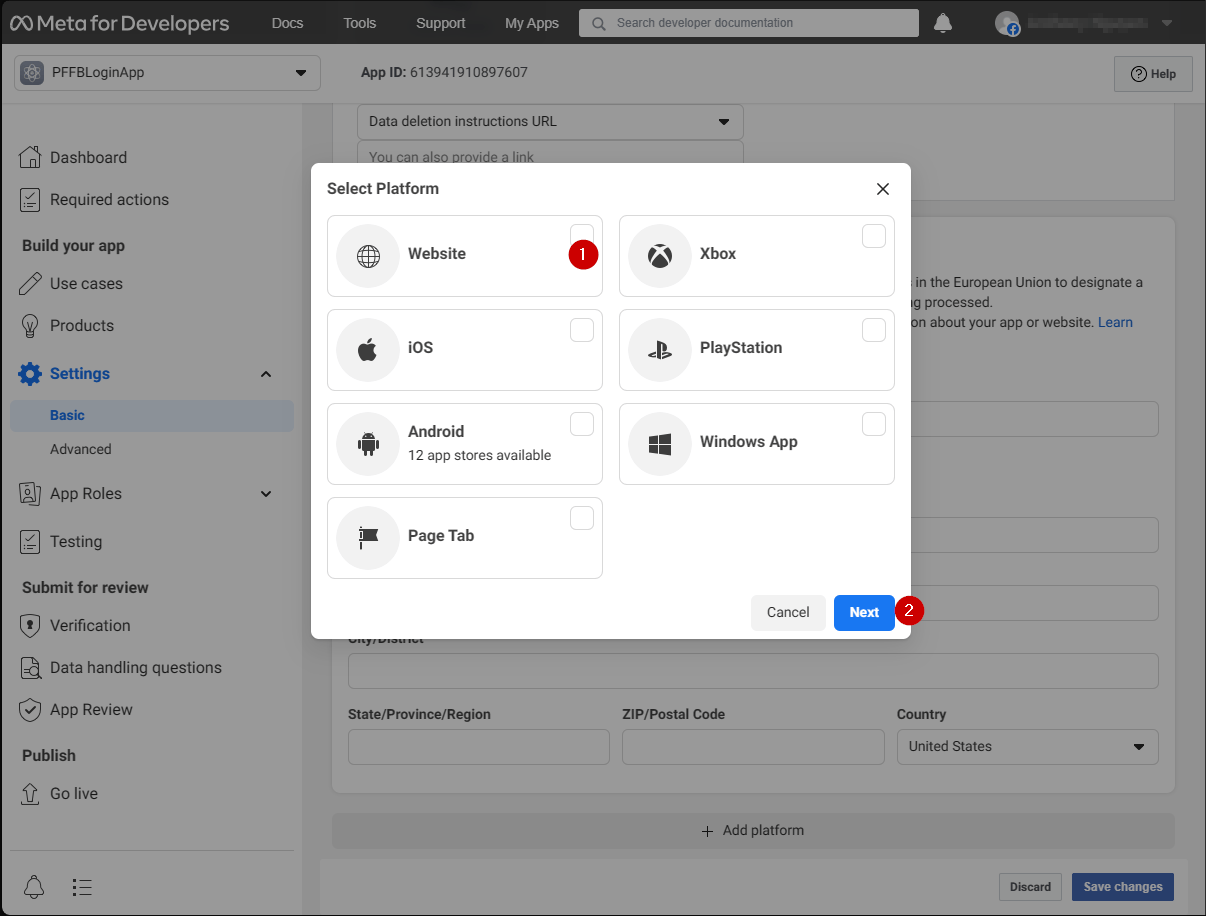
画面にポップアップが表示されます。

1. **Website アイコン** を選択します。
2. 次に **Next** を選択します。
<img src="https://mintcdn.com/microsoft-4404708b/mLCHf0iQv3VidfBe/images/playfab/identity/player-identity/platform-specific-authentication/tutorials/facebook-html5/website-options.png?fit=max&auto=format&n=mLCHf0iQv3VidfBe&q=85&s=96645e531316bffa3730f606c1b799ce" alt="Facebook プラットフォーム選択 Web サイト オプション" width="1206" height="916" data-path="images/playfab/identity/player-identity/platform-specific-authentication/tutorials/facebook-html5/website-options.png" />

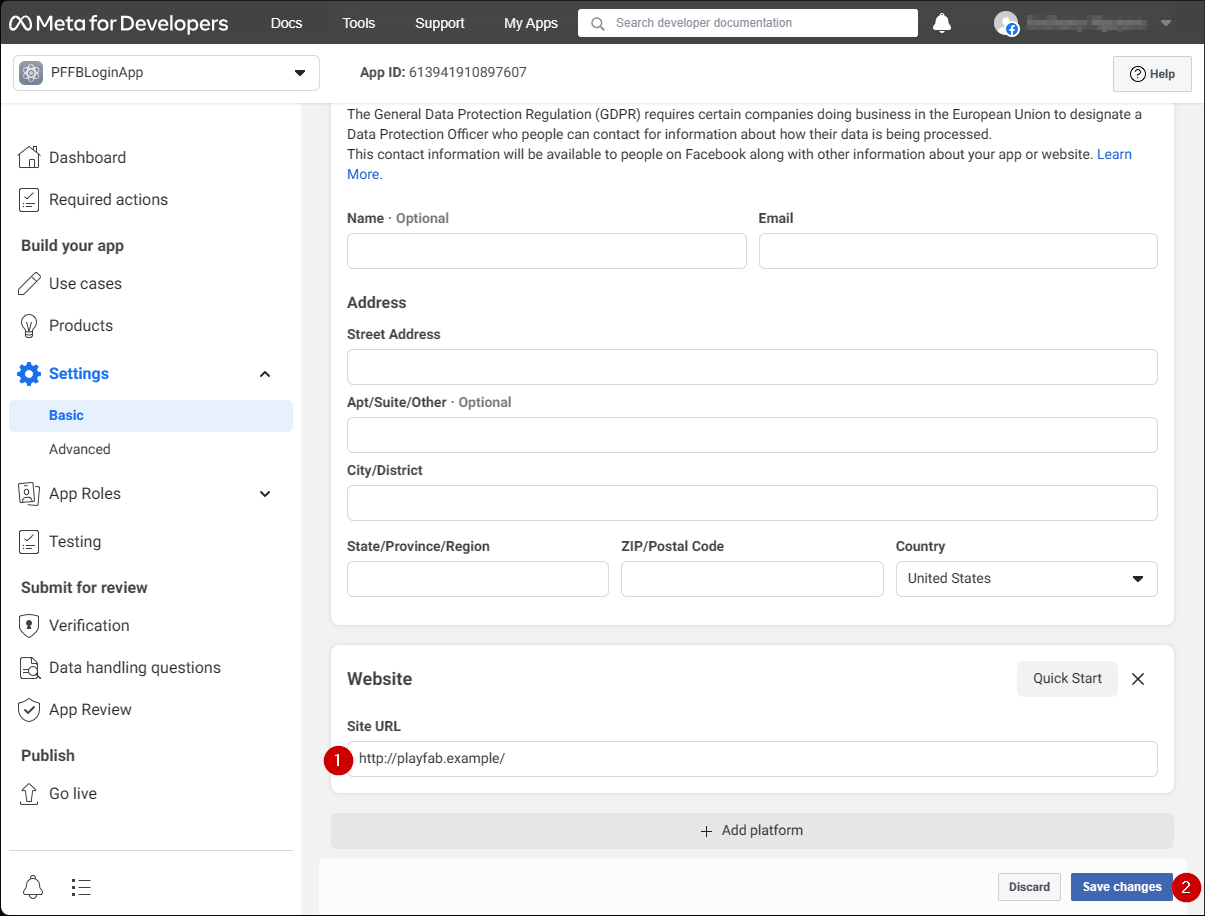
**Website** 構成パネルが表示されます。

1. **Site URL** フィールドに、認証ページの **URL** を入力します (この場合は `playfab.example` です)。
2. **Save changes** を選択して確定します。
<img src="https://mintcdn.com/microsoft-4404708b/mLCHf0iQv3VidfBe/images/playfab/identity/player-identity/platform-specific-authentication/tutorials/facebook-html5/website-configuration.png?fit=max&auto=format&n=mLCHf0iQv3VidfBe&q=85&s=ef19a6ad2bf003e8e58802abeea329c5" alt="Facebook Web サイト構成パネル" width="1205" height="916" data-path="images/playfab/identity/player-identity/platform-specific-authentication/tutorials/facebook-html5/website-configuration.png" />

## テスト

次の HTML ファイルを使用して、Facebook を使用した PlayFab 認証をテストします。

<Note>
  **YOUR-APPLICATION-ID** と **YOUR-PLAYFAB-TITLE** は必ずご自身のものに置き換えてください。
</Note>

```html theme={null}
<!DOCTYPE html>
<html>
<head>
   <script>
        // This function will be called when Facebook SDK is loaded
        window.fbAsyncInit = function() {

            // Make sure to use your own App ID for the configuration
            FB.init({
                appId      : 'YOUR-APPLICATION-ID',
                xfbml      : true,
                version    : 'v2.9'
            });

            // Record PageView event for analytics
            FB.AppEvents.logPageView();
        };

        // Facebook SDK loader. Creates a script entry to load the SDK
        (function(d, s, id){
            var js, fjs = d.getElementsByTagName(s)[0];
            if (d.getElementById(id)) {return;}
            js = d.createElement(s); js.id = id;
            js.src = "//connect.facebook.net/en_US/sdk.js";
            fjs.parentNode.insertBefore(js, fjs);
        }(document, 'script', 'facebook-jssdk'));
    </script>
    <script src="https://download.playfab.com/PlayFabClientApi.js"></script>
</head>
<body>
    <p>Facebook Auth Example</p>
    <button onclick="loginWithFacebook()">Log In with Facebook</button>
    <script>
        // This method is invoked when you press the button
        function loginWithFacebook() {
            logLine("Logging in via Facebook...");

            // Standard practice: make call to FB.login.
            // This will show Facebook popup window. To prevent browsers from locking it,
            // always make sure to call it from Button click event
            FB.login(function(response){
                if(!response.authResponse){
                    logLine("Problem authenticating via Facebook!");
                } else {
                    loginWithPlayfab(response.authResponse.accessToken);
                }
            });
        }

        function loginWithPlayfab(accessToken){

            logLine("Logging in via PlayFab...");

            // When given accessToken, make call to LoginWithFacebook API Call
            // Make sure to use your own PlayFab Title ID
            PlayFabClientSDK.LoginWithFacebook({
                AccessToken: accessToken,
                TitleId: "YOUR-PLAYFAB-TITLE",
                CreateAccount: true
            }, onPlayFabResponse);
        }

        // Handles response from playfab.
        function onPlayFabResponse(response, error) {
            if (response)
                logLine("Response: " + JSON.stringify(response));
            if (error)
                logLine("Error: " + JSON.stringify(error));
        }

        function logLine(message) {
            var textnode = document.createTextNode(message);
            document.body.appendChild(textnode);
            var br = document.createElement("br");
            document.body.appendChild(br);
        }
    </script>
</body>
</html>
```

**Facebook アプリケーション** の構成中に設定したドメイン (この場合は `playfab.example`) を使用して、サーバーから次のファイルをリクエストします。

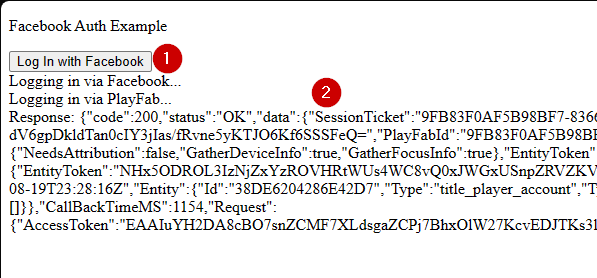
1. **Facebook Auth Example** ページが開いたら、**Log In with Facebook** ボタンを選択します。
2. ポップアップ ウィンドウの Facebook の指示に従います。

出力を確認します。
<img src="https://mintcdn.com/microsoft-4404708b/mLCHf0iQv3VidfBe/images/playfab/identity/player-identity/platform-specific-authentication/tutorials/facebook-html5/facebook-auth-example.png?fit=max&auto=format&n=mLCHf0iQv3VidfBe&q=85&s=e6f77a4ce2fae3bfd5dfcc97acd2e88b" alt="Facebook 認証の例" width="597" height="278" data-path="images/playfab/identity/player-identity/platform-specific-authentication/tutorials/facebook-html5/facebook-auth-example.png" />

PlayFab セッション チケットを取得できます。これで、HTML5 と JavaScript を使用して PlayFab と Facebook の認証を正常に構成しました。


## Related topics

- [プラットフォーム固有の認証](/ja-jp/services/playfab/identity/player-identity/platform-specific-authentication/index.md)
- [Google と HTML5 を使用した PlayFab 認証のセットアップ](/ja-jp/services/playfab/identity/player-identity/platform-specific-authentication/google-html5.md)
- [Kongregate と HTML5 を使用した PlayFab 認証のセットアップ](/ja-jp/services/playfab/identity/player-identity/platform-specific-authentication/kongregate-html5.md)
- [Twitch と HTML5 を使用した PlayFab 認証のセットアップ](/ja-jp/services/playfab/identity/player-identity/platform-specific-authentication/twitch-html5.md)
- [Facebook と Unity を使用した PlayFab 認証のセットアップ](/ja-jp/services/playfab/identity/player-identity/platform-specific-authentication/facebook-unity.md)