> ## Documentation Index
> Fetch the complete documentation index at: https://devdocs.xbox.com/llms.txt
> Use this file to discover all available pages before exploring further.
# 二要素認証
> デバイス上の認証システム アプリを連携させて二要素サインイン検証を有効にすることで、PlayFab Game Manager アカウントにセキュリティのレイヤーを追加します。
二要素認証を使うと、認証プロセスにもう 1 つのステップを追加することで、PlayFab Game Manager アカウントのセキュリティを強化できます。
これは、認証プロセスにデバイス要素を追加することで実現します。この目的で特別に登録された特定のデバイスを所有している場合にのみ認証を可能にします。
## 二要素認証を構成する
**二要素認証** アプリをデバイスにインストールします。自分でアプリを検索するか、次のリストからプラットフォームを選択してください。
* [iPhone、iPad、iPod Touch](https://itunes.apple.com/us/app/google-authenticator/id388497605?mt=8)
* [Android フォンまたはタブレット](https://play.google.com/store/apps/details?id=com.google.android.apps.authenticator2)
* [Windows フォンまたはタブレット](https://www.windowsphone.com/store/app/authenticator/e7994dbc-2336-4950-91ba-ca22d653759b)
手順はすべてのプラットフォームで基本的に同じです。この例では、Android ベースのデバイスと Google Authenticator アプリケーションを示しています。
アプリケーションをダウンロードしたら:
* 開いて指示に従います。
* **Begin** ボタン **(1)** を選択します。
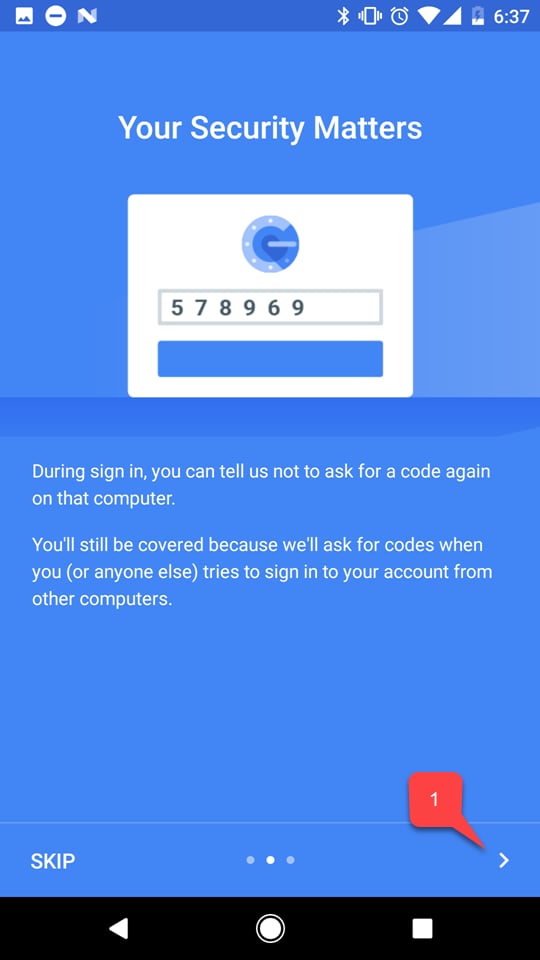
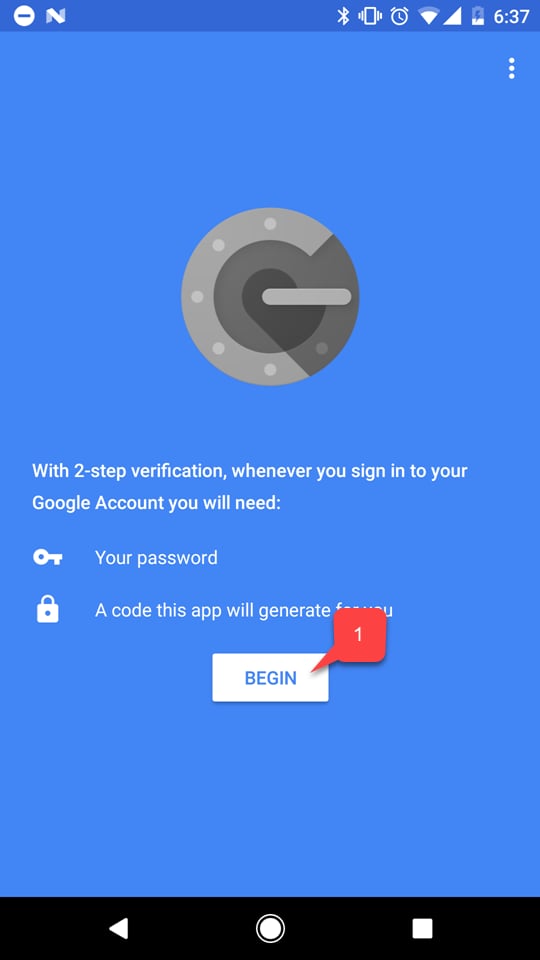 もし指示がある場合、アプリのチュートリアルに従ってください **(1)**。
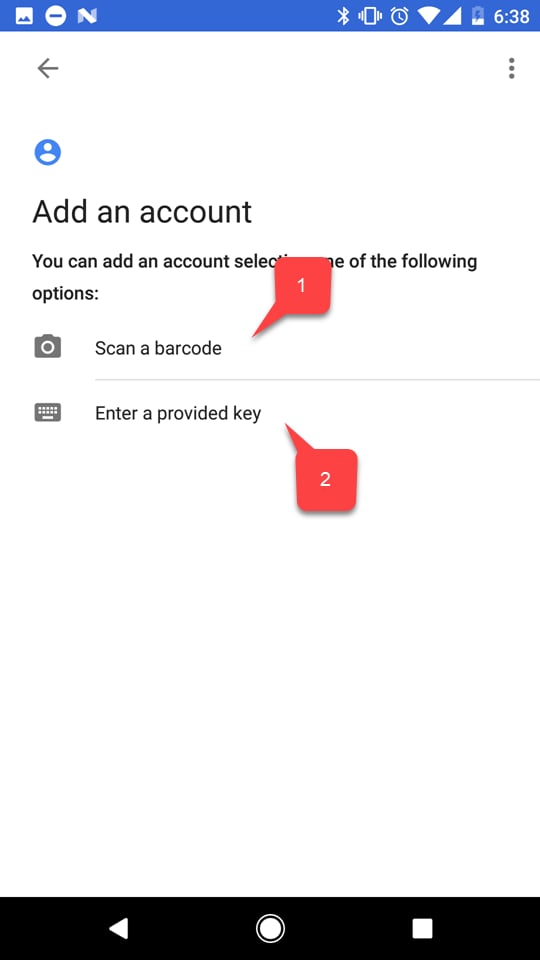
 * 次に、PlayFab アカウントを追加するために、2 つのオプションのうち 1 つを選択します。
* **バーコード (1)** をスキャンします。
* または、**キー** を手動で入力します **(2)**。
* 次に、PlayFab アカウントを追加するために、2 つのオプションのうち 1 つを選択します。
* **バーコード (1)** をスキャンします。
* または、**キー** を手動で入力します **(2)**。
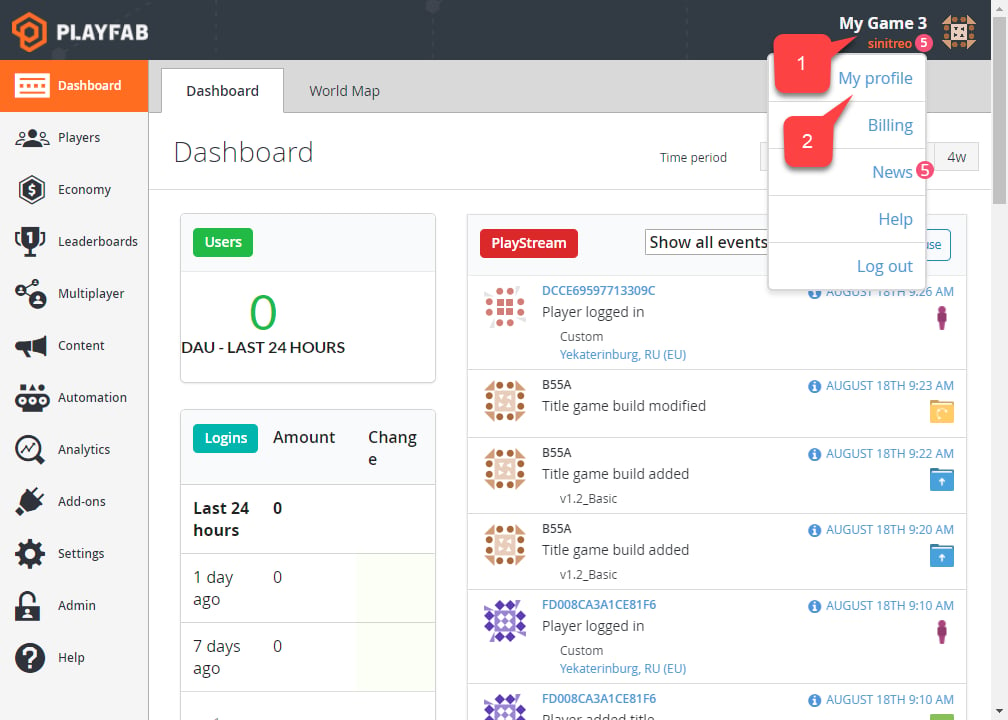
 どちらのオプションを選択した場合でも、PlayFab の Web サイトに移動し、**Game Manager** に移動します。**Dashboard** タブで:
* **Account** パネル **(1)** を選択します。
* 次に **My Profile (2)** を選択します。
どちらのオプションを選択した場合でも、PlayFab の Web サイトに移動し、**Game Manager** に移動します。**Dashboard** タブで:
* **Account** パネル **(1)** を選択します。
* 次に **My Profile (2)** を選択します。
 **Account** 設定が開きます。
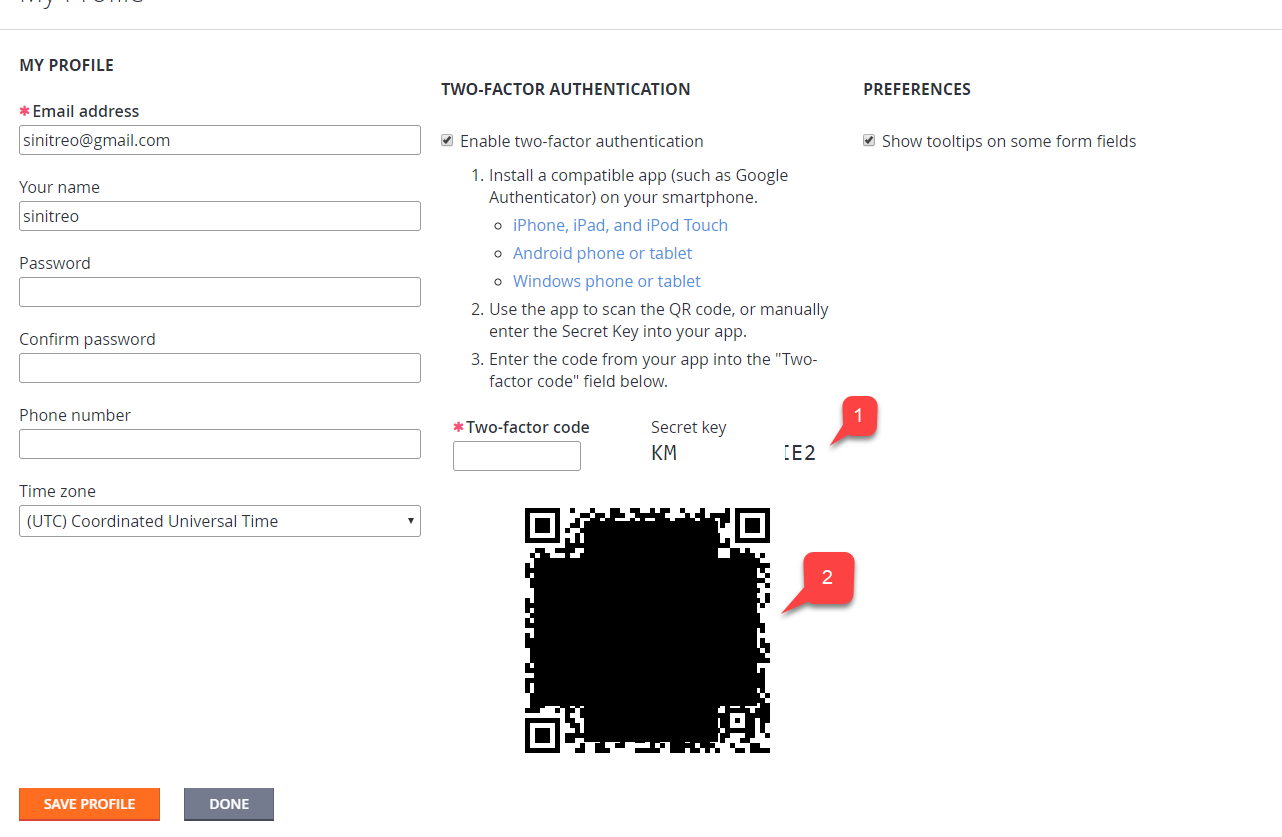
* **Enable two-factor authentication** チェックボックスがオンになっていることを確認します。
* 選択したオプションに応じて、デバイス上のアプリケーションを使って新しいアカウントを追加するために、**コード (1)** または **バーコード (2)** を使用します。
**Account** 設定が開きます。
* **Enable two-factor authentication** チェックボックスがオンになっていることを確認します。
* 選択したオプションに応じて、デバイス上のアプリケーションを使って新しいアカウントを追加するために、**コード (1)** または **バーコード (2)** を使用します。
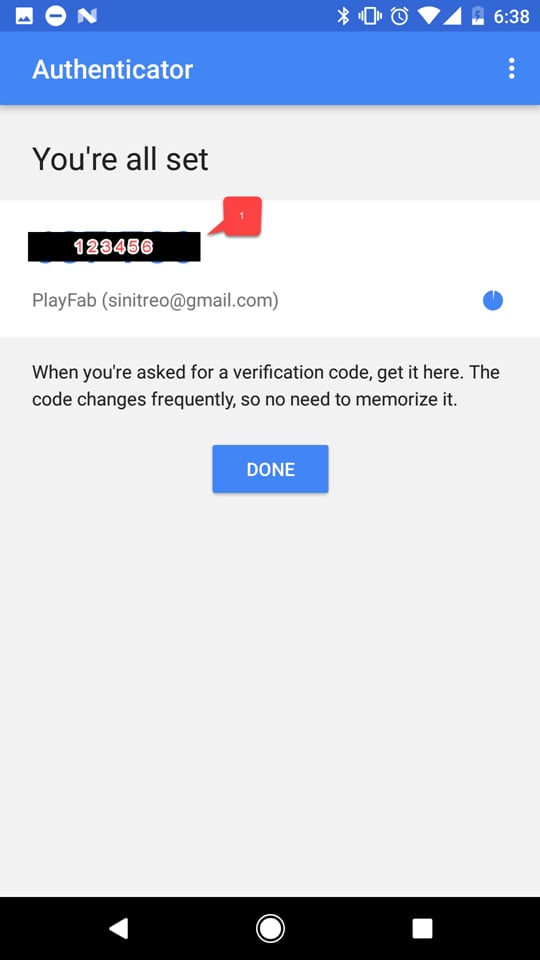
 完了すると、二要素コードが表示されます。
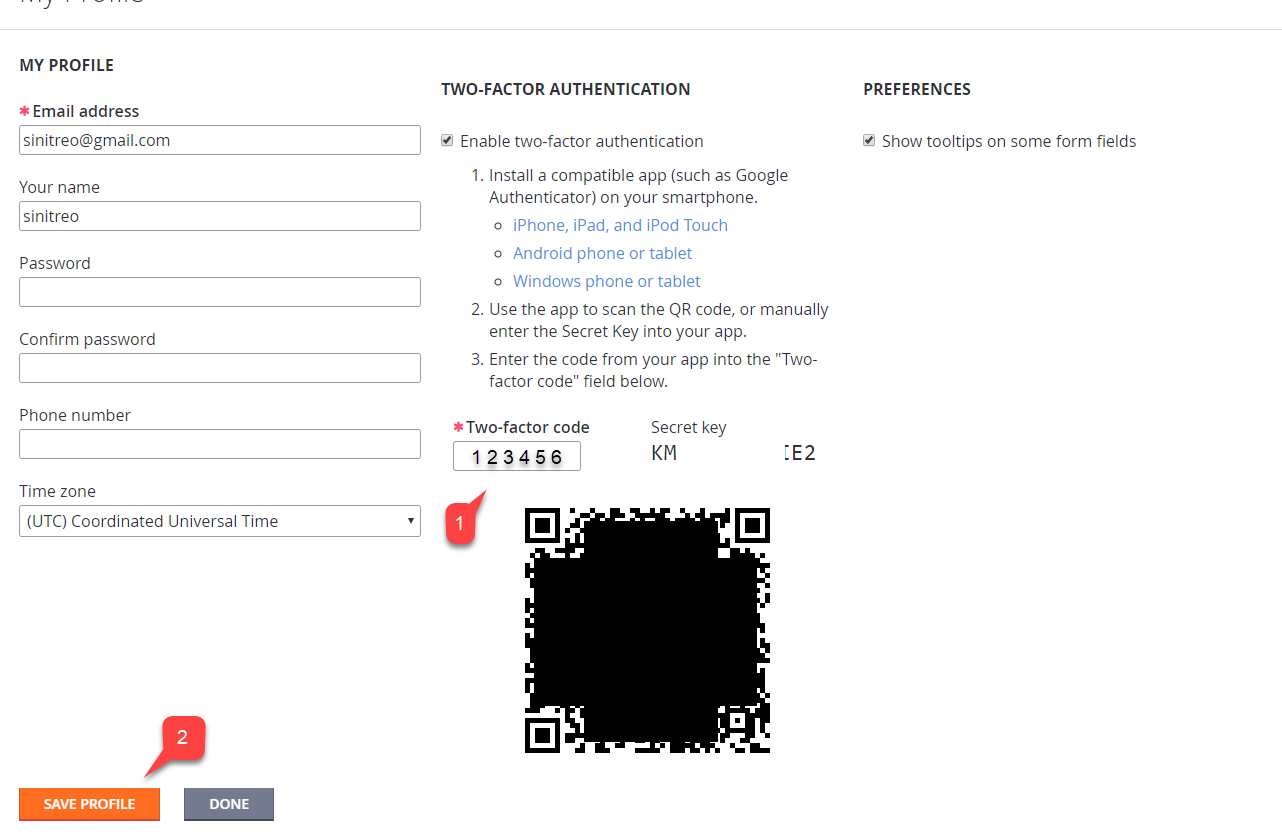
 PlayFab **Game Manager** の **Profile** 設定に戻ります。
* 受け取った **コード** を入力します **(1)**。
* **Save Profile** ボタンを選択します **(2)**。
PlayFab **Game Manager** の **Profile** 設定に戻ります。
* 受け取った **コード** を入力します **(1)**。
* **Save Profile** ボタンを選択します **(2)**。
 ## テスト
PlayFab アカウントからログアウトし、再度ログインを試みます。認証プロセスの最初のステップは通常通りに見えます (以下の例を参照)。
## テスト
PlayFab アカウントからログアウトし、再度ログインを試みます。認証プロセスの最初のステップは通常通りに見えます (以下の例を参照)。
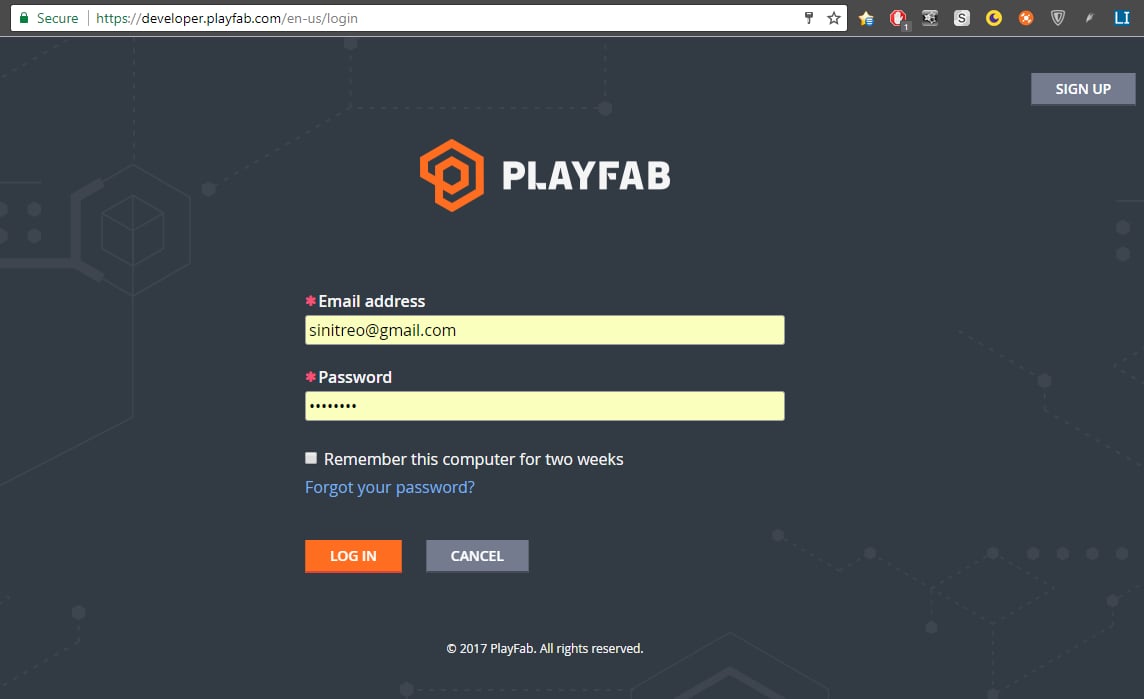 2 番目のステップでは二要素コードの入力が求められます。コードはいつでも利用可能で、デバイスにインストールしたアプリケーションを使用してアクセスできます。
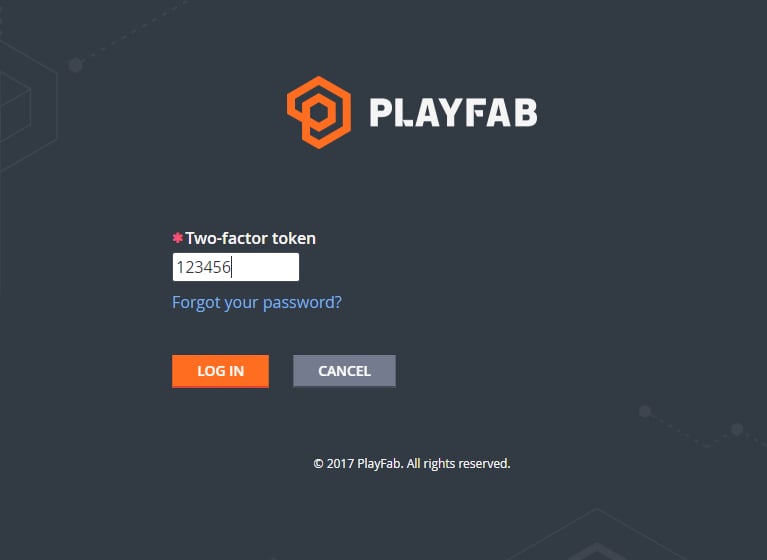 正しい二要素コードを入力すると、ログインできるはずです。
これで PlayFab の二要素認証のセットアップは完了です。
## Related topics
- [Certification PC BVT ガイド](/ja-jp/publishing/game-publishing/concepts/certification/certification-pc-bvt-guide.md)
- [PlayFab API 用の Microsoft Entra ID 認証](/ja-jp/services/playfab/identity/dev-identity/authentication/entra-id-api-authentication.md)
- [Game Manager リファレンス](/ja-jp/services/playfab/live-service-management/gamemanager/reference.md)
- [ 要素](/ja-jp/build/core-features/common/packaging/deployment/deployment-element-package.md)
- [ 要素](/ja-jp/build/core-features/common/packaging/deployment/deployment-element-chunk.md)
正しい二要素コードを入力すると、ログインできるはずです。
これで PlayFab の二要素認証のセットアップは完了です。
## Related topics
- [Certification PC BVT ガイド](/ja-jp/publishing/game-publishing/concepts/certification/certification-pc-bvt-guide.md)
- [PlayFab API 用の Microsoft Entra ID 認証](/ja-jp/services/playfab/identity/dev-identity/authentication/entra-id-api-authentication.md)
- [Game Manager リファレンス](/ja-jp/services/playfab/live-service-management/gamemanager/reference.md)
- [ 要素](/ja-jp/build/core-features/common/packaging/deployment/deployment-element-package.md)
- [ 要素](/ja-jp/build/core-features/common/packaging/deployment/deployment-element-chunk.md)