> ## Documentation Index
> Fetch the complete documentation index at: https://devdocs.xbox.com/llms.txt
> Use this file to discover all available pages before exploring further.
# プライズ テーブルの使用
> リーダーボードのリセット時に上位ランクに対して仮想通貨、インベントリ アイテム、プッシュ通知、または CloudScript アクションを付与する PlayFab プライズ テーブルを作成します。
このチュートリアルでは、[リセット可能なリーダーボード](/services/playfab/community/leaderboards/tournaments-leaderboards/using-resettable-statistics-and-leaderboards) で、あるランク範囲内のプレイヤー グループに対して一連のアクションをトリガーするプライズ テーブルを作成する方法について説明します。
具体的には、リーダーボードのリセット時にメールをトリガーしたり、プッシュ通知を送信したり、[インベントリ アイテム](/services/playfab/player-progression/player-data/player-inventory) や [仮想通貨](/services/playfab/economy-monetization/economy/tutorials/currencies) を付与したり、[CloudScript](/services/playfab/live-service-management/service-gateway/automation/cloudscript/writing-custom-cloudscript) 関数を実行したりする方法です。
この例では、リセット実行後にリーダーボードのランクに基づいて 5 人のプレイヤーに仮想通貨を付与する、トーナメント終了時のプライズ テーブルを作成する方法を示します。
## 必要条件
これは *高度な* チュートリアルです。以下に示すすべての要件が満たされていることを確認してください。満たされていない場合、このチュートリアルを完了することは *できません*。
* リーダーボードでアクションを実行するには、リーダーボードにプレイヤーが存在する必要があるため、プレイヤーの作成方法に関する基本的な知識が必要になります。
* Game Manager に慣れていない場合は、[Game Manager クイックスタート](/services/playfab/live-service-management/gamemanager/quickstart) を読むことも価値があります。プライズ テーブルはここで作成されるためです。
* プライズ テーブルを使用するには、リセット可能なリーダーボードの仕組みに関する一般的な知識が必要です。[リセット可能な統計とリーダーボードの使用](/services/playfab/community/leaderboards/tournaments-leaderboards/using-resettable-statistics-and-leaderboards) チュートリアルでリーダーボードについて読んでください。
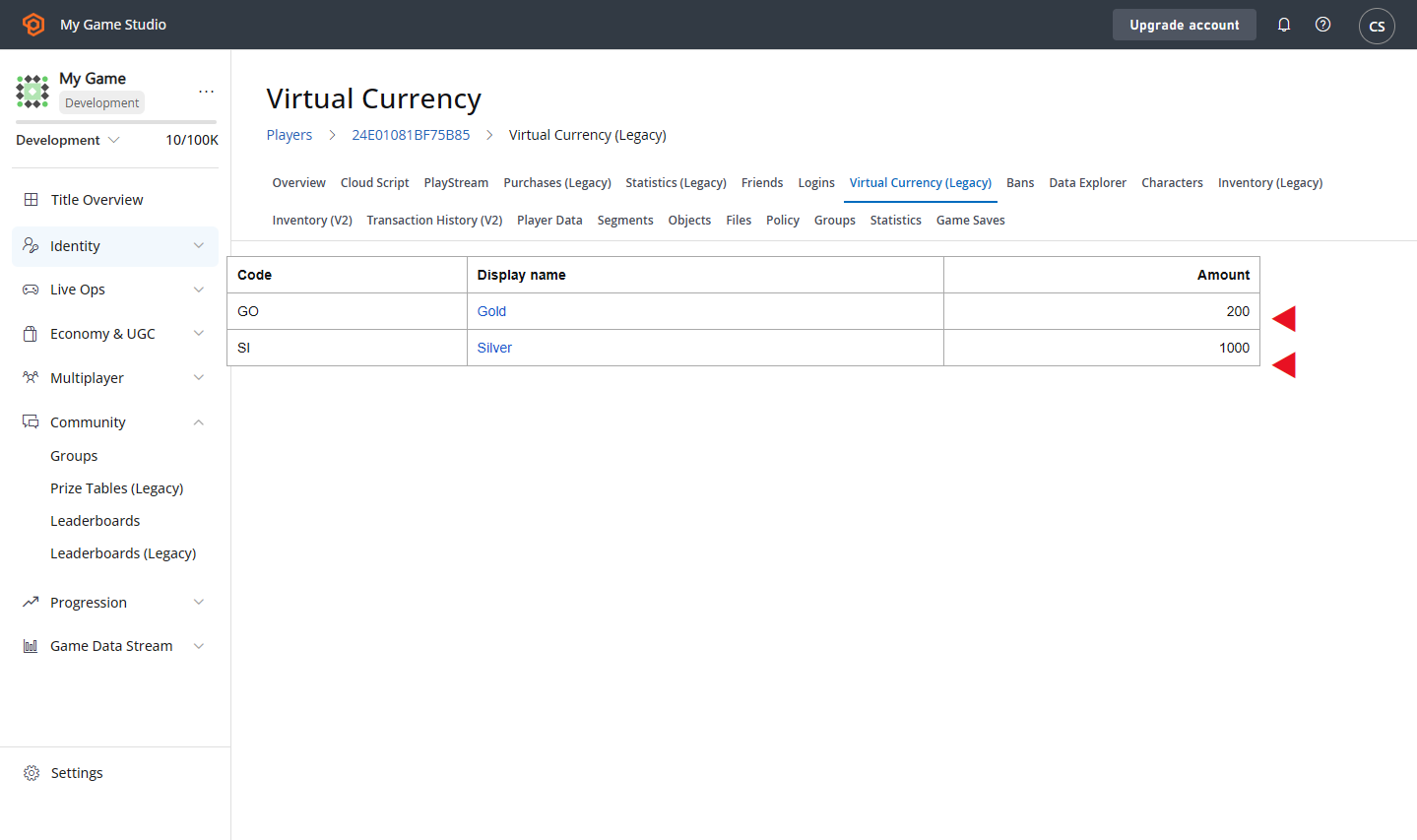
* さらに、仮想通貨をセットアップする必要があります。[Currencies](/services/playfab/economy-monetization/economy/tutorials/currencies) に関するチュートリアルを読み、次のパラメーターで 2 つの通貨をセットアップしてください:
* **Currency code**: GO
* **Display name**: Gold
* **Initial deposit**: 200
* **Currency code**: SI
* **Display name**: Silver
* **Initial deposit**: 1000
## ステップ 1 - リーダーボードを作成する
Game Manager で:
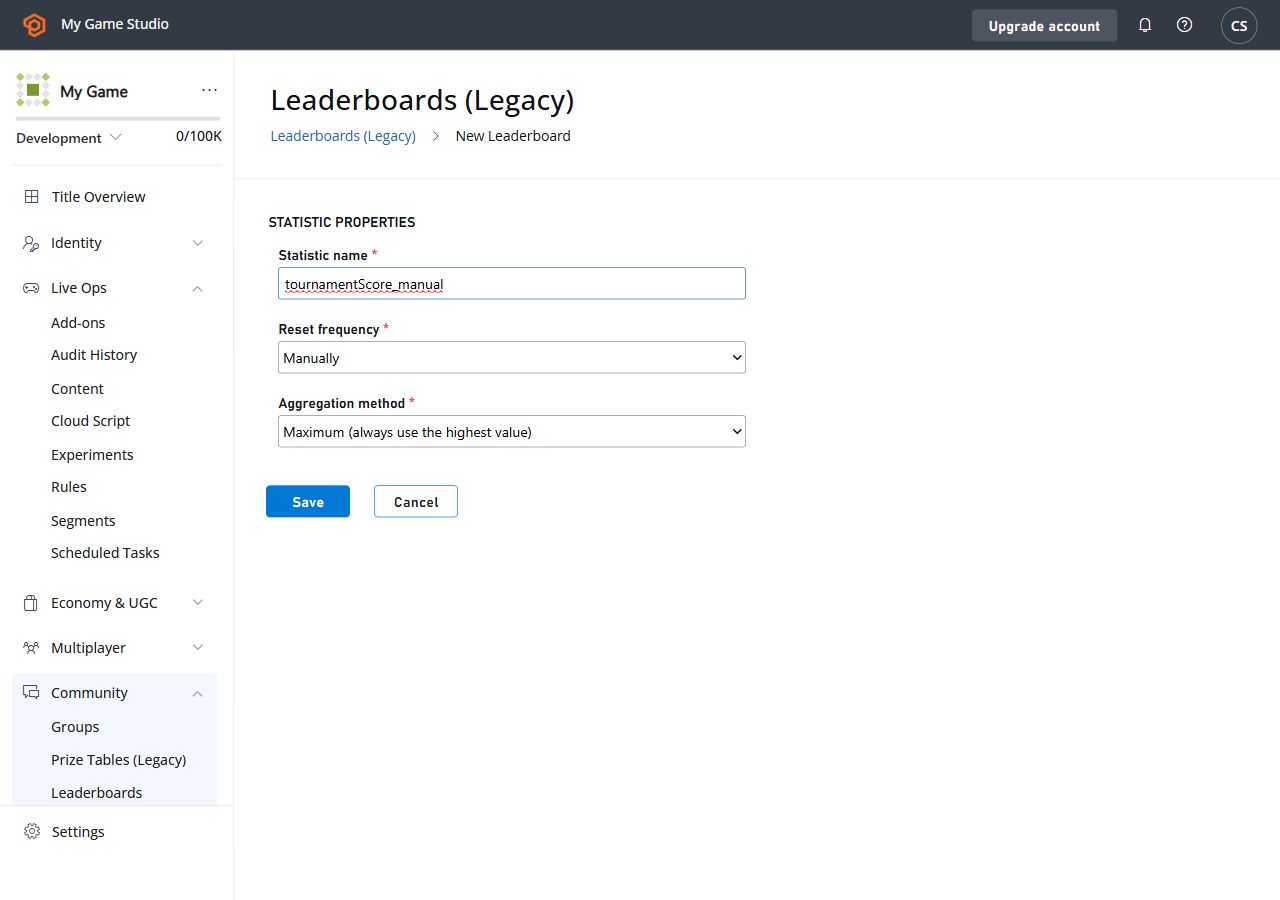
* 左のメニューの **Leaderboards** に移動します。
* **New Leaderboard** を選択します。
* **Statistic name** フィールドに **tournamentScore\_manual** という **Leaderboard** を追加します。
* 提供されているドロップダウン メニューを使用して、**Reset frequency** フィールドを **Manually** に設定します。
* **Aggregation method** フィールドに移動し、提供されているドロップダウン メニューから **Maximum (always use the highest value)** を選択します。
 ## ステップ 2 - リーダーボードのプライズ テーブルを作成する
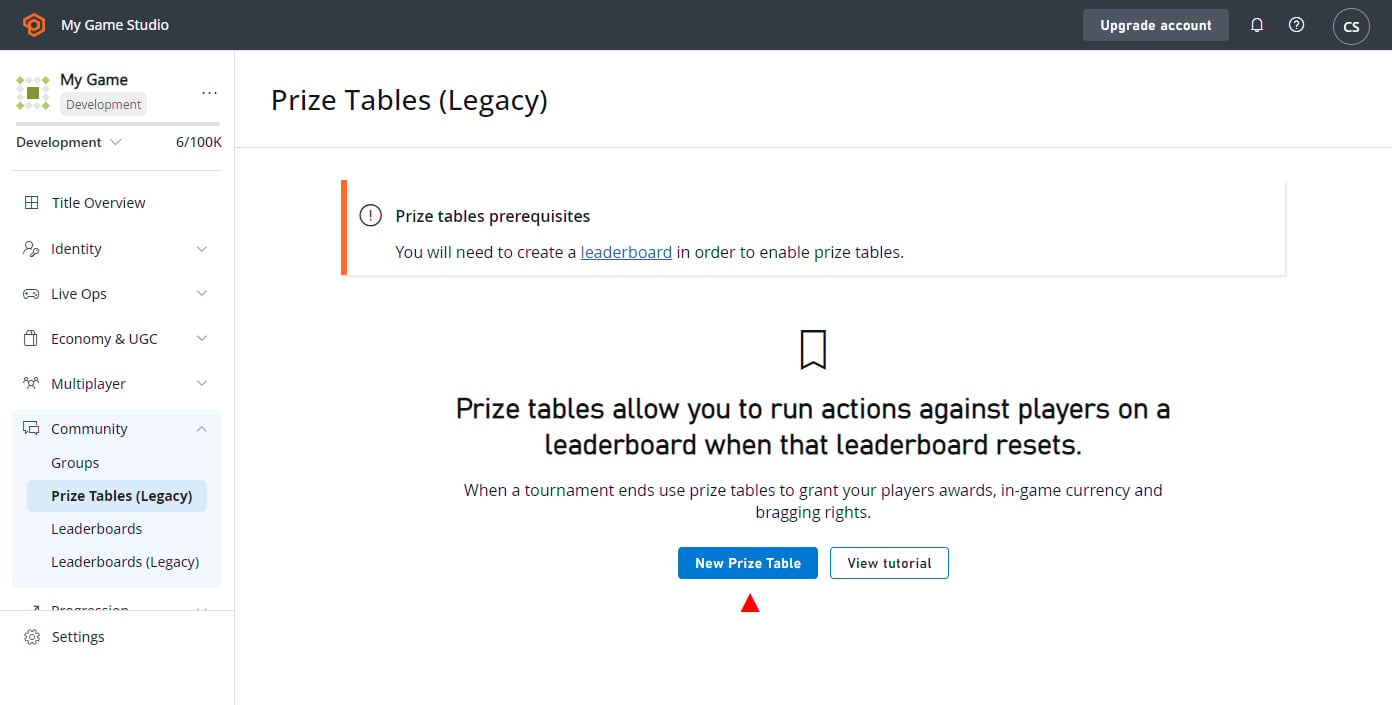
リーダーボードが作成されたので、プライズ テーブルを関連付けることができます。次に移動します:
* 左のメニューの **Leaderboards**。
* **Prize Tables** タブを選択します。
* **NEW PRIZE TABLE** ボタンを選択して、**New Prize Table** ビューに移動します。
## ステップ 2 - リーダーボードのプライズ テーブルを作成する
リーダーボードが作成されたので、プライズ テーブルを関連付けることができます。次に移動します:
* 左のメニューの **Leaderboards**。
* **Prize Tables** タブを選択します。
* **NEW PRIZE TABLE** ボタンを選択して、**New Prize Table** ビューに移動します。
 **New Prize Table** ビューで:
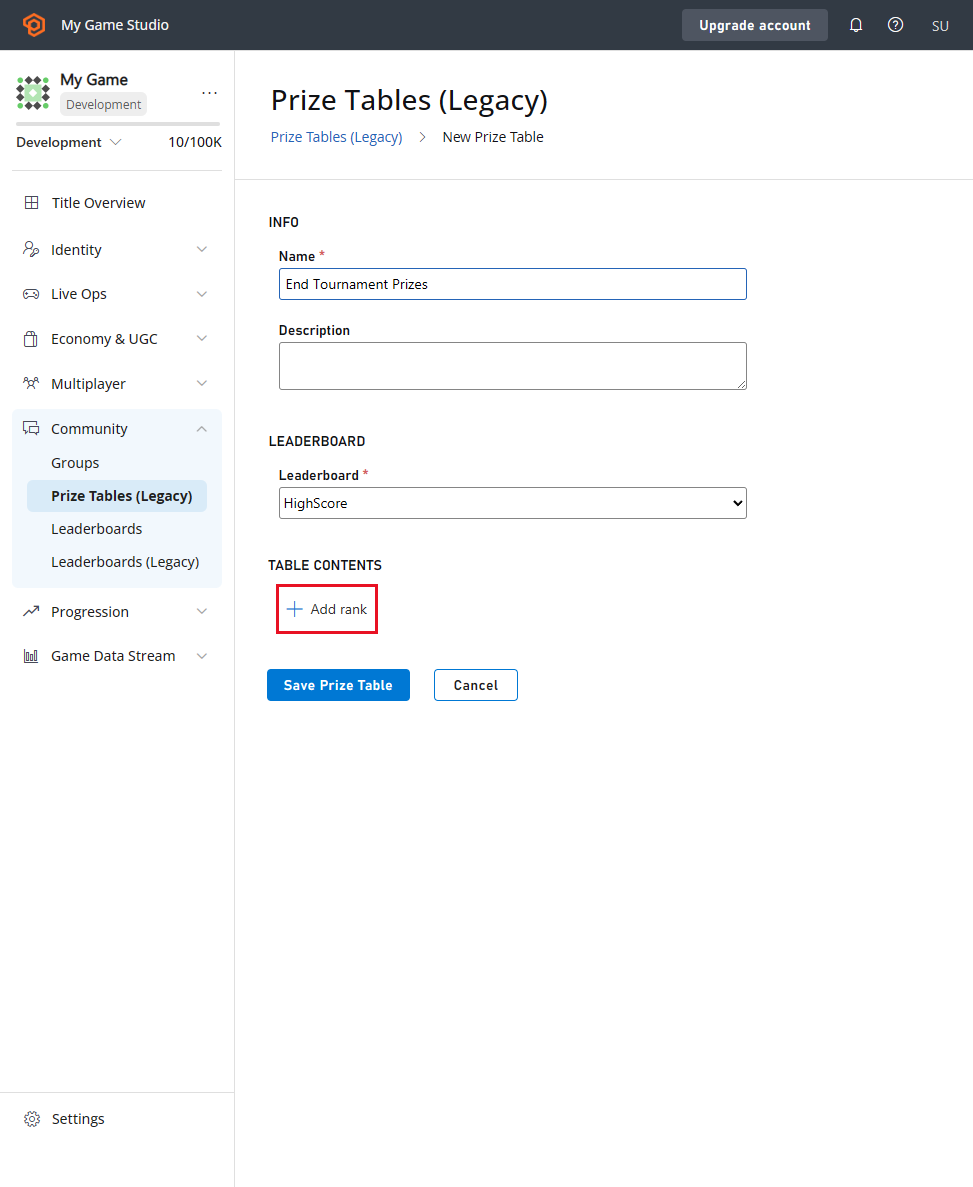
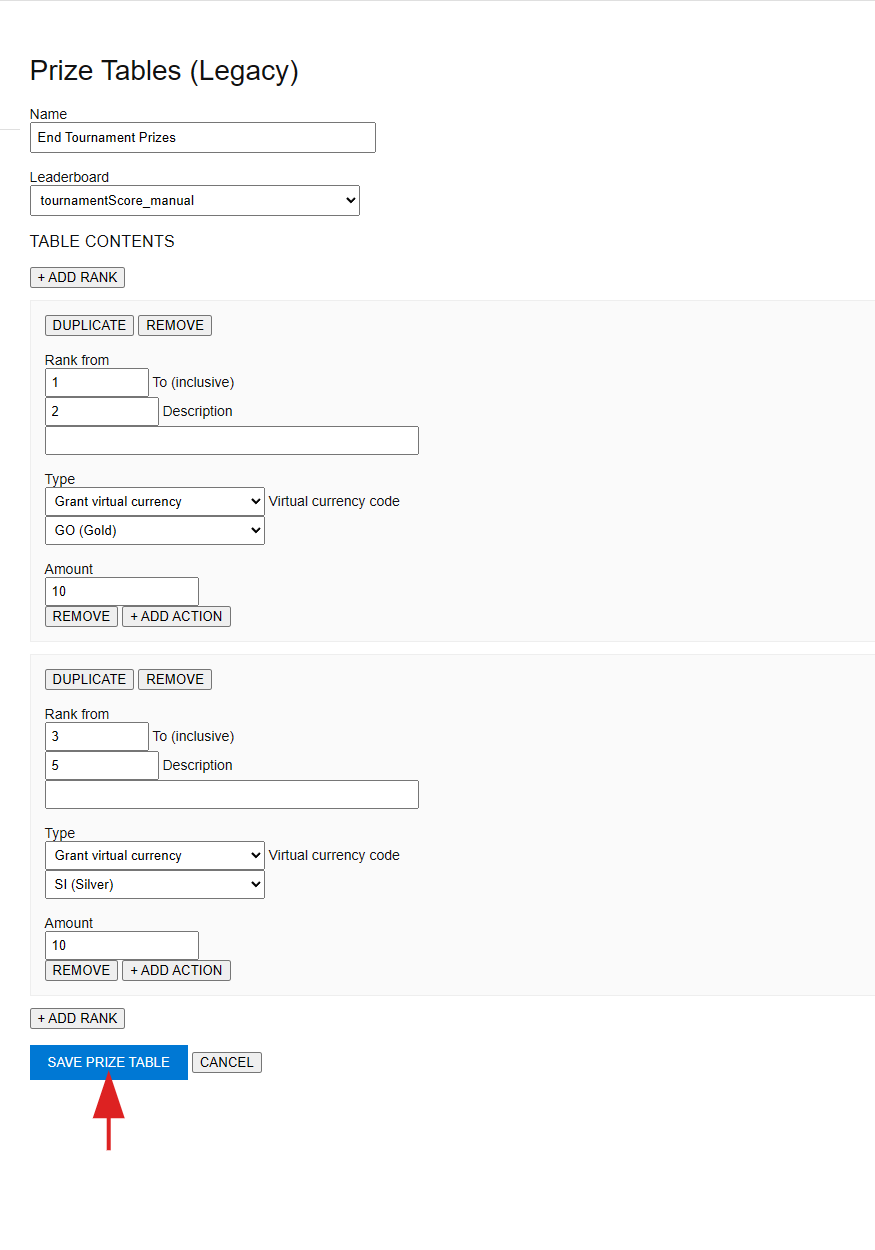
* **INFO** エリアに移動し、**New Prize Table** の **Name** に **End Tournament Prizes** を入力します。
* **Leaderboard** ドロップダウン メニューから **tournamentScore\_manual** を選択します。
このプライズ テーブルが何らかのアクションを実行するには、ランクを設定する必要があります。これを行うには:
* **TABLE CONTENTS** セクションの下にある **+ ADD RANK** を選択します。
* **Rank** フォームが表示されます。
**New Prize Table** ビューで:
* **INFO** エリアに移動し、**New Prize Table** の **Name** に **End Tournament Prizes** を入力します。
* **Leaderboard** ドロップダウン メニューから **tournamentScore\_manual** を選択します。
このプライズ テーブルが何らかのアクションを実行するには、ランクを設定する必要があります。これを行うには:
* **TABLE CONTENTS** セクションの下にある **+ ADD RANK** を選択します。
* **Rank** フォームが表示されます。
 **Rank** フォームで:
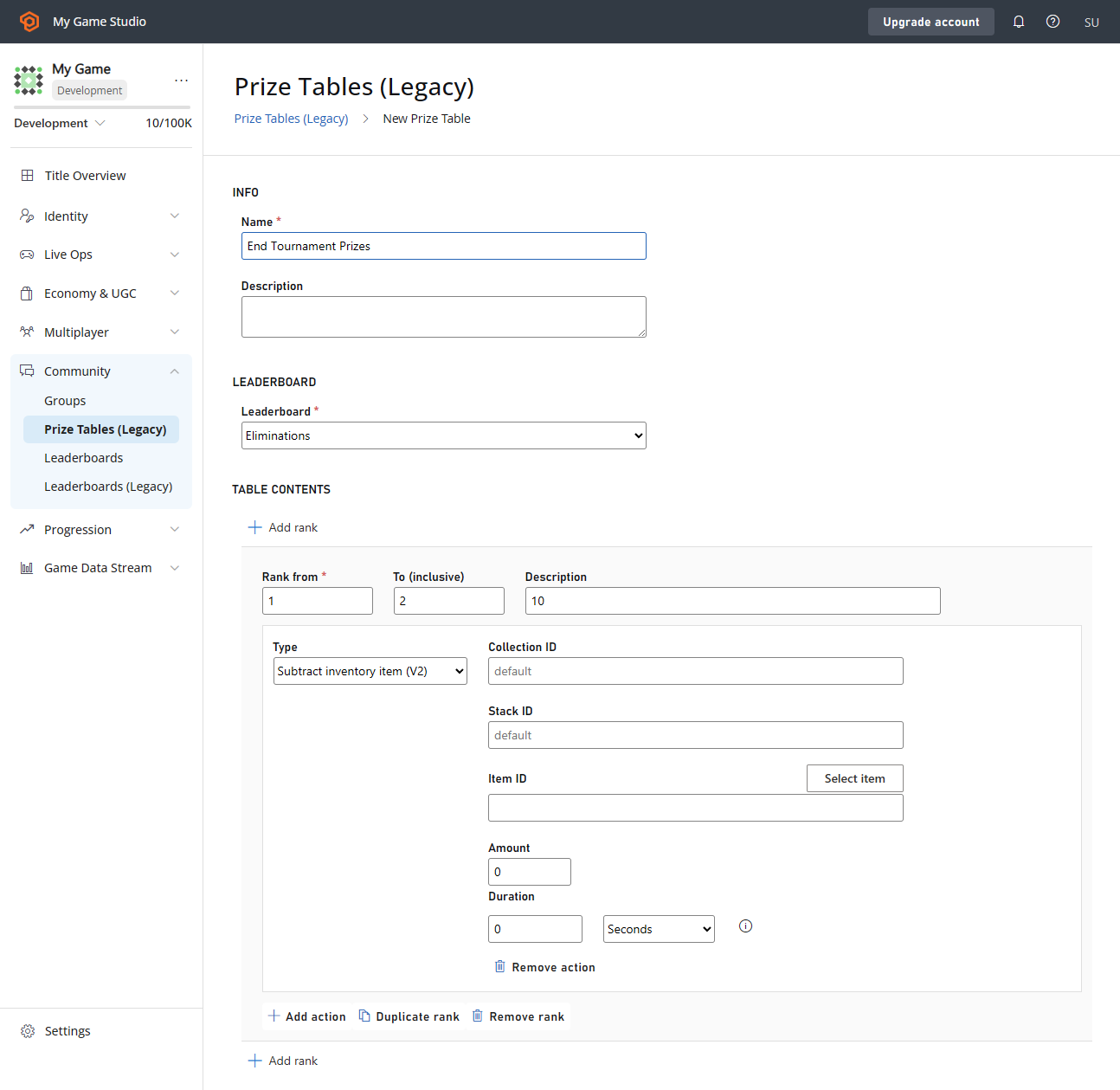
* **Rank from** フィールドの値が **1** であることを確認します。
* **To (inclusive)** フィールドの値が **2** であることを確認します。
* **Type** ドロップダウン メニューで、**Grant virtual currency** を選択します。
* **virtual currency code** ドロップダウン メニューで、金額 **10** の **GO (Gold)** を選択します。
**Rank** フォームで:
* **Rank from** フィールドの値が **1** であることを確認します。
* **To (inclusive)** フィールドの値が **2** であることを確認します。
* **Type** ドロップダウン メニューで、**Grant virtual currency** を選択します。
* **virtual currency code** ドロップダウン メニューで、金額 **10** の **GO (Gold)** を選択します。
 次に、2 つ目のランク範囲を追加します:
* **TABLE CONTENTS** セクションの下にある **+ADD RANK** を選択します (下部にも *2 つ目* があり、そちらも機能します)。
* 表示される **Rank** フォームで、**Rank from** フィールドの値が **3**、**To (inclusive)** フィールドの値が **5** であることを確認します。
* **Virtual currency code** ドロップダウンで、金額 **10** の **SI** (**Silver**) を選択します。
次に、2 つ目のランク範囲を追加します:
* **TABLE CONTENTS** セクションの下にある **+ADD RANK** を選択します (下部にも *2 つ目* があり、そちらも機能します)。
* 表示される **Rank** フォームで、**Rank from** フィールドの値が **3**、**To (inclusive)** フィールドの値が **5** であることを確認します。
* **Virtual currency code** ドロップダウンで、金額 **10** の **SI** (**Silver**) を選択します。
 ## ステップ 3 - プレイヤーでリーダーボードを埋める
リーダーボードとそれに関連付けられたプライズ テーブルが作成されました。次のステップは、プレイヤーでリーダーボードを埋めることです。
プレイヤーを作成するには、[LoginWithCustomID](xref:titleid.playfabapi.com.client.authentication.loginwithcustomid) を使用します。次に、[UpdatePlayerStatistics](xref:titleid.playfabapi.com.client.playerdatamanagement.updateplayerstatistics) を使用してプレイヤーでリーダーボードを埋めます。
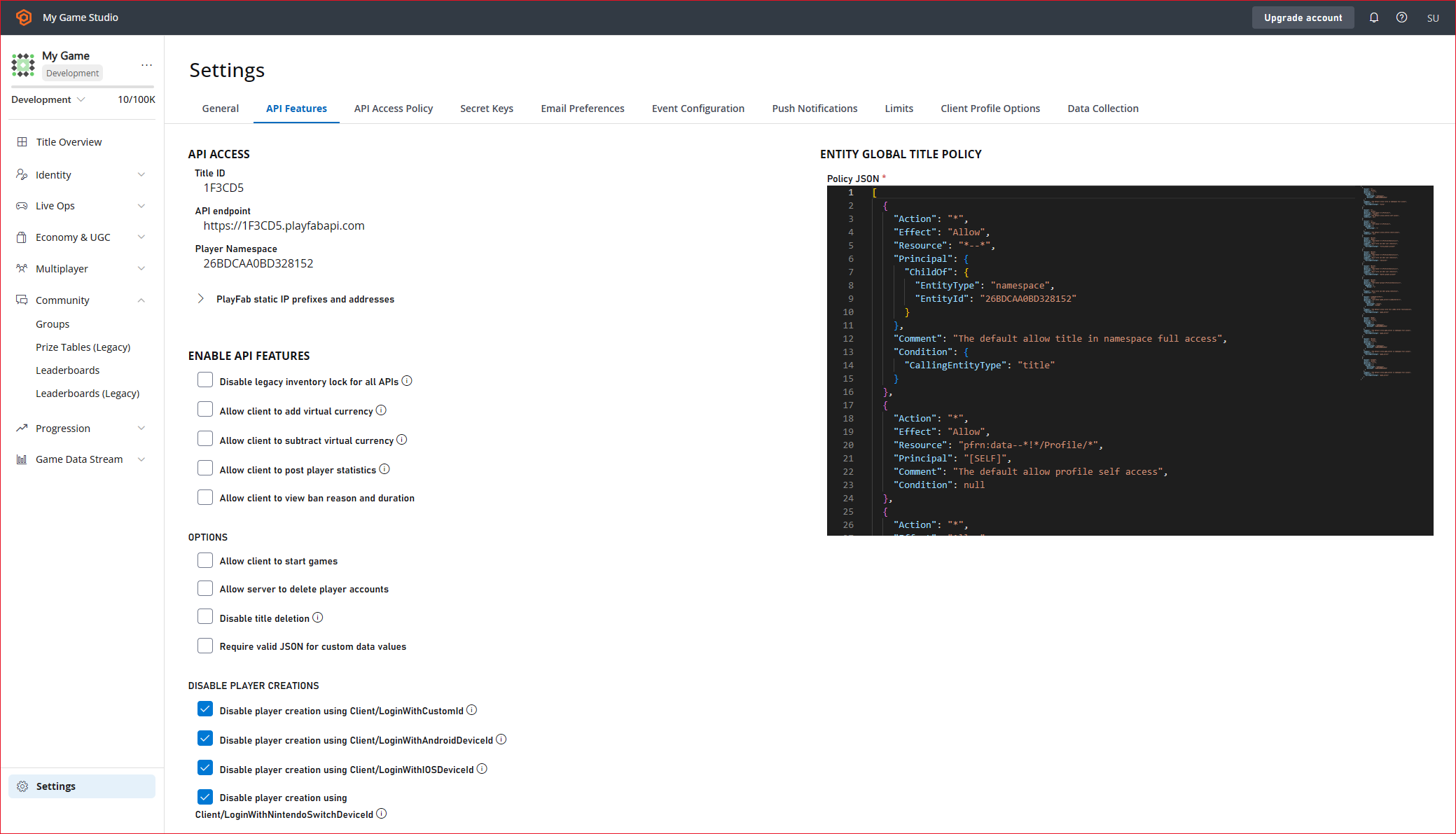
[UpdatePlayerStatistics](xref:titleid.playfabapi.com.client.playerdatamanagement.updateplayerstatistics) を使用する前に、API Features で有効にする必要があります。
* 左のメニューから **Settings** を選択します。
* **API Features** タブを選択します。
* **Allow client to post player statistics** のチェックボックスをオンにします。
* 次に、画面下部にある **SAVE API FEATURES** ボタンを選択します。
## ステップ 3 - プレイヤーでリーダーボードを埋める
リーダーボードとそれに関連付けられたプライズ テーブルが作成されました。次のステップは、プレイヤーでリーダーボードを埋めることです。
プレイヤーを作成するには、[LoginWithCustomID](xref:titleid.playfabapi.com.client.authentication.loginwithcustomid) を使用します。次に、[UpdatePlayerStatistics](xref:titleid.playfabapi.com.client.playerdatamanagement.updateplayerstatistics) を使用してプレイヤーでリーダーボードを埋めます。
[UpdatePlayerStatistics](xref:titleid.playfabapi.com.client.playerdatamanagement.updateplayerstatistics) を使用する前に、API Features で有効にする必要があります。
* 左のメニューから **Settings** を選択します。
* **API Features** タブを選択します。
* **Allow client to post player statistics** のチェックボックスをオンにします。
* 次に、画面下部にある **SAVE API FEATURES** ボタンを選択します。
 ### C# コード例
次の **C#** コード例は、5 人のプレイヤーを作成し、[LoginWithCustomID](xref:titleid.playfabapi.com.client.authentication.loginwithcustomid) を使用してログインさせます。
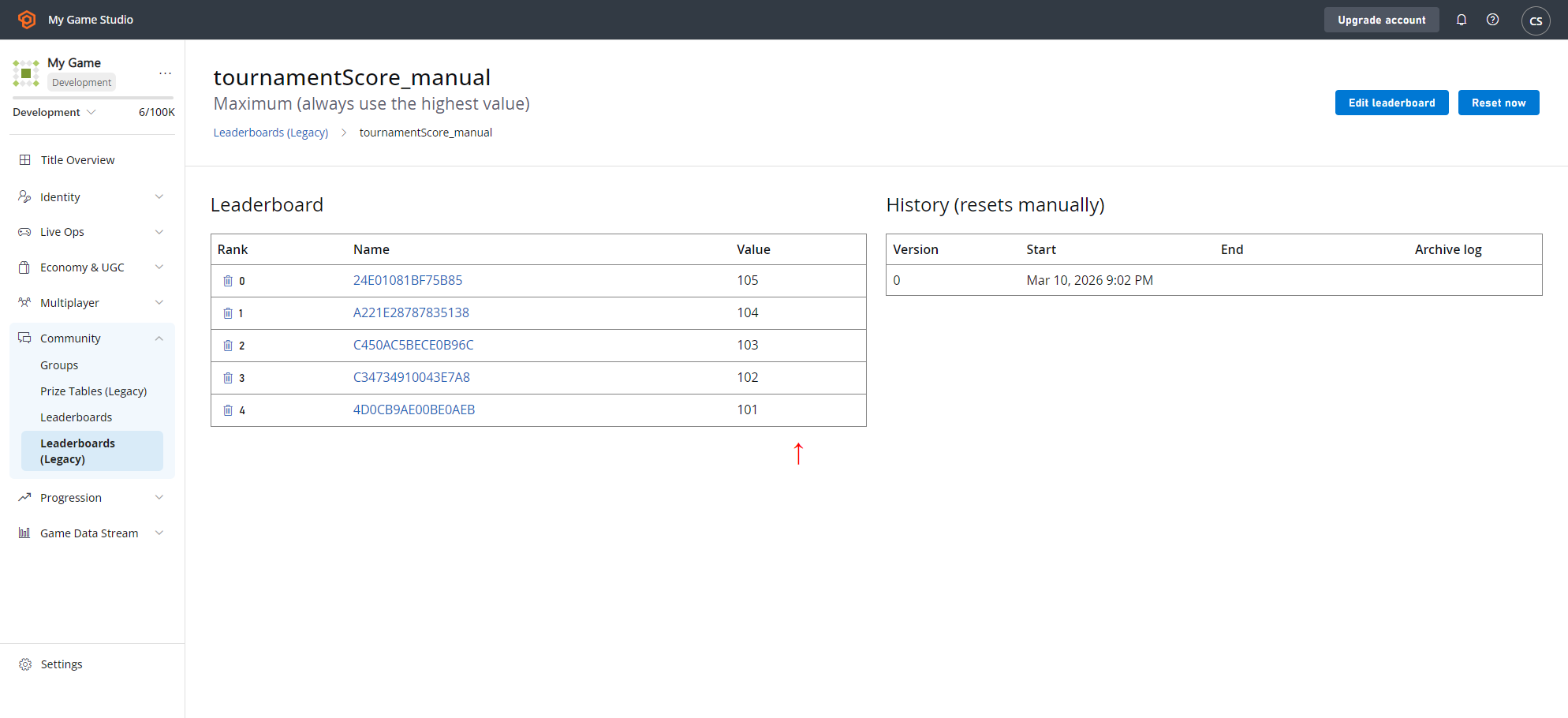
その後、[UpdatePlayerStatistics](xref:titleid.playfabapi.com.client.playerdatamanagement.updateplayerstatistics) を使用して、先に作成したリーダーボード (`tournamentScore_manual`) を、値 **105**、**104**、**103**、**102**、**101** の 5 人のプレイヤーで埋めます。
```csharp theme={null}
// Note: This is a recursive function. Invoke it initially with no parameter
public void CreatePlayerAndPopulateLeaderboard(int playerIndex = 5) {
if (playerIndex <= 0) return;
const string leaderboardName = "tournamentScore_manual";
PlayFabClientAPI.LoginWithCustomID(new LoginWithCustomIDRequest {
CustomId = playerIndex.ToString(),
CreateAccount = true
}, result => OnLoggedIn(result,playerIndex,leaderboardName), FailureCallback);
}
private void OnLoggedIn(LoginResult loginResult, int playerIndex, string leaderboardName) {
Debug.Log("Player has successfully logged in with " + loginResult.PlayFabId);
PlayFabClientAPI.UpdatePlayerStatistics(new UpdatePlayerStatisticsRequest {
Statistics = new List {
new StatisticUpdate {
StatisticName = leaderboardName,
Value = playerIndex + 100
}
}
}, result=> OnStatisticsUpdated(result,playerIndex), FailureCallback);
}
private void OnStatisticsUpdated(UpdatePlayerStatisticsResult updateResult, int playerIndex) {
Debug.Log("Successfully updated player statistic");
// Recursively invoke for next player
CreatePlayerAndPopulateLeaderboard(playerIndex - 1);
}
private void FailureCallback(PlayFabError error){
Debug.LogWarning("Something went wrong with your API call. Here's some debug information:");
Debug.LogError(error.GenerateErrorReport());
}
```
### C# コード例の結果を確認する
リーダーボードに 5 人のプレイヤーが正しい値で埋められていることを確認するには:
* 左のメニューから **Leaderboards** を選択します。
* **Leaderboards** タブで、**Leaderboard** リスト ビューに戻ります。
* **tournamentScore\_manual** を選択すると、値 **105**、**104**、**103**、**102**、**101** の 5 人の **Player** が存在するはずです。
### C# コード例
次の **C#** コード例は、5 人のプレイヤーを作成し、[LoginWithCustomID](xref:titleid.playfabapi.com.client.authentication.loginwithcustomid) を使用してログインさせます。
その後、[UpdatePlayerStatistics](xref:titleid.playfabapi.com.client.playerdatamanagement.updateplayerstatistics) を使用して、先に作成したリーダーボード (`tournamentScore_manual`) を、値 **105**、**104**、**103**、**102**、**101** の 5 人のプレイヤーで埋めます。
```csharp theme={null}
// Note: This is a recursive function. Invoke it initially with no parameter
public void CreatePlayerAndPopulateLeaderboard(int playerIndex = 5) {
if (playerIndex <= 0) return;
const string leaderboardName = "tournamentScore_manual";
PlayFabClientAPI.LoginWithCustomID(new LoginWithCustomIDRequest {
CustomId = playerIndex.ToString(),
CreateAccount = true
}, result => OnLoggedIn(result,playerIndex,leaderboardName), FailureCallback);
}
private void OnLoggedIn(LoginResult loginResult, int playerIndex, string leaderboardName) {
Debug.Log("Player has successfully logged in with " + loginResult.PlayFabId);
PlayFabClientAPI.UpdatePlayerStatistics(new UpdatePlayerStatisticsRequest {
Statistics = new List {
new StatisticUpdate {
StatisticName = leaderboardName,
Value = playerIndex + 100
}
}
}, result=> OnStatisticsUpdated(result,playerIndex), FailureCallback);
}
private void OnStatisticsUpdated(UpdatePlayerStatisticsResult updateResult, int playerIndex) {
Debug.Log("Successfully updated player statistic");
// Recursively invoke for next player
CreatePlayerAndPopulateLeaderboard(playerIndex - 1);
}
private void FailureCallback(PlayFabError error){
Debug.LogWarning("Something went wrong with your API call. Here's some debug information:");
Debug.LogError(error.GenerateErrorReport());
}
```
### C# コード例の結果を確認する
リーダーボードに 5 人のプレイヤーが正しい値で埋められていることを確認するには:
* 左のメニューから **Leaderboards** を選択します。
* **Leaderboards** タブで、**Leaderboard** リスト ビューに戻ります。
* **tournamentScore\_manual** を選択すると、値 **105**、**104**、**103**、**102**、**101** の 5 人の **Player** が存在するはずです。
 ## ステップ 4 - プレイヤーの初期通貨を確認する
何かを確認する前に:
* ステップ 2 の左メニューの **Players** に戻ります。
* **Players** タブに移動し、ステップ 3 で **tournamentScore\_manual** **Leaderboard** に配置されたプレイヤーを見つけます。
* **Player ID** を選択し、そのプレイヤーの **Virtual Currency** タブを選択します。
* そのプレイヤーの **GO** (**Gold**) と **SI** (**Silver**) **Currencies** の値を記録します。
何かを確認する前に、ステップ 2 のテスト **Players** に戻ります。
* **Players** に移動し、ステップ 3 で **tournamentScore\_manual Leaderboard** に配置されたプレイヤーを見つけます。
* そのプレイヤーの **Player ID** と **Virtual Currency** タブを選択します。
* そのプレイヤーの **GO** (**Gold**) と **SI** (**Silver**) 通貨の値を記録します。
* 次に、ステップ 3 で **tournamentScore\_manual Leaderboard** に配置された残りの 4 人のプレイヤーについても同じことを行います。
* 各プレイヤーの **GO** (**Gold**) と **SI** (**Silver**) 通貨の値を必ず記録してください (これらはリセット後にプライズ テーブルが動作したことを確認するために重要です)。
## ステップ 4 - プレイヤーの初期通貨を確認する
何かを確認する前に:
* ステップ 2 の左メニューの **Players** に戻ります。
* **Players** タブに移動し、ステップ 3 で **tournamentScore\_manual** **Leaderboard** に配置されたプレイヤーを見つけます。
* **Player ID** を選択し、そのプレイヤーの **Virtual Currency** タブを選択します。
* そのプレイヤーの **GO** (**Gold**) と **SI** (**Silver**) **Currencies** の値を記録します。
何かを確認する前に、ステップ 2 のテスト **Players** に戻ります。
* **Players** に移動し、ステップ 3 で **tournamentScore\_manual Leaderboard** に配置されたプレイヤーを見つけます。
* そのプレイヤーの **Player ID** と **Virtual Currency** タブを選択します。
* そのプレイヤーの **GO** (**Gold**) と **SI** (**Silver**) 通貨の値を記録します。
* 次に、ステップ 3 で **tournamentScore\_manual Leaderboard** に配置された残りの 4 人のプレイヤーについても同じことを行います。
* 各プレイヤーの **GO** (**Gold**) と **SI** (**Silver**) 通貨の値を必ず記録してください (これらはリセット後にプライズ テーブルが動作したことを確認するために重要です)。
 ## ステップ 5 - 報酬を付与するためにリーダーボードをリセットする
次に **Leaderboards** に移動します。
* **Leaderboards** リスト ビューに戻ります。
* **tournamentScore\_manual** を選択します。
* **Leaderboard** 上の **Players** の位置をメモします (これらは *0 から始まる* ので、位置 **0** が *1 位* です)。
* **RESET NOW** ボタンを選択します。
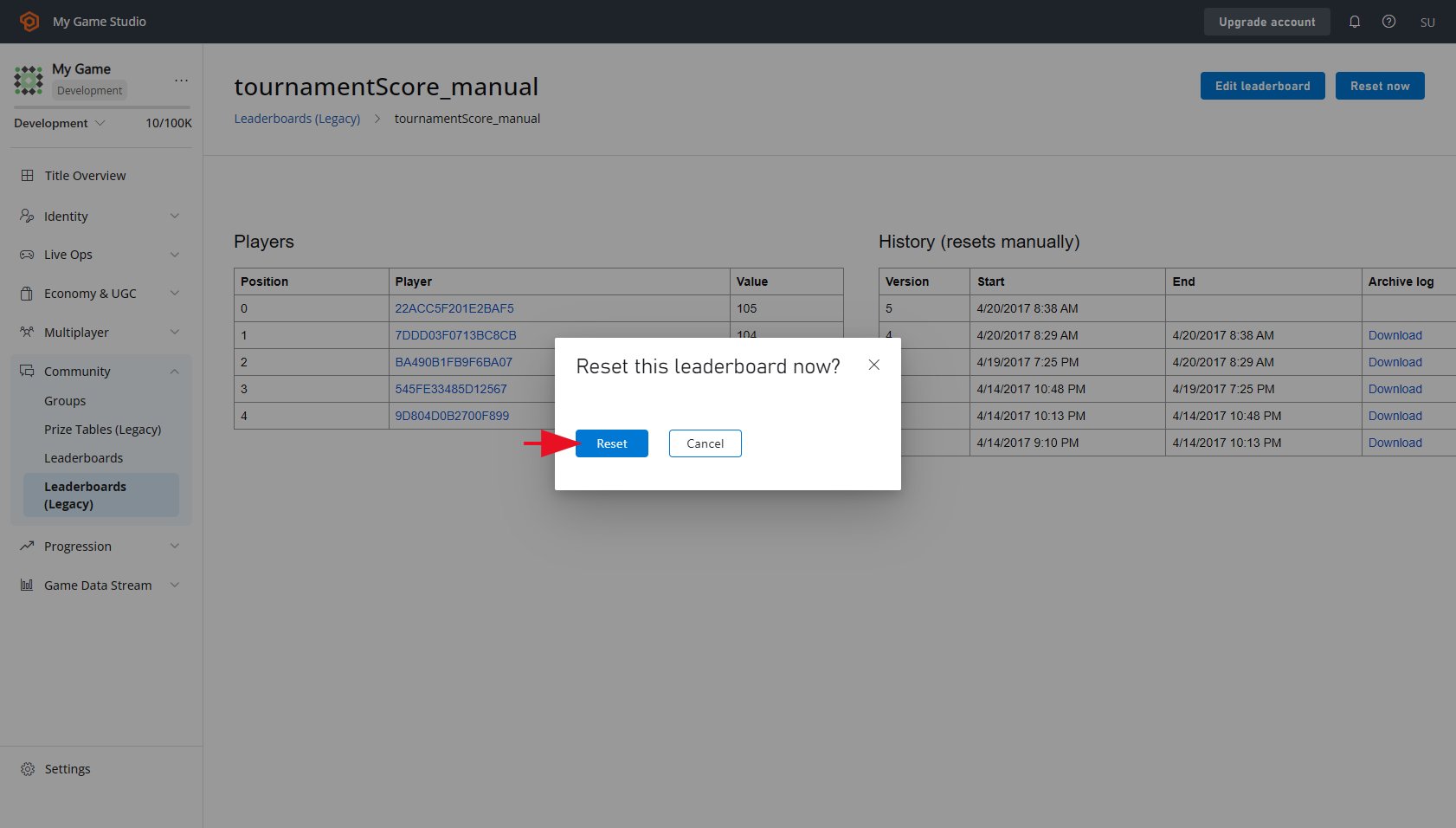
* **Leaderboard** のリセットを確認するために **RESET** ボタンを選択します。
* これにより、**Players** リストがクリアされます。
## ステップ 5 - 報酬を付与するためにリーダーボードをリセットする
次に **Leaderboards** に移動します。
* **Leaderboards** リスト ビューに戻ります。
* **tournamentScore\_manual** を選択します。
* **Leaderboard** 上の **Players** の位置をメモします (これらは *0 から始まる* ので、位置 **0** が *1 位* です)。
* **RESET NOW** ボタンを選択します。
* **Leaderboard** のリセットを確認するために **RESET** ボタンを選択します。
* これにより、**Players** リストがクリアされます。
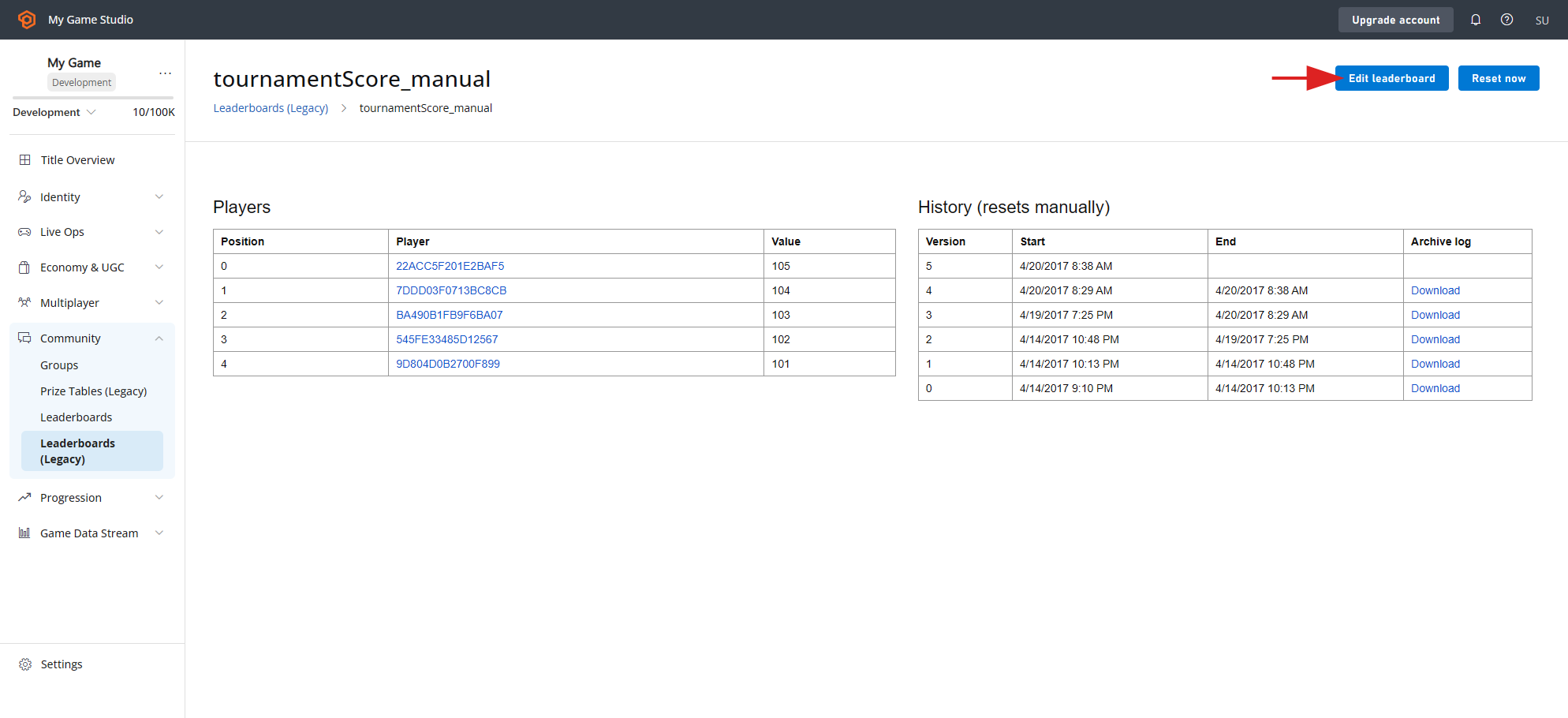 * 画面上部の **RESET NOW** ボタンを選択します。
* **Reset this Leaderboard now?** と表示されたら、**RESET** ボタンを選択してリセットを確認します。
* これにより、**Players** リストがクリアされます。
* 画面上部の **RESET NOW** ボタンを選択します。
* **Reset this Leaderboard now?** と表示されたら、**RESET** ボタンを選択してリセットを確認します。
* これにより、**Players** リストがクリアされます。
 ## ステップ 6 - プライズ テーブルが機能することをテストする
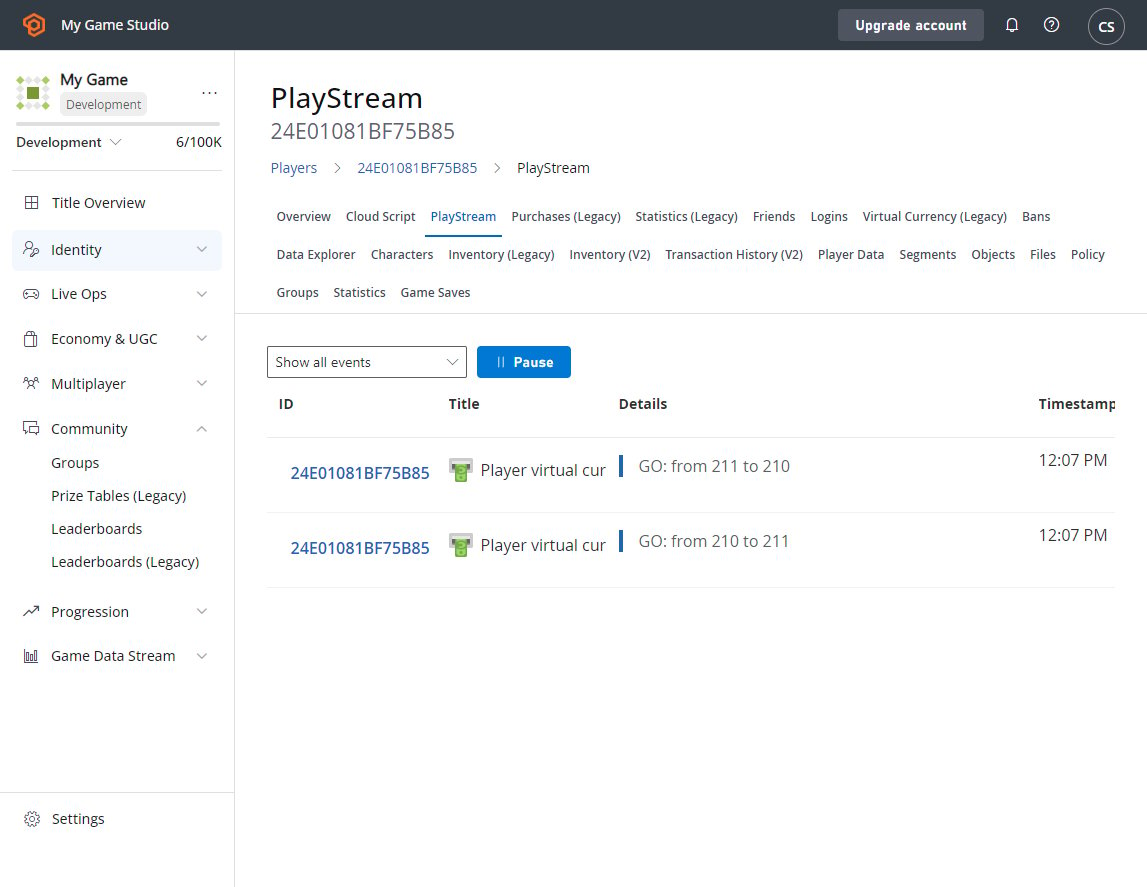
プライズ テーブルが機能したかどうかを確認するには、リーダーボード上のプレイヤーに正しい量の通貨が付与されたかどうかを確認できます。これは、プレイヤーの PlayStream Debugger ですばやく確認できます。
PlayStream Debugger でこれを確認するには:
* 左のメニューから **Players** を選択します。
* **PlayStream** タブには、**Leaderboard** イベント上の **Player** のランキングが表示され、その後に **Virtual Currency** の更新が続きます。
## ステップ 6 - プライズ テーブルが機能することをテストする
プライズ テーブルが機能したかどうかを確認するには、リーダーボード上のプレイヤーに正しい量の通貨が付与されたかどうかを確認できます。これは、プレイヤーの PlayStream Debugger ですばやく確認できます。
PlayStream Debugger でこれを確認するには:
* 左のメニューから **Players** を選択します。
* **PlayStream** タブには、**Leaderboard** イベント上の **Player** のランキングが表示され、その後に **Virtual Currency** の更新が続きます。
 次に、プレイヤーが正しい通貨を受け取ったかどうかを手動で確認しましょう:
* 左のメニューから **Players** を選択します。
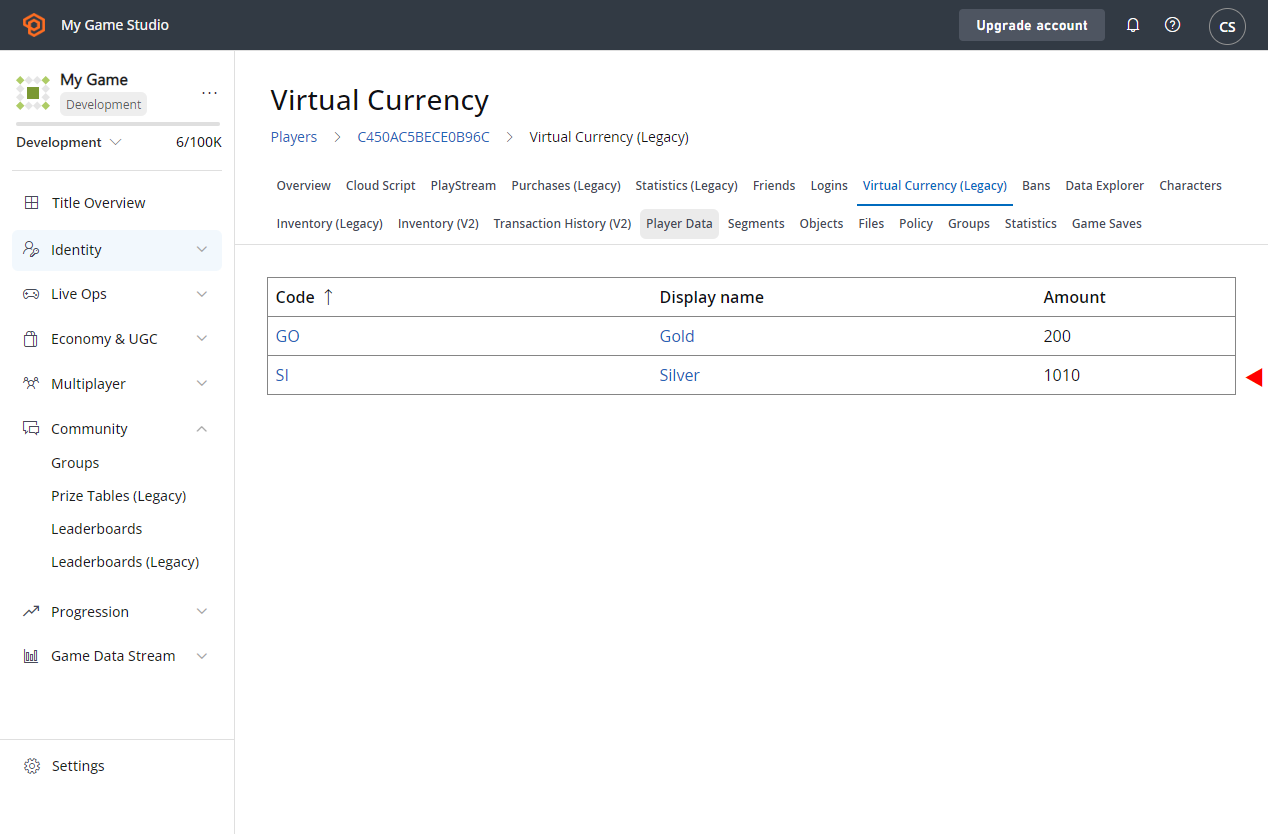
* **Players** タブで、画面の **Virtual Currency** 領域に移動します。
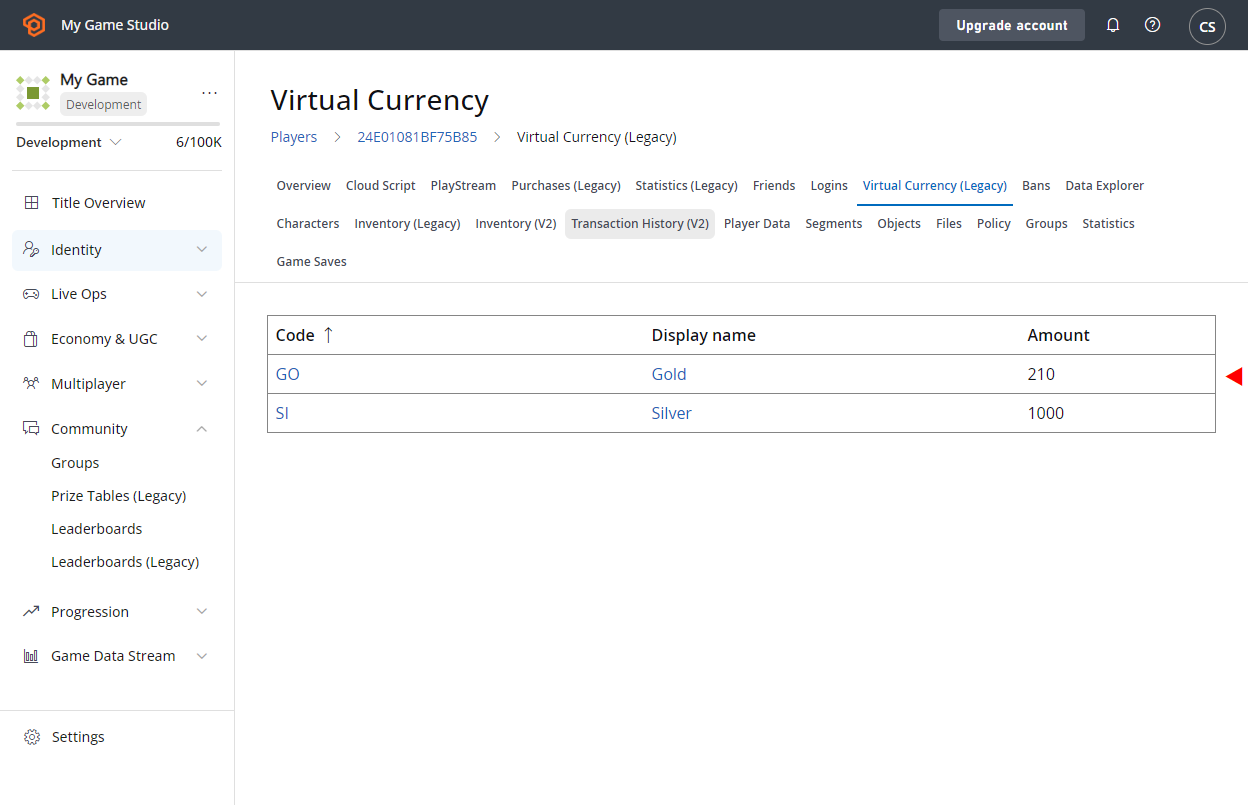
* 通貨が正しく付与されたことを確認します。
* これは、先ほど記録した金額より *1 多い* 数になるはずです。
* リーダーボード位置 **0** または **1** の **Players** は **10 gold** を獲得し、*シルバーは付与されていない* ことに注意してください。
* 一方、位置 **2**、**3**、**4** の **Players** には **10 silver** が付与され、*gold は付与されていません*。
* これは、プライズ テーブルに設定されたアクションと一致します。
次に、プレイヤーが正しい通貨を受け取ったかどうかを手動で確認しましょう:
* 左のメニューから **Players** を選択します。
* **Players** タブで、画面の **Virtual Currency** 領域に移動します。
* 通貨が正しく付与されたことを確認します。
* これは、先ほど記録した金額より *1 多い* 数になるはずです。
* リーダーボード位置 **0** または **1** の **Players** は **10 gold** を獲得し、*シルバーは付与されていない* ことに注意してください。
* 一方、位置 **2**、**3**、**4** の **Players** には **10 silver** が付与され、*gold は付与されていません*。
* これは、プライズ テーブルに設定されたアクションと一致します。
 **Virtual Currency** が正しく付与されたことを確認するもう 1 つの方法は次のとおりです:
* **Players** に移動します。
* **Event History** を確認します。
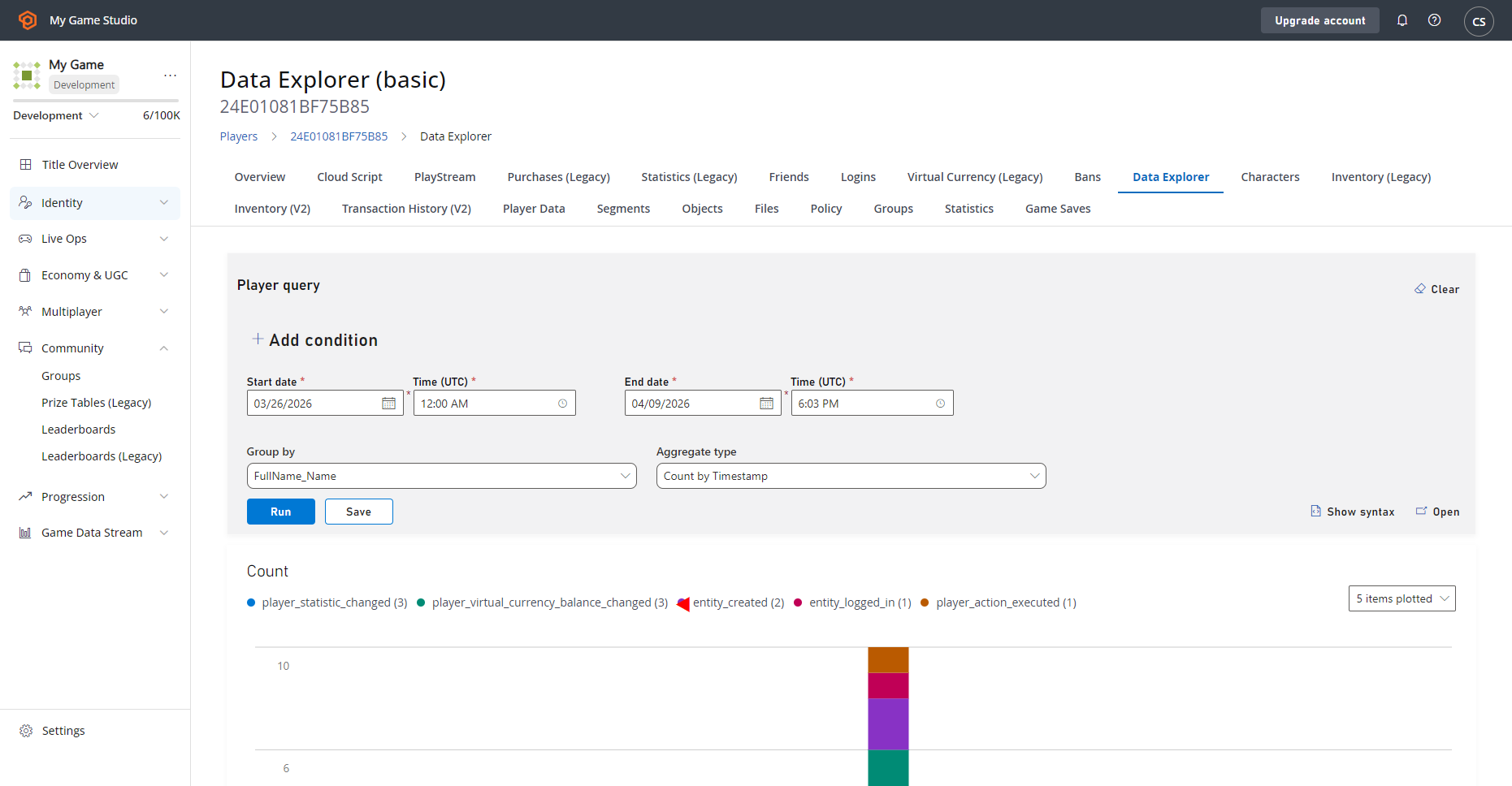
* 付与された **Virtual Currency** の金額変更の具体的な詳細を含む **player\_virtual\_currency\_balance\_changed** イベントが表示されます。
**Virtual Currency** が正しく付与されたことを確認するもう 1 つの方法は次のとおりです:
* **Players** に移動します。
* **Event History** を確認します。
* 付与された **Virtual Currency** の金額変更の具体的な詳細を含む **player\_virtual\_currency\_balance\_changed** イベントが表示されます。
 ## Related topics
- [Economy (Legacy) のドロップ テーブル](/ja-jp/services/playfab/economy-monetization/economy/tutorials/drop-tables.md)
- [PlayFab Explorer の使用を開始する](/ja-jp/services/playfab/data-analytics/acting-data/schemas-events-all.md)
- [Data Explorer 詳細モードの使用を開始する](/ja-jp/services/playfab/data-analytics/learn-data/data-explorer/getting-started-with-data-explorer-advanced.md)
- [Insights のベスト プラクティス](/ja-jp/services/playfab/data-analytics/legacy/insights/best-practices.md)
- [カタログ (レガシー Economy)](/ja-jp/services/playfab/economy-monetization/economy/items/catalogs.md)
## Related topics
- [Economy (Legacy) のドロップ テーブル](/ja-jp/services/playfab/economy-monetization/economy/tutorials/drop-tables.md)
- [PlayFab Explorer の使用を開始する](/ja-jp/services/playfab/data-analytics/acting-data/schemas-events-all.md)
- [Data Explorer 詳細モードの使用を開始する](/ja-jp/services/playfab/data-analytics/learn-data/data-explorer/getting-started-with-data-explorer-advanced.md)
- [Insights のベスト プラクティス](/ja-jp/services/playfab/data-analytics/legacy/insights/best-practices.md)
- [カタログ (レガシー Economy)](/ja-jp/services/playfab/economy-monetization/economy/items/catalogs.md)