> ## Documentation Index
> Fetch the complete documentation index at: https://devdocs.xbox.com/llms.txt
> Use this file to discover all available pages before exploring further.
# アーカイブされたトーナメントの結果へのアクセス
> 手動またはスケジュールされたリセットの後に PlayFab のトーナメント リーダーボードのスナップショットにアクセスし、以前のバージョンのプレイヤー ランキングと統計を取得します。
このチュートリアルでは、アーカイブされたリーダーボードの状態にアクセスする方法について説明します。
各リーダーボードは、手動または自動でリセットできます。つまり、すべてのプレイヤーの統計値が削除されて *クリア* な状態になり、リーダーボードのバージョンが更新されます。
ただし、これが発生する前に、PlayFab は各プレイヤーのすべてのリーダーボード統計値のスナップショットを作成します。これにより、リーダーボードの *アーカイブ* されたバージョンにアクセスできます。
すべてのタイトルで、直近にアーカイブされたバージョンのリーダーボードにアクセスできます。これにより、現在のバージョンと直前のバージョンを取得できます。たとえば、現在のリーダーボード バージョンが **3** の場合、バージョン **3** とアーカイブされたバージョン **2** のみアクセスできます。
## 初期セットアップ
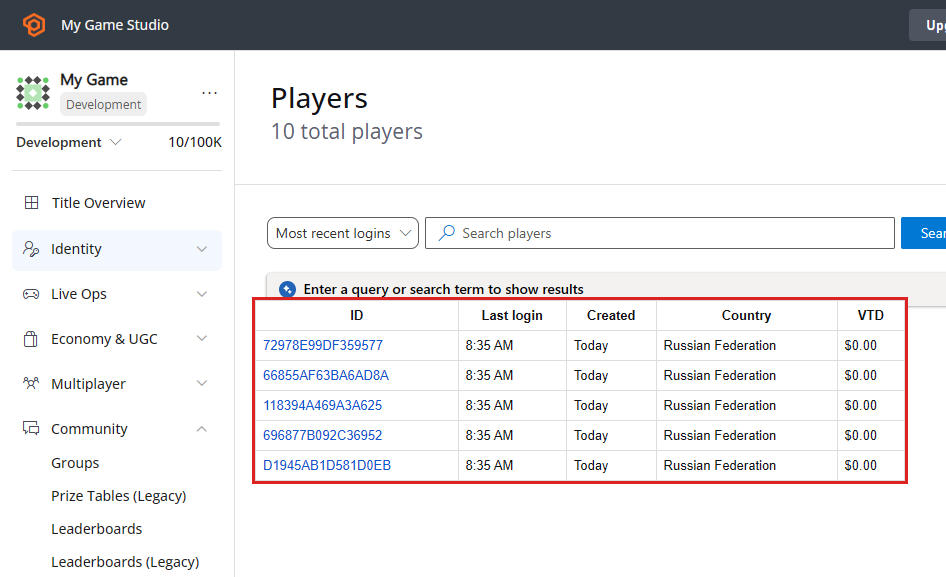
このガイドを使用する前に、タイトルに何人かのプレイヤーが既に登録されていることを確認してください。次のスクリーンショットは、[LoginWithCustomID](xref:titleid.playfabapi.com.client.authentication.loginwithcustomid) API 呼び出しを使用して 5 人のプレイヤーを人工的に登録した状態を示しています。
 ## リーダーボードの定義とシミュレーション
このステップでは、テスト目的でリーダーボードを作成します。その後、リーダーボードに数回データを入力してリセットし、リーダーボードのイテレーション プロセスをシミュレートします。
Game Manager を開きます:
1. **Leaderboards** セクションに移動します。
2. 以下に示すように、**New Leaderboard** ボタンを選択します。
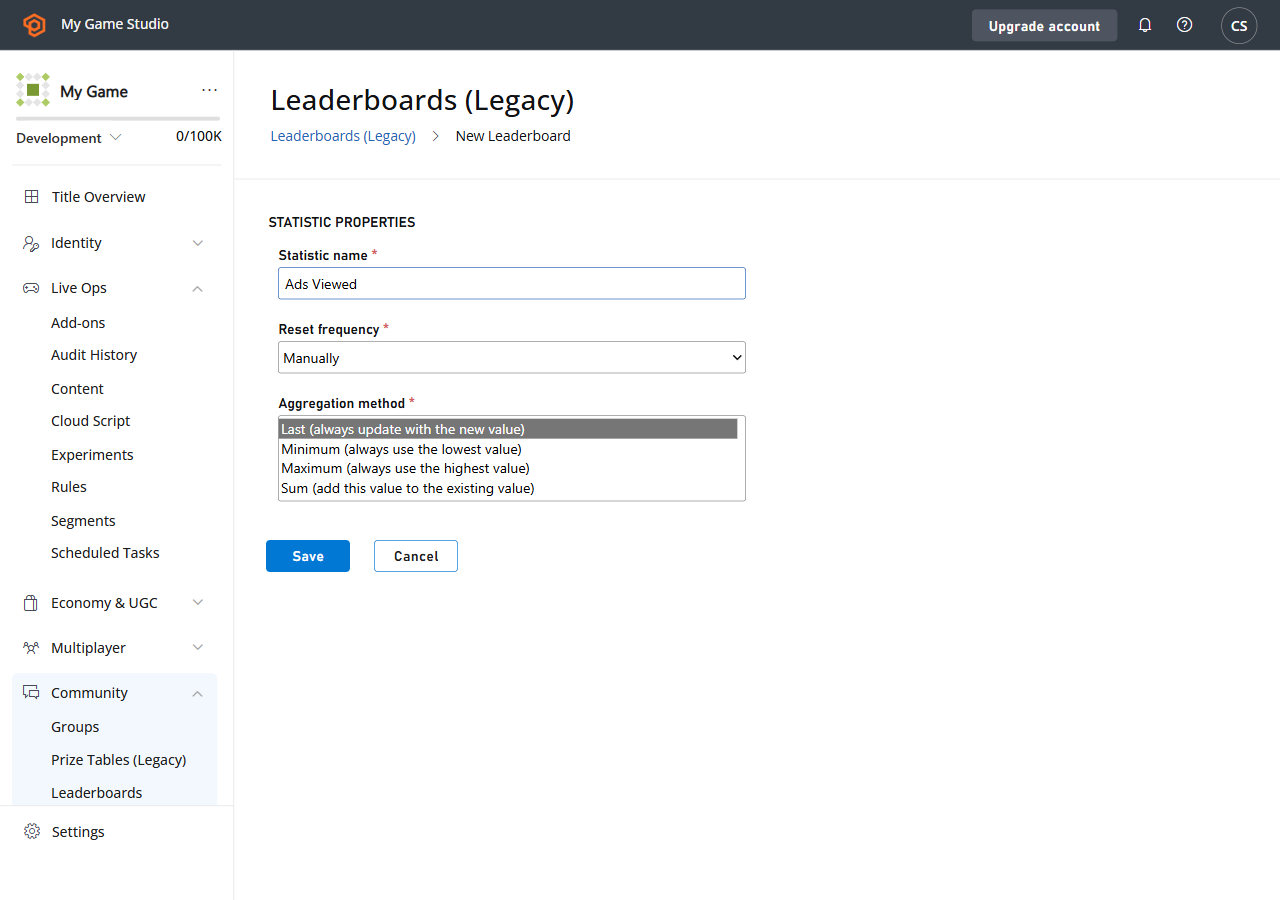
新しいリーダーボードを構成するには:
1. **Statistic** の名前を **TestScore** に設定します。
2. **Reset Frequency** は **Manually** のままにします。
3. デフォルトの **Aggregation** メソッドをそのままにします。
4. **Save Leaderboard** を選択して送信します。
## リーダーボードの定義とシミュレーション
このステップでは、テスト目的でリーダーボードを作成します。その後、リーダーボードに数回データを入力してリセットし、リーダーボードのイテレーション プロセスをシミュレートします。
Game Manager を開きます:
1. **Leaderboards** セクションに移動します。
2. 以下に示すように、**New Leaderboard** ボタンを選択します。
新しいリーダーボードを構成するには:
1. **Statistic** の名前を **TestScore** に設定します。
2. **Reset Frequency** は **Manually** のままにします。
3. デフォルトの **Aggregation** メソッドをそのままにします。
4. **Save Leaderboard** を選択して送信します。
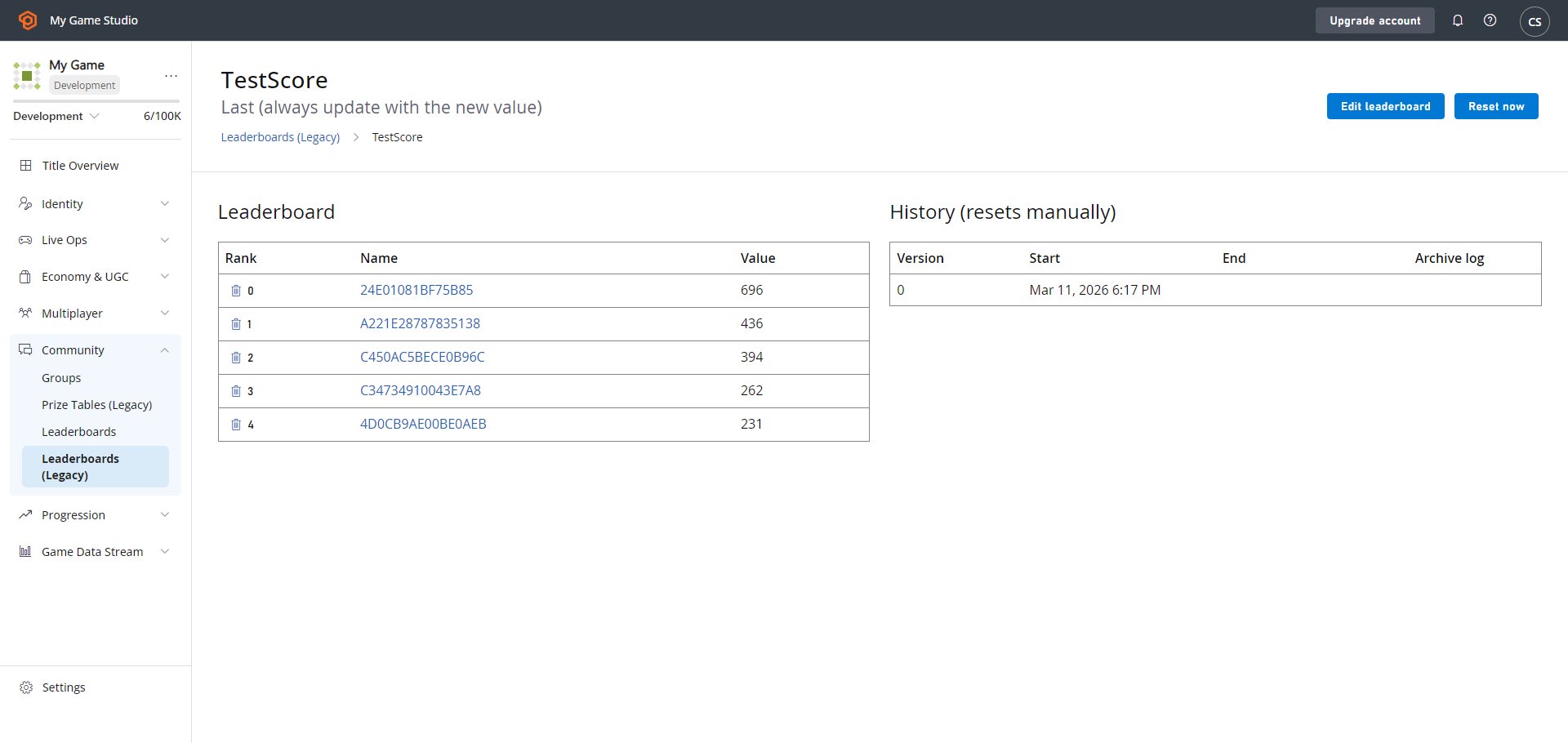
 新しい **Leaderboards** ページに移動し、空のデータが表示されます (以下参照)。
 ## テスト セクションの開始
以下のセクションは、この例の目的でテスト データを入力する方法の一例です。*実際の* ゲームでは、このデータをより自然な方法で入力します。
次のステップは、リーダーボードのデータをシミュレートすることです。最も簡単な方法は、指定されたプレイヤーにランダムな統計を設定する CloudScript ハンドラーを作成することです。このハンドラーを All Players セグメントのすべてのプレイヤーに対して呼び出します。
その結果、各プレイヤーがランダムな統計値を取得します。これは実世界のシナリオに *十分近い* 近似です。
まず、CloudScript の定義から始めましょう (詳細についてはコード コメントを参照してください)。
```javascript theme={null}
// Should be invoked from a task that runs over certain segment
handlers.PopulateLeaderboard = (args,ctx) => {
// When handler is executed as a task over the segment
// we can extract individual player id using the next line:
let playerId = ctx.playerProfile.PlayerId;
// Use player id and update player statistics as follows:
server.UpdatePlayerStatistics({
PlayFabId : playerId,
Statistics : [
{
"StatisticName": "TestScore",
"Value": getRandomInRange(100,1000)
}
]
});
}
// Utility method to generate random number
let getRandomInRange = (min, max) => {
return Math.round(Math.random() * (max - min) + min);
}
```
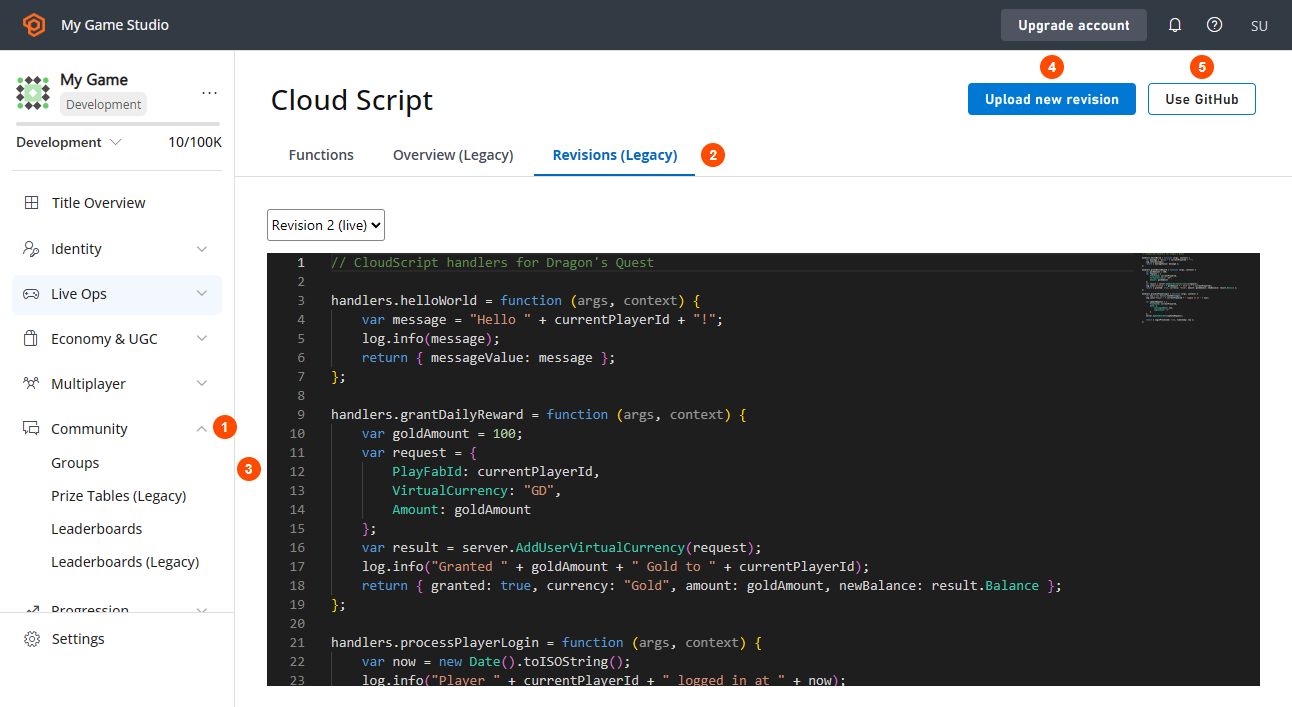
CloudScript をアップロードしましょう。Game Manager を使用します:
1. **Automation** タブに移動します。
2. 次に **CloudScript** サブタブに移動します。
3. **CloudScript** コードを挿入します。
4. **Save as Revision** を選択します。
5. 最後に **Deploy Revision** を選択します。
## テスト セクションの開始
以下のセクションは、この例の目的でテスト データを入力する方法の一例です。*実際の* ゲームでは、このデータをより自然な方法で入力します。
次のステップは、リーダーボードのデータをシミュレートすることです。最も簡単な方法は、指定されたプレイヤーにランダムな統計を設定する CloudScript ハンドラーを作成することです。このハンドラーを All Players セグメントのすべてのプレイヤーに対して呼び出します。
その結果、各プレイヤーがランダムな統計値を取得します。これは実世界のシナリオに *十分近い* 近似です。
まず、CloudScript の定義から始めましょう (詳細についてはコード コメントを参照してください)。
```javascript theme={null}
// Should be invoked from a task that runs over certain segment
handlers.PopulateLeaderboard = (args,ctx) => {
// When handler is executed as a task over the segment
// we can extract individual player id using the next line:
let playerId = ctx.playerProfile.PlayerId;
// Use player id and update player statistics as follows:
server.UpdatePlayerStatistics({
PlayFabId : playerId,
Statistics : [
{
"StatisticName": "TestScore",
"Value": getRandomInRange(100,1000)
}
]
});
}
// Utility method to generate random number
let getRandomInRange = (min, max) => {
return Math.round(Math.random() * (max - min) + min);
}
```
CloudScript をアップロードしましょう。Game Manager を使用します:
1. **Automation** タブに移動します。
2. 次に **CloudScript** サブタブに移動します。
3. **CloudScript** コードを挿入します。
4. **Save as Revision** を選択します。
5. 最後に **Deploy Revision** を選択します。
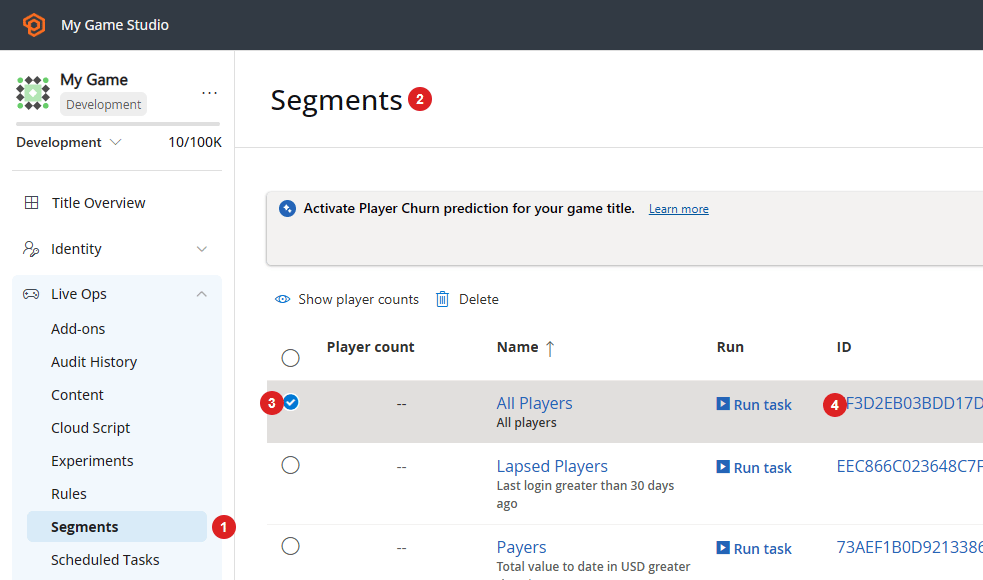
 次に、特定のセグメントに対して CloudScript を実行するタスクを定義する必要があります:
1. **Players** タブに移動します。
2. 次に **Segments** サブタブに移動します。
デフォルトでは、**PlayFab** は **All Players** セグメントを生成します。このセグメントは、タイトルに登録されているすべてのプレイヤーが必要な場合 (まさに今回のケース) に特に便利です。
3. **All Players Segment** を選択します。
4. 最後に、**Run Task...** を選択します。
リストに All Players セグメントがない場合は、[Player Segmentation](/services/playfab/live-service-management/game-configuration/segmentation/segmentation-quickstart) クイックスタートを参照して作成してください。
次に、特定のセグメントに対して CloudScript を実行するタスクを定義する必要があります:
1. **Players** タブに移動します。
2. 次に **Segments** サブタブに移動します。
デフォルトでは、**PlayFab** は **All Players** セグメントを生成します。このセグメントは、タイトルに登録されているすべてのプレイヤーが必要な場合 (まさに今回のケース) に特に便利です。
3. **All Players Segment** を選択します。
4. 最後に、**Run Task...** を選択します。
リストに All Players セグメントがない場合は、[Player Segmentation](/services/playfab/live-service-management/game-configuration/segmentation/segmentation-quickstart) クイックスタートを参照して作成してください。
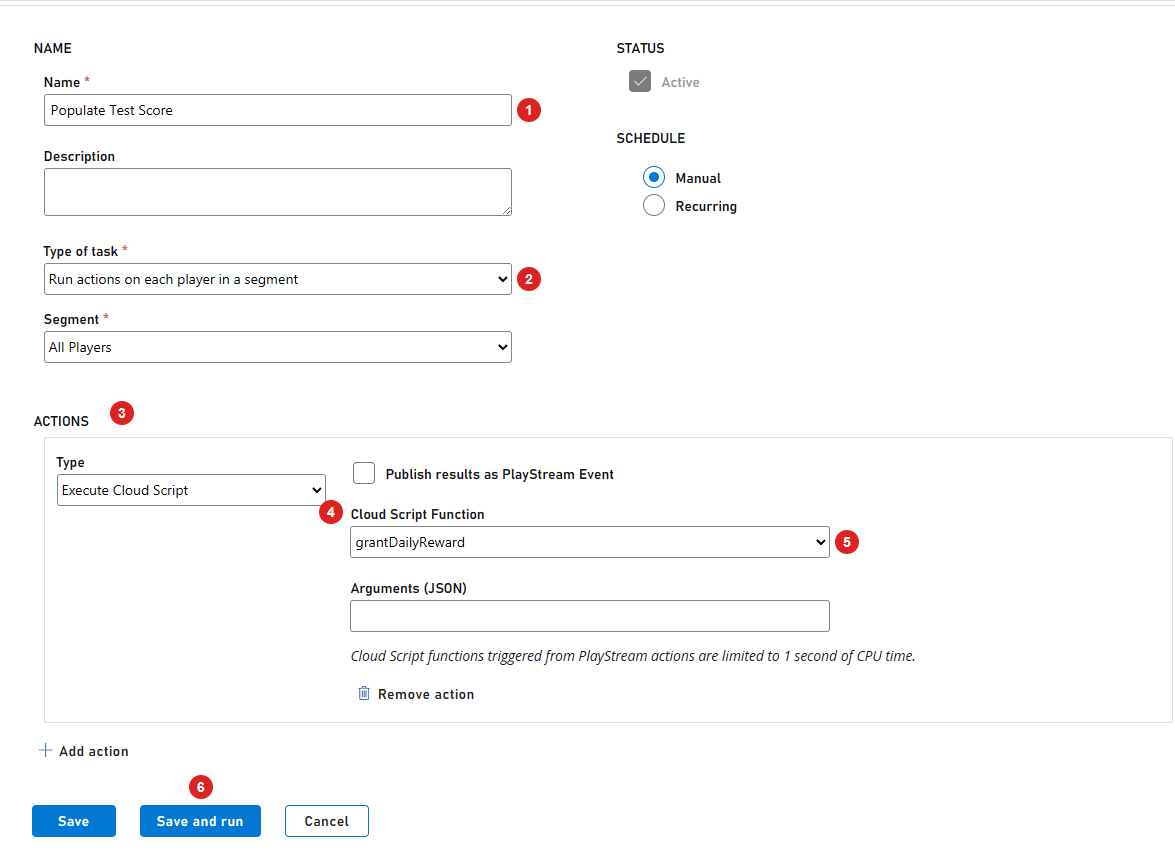
 タスクを構成するには:
1. **Name** を設定します。
2. タスクの種類が **Run actions on each Player in a Segment** に設定されていることを確認します。
* さらに、**Segment** の下で **All Players** が選択されていることを確認します。
3. 新しい **Action** を追加します。
4. **Type** の下で **Execute CloudScript** を選択します。
5. 次に、**CloudScript Function** の下で **PopulateLeaderboard** ハンドラーを選択します。
6. 最後に、**Save and Run** ボタンを選択します。
タスクを構成するには:
1. **Name** を設定します。
2. タスクの種類が **Run actions on each Player in a Segment** に設定されていることを確認します。
* さらに、**Segment** の下で **All Players** が選択されていることを確認します。
3. 新しい **Action** を追加します。
4. **Type** の下で **Execute CloudScript** を選択します。
5. 次に、**CloudScript Function** の下で **PopulateLeaderboard** ハンドラーを選択します。
6. 最後に、**Save and Run** ボタンを選択します。
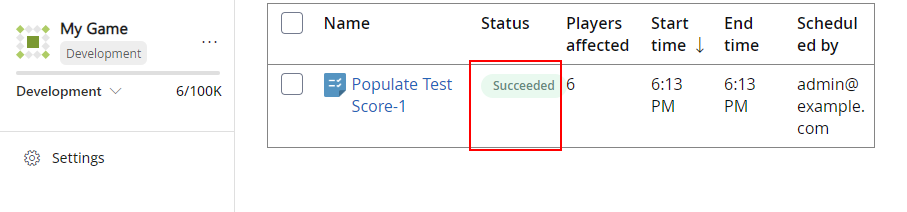
 * 実行結果が **Successful** であることを確認します。
 ## テスト セクションの終了
### テスト データを入力する
1. 再び **Leaderboards** タブに移動します。
2. 作成した **Leaderboard** を選択します。
## テスト セクションの終了
### テスト データを入力する
1. 再び **Leaderboards** タブに移動します。
2. 作成した **Leaderboard** を選択します。
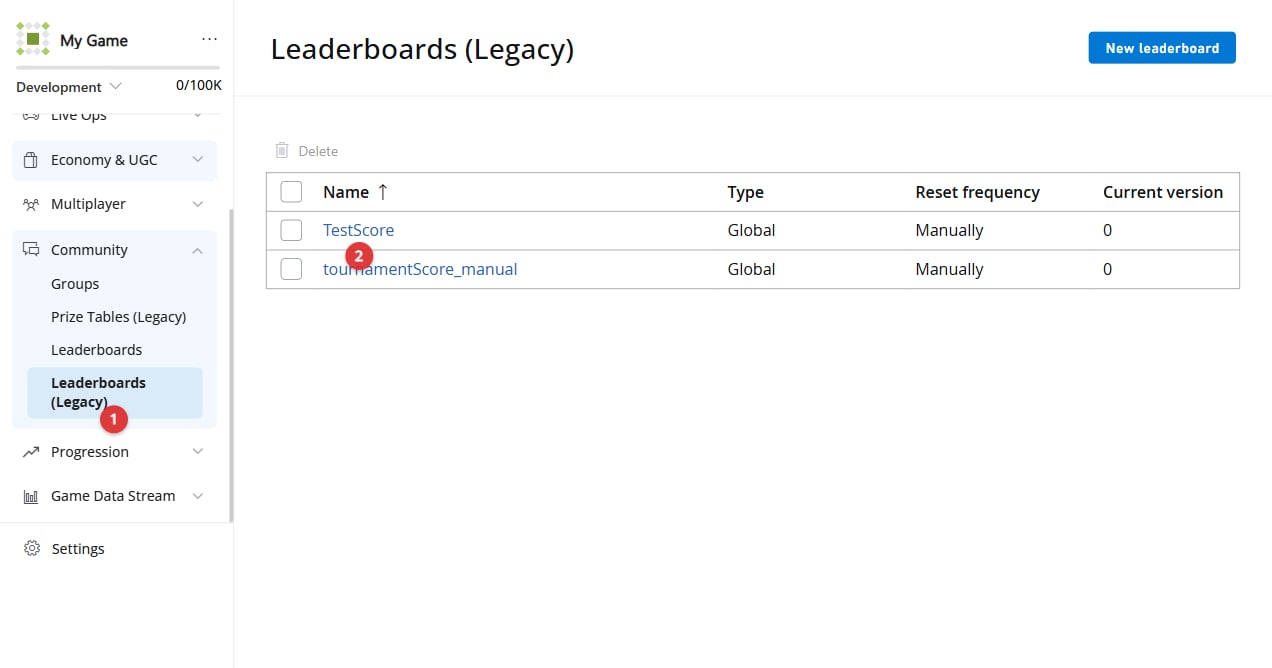 1. **Leaderboard** にランダムな値が入力されているのが確認できます。
2. **Leaderboard** をリセットします。
1. **Leaderboard** にランダムな値が入力されているのが確認できます。
2. **Leaderboard** をリセットします。
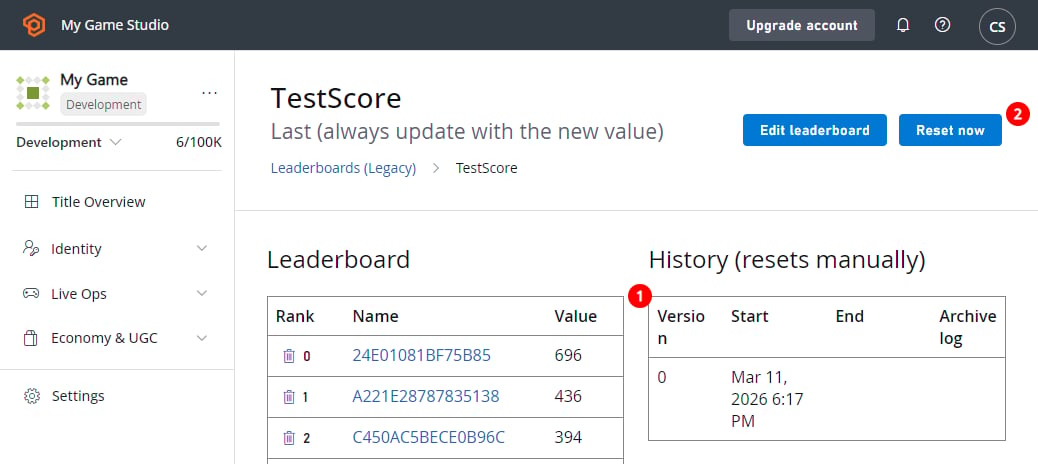 これにより、現在のすべてのデータのスナップショットが作成され、その後すべてのプレイヤーの統計値が *ゼロ化* され、バージョンがインクリメントされます。
* リーダーボードがリセットされたら、CloudScript タスクを再度実行します。
* これを 2 ~ 3 回繰り返し、リセットして再入力します。
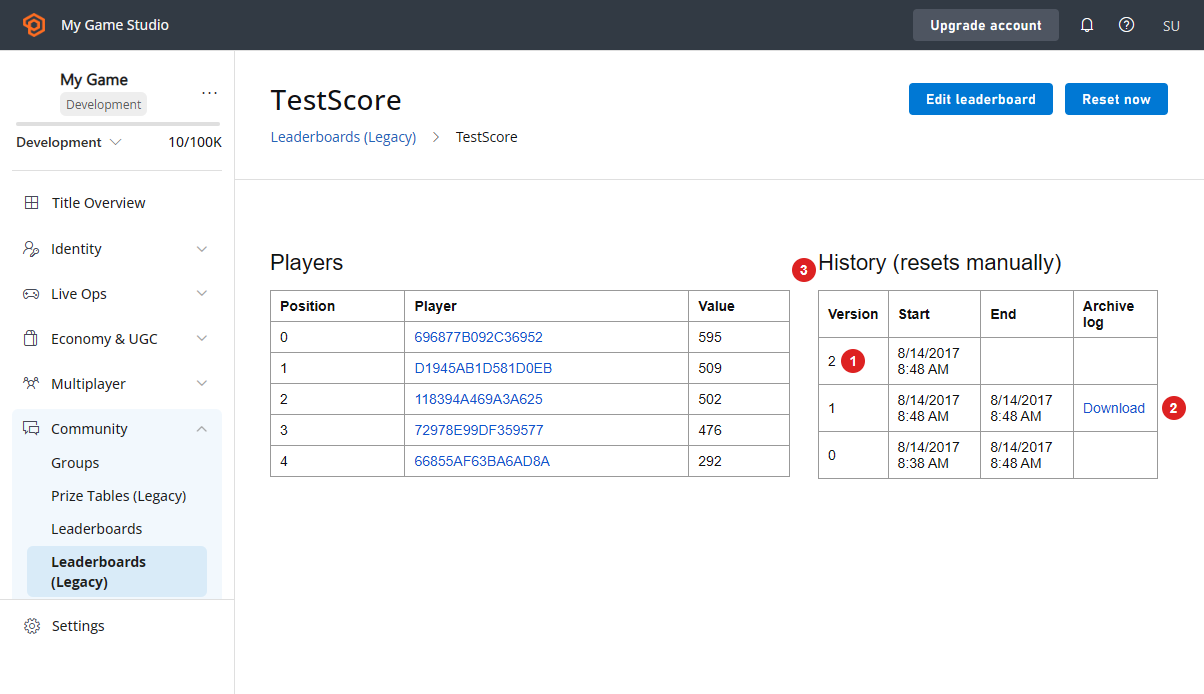
複数の **Leaderboard** バージョン **(1)** が得られます:
* **現在のバージョンのデータ** が左側のテーブルに表示されます **(3)**。
* **アーカイブされたデータ** は以前のバージョンで利用可能になります **(2)**。
* 最新バージョンのみが利用可能です。これはすべてのタイトルに適用されます。
これにより、現在のすべてのデータのスナップショットが作成され、その後すべてのプレイヤーの統計値が *ゼロ化* され、バージョンがインクリメントされます。
* リーダーボードがリセットされたら、CloudScript タスクを再度実行します。
* これを 2 ~ 3 回繰り返し、リセットして再入力します。
複数の **Leaderboard** バージョン **(1)** が得られます:
* **現在のバージョンのデータ** が左側のテーブルに表示されます **(3)**。
* **アーカイブされたデータ** は以前のバージョンで利用可能になります **(2)**。
* 最新バージョンのみが利用可能です。これはすべてのタイトルに適用されます。
 ### Game Manager を使用してアーカイブされたデータにアクセスする
**Leaderboard** ページから直接アーカイブされた結果にアクセスできます:
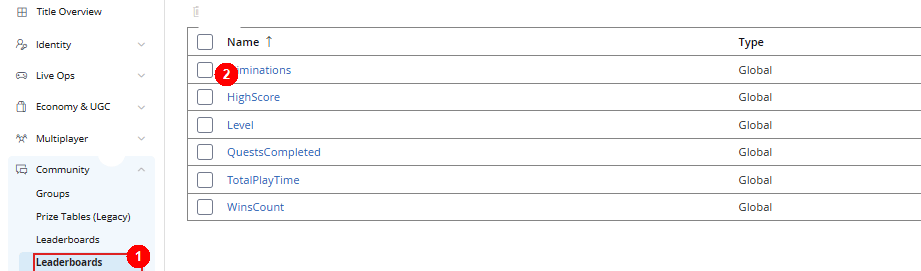
1. **Leaderboards** タブに移動します。
2. 必要な **Leaderboard** を選択します。
### Game Manager を使用してアーカイブされたデータにアクセスする
**Leaderboard** ページから直接アーカイブされた結果にアクセスできます:
1. **Leaderboards** タブに移動します。
2. 必要な **Leaderboard** を選択します。
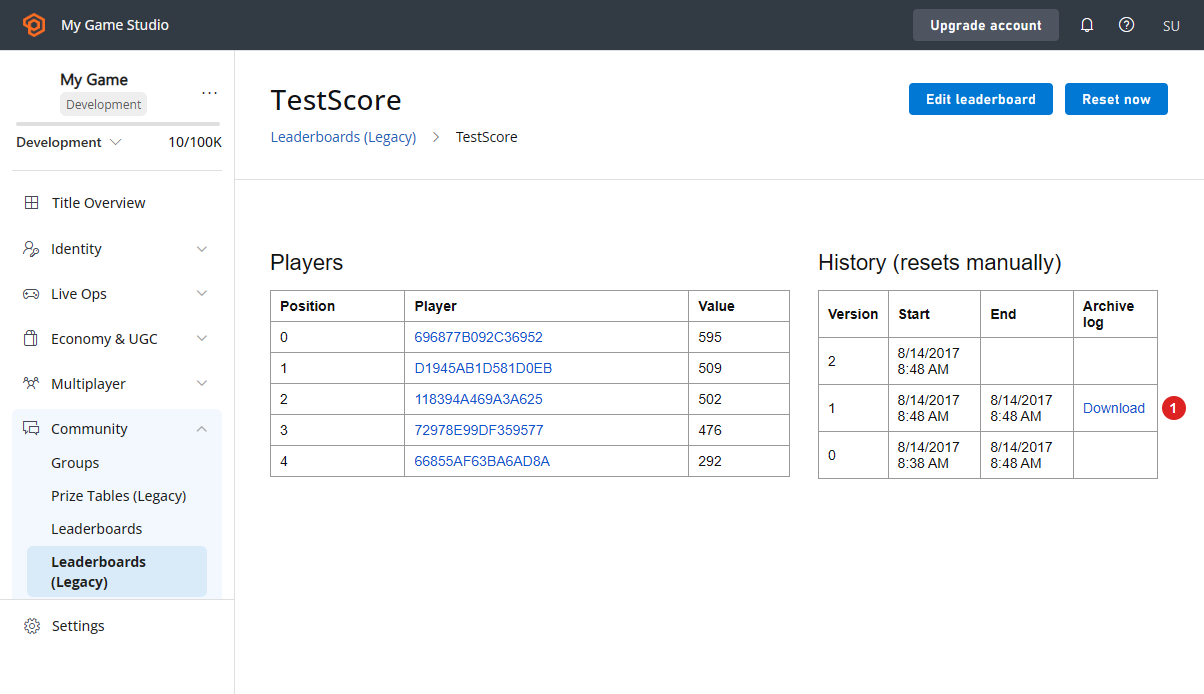
 1. **Leaderboard** にアーカイブされたリビジョンが含まれている場合、以下のスクリーンショットに示されているダウンロード リンクを使用して **JSON** データをダウンロードできます。
 ### API を使用してアーカイブされたデータにアクセスする
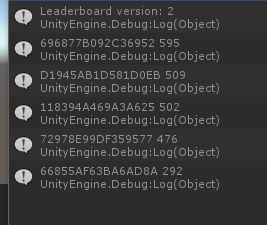
次のコードを使用すると、リーダーボードの最新 (現在) バージョンを取得できます。
```csharp theme={null}
PlayFabClientAPI.GetLeaderboard(new GetLeaderboardRequest()
{
StatisticName = "TestScore",
}, result =>
{
Debug.Log("Leaderboard version: "+result.Version);
foreach (var entry in result.Leaderboard)
{
Debug.Log(entry.PlayFabId+" "+entry.StatValue);
}
}, FailureCallback);
```
結果は以下の例のようになります。
### API を使用してアーカイブされたデータにアクセスする
次のコードを使用すると、リーダーボードの最新 (現在) バージョンを取得できます。
```csharp theme={null}
PlayFabClientAPI.GetLeaderboard(new GetLeaderboardRequest()
{
StatisticName = "TestScore",
}, result =>
{
Debug.Log("Leaderboard version: "+result.Version);
foreach (var entry in result.Leaderboard)
{
Debug.Log(entry.PlayFabId+" "+entry.StatValue);
}
}, FailureCallback);
```
結果は以下の例のようになります。
 または、読み込むリーダーボードのバージョンを指定することもできます。
```csharp theme={null}
PlayFabClientAPI.GetLeaderboard(new GetLeaderboardRequest()
{
StatisticName = "TestScore",
Version = 1
}, result =>
{
Debug.Log("Leaderboard version: "+result.Version);
foreach (var entry in result.Leaderboard)
{
Debug.Log(entry.PlayFabId+" "+entry.StatValue);
}
}, FailureCallback);
```
結果は以下の例のようになります。
または、読み込むリーダーボードのバージョンを指定することもできます。
```csharp theme={null}
PlayFabClientAPI.GetLeaderboard(new GetLeaderboardRequest()
{
StatisticName = "TestScore",
Version = 1
}, result =>
{
Debug.Log("Leaderboard version: "+result.Version);
foreach (var entry in result.Leaderboard)
{
Debug.Log(entry.PlayFabId+" "+entry.StatValue);
}
}, FailureCallback);
```
結果は以下の例のようになります。
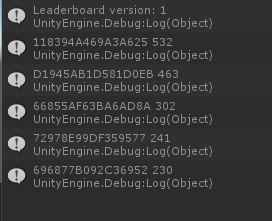 すべてのタイトルで、リーダーボードの *最新の* アーカイブ バージョンにアクセスできます。それより古いバージョンを取得しようとするとエラーになります (以下参照)。
 同じルールがすべての Leaderboard リクエストに適用されます。
* [GetLeaderboard](xref:titleid.playfabapi.com.client.playerdatamanagement.getleaderboard)
* [GetLeaderboardAroundPlayer](xref:titleid.playfabapi.com.client.playerdatamanagement.getleaderboardaroundplayer)
* [GetFriendLeaderboardAroundPlayer](xref:titleid.playfabapi.com.client.playerdatamanagement.getfriendleaderboardaroundplayer)
* [GetFriendLeaderboard](xref:titleid.playfabapi.com.client.playerdatamanagement.getfriendleaderboard)
リーダーボード データと共に取得できる便利なプロパティについて学ぶには、[GetLeaderboardResult](xref:titleid.playfabapi.com.client.playerdatamanagement.getleaderboard#getleaderboardresult) オブジェクトのドキュメントを参照してください。
## Related topics
- [高度なリーダーボードにプロファイルを使用する](/ja-jp/services/playfab/community/leaderboards/tournaments-leaderboards/using-the-profile-for-advanced-leaderboards.md)
- [S3 イベント アーカイブ](/ja-jp/services/playfab/data-analytics/legacy/s3-event-archiving.md)
- [プッシュ通知クイックスタート](/ja-jp/services/playfab/live-service-management/game-configuration/title-communications/push-notifications/quickstart.md)
- [Amazon S3 バケットのセットアップ](/ja-jp/services/playfab/data-analytics/legacy/configure-s3-bucket.md)
- [XblMultiplayerTournamentsServer](/ja-jp/reference/live/xsapi-c/multiplayer_c/structs/xblmultiplayertournamentsserver.md)
同じルールがすべての Leaderboard リクエストに適用されます。
* [GetLeaderboard](xref:titleid.playfabapi.com.client.playerdatamanagement.getleaderboard)
* [GetLeaderboardAroundPlayer](xref:titleid.playfabapi.com.client.playerdatamanagement.getleaderboardaroundplayer)
* [GetFriendLeaderboardAroundPlayer](xref:titleid.playfabapi.com.client.playerdatamanagement.getfriendleaderboardaroundplayer)
* [GetFriendLeaderboard](xref:titleid.playfabapi.com.client.playerdatamanagement.getfriendleaderboard)
リーダーボード データと共に取得できる便利なプロパティについて学ぶには、[GetLeaderboardResult](xref:titleid.playfabapi.com.client.playerdatamanagement.getleaderboard#getleaderboardresult) オブジェクトのドキュメントを参照してください。
## Related topics
- [高度なリーダーボードにプロファイルを使用する](/ja-jp/services/playfab/community/leaderboards/tournaments-leaderboards/using-the-profile-for-advanced-leaderboards.md)
- [S3 イベント アーカイブ](/ja-jp/services/playfab/data-analytics/legacy/s3-event-archiving.md)
- [プッシュ通知クイックスタート](/ja-jp/services/playfab/live-service-management/game-configuration/title-communications/push-notifications/quickstart.md)
- [Amazon S3 バケットのセットアップ](/ja-jp/services/playfab/data-analytics/legacy/configure-s3-bucket.md)
- [XblMultiplayerTournamentsServer](/ja-jp/reference/live/xsapi-c/multiplayer_c/structs/xblmultiplayertournamentsserver.md)