> ## Documentation Index
> Fetch the complete documentation index at: https://devdocs.xbox.com/llms.txt
> Use this file to discover all available pages before exploring further.
# TAK Editor のセットアップ
> TAK Editor のセットアップ
この記事では、TAK Editor をセットアップするために従わなければならない手順を提供します。すでに Visual Studio Code がインストールされ、[最新の TAK CLI がダウンロード](https://aka.ms/get-takcli) されており、TAK Editor 拡張機能がインストールされていることを前提としています。まだの場合は、詳細については [概要](/build/core-features/common/game-streaming/tak-editor/game-streaming-tak-editor) ページを参照してください。
高いレベルでは、セットアップ プロセスには以下の手順が含まれます:
1. 拡張機能で TAK CLI パスを設定します。
2. Visual Studio Code でフォルダーまたはワークスペースを開きます
* これは、バンドルが作成および編集される場所です。
この拡張機能の機能のほとんどは、[VS Code コマンド パレット](https://code.visualstudio.com/docs/getstarted/userinterface#_command-palette) で実行されるコマンドを介してアクセスできます。コマンド パレットは、Windows では `Ctrl+Shift+P`、macOS では `Cmd+Shift+P` を押すことでアクセスできます。このガイドを通じて頻繁に使用されるため、このインターフェイスに慣れておくことをお勧めします。
## TAK CLI パスを設定する
[TAK CLI](/build/core-features/common/game-streaming/tak-command-line-tool/game-streaming-tak-command-line) をマシンにダウンロードしたら、拡張機能の設定でそのパスを設定する必要があります。拡張機能は、バンドルの作成などのさまざまな操作を実行するために、バックグラウンドで TAK CLI を起動します。
これは、VS Code でコマンドを実行するか、[VS Code ユーザー設定](https://code.visualstudio.com/docs/getstarted/settings) (設定 ID: `TAK.editor.commandLineTool.path`) で手動でパスを設定することによって実行できます。
コマンドを介してパスを設定するには:
1. コマンド パレットを開きます (Windows では `Ctrl+Shift+P`、macOS では `Cmd+Shift+P`)。
2. 「Set TAK CLI」を検索し、「Touch Adaptation Kit: Set TAK Command Line Tool (TAK CLI) Path」コマンドを選択します。
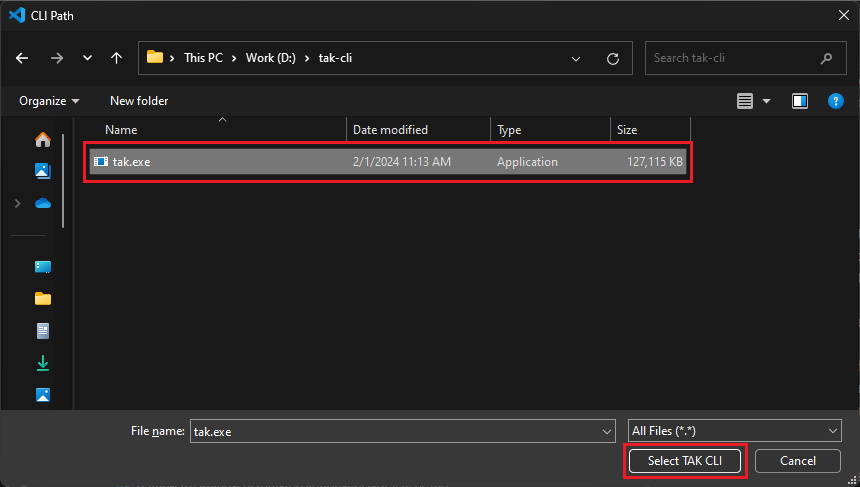
 3. ファイル ピッカーが開きます。TAK CLI がダウンロードされている場所に移動し、実行可能ファイル (Windows では `tak.exe`、macOS では `tak`) を選択します:
 ## フォルダーまたはワークスペースを開く
バンドルで作業するには、Visual Studio Code でフォルダーまたは [ワークスペース](https://code.visualstudio.com/docs/editor/workspaces) を開く必要があります。これは、ゲームのバンドルを含む親ディレクトリとして考えてください。
フォルダーを開くには、ウィンドウの左上隅にある「File」メニューをクリックし、「Open Folder」を選択します。バンドルを作成したい場所 (またはバンドルを含む既存のフォルダー) に移動し、「Select Folder」をクリックします。
ワークスペースを開くには、「File」をクリックし、「Open Workspace from File」を選択します。これには、既存のワークスペース ファイル (拡張子 `.code-workspace`) がマシン上に存在している必要があることに注意してください。ワークスペース ファイルがない場合は、「File」メニューから「Add Folder to Workspace...」を選択して、目的のフォルダーを追加することで作成できます。その後、「File」をクリックして「Save Workspace As...」を選択することで、ワークスペースを保存できます。
## トラブルシューティング
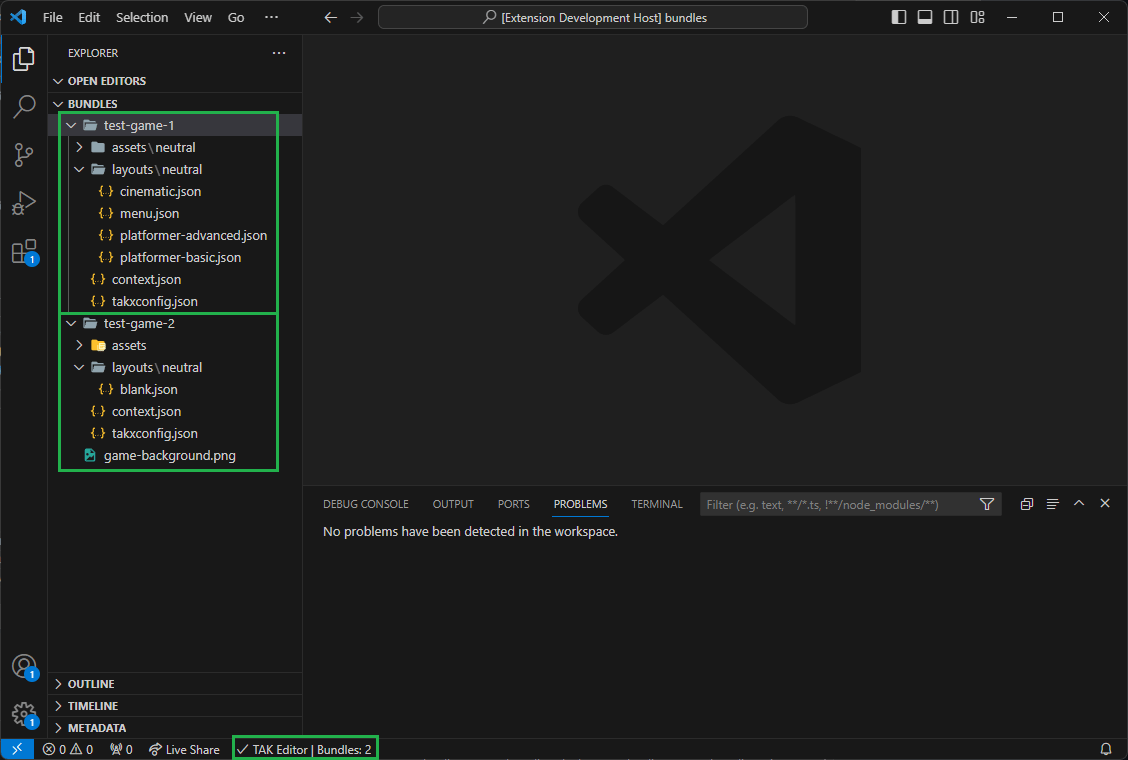
「TAK Editor」というラベルの付いたステータス バー項目がウィンドウの左下隅に表示され、拡張機能のステータスを示します。これにより、TAK CLI パスが正しく設定されているか、拡張機能が CLI と通信できるかを迅速に特定できます。
すべてが正しくセットアップされている場合、ステータス バー項目にはチェックマークが表示され、ワークスペース内で見つかったタッチ アダプテーション バンドルの数が表示されます (ある場合)。
## フォルダーまたはワークスペースを開く
バンドルで作業するには、Visual Studio Code でフォルダーまたは [ワークスペース](https://code.visualstudio.com/docs/editor/workspaces) を開く必要があります。これは、ゲームのバンドルを含む親ディレクトリとして考えてください。
フォルダーを開くには、ウィンドウの左上隅にある「File」メニューをクリックし、「Open Folder」を選択します。バンドルを作成したい場所 (またはバンドルを含む既存のフォルダー) に移動し、「Select Folder」をクリックします。
ワークスペースを開くには、「File」をクリックし、「Open Workspace from File」を選択します。これには、既存のワークスペース ファイル (拡張子 `.code-workspace`) がマシン上に存在している必要があることに注意してください。ワークスペース ファイルがない場合は、「File」メニューから「Add Folder to Workspace...」を選択して、目的のフォルダーを追加することで作成できます。その後、「File」をクリックして「Save Workspace As...」を選択することで、ワークスペースを保存できます。
## トラブルシューティング
「TAK Editor」というラベルの付いたステータス バー項目がウィンドウの左下隅に表示され、拡張機能のステータスを示します。これにより、TAK CLI パスが正しく設定されているか、拡張機能が CLI と通信できるかを迅速に特定できます。
すべてが正しくセットアップされている場合、ステータス バー項目にはチェックマークが表示され、ワークスペース内で見つかったタッチ アダプテーション バンドルの数が表示されます (ある場合)。
 ステータス バー項目にエラーが表示された場合は、それにカーソルを合わせるとエラーに関する詳細を確認できます。これは通常、ウィンドウの右下隅に表示される追加情報を含む通知を伴います。
一般的な問題には以下が含まれます:
### TAK CLI パスが設定されていません
ステータス バー項目にエラーが表示された場合は、それにカーソルを合わせるとエラーに関する詳細を確認できます。これは通常、ウィンドウの右下隅に表示される追加情報を含む通知を伴います。
一般的な問題には以下が含まれます:
### TAK CLI パスが設定されていません
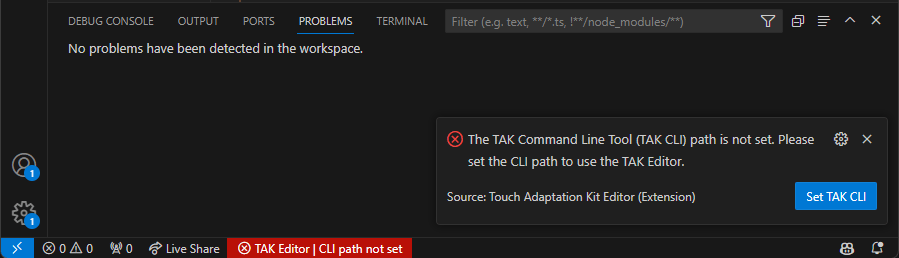 これは、拡張機能の設定で CLI パスが設定されていない場合に発生します。実際、拡張機能が最初にインストールされたとき、これがデフォルトの状態です。これを解決するには、[前のセクション](#set-tak-cli-path) の手順に従ってパスを設定します。
通知の「Set TAK CLI」ボタンをクリックするか、ステータス バー項目をクリックして「Set TAK Command Line Tool」オプションを選択してパスを設定することもできます。
### TAK CLI パスが存在しません
これは、拡張機能の設定で CLI パスが設定されていない場合に発生します。実際、拡張機能が最初にインストールされたとき、これがデフォルトの状態です。これを解決するには、[前のセクション](#set-tak-cli-path) の手順に従ってパスを設定します。
通知の「Set TAK CLI」ボタンをクリックするか、ステータス バー項目をクリックして「Set TAK Command Line Tool」オプションを選択してパスを設定することもできます。
### TAK CLI パスが存在しません
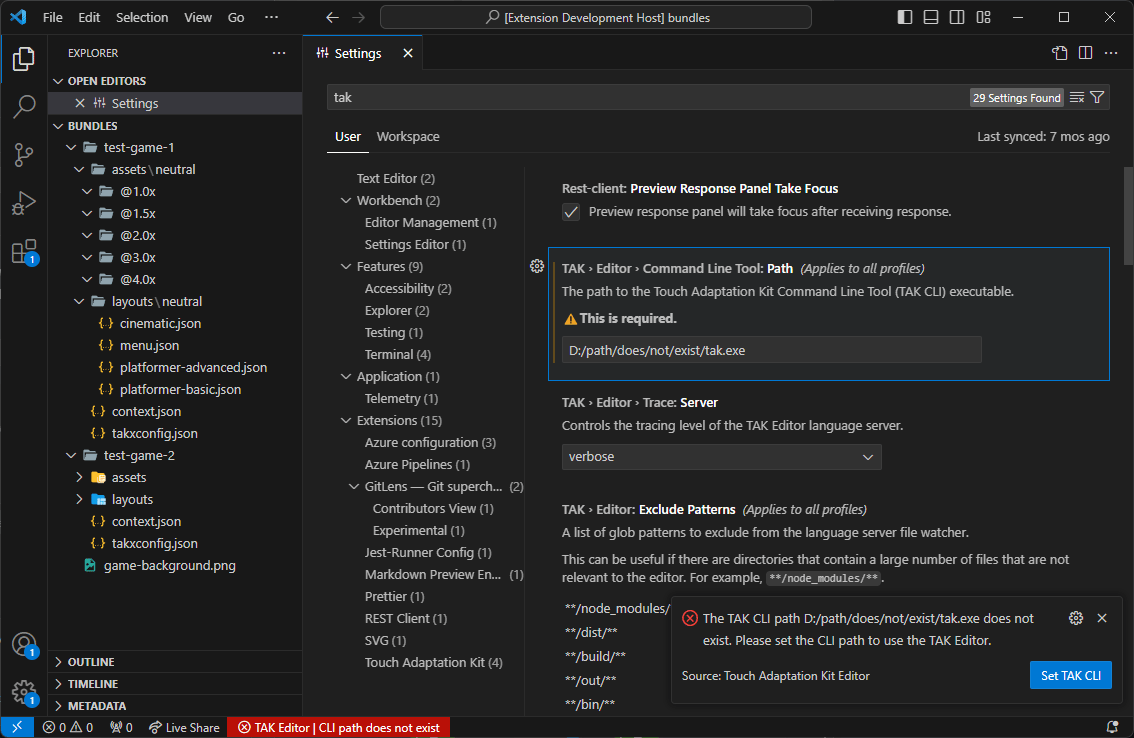 これは、提供されたパスが存在しない場合に発生します。これは、CLI が最初に設定された場所から移動または削除された場合、または設定で手動で入力した際にタイプミスがあった場合に発生する可能性があります。これを解決するには、[前のセクション](#set-tak-cli-path) の手順に従ってパスを再割り当てします。
### TAK CLI が実行可能ではありません
これは、提供されたパスが存在しない場合に発生します。これは、CLI が最初に設定された場所から移動または削除された場合、または設定で手動で入力した際にタイプミスがあった場合に発生する可能性があります。これを解決するには、[前のセクション](#set-tak-cli-path) の手順に従ってパスを再割り当てします。
### TAK CLI が実行可能ではありません
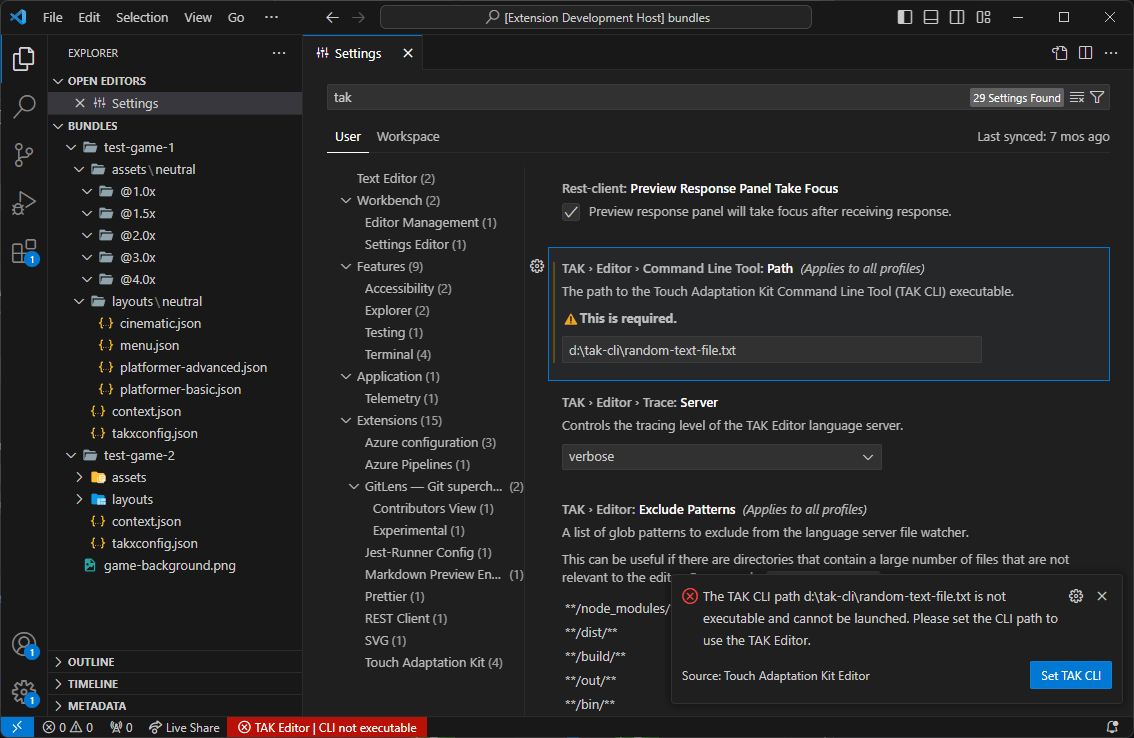 これは、提供されたパスが実行可能ファイルではない場合に発生します。これは、ファイル ピッカーで誤ったファイルが選択された場合、またはファイルが実行可能としてマークされていない (例: macOS で実行権限がない) 場合に発生する可能性があります。これを解決するには、パスを再割り当てします。
macOS: パスは正しく設定されているが CLI が実行可能としてマークされていない場合、ファイルに実行権限を割り当てる必要があります。拡張機能が変更を認識するには、VS Code の再起動が必要な場合があります。
### TAK CLI のバージョンが特定できません
これは、提供されたパスが実行可能ファイルではない場合に発生します。これは、ファイル ピッカーで誤ったファイルが選択された場合、またはファイルが実行可能としてマークされていない (例: macOS で実行権限がない) 場合に発生する可能性があります。これを解決するには、パスを再割り当てします。
macOS: パスは正しく設定されているが CLI が実行可能としてマークされていない場合、ファイルに実行権限を割り当てる必要があります。拡張機能が変更を認識するには、VS Code の再起動が必要な場合があります。
### TAK CLI のバージョンが特定できません
 これは、拡張機能が CLI を起動してそのバージョンを判定できない場合に発生する可能性があり、これは、CLI のバージョンが古すぎるか、CLI として誤った実行可能ファイルが選択されている場合に発生する可能性があります。これを解決するには、最新バージョンの CLI がダウンロードされていることを確認し、パスをリセットします。
### TAK CLI のバージョンが古すぎます
これは、拡張機能が CLI を起動してそのバージョンを判定できない場合に発生する可能性があり、これは、CLI のバージョンが古すぎるか、CLI として誤った実行可能ファイルが選択されている場合に発生する可能性があります。これを解決するには、最新バージョンの CLI がダウンロードされていることを確認し、パスをリセットします。
### TAK CLI のバージョンが古すぎます
 これは、拡張機能が CLI を起動してそのバージョンを検証できるが、バージョンが古い場合に発生します。これは、拡張機能が最近更新され、より新しいバージョンの TAK CLI が必要となった場合に発生する可能性があります。これを解決するには、CLI の最新バージョンをダウンロードし、パスをリセットします。
## 次のステップ
> \[!div class="nextstepaction"]
> [新しいタッチ アダプテーション バンドルを作成する](/build/core-features/common/game-streaming/tak-editor/game-streaming-tak-editor-create-bundle)
## Related topics
- [GSDK プロジェクトのセットアップ](/ja-jp/services/playfab/multiplayer/servers/server-sdks/unreal-gsdk/third-person-mp-example-gsdk-project-setup.md)
- [Kongregate と Unity を使用した PlayFab 認証のセットアップ](/ja-jp/services/playfab/identity/player-identity/platform-specific-authentication/kongregate-unity.md)
- [戻りデータのセットアップ例](/ja-jp/build/core-features/common/async/async-libraries/async-library-xasyncprovider-example-setup-return-data.md)
- [非同期タスクのセットアップ例](/ja-jp/build/core-features/common/async/async-libraries/async-library-xasync-example-setup-async-task.md)
- [キャンセル可能性のセットアップ例](/ja-jp/build/core-features/common/async/async-libraries/async-library-xasyncprovider-example-setup-cancelability.md)
これは、拡張機能が CLI を起動してそのバージョンを検証できるが、バージョンが古い場合に発生します。これは、拡張機能が最近更新され、より新しいバージョンの TAK CLI が必要となった場合に発生する可能性があります。これを解決するには、CLI の最新バージョンをダウンロードし、パスをリセットします。
## 次のステップ
> \[!div class="nextstepaction"]
> [新しいタッチ アダプテーション バンドルを作成する](/build/core-features/common/game-streaming/tak-editor/game-streaming-tak-editor-create-bundle)
## Related topics
- [GSDK プロジェクトのセットアップ](/ja-jp/services/playfab/multiplayer/servers/server-sdks/unreal-gsdk/third-person-mp-example-gsdk-project-setup.md)
- [Kongregate と Unity を使用した PlayFab 認証のセットアップ](/ja-jp/services/playfab/identity/player-identity/platform-specific-authentication/kongregate-unity.md)
- [戻りデータのセットアップ例](/ja-jp/build/core-features/common/async/async-libraries/async-library-xasyncprovider-example-setup-return-data.md)
- [非同期タスクのセットアップ例](/ja-jp/build/core-features/common/async/async-libraries/async-library-xasync-example-setup-async-task.md)
- [キャンセル可能性のセットアップ例](/ja-jp/build/core-features/common/async/async-libraries/async-library-xasyncprovider-example-setup-cancelability.md)