> ## Documentation Index
> Fetch the complete documentation index at: https://devdocs.xbox.com/llms.txt
> Use this file to discover all available pages before exploring further.
# タッチ アダプテーション レイアウトのプレビュー
> タッチ アダプテーション レイアウトのプレビュー
この記事では、TAK Editor を使用してタッチ アダプテーション レイアウトをプレビューする方法、およびプレビューをカスタマイズするために利用できるさまざまなオプションの概要を提供します。
## 前提条件
* TAK Editor が [インストール](/build/core-features/common/game-streaming/tak-editor/game-streaming-tak-editor) および [セットアップ](/build/core-features/common/game-streaming/tak-editor/game-streaming-tak-editor-setup) されていること。
* 開いているワークスペース フォルダー内に、少なくとも 1 つの [レイアウト](/build/core-features/common/game-streaming/tak-editor/game-streaming-tak-editor-create-bundle#create-a-new-layout) を含む [バンドル](/build/core-features/common/game-streaming/tak-editor/game-streaming-tak-editor-create-bundle#create-a-new-bundle) が存在すること。
## レイアウトのプレビュー
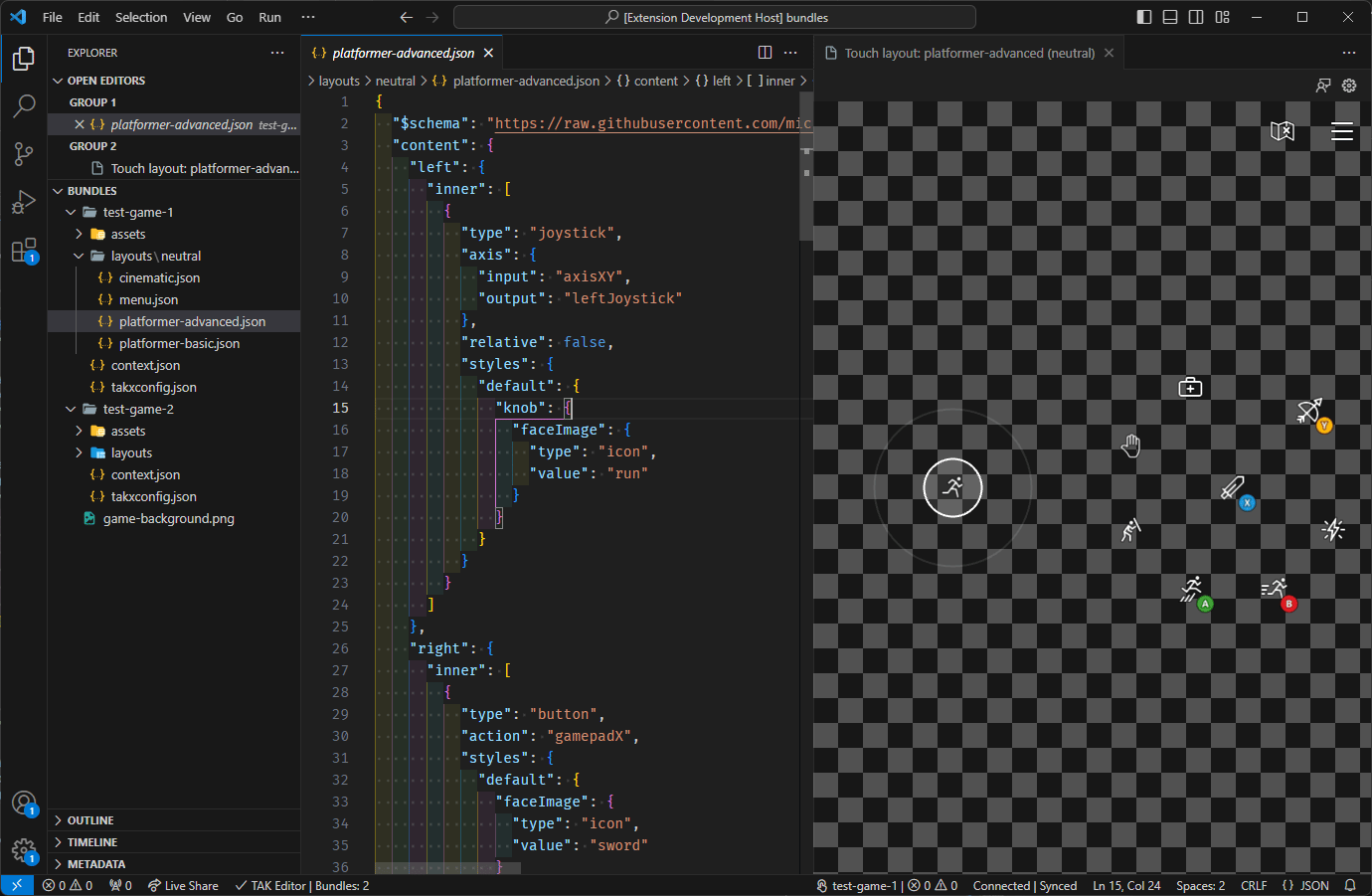
レイアウトのプレビューは、[VS Code エクスプローラー](https://code.visualstudio.com/docs/getstarted/userinterface#_explorer) を介してエディターでレイアウト ファイルを開くだけで実行できます。バンドルの `layouts` ディレクトリ内のレイアウト ファイルをクリックするだけで、レイアウトの JSON コンテンツが 1 つのタブに表示され、レイアウトのライブ プレビューが自動的に隣のタブに表示されます。
レイアウト ファイルに **エラー** がある場合、[VS Code 問題パネル](https://code.visualstudio.com/docs/editor/editingevolved#_errors-warnings) に表示されます。エラーが解決されるまで、プレビューは更新されません。これは [ステータス、エラー、警告](#status-errors-and-warnings) のセクションで詳しく説明します。
プレビューはインタラクティブで、マウス (またはタッチ対応デバイスを使用している場合はタッチ入力) を使用してタッチ操作を操作できます。プレビューは、実際のゲーム ストリームでレンダリングされているかのように、入力に応答します。
レイアウト JSON ファイルへの変更は、ファイルを保存するとプレビューに反映されます。これにより、レイアウトに変更を加えて結果をすぐに確認できる、迅速で反復的なデザイン プロセスが可能になります。
 プレビュー タブが閉じられた場合、次の 2 つの方法のいずれかで再度開くことができます:
1. レイアウト ファイルの右上隅にある「Open Preview」ボタンをクリックします:
プレビュー タブが閉じられた場合、次の 2 つの方法のいずれかで再度開くことができます:
1. レイアウト ファイルの右上隅にある「Open Preview」ボタンをクリックします:
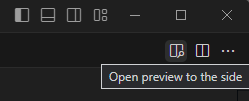 2. コマンド パレットを介して「Touch Adaptation Kit: Open preview to the side」コマンドを実行します。
 コマンドとボタンは、(1) レイアウト ファイルが開かれており、(2) プレビューがまだ開かれていない場合にのみ利用可能であることに注意してください。
## ステータス、エラー、警告
### 検証ステータス
バンドル内のレイアウト、アセット、およびその他のファイルに変更が加えられると、拡張機能は、すべてのバンドルが遵守すべき事前定義されたルールのセットに対して、バンドルの内容の有効性を継続的に検証します。これはバックグラウンドで行われ、バンドル内にネストされたファイルが保存または他の方法で変更 (例: 名前変更) されるたびに再評価されます。
この検証のステータスは、ウィンドウの右下端にあるステータス バー項目を通じて報告されます。
コマンドとボタンは、(1) レイアウト ファイルが開かれており、(2) プレビューがまだ開かれていない場合にのみ利用可能であることに注意してください。
## ステータス、エラー、警告
### 検証ステータス
バンドル内のレイアウト、アセット、およびその他のファイルに変更が加えられると、拡張機能は、すべてのバンドルが遵守すべき事前定義されたルールのセットに対して、バンドルの内容の有効性を継続的に検証します。これはバックグラウンドで行われ、バンドル内にネストされたファイルが保存または他の方法で変更 (例: 名前変更) されるたびに再評価されます。
この検証のステータスは、ウィンドウの右下端にあるステータス バー項目を通じて報告されます。
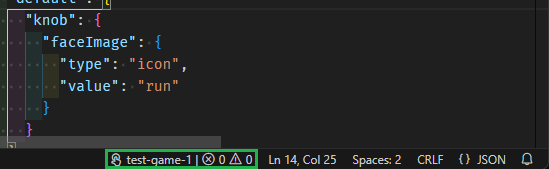 このステータス バー項目は、少なくとも 1 つのレイアウト ファイルがエディターで開かれている場合にのみ表示されます。アクティブなバンドルの名前と、バンドル内で見つかった問題 (エラーおよび警告) の数を表示します。ステータス バー項目をクリックすると、バンドル内で見つかったすべての問題のリストを含む [VS Code 問題パネル](https://code.visualstudio.com/docs/editor/editingevolved#_errors-warnings) が開きます。
### 同期ステータス
プレビュー パネルには、TAK CLI へのアクティブなバンドル サイドロード接続があります。これがどのように機能するかについては、[TAK CLI のドキュメント](/build/core-features/common/game-streaming/tak-command-line-tool/game-streaming-tak-command-line-serve-command) を参照してください。
この接続のステータスは、検証ステータス バー項目の隣にあるウィンドウの右下端にあるステータス バー項目を通じて報告されます。このステータスは、プレビュー パネルが開いているときにのみ表示されます。
このステータス バー項目は、少なくとも 1 つのレイアウト ファイルがエディターで開かれている場合にのみ表示されます。アクティブなバンドルの名前と、バンドル内で見つかった問題 (エラーおよび警告) の数を表示します。ステータス バー項目をクリックすると、バンドル内で見つかったすべての問題のリストを含む [VS Code 問題パネル](https://code.visualstudio.com/docs/editor/editingevolved#_errors-warnings) が開きます。
### 同期ステータス
プレビュー パネルには、TAK CLI へのアクティブなバンドル サイドロード接続があります。これがどのように機能するかについては、[TAK CLI のドキュメント](/build/core-features/common/game-streaming/tak-command-line-tool/game-streaming-tak-command-line-serve-command) を参照してください。
この接続のステータスは、検証ステータス バー項目の隣にあるウィンドウの右下端にあるステータス バー項目を通じて報告されます。このステータスは、プレビュー パネルが開いているときにのみ表示されます。
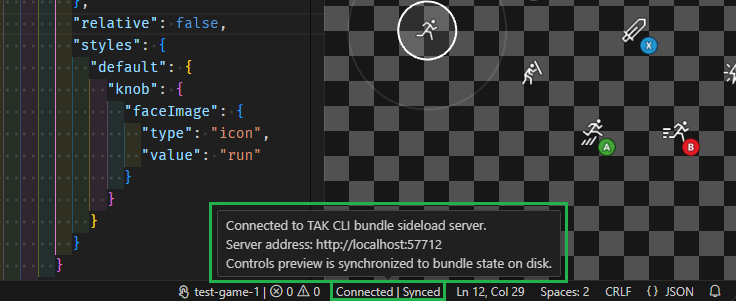 上記のスクリーンショットは、接続がアクティブでプレビューが同期しているときのステータス バー項目を示しています。これは、バンドルにエラーがない場合に該当します (警告は許容され、状態を「同期中」に保ちます)。エラーが存在する場合、ステータスは「Out of sync」に変わります。
このステータス バー項目にカーソルを合わせると、TAK CLI がホストするサイドロード サーバーの詳細を含むツールチップが表示されます。このアドレスは、[Content Test App](/build/core-features/common/game-streaming/building-touch-layouts/game-streaming-touch-deploying-touch-layout) など、別のゲーム ストリーミング クライアントをプレビューに接続するために使用できます。
### エラーと警告
[VS Code 問題パネル](https://code.visualstudio.com/docs/editor/editingevolved#_errors-warnings) には、バンドル内で見つかったすべての問題のリストが表示されます。これには、検証プロセス中に見つかったすべての問題が含まれます。
問題が存在するとき、検証または同期のステータス バー項目のいずれかをクリックすると、問題パネルが開き、問題のリストが表示されます。各問題には、説明とバンドル内の問題が見つかった場所があります。
たとえば、以下のスクリーンショットでは、バンドル内の `platformer-advanced.json` レイアウト ファイルがバンドルに存在しないアセット (`run.png`) を参照している 1 つのエラーが存在します:
上記のスクリーンショットは、接続がアクティブでプレビューが同期しているときのステータス バー項目を示しています。これは、バンドルにエラーがない場合に該当します (警告は許容され、状態を「同期中」に保ちます)。エラーが存在する場合、ステータスは「Out of sync」に変わります。
このステータス バー項目にカーソルを合わせると、TAK CLI がホストするサイドロード サーバーの詳細を含むツールチップが表示されます。このアドレスは、[Content Test App](/build/core-features/common/game-streaming/building-touch-layouts/game-streaming-touch-deploying-touch-layout) など、別のゲーム ストリーミング クライアントをプレビューに接続するために使用できます。
### エラーと警告
[VS Code 問題パネル](https://code.visualstudio.com/docs/editor/editingevolved#_errors-warnings) には、バンドル内で見つかったすべての問題のリストが表示されます。これには、検証プロセス中に見つかったすべての問題が含まれます。
問題が存在するとき、検証または同期のステータス バー項目のいずれかをクリックすると、問題パネルが開き、問題のリストが表示されます。各問題には、説明とバンドル内の問題が見つかった場所があります。
たとえば、以下のスクリーンショットでは、バンドル内の `platformer-advanced.json` レイアウト ファイルがバンドルに存在しないアセット (`run.png`) を参照している 1 つのエラーが存在します:
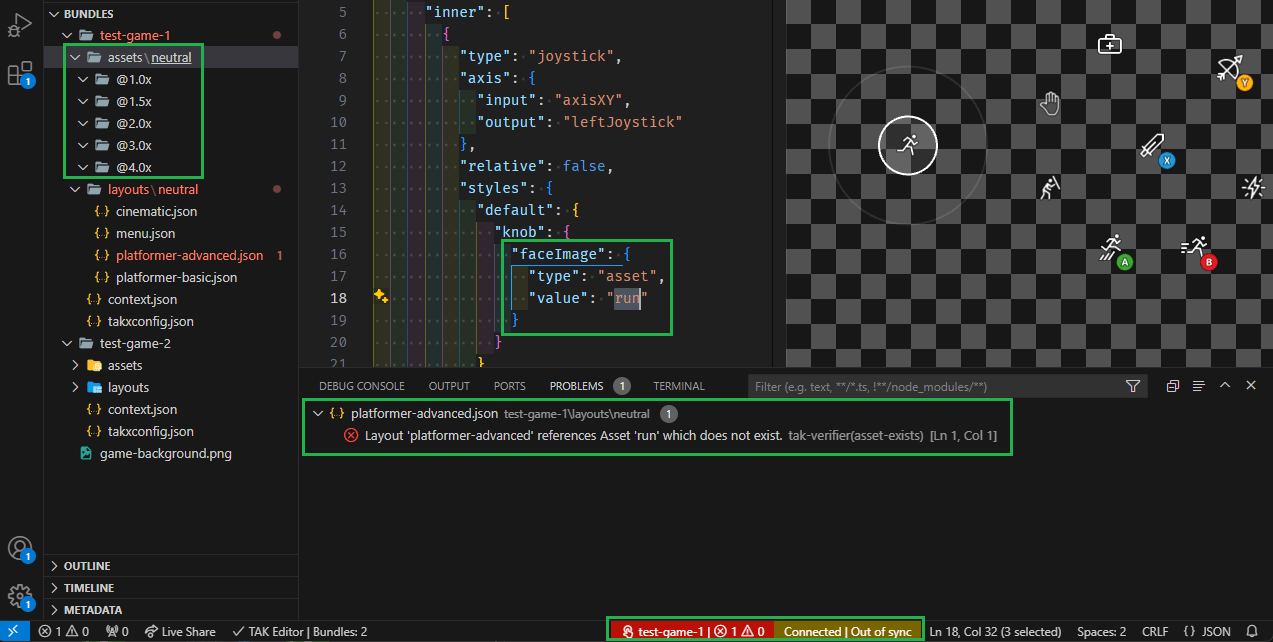 参照がバンドル内に存在するアセットに変更されるか、アセットがバンドルに追加されるまで、プレビューの状態は「Out of sync」になります。
## 次のステップ
> \[!div class="nextstepaction"]
> [プレビューのカスタマイズ](/build/core-features/common/game-streaming/tak-editor/game-streaming-tak-editor-customize-preview)
## Related topics
- [Visual Studio Code 向け Touch Adaptation Kit (TAK) エディター](/ja-jp/build/core-features/common/game-streaming/tak-editor/index.md)
- [タッチ操作プレビューのカスタマイズ](/ja-jp/build/core-features/common/game-streaming/tak-editor/game-streaming-tak-editor-customize-preview.md)
- [Pack コマンド](/ja-jp/build/core-features/common/game-streaming/tak-command-line-tool/game-streaming-tak-command-line-pack-command.md)
- [XBOX ゲーム ストリーミング向けのタッチ操作レイアウトを作成する](/ja-jp/build/core-features/common/game-streaming/building-touch-layouts/index.md)
- [タッチ バンドル レイアウト入門](/ja-jp/build/core-features/common/game-streaming/building-touch-layouts/samples/game-streaming-touch-getting-started-with-sample-layouts.md)
参照がバンドル内に存在するアセットに変更されるか、アセットがバンドルに追加されるまで、プレビューの状態は「Out of sync」になります。
## 次のステップ
> \[!div class="nextstepaction"]
> [プレビューのカスタマイズ](/build/core-features/common/game-streaming/tak-editor/game-streaming-tak-editor-customize-preview)
## Related topics
- [Visual Studio Code 向け Touch Adaptation Kit (TAK) エディター](/ja-jp/build/core-features/common/game-streaming/tak-editor/index.md)
- [タッチ操作プレビューのカスタマイズ](/ja-jp/build/core-features/common/game-streaming/tak-editor/game-streaming-tak-editor-customize-preview.md)
- [Pack コマンド](/ja-jp/build/core-features/common/game-streaming/tak-command-line-tool/game-streaming-tak-command-line-pack-command.md)
- [XBOX ゲーム ストリーミング向けのタッチ操作レイアウトを作成する](/ja-jp/build/core-features/common/game-streaming/building-touch-layouts/index.md)
- [タッチ バンドル レイアウト入門](/ja-jp/build/core-features/common/game-streaming/building-touch-layouts/samples/game-streaming-touch-getting-started-with-sample-layouts.md)