> ## Documentation Index
> Fetch the complete documentation index at: https://devdocs.xbox.com/llms.txt
> Use this file to discover all available pages before exploring further.
# TAK Editor によるタッチ アダプテーション バンドルのパッケージ化
> TAK Editor によるタッチ アダプテーション バンドルのパッケージ化
この記事では、TAK Editor を使用して、Microsoft アカウント担当者を通じて XBOX Game Streaming サービスに提出するためにタッチ アダプテーション バンドルをパッケージ化するプロセスの概要を提供します。パッケージ化プロセスには、バンドルに必要なすべてのアセットとメタデータを含む `.takx` ファイルの作成が含まれます。[タッチ レイアウトの公開](/build/core-features/common/game-streaming/building-touch-layouts/game-streaming-touch-publishing-layouts) と、パッケージ化プロセスを支える TAK CLI の基礎となる [pack コマンド](/build/core-features/common/game-streaming/tak-command-line-tool/game-streaming-tak-command-line-pack-command) の詳細を確認できます。
## 前提条件
* TAK Editor で少なくとも 1 つのレイアウトを含む有効なバンドルが作成されていること。まだバンドルを作成していない場合は、[新しいバンドルを作成する](/build/core-features/common/game-streaming/tak-editor/game-streaming-tak-editor-create-bundle#create-a-new-bundle) を参照してください。
## バンドルのパッケージ化
1. コマンド パレットを起動します (Windows の場合は `Ctrl+Shift+P`、macOS の場合は `Cmd+Shift+P`)。
2. 「Pack」を検索し、「Touch Adaptation Kit: Pack Bundle」を選択します。
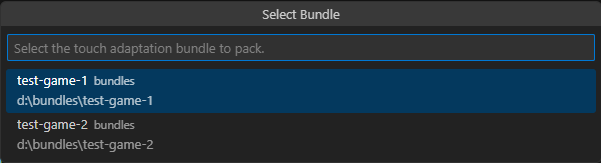
 3. ワークスペースに複数のバンドルがある場合、バンドルのリストが表示されます。パッケージ化したいバンドルを選択します。バンドルが 1 つしかない場合、この手順はスキップされ、コマンドは唯一の利用可能なバンドルで進みます。
 4. 検証: パッケージ化前にバンドルの正確性を検証すべきかを尋ねる選択ドロップダウンが表示されます。**この手順は必ず「Yes」で回答することを強くお勧めします**。これにより、バンドルを問題なく Microsoft アカウント担当者に提出できることが保証されます。
5. アセットの最適化: パッケージ化操作中にバンドル内のアセットを量子化で最適化すべきかどうかを尋ねる選択ドロップダウンが表示されます。これによりパッケージ済みバンドルのサイズを削減できますが、アセットの視覚的品質にも影響する可能性があります。アセットの最適化が有効になっている場合、視覚的品質が許容できることを保証するため、パッケージ済みのバンドルをゲーム内でテストすることをお勧めします。
6. `.takx` ファイルの場所と名前を指定するための保存ファイル ダイアログが表示されます。目的の場所に移動し、ファイル名を入力します。`.takx` 拡張子は自動的に付加されます。「Save Bundle」をクリックしてパッケージ化プロセスを開始します。
マシンからアクセス可能な任意の場所に保存でき、アンパック済み (loose) バンドルと同じワークスペース フォルダーにある必要はないことに注意してください。
## 次のステップ
> \[!div class="nextstepaction"]
> [トラブルシューティング](/build/core-features/common/game-streaming/tak-editor/game-streaming-tak-editor-troubleshooting)
## Related topics
- [Pack コマンド](/ja-jp/build/core-features/common/game-streaming/tak-command-line-tool/game-streaming-tak-command-line-pack-command.md)
- [Visual Studio Code 向け Touch Adaptation Kit (TAK) エディター](/ja-jp/build/core-features/common/game-streaming/tak-editor/index.md)
- [Takx Version コマンド](/ja-jp/build/core-features/common/game-streaming/tak-command-line-tool/game-streaming-tak-command-line-takx-version-command.md)
- [Touch Adaptation Kit (TAK) コマンド ライン ツール リファレンス](/ja-jp/build/core-features/common/game-streaming/tak-command-line-tool/index.md)
- [Touch Adaptation Kit Command Line Tool (tak.exe)](/ja-jp/build/core-features/common/game-streaming/tak-command-line-tool/game-streaming-tak-command-line.md)
4. 検証: パッケージ化前にバンドルの正確性を検証すべきかを尋ねる選択ドロップダウンが表示されます。**この手順は必ず「Yes」で回答することを強くお勧めします**。これにより、バンドルを問題なく Microsoft アカウント担当者に提出できることが保証されます。
5. アセットの最適化: パッケージ化操作中にバンドル内のアセットを量子化で最適化すべきかどうかを尋ねる選択ドロップダウンが表示されます。これによりパッケージ済みバンドルのサイズを削減できますが、アセットの視覚的品質にも影響する可能性があります。アセットの最適化が有効になっている場合、視覚的品質が許容できることを保証するため、パッケージ済みのバンドルをゲーム内でテストすることをお勧めします。
6. `.takx` ファイルの場所と名前を指定するための保存ファイル ダイアログが表示されます。目的の場所に移動し、ファイル名を入力します。`.takx` 拡張子は自動的に付加されます。「Save Bundle」をクリックしてパッケージ化プロセスを開始します。
マシンからアクセス可能な任意の場所に保存でき、アンパック済み (loose) バンドルと同じワークスペース フォルダーにある必要はないことに注意してください。
## 次のステップ
> \[!div class="nextstepaction"]
> [トラブルシューティング](/build/core-features/common/game-streaming/tak-editor/game-streaming-tak-editor-troubleshooting)
## Related topics
- [Pack コマンド](/ja-jp/build/core-features/common/game-streaming/tak-command-line-tool/game-streaming-tak-command-line-pack-command.md)
- [Visual Studio Code 向け Touch Adaptation Kit (TAK) エディター](/ja-jp/build/core-features/common/game-streaming/tak-editor/index.md)
- [Takx Version コマンド](/ja-jp/build/core-features/common/game-streaming/tak-command-line-tool/game-streaming-tak-command-line-takx-version-command.md)
- [Touch Adaptation Kit (TAK) コマンド ライン ツール リファレンス](/ja-jp/build/core-features/common/game-streaming/tak-command-line-tool/index.md)
- [Touch Adaptation Kit Command Line Tool (tak.exe)](/ja-jp/build/core-features/common/game-streaming/tak-command-line-tool/game-streaming-tak-command-line.md)