> ## Documentation Index
> Fetch the complete documentation index at: https://devdocs.xbox.com/llms.txt
> Use this file to discover all available pages before exploring further.
# タッチ操作レイアウトのデプロイ
> タッチ操作レイアウトのデプロイ
## 概要
[タッチレイアウトを構築](/build/core-features/common/game-streaming/building-touch-layouts/game-streaming-touch-building-touch-layout)したら、ゲーム内でそれらを操作したいと考えるでしょう。
## 前提条件
レイアウトをデプロイして表示するには、以下が必要です。
* [Touch Adaptation Kit Command Line Tool (tak.exe)](/build/core-features/common/game-streaming/tak-command-line-tool/game-streaming-tak-command-line) がインストールされた Windows PC。
* [Web Content Test Application](/build/core-features/common/game-streaming/game-streaming-web-content-test-application)、[Android Content Test Application (非推奨)](/build/core-features/common/game-streaming/game-streaming-android-content-test-application)、または [Windows PC Content Test Application (非推奨)](/build/core-features/common/game-streaming/game-streaming-windows-pc-content-test-application) がインストールされたデバイス。
* デプロイして表示したいレイアウトのセット。
## レイアウトのデプロイ
### 1. レイアウトの配信
[Touch Adaptation Kit Command Line Tool (tak.exe)](/build/core-features/common/game-streaming/tak-command-line-tool/game-streaming-tak-command-line) がインストールされている Windows PC 上で、[Serve コマンド](/build/core-features/common/game-streaming/tak-command-line-tool/game-streaming-tak-command-line-serve-command) を使用して、レイアウトを要求するデバイスがアクセスできるようにします。
```pwsh theme={null}
C:\Program Files (x86)\Microsoft GDK\bin>tak serve --layout-path C:\MyGameLayouts
Verifying touch adaptation bundle 'C:\MyGameLayouts '.
Now listening on: http://0.0.0.0:9269
Application started. Press Ctrl+C to shut down.
Hosting environment: Production
Content root path: C:\MyGameLayouts
```
### 2. Content Test Application を読み込むように構成する
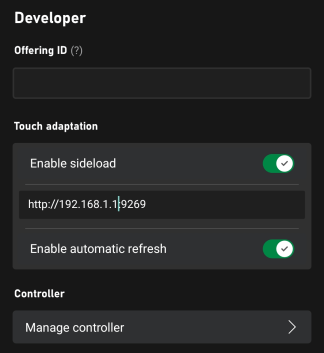
Content Test Application の設定で、Touch Adaptation Settings (開発者セクション内) の構成を入力します。
* **Enable sideload** がオンになっていることを確認します。
* レイアウトを配信している PC のアドレス (ポートを含む) を入力します。
[Web Content Test Application](/build/core-features/common/game-streaming/game-streaming-web-content-test-application) を **Safari** で使用する場合、または `serve` コマンドを実行している **リモート PC** に接続する場合は、サイドロード アドレスが `https` で始まり、`--certificate-file` オプションが使用されていることを確認してください。セキュアな (HTTPS) サイドロード サーバーの起動に関する詳細は、[Serve コマンド](/build/core-features/common/game-streaming/tak-command-line-tool/game-streaming-tak-command-line-serve-command) を参照してください。
* レイアウトへの変更を接続中のすべてのクライアントで即時に反映させたい場合は自動更新を有効にします (それ以外の場合、更新は新規のストリーミング接続が開始されたときにのみ行われます)。
 .
### 3. ゲームをストリーミングする
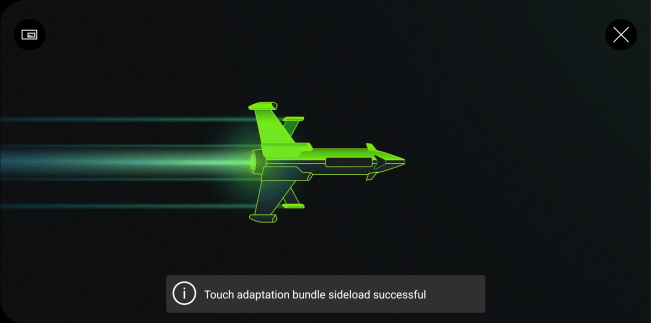
各ストリーミング接続時に、CTA は TAK サーバーに接続し、最新のレイアウトをダウンロードします。
.
### 3. ゲームをストリーミングする
各ストリーミング接続時に、CTA は TAK サーバーに接続し、最新のレイアウトをダウンロードします。
 .
レイアウトが要求されると、`serve` コマンドをホストしている PC 上でリクエストとダウンロードが表示されます。
```
C:\Program Files (x86)\Microsoft GDK\bin>tak serve --layout-path C:\MyGame\layouts
Verifying touch adaptation bundle 'C:\MyGame\layouts'.
Now listening on: http://0.0.0.0:9269
Application started. Press Ctrl+C to shut down.
Hosting environment: Production
Content root path: C:\MyGame\layouts
Request starting HTTP/1.1 POST http://192.168.1.1:9269/connection/negotiate?negotiateVersion=1 0
Request finished in 1.6283ms 200 application/json
Request starting HTTP/1.1 GET http://192.168.1.1:9269/connection?id=3u0Xs_Dlwn-J1mREHTcG5w
Request starting HTTP/1.1 GET http://192.168.1.1:9269/v1/tabs/active/download
Request finished in 3.9865ms 200 application/octet-stream
```
### 4. レイアウトの選択
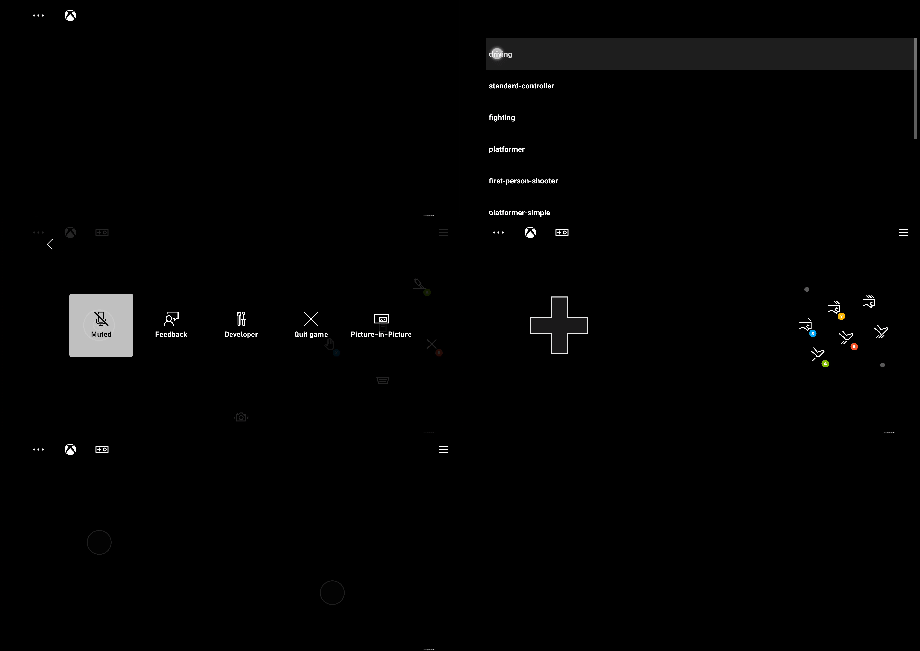
ストリーミング セッションが開始された後、左上隅の `...` ボタンを選択してストリーム内オーバーレイから Developer、次に TAK を選択することで、利用するタッチ レイアウトを選択できます。
.
レイアウトが要求されると、`serve` コマンドをホストしている PC 上でリクエストとダウンロードが表示されます。
```
C:\Program Files (x86)\Microsoft GDK\bin>tak serve --layout-path C:\MyGame\layouts
Verifying touch adaptation bundle 'C:\MyGame\layouts'.
Now listening on: http://0.0.0.0:9269
Application started. Press Ctrl+C to shut down.
Hosting environment: Production
Content root path: C:\MyGame\layouts
Request starting HTTP/1.1 POST http://192.168.1.1:9269/connection/negotiate?negotiateVersion=1 0
Request finished in 1.6283ms 200 application/json
Request starting HTTP/1.1 GET http://192.168.1.1:9269/connection?id=3u0Xs_Dlwn-J1mREHTcG5w
Request starting HTTP/1.1 GET http://192.168.1.1:9269/v1/tabs/active/download
Request finished in 3.9865ms 200 application/octet-stream
```
### 4. レイアウトの選択
ストリーミング セッションが開始された後、左上隅の `...` ボタンを選択してストリーム内オーバーレイから Developer、次に TAK を選択することで、利用するタッチ レイアウトを選択できます。
 ## Related topics
- [XBOX ゲーム ストリーミング向けのタッチ操作レイアウトを作成する](/ja-jp/build/core-features/common/game-streaming/building-touch-layouts/index.md)
- [格闘ゲーム用タッチ操作レイアウト](/ja-jp/build/core-features/common/game-streaming/building-touch-layouts/samples/game-streaming-touch-tak-sample-fighter.md)
- [ドライビング用タッチ操作レイアウト](/ja-jp/build/core-features/common/game-streaming/building-touch-layouts/samples/game-streaming-touch-tak-sample-driving.md)
- [標準 XBOX コントローラー用タッチ操作レイアウト](/ja-jp/build/core-features/common/game-streaming/building-touch-layouts/samples/game-streaming-touch-tak-sample-full-layout.md)
- [2D プラットフォーマー用タッチ操作レイアウト](/ja-jp/build/core-features/common/game-streaming/building-touch-layouts/samples/game-streaming-touch-tak-sample-platformer.md)
## Related topics
- [XBOX ゲーム ストリーミング向けのタッチ操作レイアウトを作成する](/ja-jp/build/core-features/common/game-streaming/building-touch-layouts/index.md)
- [格闘ゲーム用タッチ操作レイアウト](/ja-jp/build/core-features/common/game-streaming/building-touch-layouts/samples/game-streaming-touch-tak-sample-fighter.md)
- [ドライビング用タッチ操作レイアウト](/ja-jp/build/core-features/common/game-streaming/building-touch-layouts/samples/game-streaming-touch-tak-sample-driving.md)
- [標準 XBOX コントローラー用タッチ操作レイアウト](/ja-jp/build/core-features/common/game-streaming/building-touch-layouts/samples/game-streaming-touch-tak-sample-full-layout.md)
- [2D プラットフォーマー用タッチ操作レイアウト](/ja-jp/build/core-features/common/game-streaming/building-touch-layouts/samples/game-streaming-touch-tak-sample-platformer.md)