> ## Documentation Index
> Fetch the complete documentation index at: https://devdocs.xbox.com/llms.txt
> Use this file to discover all available pages before exploring further.
# ハイ コントラスト モード
> ハイ コントラスト モード
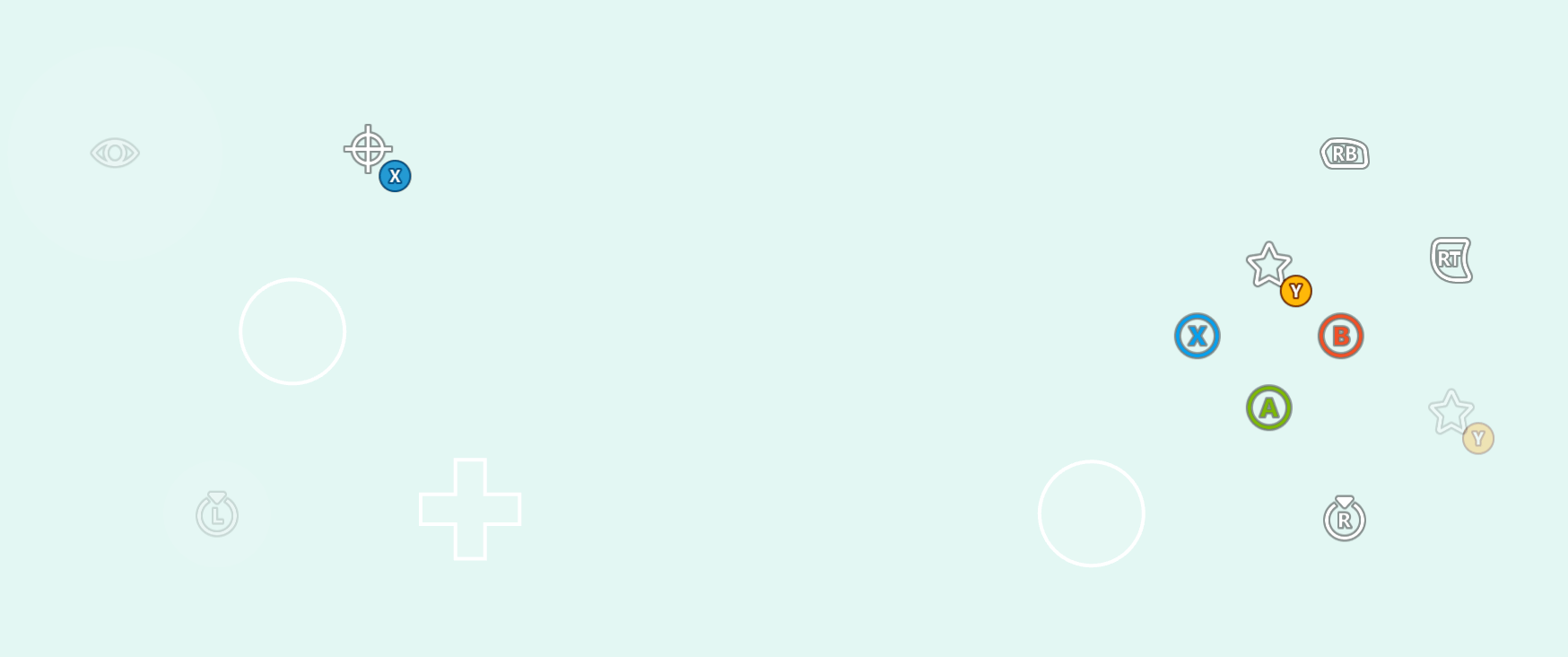
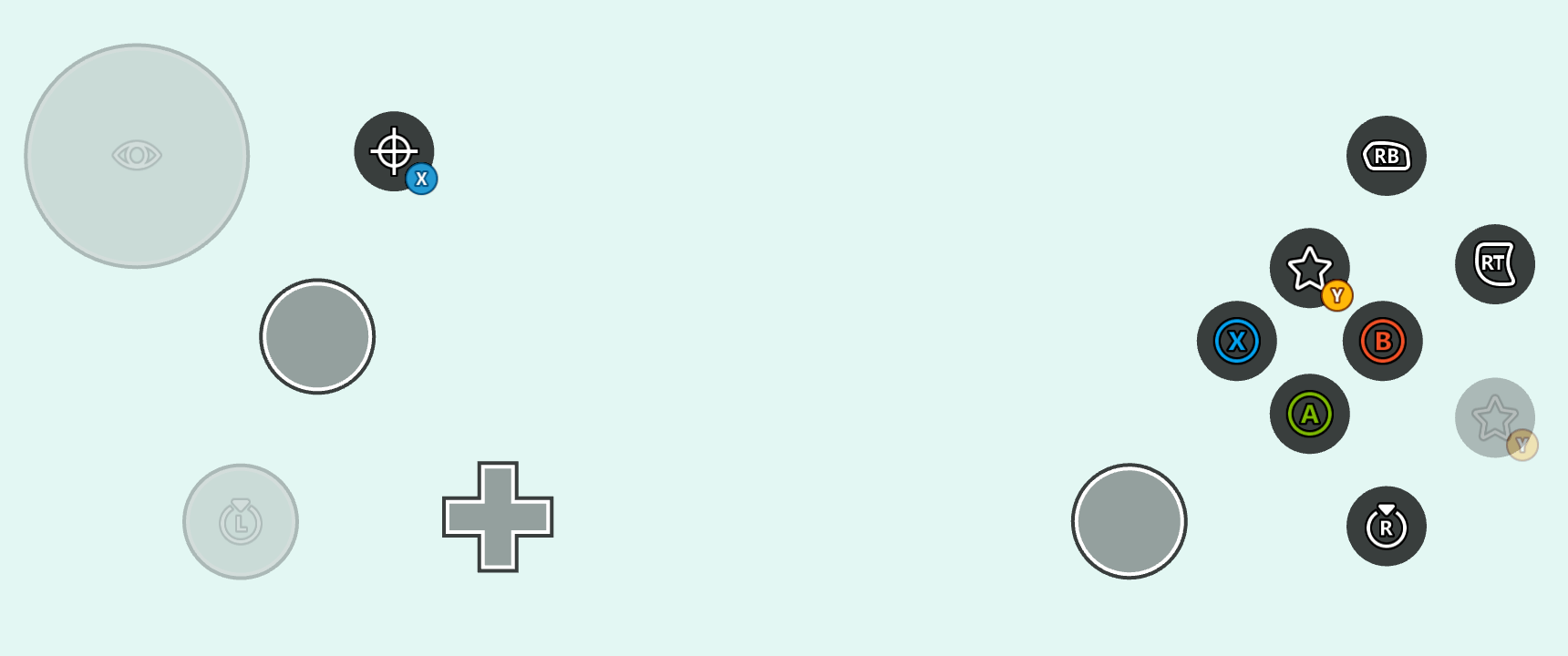
タイトルの配色によっては、下地となるストリームで実行中のタイトルとのコントラストが不十分なためにタッチ レイアウトが見づらい場合があります。これは、視力が低い、色覚異常、またはその他の視覚障害のあるゲーマーにとって特に問題となる可能性があります。ハイ コントラスト モードは、有効にすると、[アイコン](/reference/system/touchadaptationkit/types/game-streaming-touch-icon) でスタイル指定されたボタンに追加のストロークとボタン バックプレートを追加し、コントラストを高めるために [システム カラー](/reference/system/touchadaptationkit/layout/game-streaming-touch-color-palette#system-colors) を変更するクライアント設定です。
たとえば、標準のレイアウトと明るい単色の背景色で、ハイ コントラスト モードが **無効** の場合:
 そして、同じセットアップでハイ コントラスト モードが **有効** の場合:
 ハイ コントラスト モードのスタイル指定にはシステムの既定値に依存できますが、[カスタム アセット用のハイ コントラスト モード バリアント](#custom-assets-for-high-contrast-mode) を含めたり、ゲームのビジュアル的な美しさに合わせるために [システム カラーをオーバーライド](#overriding-system-colors-for-high-contrast-mode) することもできます。
## ハイ コントラスト モード用のカスタム アセット
タッチ適応バンドルで [カスタム アセット](/build/core-features/common/game-streaming/building-touch-layouts/game-streaming-tak-custom-assets) を使用する場合、各標準コントラスト アセットに対してハイ コントラスト アセット バリアントを含めることができます。これらのハイ コントラスト アセット バリアントは、ハイ コントラスト モードが有効なときにレンダリングされます。アセットは、アセット名の後にファイル拡張子の前に `.hc` サフィックスを含めることで、ハイ コントラスト バリアントとしてマークされます。たとえば、`myAsset.png` (左) とそのハイ コントラスト バリアント `myAsset.hc.png` (右) を考えます。
ハイ コントラスト モードのスタイル指定にはシステムの既定値に依存できますが、[カスタム アセット用のハイ コントラスト モード バリアント](#custom-assets-for-high-contrast-mode) を含めたり、ゲームのビジュアル的な美しさに合わせるために [システム カラーをオーバーライド](#overriding-system-colors-for-high-contrast-mode) することもできます。
## ハイ コントラスト モード用のカスタム アセット
タッチ適応バンドルで [カスタム アセット](/build/core-features/common/game-streaming/building-touch-layouts/game-streaming-tak-custom-assets) を使用する場合、各標準コントラスト アセットに対してハイ コントラスト アセット バリアントを含めることができます。これらのハイ コントラスト アセット バリアントは、ハイ コントラスト モードが有効なときにレンダリングされます。アセットは、アセット名の後にファイル拡張子の前に `.hc` サフィックスを含めることで、ハイ コントラスト バリアントとしてマークされます。たとえば、`myAsset.png` (左) とそのハイ コントラスト バリアント `myAsset.hc.png` (右) を考えます。
 ディスク上でアセットを配置する際、標準コントラストとハイ コントラストの両方のアセットが通常どおり [言語およびアセット スケールによって編成](/build/core-features/common/game-streaming/building-touch-layouts/game-streaming-tak-custom-assets#asset-files) されます。上記のアセットのファイル構造は次のようになるかもしれません:
```
assets/
└───neutral/
├───@1.0x/
│ myAsset.png
│ myAsset.hc.png
├───@1.5x/
│ myAsset.png
│ myAsset.hc.png
├───@2.0x/
│ myAsset.png
│ myAsset.hc.png
├───@3.0x/
│ myAsset.png
│ myAsset.hc.png
└───@4.0x/
myAsset.png
myAsset.hc.png
```
レイアウト内で、アセットは [ファイル名拡張子なし](/build/core-features/common/game-streaming/building-touch-layouts/game-streaming-tak-custom-assets#referencing-assets-from-layouts) **かつ `.hc` サフィックスなし** で参照されます。たとえば、上記のアセットでスタイル指定されたボタンは次のように構成されます。
```JSON theme={null}
{
"type": "button",
"action": "gamepadA",
"styles": {
"idle": {
"faceImage": {
"type": "asset",
"value": "myAsset"
}
}
}
}
```
このスタイルが与えられると、タッチ適応キットは、ハイ コントラスト モードが無効か有効かに応じて、`myAsset.png` または `myAsset.hc.png` を自動的に選択します。このスタイル指定は、ハイ コントラスト モードが **無効** の場合、次の結果になります。
ディスク上でアセットを配置する際、標準コントラストとハイ コントラストの両方のアセットが通常どおり [言語およびアセット スケールによって編成](/build/core-features/common/game-streaming/building-touch-layouts/game-streaming-tak-custom-assets#asset-files) されます。上記のアセットのファイル構造は次のようになるかもしれません:
```
assets/
└───neutral/
├───@1.0x/
│ myAsset.png
│ myAsset.hc.png
├───@1.5x/
│ myAsset.png
│ myAsset.hc.png
├───@2.0x/
│ myAsset.png
│ myAsset.hc.png
├───@3.0x/
│ myAsset.png
│ myAsset.hc.png
└───@4.0x/
myAsset.png
myAsset.hc.png
```
レイアウト内で、アセットは [ファイル名拡張子なし](/build/core-features/common/game-streaming/building-touch-layouts/game-streaming-tak-custom-assets#referencing-assets-from-layouts) **かつ `.hc` サフィックスなし** で参照されます。たとえば、上記のアセットでスタイル指定されたボタンは次のように構成されます。
```JSON theme={null}
{
"type": "button",
"action": "gamepadA",
"styles": {
"idle": {
"faceImage": {
"type": "asset",
"value": "myAsset"
}
}
}
}
```
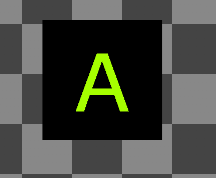
このスタイルが与えられると、タッチ適応キットは、ハイ コントラスト モードが無効か有効かに応じて、`myAsset.png` または `myAsset.hc.png` を自動的に選択します。このスタイル指定は、ハイ コントラスト モードが **無効** の場合、次の結果になります。
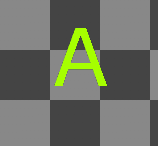 そして、ハイ コントラスト モードが **有効** の場合、次の結果になります。
 ## ハイ コントラスト モード用のシステム カラーのオーバーライド
タッチ レイアウト内または [コンテキスト ファイル](/build/core-features/common/game-streaming/game-streaming-touch-touch-adaptation-bundle#context) 内の [カラー パレット](/reference/system/touchadaptationkit/layout/game-streaming-touch-color-palette) を使用して、[システム カラー](/reference/system/touchadaptationkit/layout/game-streaming-touch-color-palette#system-colors) をオーバーライドできます。コントロールはスタイル指定時に暗黙的にシステム カラーをサンプリングします。つまり、任意のオーバーライドは、すべてのコントロールのグローバル スタイルに影響します (コントロールがカスタム `styles` ブロック内に独自のオーバーライドを持たない限り)。
たとえば、次のレイアウトは、ハイ コントラスト モードが有効なときにカスタム スタイルを実現するためにいくつかのシステム カラーをオーバーライドします。
```JSON theme={null}
{
"$schema": "https://raw.githubusercontent.com/microsoft/xbox-game-streaming-tools/main/touch-adaptation-kit/schemas/layout/v4.0/layout.json",
"styles": {
"colors": {
"highContrast": {
"system_contentPrimary": "#ff00ffff",
"system_contentSecondary": "#00ff00aa",
"system_contrastPrimary": "#ff0000aa"
}
}
},
"content": {
"left": {
"inner": [
{
"type": "joystick",
"axis": {
"input": "axisXY",
"output": "leftJoystick"
}
},
{
"type": "button",
"action": "dPadRight",
"styles": {
"default": {
"faceImage": {
"type": "icon",
"value": "map"
}
}
}
}
]
},
"right": {
"inner": [
{
"type": "button",
"action": "gamepadY"
},
{
"type": "button",
"action": "gamepadB"
},
{
"type": "button",
"action": "gamepadA"
},
{
"type": "button",
"action": "gamepadX"
}
]
}
}
}
```
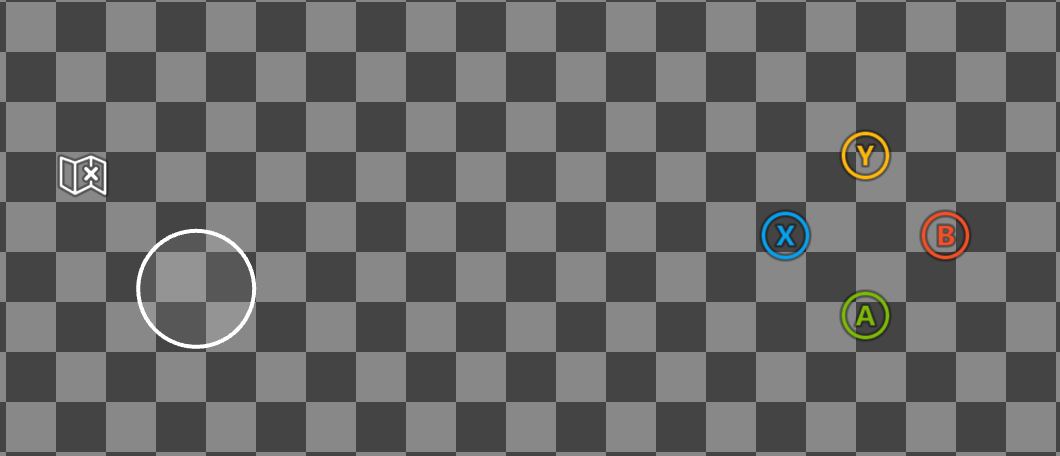
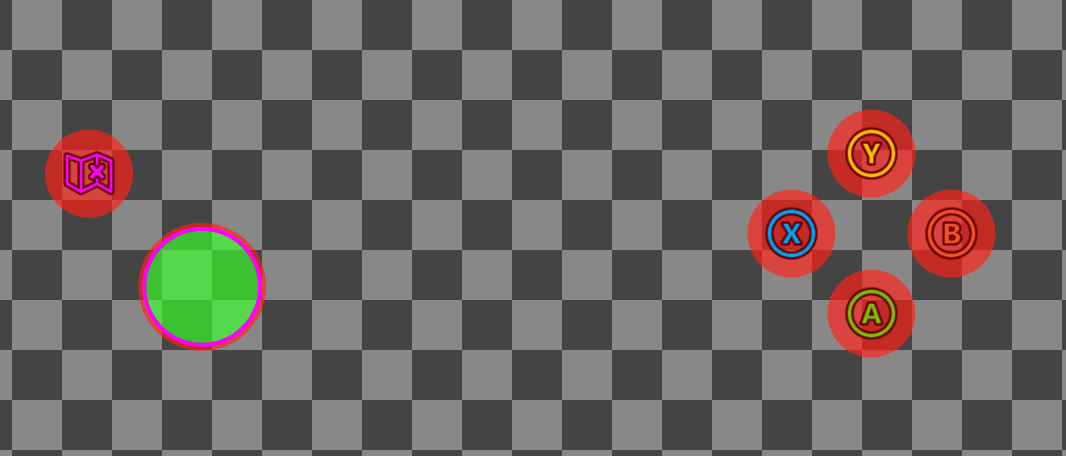
上記のレイアウトでは、`highContrast` ブロック内で 3 つの色のオーバーライドが宣言されており、ハイ コントラスト モードが有効な場合にのみ適用されます。
1. `system_contentPrimary` は、ジョイスティックの中央のストロークとマップ アイコンの色合いに適用されるスタイルをオーバーライドします。
2. `system_contentSecondary` は、ジョイスティックの塗りつぶしに適用されるスタイルをオーバーライドします。
3. `system_contrastPrimary` は、ジョイスティックの外側のストロークとボタン バックプレートに適用されるスタイルをオーバーライドします。
ハイ コントラスト モードが **無効** の上記のレイアウト:
## ハイ コントラスト モード用のシステム カラーのオーバーライド
タッチ レイアウト内または [コンテキスト ファイル](/build/core-features/common/game-streaming/game-streaming-touch-touch-adaptation-bundle#context) 内の [カラー パレット](/reference/system/touchadaptationkit/layout/game-streaming-touch-color-palette) を使用して、[システム カラー](/reference/system/touchadaptationkit/layout/game-streaming-touch-color-palette#system-colors) をオーバーライドできます。コントロールはスタイル指定時に暗黙的にシステム カラーをサンプリングします。つまり、任意のオーバーライドは、すべてのコントロールのグローバル スタイルに影響します (コントロールがカスタム `styles` ブロック内に独自のオーバーライドを持たない限り)。
たとえば、次のレイアウトは、ハイ コントラスト モードが有効なときにカスタム スタイルを実現するためにいくつかのシステム カラーをオーバーライドします。
```JSON theme={null}
{
"$schema": "https://raw.githubusercontent.com/microsoft/xbox-game-streaming-tools/main/touch-adaptation-kit/schemas/layout/v4.0/layout.json",
"styles": {
"colors": {
"highContrast": {
"system_contentPrimary": "#ff00ffff",
"system_contentSecondary": "#00ff00aa",
"system_contrastPrimary": "#ff0000aa"
}
}
},
"content": {
"left": {
"inner": [
{
"type": "joystick",
"axis": {
"input": "axisXY",
"output": "leftJoystick"
}
},
{
"type": "button",
"action": "dPadRight",
"styles": {
"default": {
"faceImage": {
"type": "icon",
"value": "map"
}
}
}
}
]
},
"right": {
"inner": [
{
"type": "button",
"action": "gamepadY"
},
{
"type": "button",
"action": "gamepadB"
},
{
"type": "button",
"action": "gamepadA"
},
{
"type": "button",
"action": "gamepadX"
}
]
}
}
}
```
上記のレイアウトでは、`highContrast` ブロック内で 3 つの色のオーバーライドが宣言されており、ハイ コントラスト モードが有効な場合にのみ適用されます。
1. `system_contentPrimary` は、ジョイスティックの中央のストロークとマップ アイコンの色合いに適用されるスタイルをオーバーライドします。
2. `system_contentSecondary` は、ジョイスティックの塗りつぶしに適用されるスタイルをオーバーライドします。
3. `system_contrastPrimary` は、ジョイスティックの外側のストロークとボタン バックプレートに適用されるスタイルをオーバーライドします。
ハイ コントラスト モードが **無効** の上記のレイアウト:
 そして、ハイ コントラスト モードが **有効** の場合:
 ## ハイ コントラスト モードの有効化
[Web](#web-cta)、[Android](#android-cta)、または [Windows](#windows-cta) の Content Test Application (CTA) のいずれでもハイ コントラスト モードをテストできます。
### Web CTA
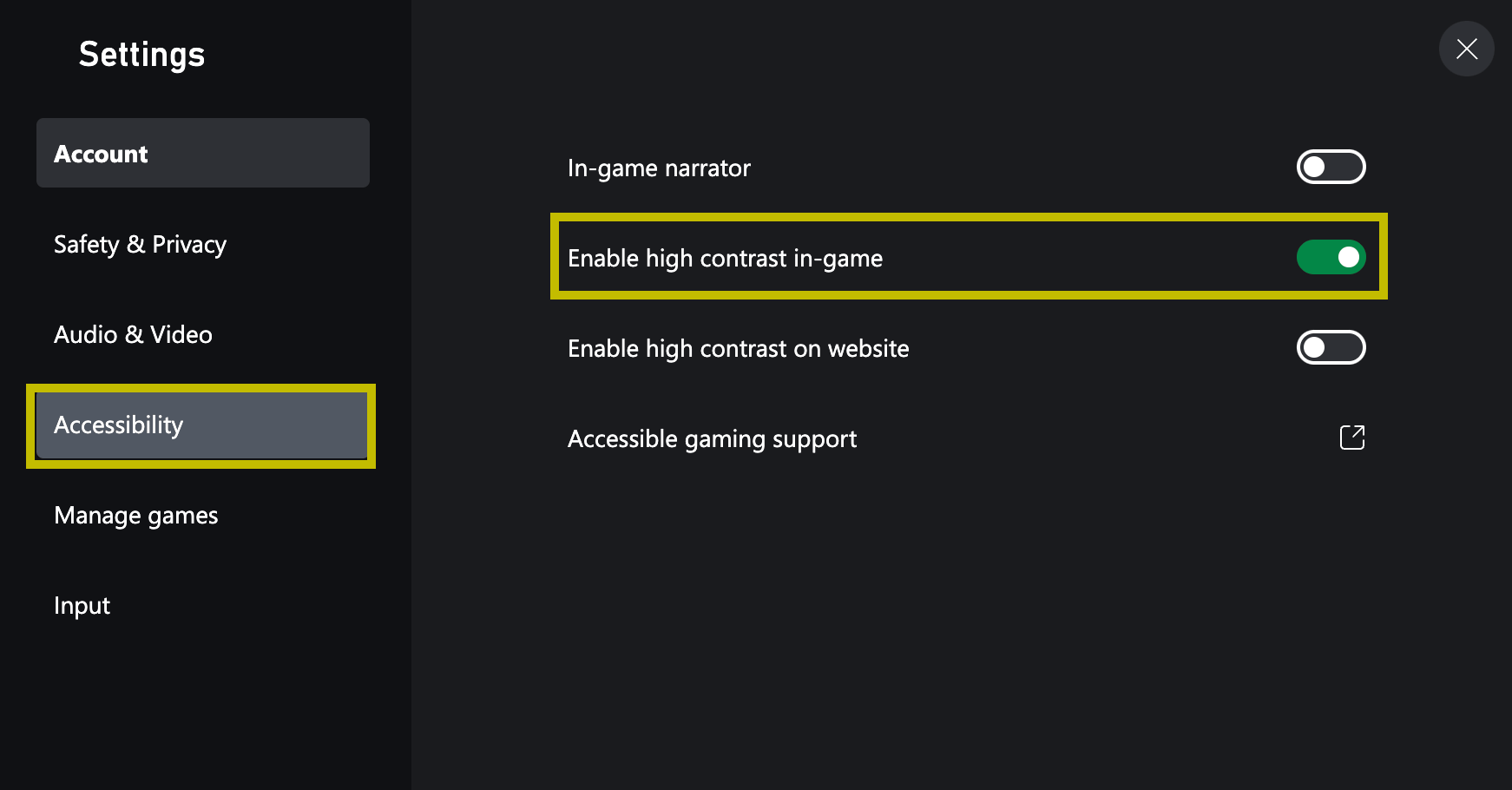
[Web CTA](/build/core-features/common/game-streaming/game-streaming-web-content-test-application) でハイ コントラスト モードを有効にするには、以下の手順を行います:
プロファイルをクリックし、\[Settings] ウィンドウに移動します。
## ハイ コントラスト モードの有効化
[Web](#web-cta)、[Android](#android-cta)、または [Windows](#windows-cta) の Content Test Application (CTA) のいずれでもハイ コントラスト モードをテストできます。
### Web CTA
[Web CTA](/build/core-features/common/game-streaming/game-streaming-web-content-test-application) でハイ コントラスト モードを有効にするには、以下の手順を行います:
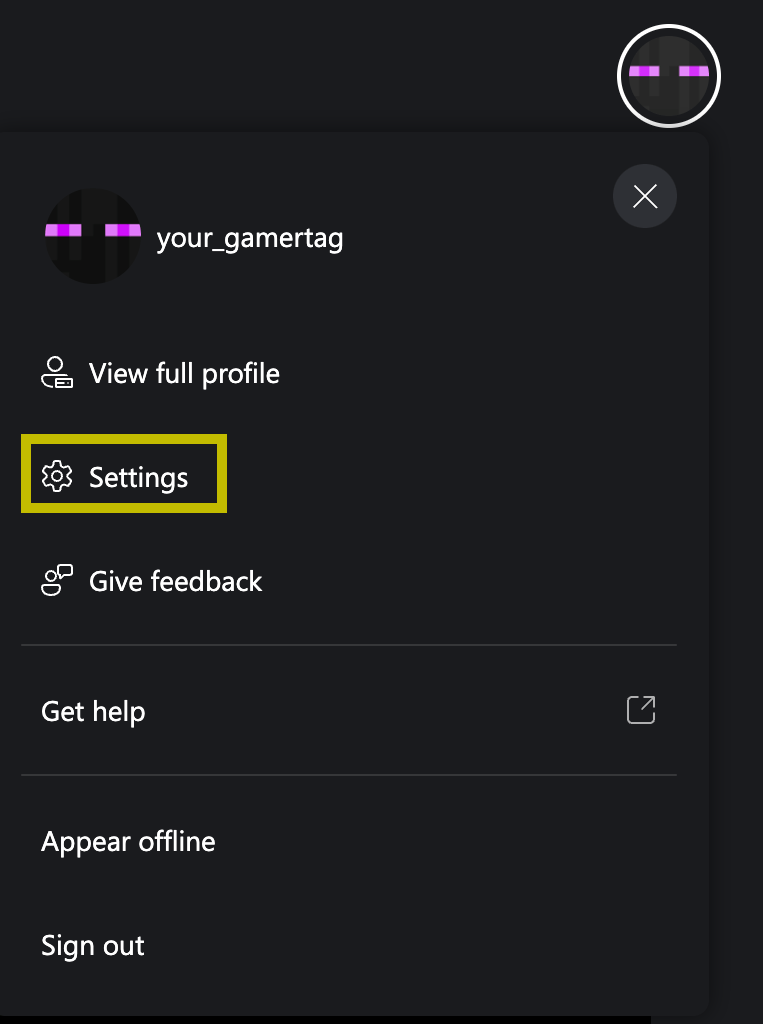
プロファイルをクリックし、\[Settings] ウィンドウに移動します。
 \[Accessibility] に移動し、\[Enable high contrast in-game] をオンにします。
 ### Android CTA (非推奨)
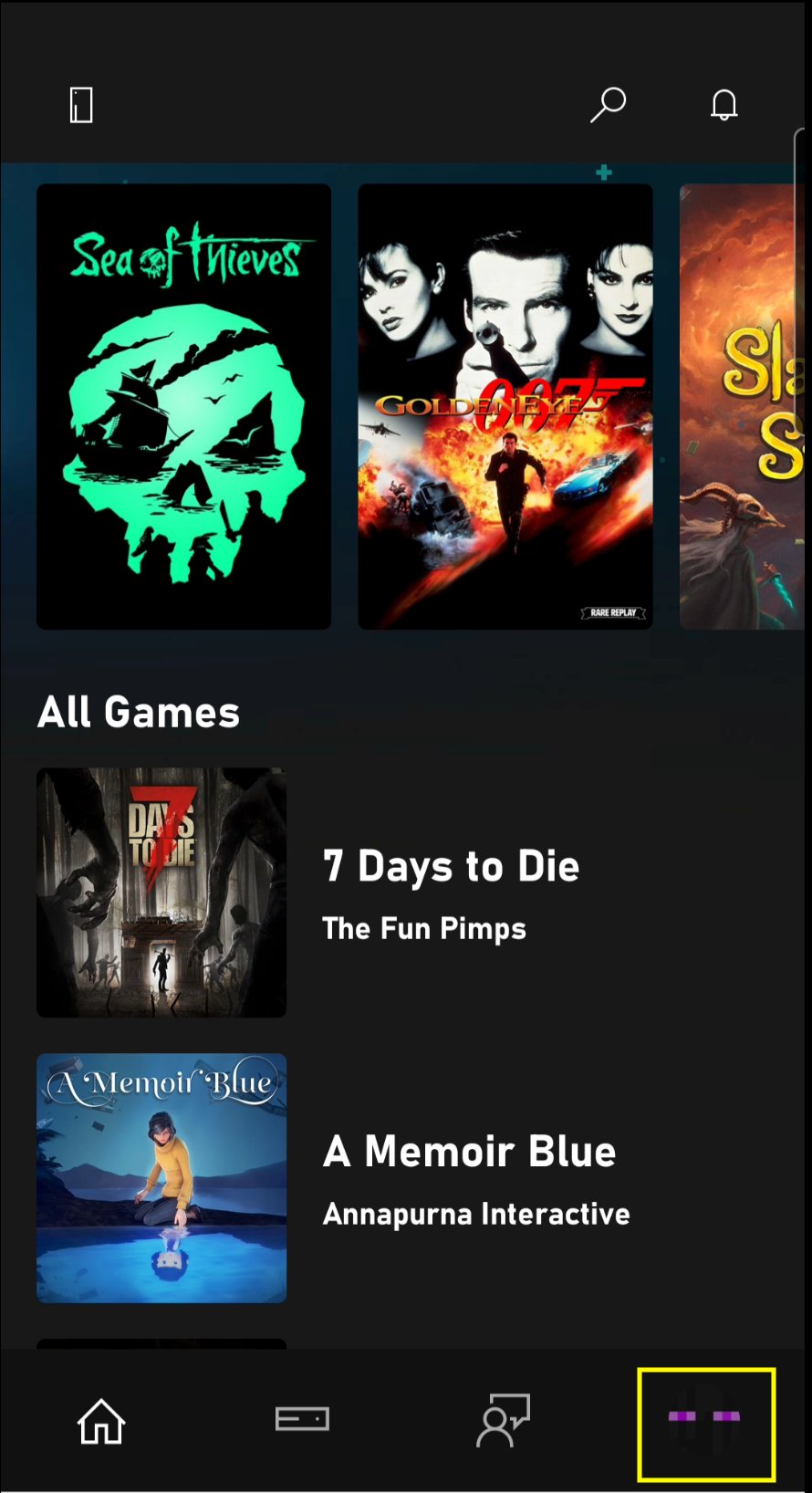
[Android CTA](/build/core-features/common/game-streaming/game-streaming-android-content-test-application) でハイ コントラスト モードを有効にするには、以下の手順を行います:
プロファイルをクリックします。
### Android CTA (非推奨)
[Android CTA](/build/core-features/common/game-streaming/game-streaming-android-content-test-application) でハイ コントラスト モードを有効にするには、以下の手順を行います:
プロファイルをクリックします。
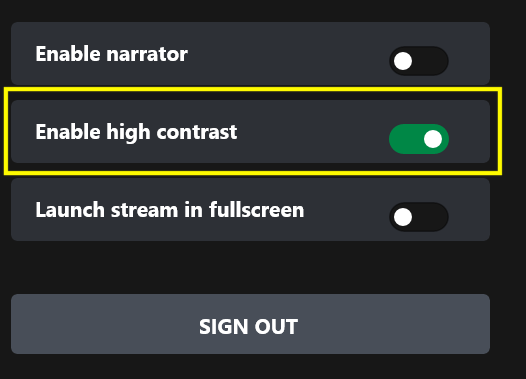
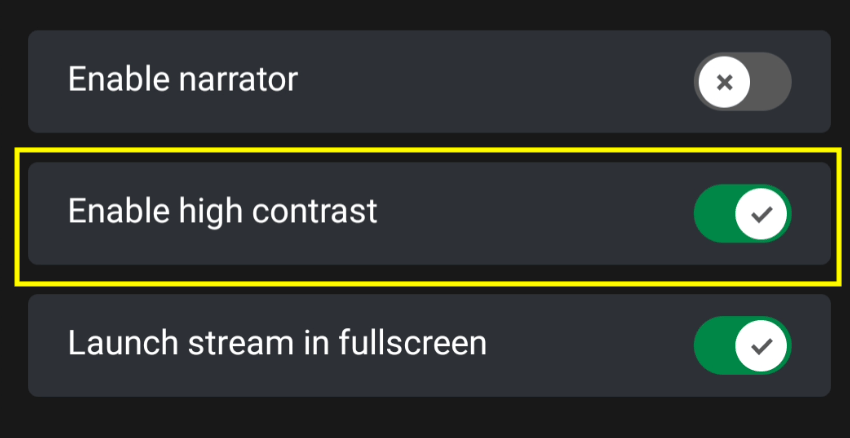
 \[Enable high contrast mode] をオンにします。
 ### Windows CTA (非推奨)
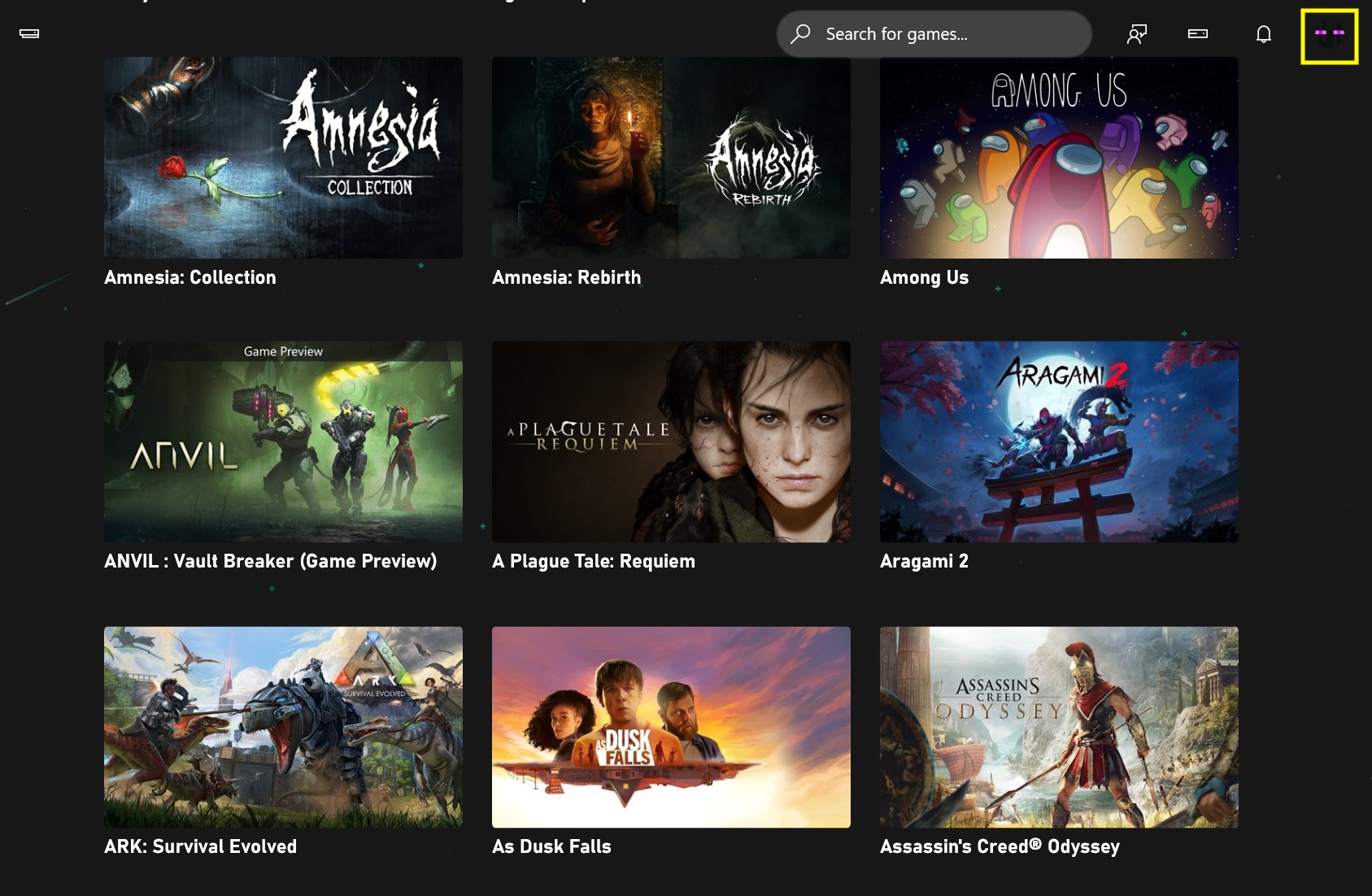
[Windows CTA](/build/core-features/common/game-streaming/game-streaming-windows-pc-content-test-application) でハイ コントラスト モードを有効にするには、以下の手順を行います:
プロファイルをクリックします。
### Windows CTA (非推奨)
[Windows CTA](/build/core-features/common/game-streaming/game-streaming-windows-pc-content-test-application) でハイ コントラスト モードを有効にするには、以下の手順を行います:
プロファイルをクリックします。
 \[Enable high contrast mode] をオンにします。