> ## Documentation Index
> Fetch the complete documentation index at: https://devdocs.xbox.com/llms.txt
> Use this file to discover all available pages before exploring further.
# Configuration de l'authentification PlayFab avec Steam et Unity
> Tutoriel pas à pas pour ajouter la connexion Steam à un jeu Unity avec le SDK PlayFab et Steamworks, couvrant la configuration de l'AppID et le code d'authentification des joueurs.
Ce tutoriel vous guide à travers les étapes de connexion à PlayFab avec Steam via **SteamWorks** et Unity.
## Prérequis
Avant de commencer, vous devez disposer des éléments suivants :
* Un projet Unity avec un SDK PlayFab importé et un ID de titre configuré.
* Une application Steam avec :
* L'AppID déjà configuré. L'AppID peut être obtenu via le processus [Steam Direct (anciennement Greenlight)](https://partner.steamgames.com/steamdirect).
* Une clé d'API web d'éditeur Steam. Pour générer une clé d'éditeur, suivez [Creating a Publisher Web API Key](https://partner.steamgames.com/doc/webapi_overview/auth#create_publisher_key) dans la documentation **Steamworks**.
* Une bonne connaissance des [principes de base et bonnes pratiques de connexion](/fr/services/playfab/identity/player-identity/login/login-basics-best-practices).
## Configuration d'un titre PlayFab avec l'intégration Steam
Pour activer la prise en charge de l'autorisation Steam, PlayFab exige que vous activiez le module complémentaire Steam.
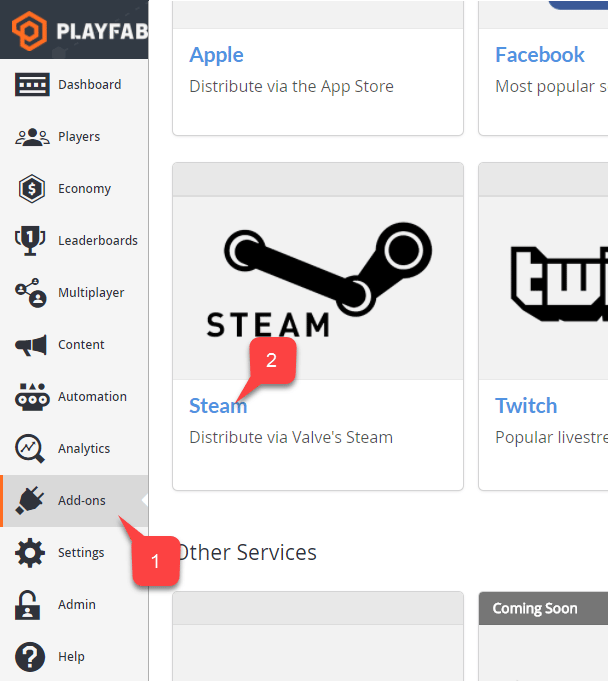
Accédez à votre page **Game Manager** :
1. Sélectionnez l'élément de menu **Add-ons**.
2. Dans la liste des **Add-ons** disponibles, repérez **Steam** et sélectionnez le lien du titre :
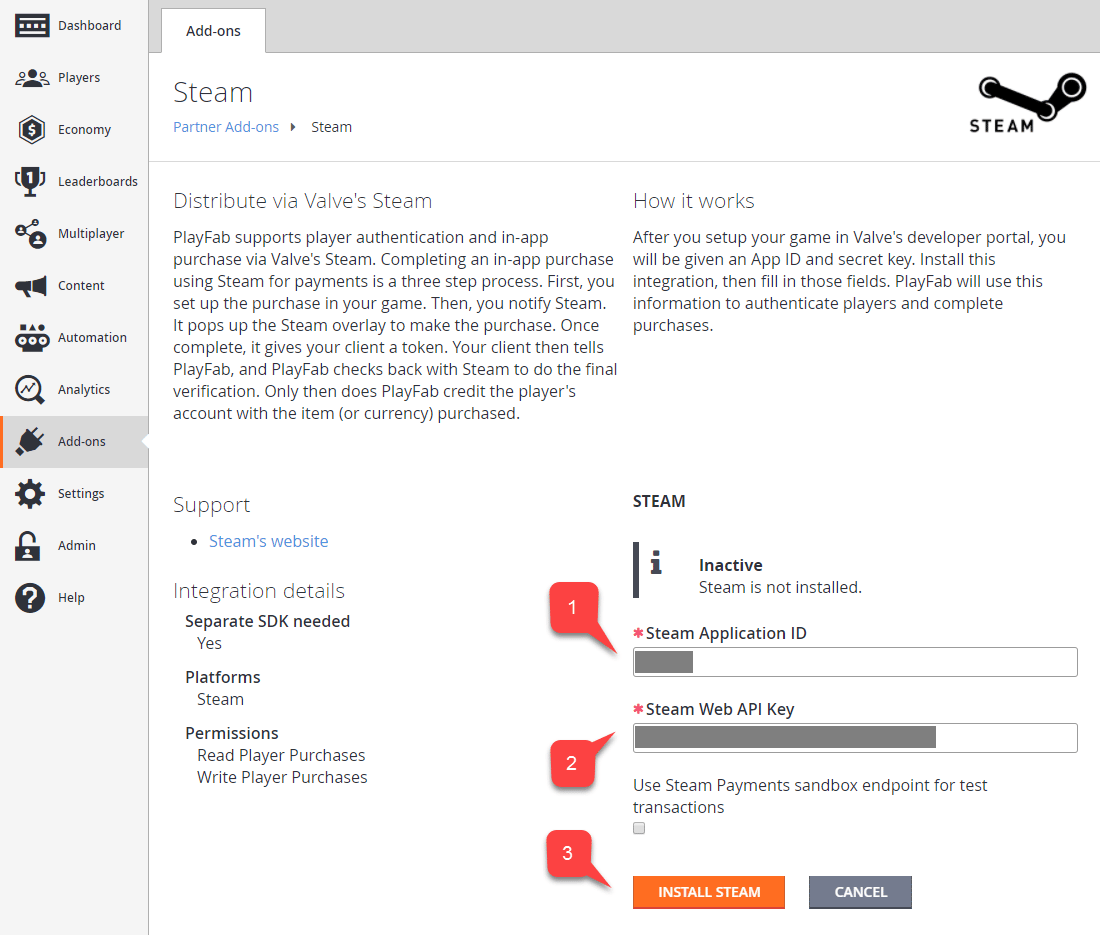
 1. Entrez votre **App ID**.
2. Entrez la **Web API Key**.
3. Sélectionnez ensuite **Install Steam**.
1. Entrez votre **App ID**.
2. Entrez la **Web API Key**.
3. Sélectionnez ensuite **Install Steam**.
 ## Configuration d'un projet Unity
Commencez par télécharger la dernière version de Steamworks.NET depuis la [page des versions](https://github.com/rlabrecque/Steamworks.NET/releases).
* Récupérez la version Unity Package de la publication et importez-la dans le projet.
* Une fois le package importé, fermez Unity.
* Accédez au dossier racine du **Project**.
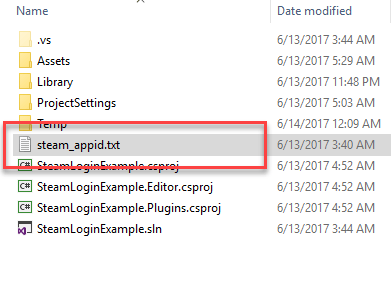
* Repérez le fichier **steam\_appid.txt**.
* Ouvrez le fichier et remplacez la valeur de l'**App ID** par la vôtre.
## Configuration d'un projet Unity
Commencez par télécharger la dernière version de Steamworks.NET depuis la [page des versions](https://github.com/rlabrecque/Steamworks.NET/releases).
* Récupérez la version Unity Package de la publication et importez-la dans le projet.
* Une fois le package importé, fermez Unity.
* Accédez au dossier racine du **Project**.
* Repérez le fichier **steam\_appid.txt**.
* Ouvrez le fichier et remplacez la valeur de l'**App ID** par la vôtre.
 Rouvrez Unity et créez une nouvelle scène.
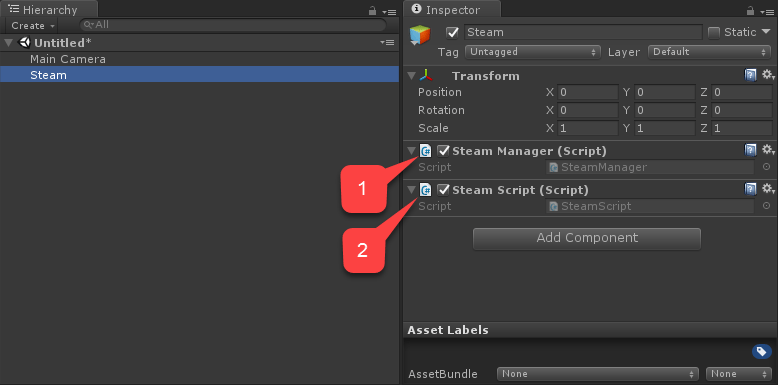
Dans cette scène, créez un nouveau **GameObject** nommé **Steam** :
1. Ajoutez un composant **SteamManager** au **GameObject**. Ce composant fait partie de Steamworks.Net.
2. Créez et ajoutez un composant **SteamScript** au **GameObject**.
Rouvrez Unity et créez une nouvelle scène.
Dans cette scène, créez un nouveau **GameObject** nommé **Steam** :
1. Ajoutez un composant **SteamManager** au **GameObject**. Ce composant fait partie de Steamworks.Net.
2. Créez et ajoutez un composant **SteamScript** au **GameObject**.
 L'exemple suivant montre le code du composant `SteamScript`.
```csharp theme={null}
using System.Text;
using PlayFab;
using PlayFab.ClientModels;
using Steamworks;
using UnityEngine;
public class SteamScript : MonoBehaviour
{
protected Callback m_OnGetSteamAuthTicket;
// Alternatively, you can use this callback if you choose to call SteamUser.GetAuthSessionTicket(...) instead
// TicketIsServiceSpecific in the PlayFabLoginRequest should be false in this case
// protected Callback m_OnGetSteamAuthTicketAlternate;
private HAuthTicket m_hTicket;
public void Awake()
{
m_OnGetSteamAuthTicket = Callback.Create(OnGetSteamAuthTicket);
}
public void OnGUI()
{
if (GUILayout.Button("Log In") && SteamManager.Initialized)
{
GetSteamAuthTicket();
}
}
private void GetSteamAuthTicket()
{
m_hTicket = SteamUser.GetAuthTicketForWebApi("AzurePlayFab");
if (m_hTicket == HAuthTicket.Invalid)
{
Debug.Log("Failed to request steam auth ticket");
}
else
{
Debug.Log("Steam auth ticket requested");
}
}
private void OnGetSteamAuthTicket(GetTicketForWebApiResponse_t pCallback)
{
Debug.Log("Steam auth ticket callback invoked");
if (pCallback.m_eResult != EResult.k_EResultOK)
{
Debug.Log("Failed to get steam auth ticket: " + pCallback.m_eResult);
}
StringBuilder sb = new();
for (int i = 0; i < pCallback.m_cubTicket; ++i)
{
sb.AppendFormat("{0:x2}", pCallback.m_rgubTicket[i]);
}
PlayFabClientAPI.LoginWithSteam(new LoginWithSteamRequest
{
CreateAccount = true,
SteamTicket = sb.ToString(),
TicketIsServiceSpecific = true
}, OnComplete, OnFailed);
}
private void OnComplete(LoginResult obj)
{
SteamUser.CancelAuthTicket(m_hTicket);
Debug.Log("Success!");
}
private void OnFailed(PlayFabError error)
{
SteamUser.CancelAuthTicket(m_hTicket);
Debug.Log("Failed PlayFab login: " + error.GenerateErrorReport());
}
}
```
## Test
Vous pouvez tester directement dans l'éditeur :
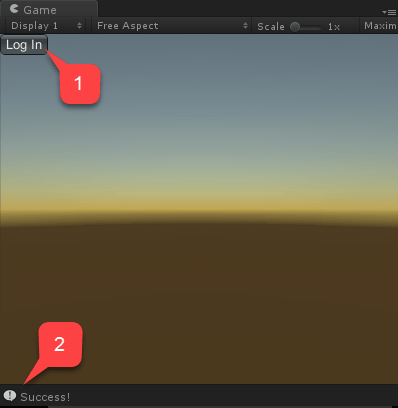
1. Exécutez la scène et sélectionnez le bouton **Log In**.
2. Le message de console doit apparaître après un instant, indiquant le résultat d'authentification **Success!**.
L'exemple suivant montre le code du composant `SteamScript`.
```csharp theme={null}
using System.Text;
using PlayFab;
using PlayFab.ClientModels;
using Steamworks;
using UnityEngine;
public class SteamScript : MonoBehaviour
{
protected Callback m_OnGetSteamAuthTicket;
// Alternatively, you can use this callback if you choose to call SteamUser.GetAuthSessionTicket(...) instead
// TicketIsServiceSpecific in the PlayFabLoginRequest should be false in this case
// protected Callback m_OnGetSteamAuthTicketAlternate;
private HAuthTicket m_hTicket;
public void Awake()
{
m_OnGetSteamAuthTicket = Callback.Create(OnGetSteamAuthTicket);
}
public void OnGUI()
{
if (GUILayout.Button("Log In") && SteamManager.Initialized)
{
GetSteamAuthTicket();
}
}
private void GetSteamAuthTicket()
{
m_hTicket = SteamUser.GetAuthTicketForWebApi("AzurePlayFab");
if (m_hTicket == HAuthTicket.Invalid)
{
Debug.Log("Failed to request steam auth ticket");
}
else
{
Debug.Log("Steam auth ticket requested");
}
}
private void OnGetSteamAuthTicket(GetTicketForWebApiResponse_t pCallback)
{
Debug.Log("Steam auth ticket callback invoked");
if (pCallback.m_eResult != EResult.k_EResultOK)
{
Debug.Log("Failed to get steam auth ticket: " + pCallback.m_eResult);
}
StringBuilder sb = new();
for (int i = 0; i < pCallback.m_cubTicket; ++i)
{
sb.AppendFormat("{0:x2}", pCallback.m_rgubTicket[i]);
}
PlayFabClientAPI.LoginWithSteam(new LoginWithSteamRequest
{
CreateAccount = true,
SteamTicket = sb.ToString(),
TicketIsServiceSpecific = true
}, OnComplete, OnFailed);
}
private void OnComplete(LoginResult obj)
{
SteamUser.CancelAuthTicket(m_hTicket);
Debug.Log("Success!");
}
private void OnFailed(PlayFabError error)
{
SteamUser.CancelAuthTicket(m_hTicket);
Debug.Log("Failed PlayFab login: " + error.GenerateErrorReport());
}
}
```
## Test
Vous pouvez tester directement dans l'éditeur :
1. Exécutez la scène et sélectionnez le bouton **Log In**.
2. Le message de console doit apparaître après un instant, indiquant le résultat d'authentification **Success!**.
 ## Related topics
- [Authentification spécifique à la plateforme](/fr/services/playfab/identity/player-identity/platform-specific-authentication/index.md)
- [Configuration de l'authentification PlayFab avec Kongregate et Unity](/fr/services/playfab/identity/player-identity/platform-specific-authentication/kongregate-unity.md)
- [Configuration de l'authentification PlayFab avec Facebook et Unity](/fr/services/playfab/identity/player-identity/platform-specific-authentication/facebook-unity.md)
- [Configuration de l'authentification PlayFab avec Google et HTML5](/fr/services/playfab/identity/player-identity/platform-specific-authentication/google-html5.md)
- [Configuration de l'authentification PlayFab avec Kongregate et HTML5](/fr/services/playfab/identity/player-identity/platform-specific-authentication/kongregate-html5.md)
## Related topics
- [Authentification spécifique à la plateforme](/fr/services/playfab/identity/player-identity/platform-specific-authentication/index.md)
- [Configuration de l'authentification PlayFab avec Kongregate et Unity](/fr/services/playfab/identity/player-identity/platform-specific-authentication/kongregate-unity.md)
- [Configuration de l'authentification PlayFab avec Facebook et Unity](/fr/services/playfab/identity/player-identity/platform-specific-authentication/facebook-unity.md)
- [Configuration de l'authentification PlayFab avec Google et HTML5](/fr/services/playfab/identity/player-identity/platform-specific-authentication/google-html5.md)
- [Configuration de l'authentification PlayFab avec Kongregate et HTML5](/fr/services/playfab/identity/player-identity/platform-specific-authentication/kongregate-html5.md)