> ## Documentation Index
> Fetch the complete documentation index at: https://devdocs.xbox.com/llms.txt
> Use this file to discover all available pages before exploring further.
# Configuration de l'authentification PlayFab avec Kongregate et Unity
> Tutoriel pas à pas pour ajouter l'authentification Kongregate à un titre PlayFab dans Unity avec WebGL, couvrant le téléversement de l'application Kongregate et le code de connexion des joueurs.
Ce tutoriel présente la configuration minimale requise pour authentifier vos joueurs dans PlayFab avec Kongregate et Unity.
## Configuration requise
* Un compte [Kongregate](https://www.kongregate.com/) enregistré.
* Une bonne connaissance du [guide des développeurs Kongregate](https://www.kongregate.com/developer_center/docs/en/kongregate-api).
* Un titre PlayFab enregistré.
* Un projet Unity avec PlayFab configuré pour votre titre.
* La prise en charge de Unity WebGL installée.
* Une bonne connaissance des [principes de base et meilleures pratiques de connexion](/fr/services/playfab/identity/player-identity/login/login-basics-best-practices).
## Configuration d'une application Kongregate
Kongregate exige que vous téléversiez une version préliminaire de l'application avant de pouvoir accéder aux informations d'application nécessaires. Notre première étape consiste à préparer un fichier **index.html** avec le contenu ci-dessous.
```html theme={null}
Placeholder
```
Accédez au [site web de Kongregate](https://www.kongregate.com/).
1. Sélectionnez l'onglet **Games**.
2. Sélectionnez ensuite le bouton **Upload your game**.
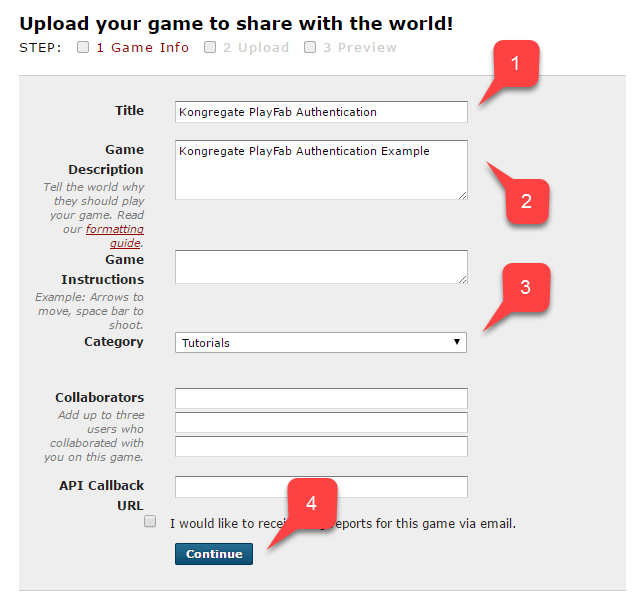
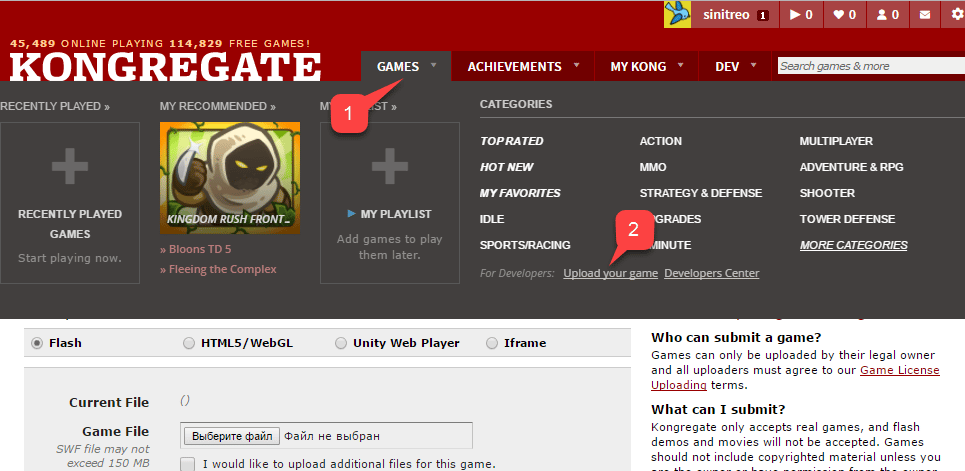 Une page de configuration d'une nouvelle application s'ouvre.
1. Veillez à saisir le **nom de l'application**.
2. Saisissez une **description du jeu**.
3. Sélectionnez ensuite une **catégorie**.
4. Soumettez la nouvelle application en sélectionnant le bouton **Continue**.
Une page de configuration d'une nouvelle application s'ouvre.
1. Veillez à saisir le **nom de l'application**.
2. Saisissez une **description du jeu**.
3. Sélectionnez ensuite une **catégorie**.
4. Soumettez la nouvelle application en sélectionnant le bouton **Continue**.
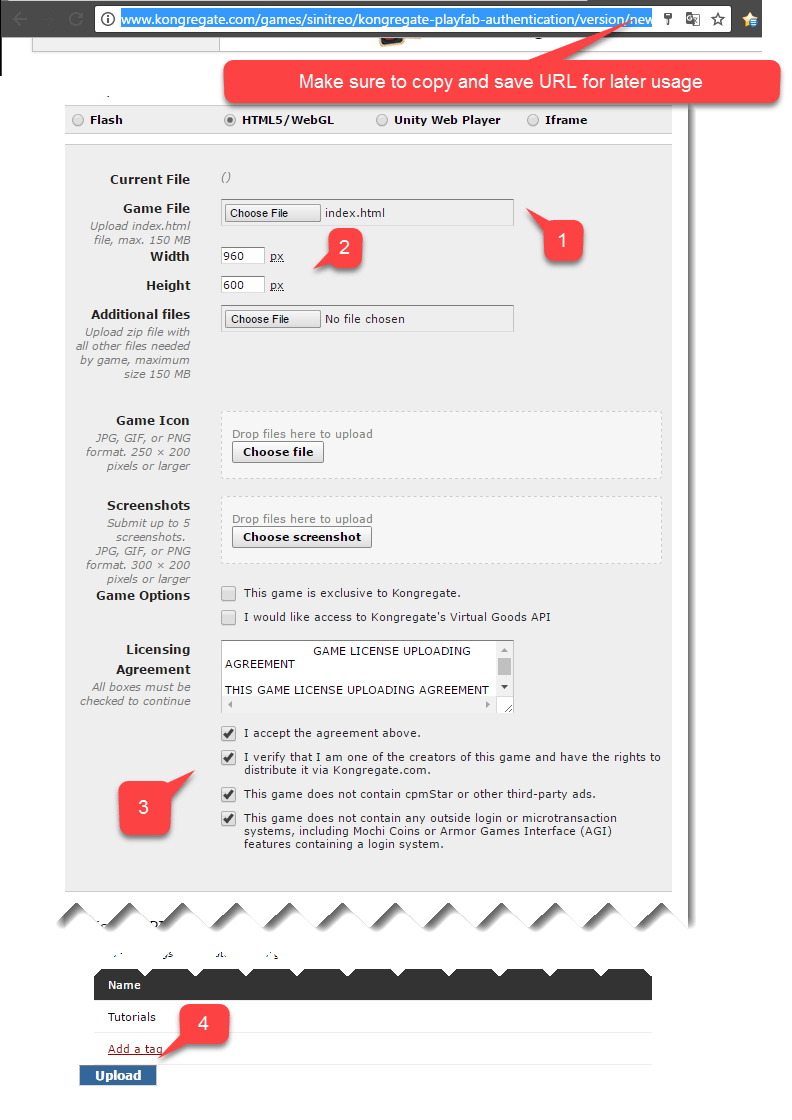
 Vous êtes redirigé vers la page **Application Upload**.
Avant tout, *et c'est le plus important*, veillez à enregistrer l'URL figurant dans la **barre d'adresse** de votre navigateur dans un endroit sûr et facilement accessible. *Cela vous fera gagner beaucoup de temps pour retrouver l'accès à l'application une fois la page fermée*.
1. Une fois cela fait, sélectionnez le fichier **index.html** préparé comme **Game File**.
2. Configurez ensuite la taille de l'écran.
3. Veillez à accepter toutes les licences requises.
4. Enfin, téléversez votre application en sélectionnant le bouton **Upload**.
Vous êtes redirigé vers la page **Application Upload**.
Avant tout, *et c'est le plus important*, veillez à enregistrer l'URL figurant dans la **barre d'adresse** de votre navigateur dans un endroit sûr et facilement accessible. *Cela vous fera gagner beaucoup de temps pour retrouver l'accès à l'application une fois la page fermée*.
1. Une fois cela fait, sélectionnez le fichier **index.html** préparé comme **Game File**.
2. Configurez ensuite la taille de l'écran.
3. Veillez à accepter toutes les licences requises.
4. Enfin, téléversez votre application en sélectionnant le bouton **Upload**.
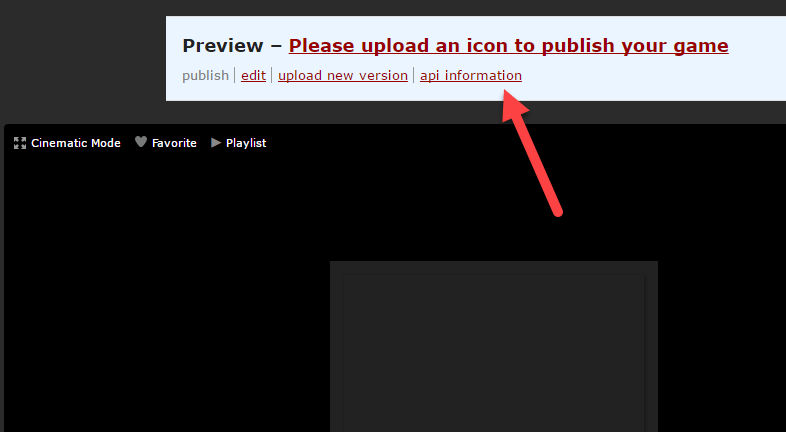
 Une fois l'aperçu ouvert, ignorez le contenu et ouvrez le lien **api information**.
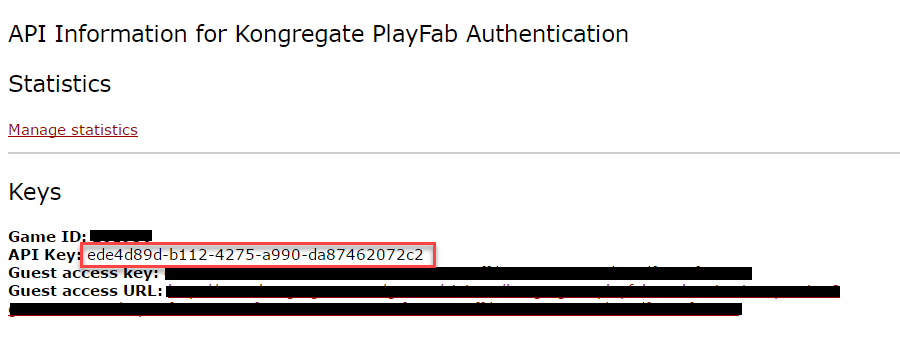
 Lorsque la page **API Information** s'ouvre, repérez l'**API Key** et conservez-la dans un endroit sûr et facilement accessible pour une utilisation ultérieure.
 ## Configuration du titre PlayFab
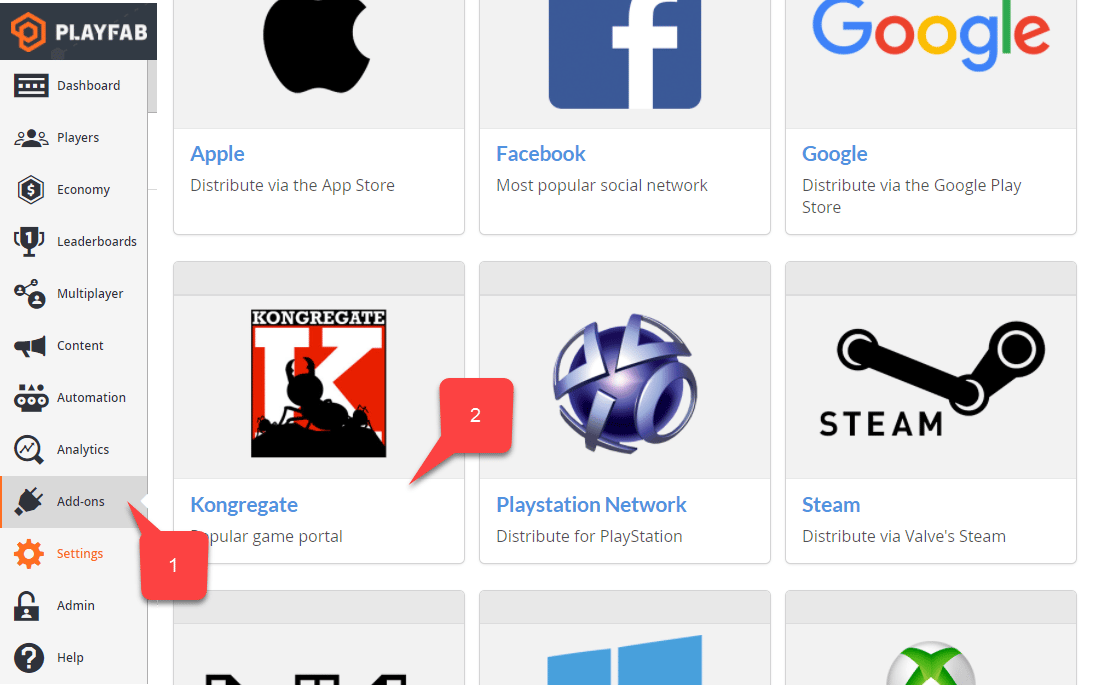
Dans le Game Manager de votre titre PlayFab :
1. Sélectionnez **Add-ons** dans le menu de gauche.
2. Repérez et sélectionnez l'icône **Kongregate**.
## Configuration du titre PlayFab
Dans le Game Manager de votre titre PlayFab :
1. Sélectionnez **Add-ons** dans le menu de gauche.
2. Repérez et sélectionnez l'icône **Kongregate**.
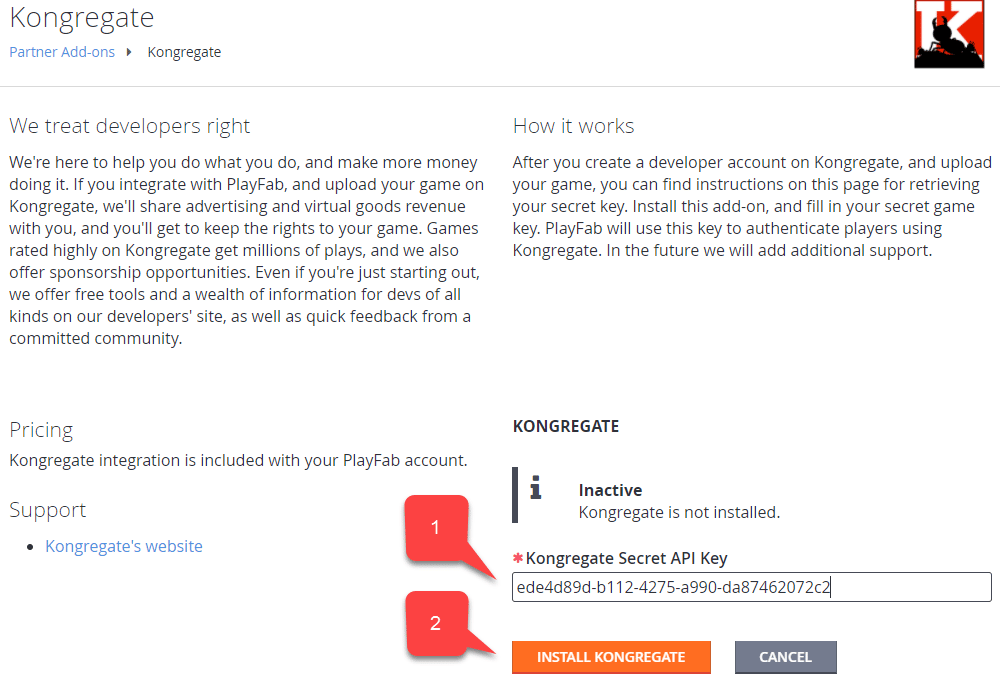
 Une nouvelle page s'ouvre, vous permettant de configurer l'intégration **Kongregate** :
1. Saisissez l'**API Key** obtenue dans la section précédente.
2. Sélectionnez le bouton **Install Kongregate**.
Une nouvelle page s'ouvre, vous permettant de configurer l'intégration **Kongregate** :
1. Saisissez l'**API Key** obtenue dans la section précédente.
2. Sélectionnez le bouton **Install Kongregate**.
 À ce stade, si vous ne recevez aucun message d'erreur, l'intégration de votre titre PlayFab avec votre application Kongregate est correctement configurée.
## Configuration d'un projet Unity
Utilisez cette liste de contrôle pour configurer Unity :
* \[FACULTATIF] Installez les [PlayFab Editor Extensions](https://aka.ms/playfabunityextension).
* Définissez votre `TitleId` dans le Scriptable Object `PlayFabSharedSettings`.
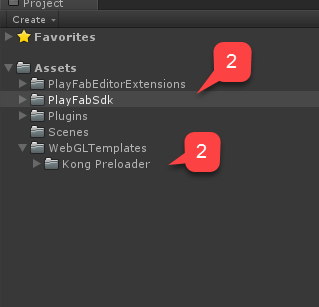
* Pour Unity 5.6+, téléchargez le [modèle WebGL Kongregate Preloader](https://github.com/kongregate/webgl-preloader) et placez-le dans le dossier `Assets/WebGLTemplates` **(2)**.
* Pour Unity \< 5.6, téléchargez le [modèle WebGL Kongregate Preloader pour 5.5 et versions antérieures](https://github.com/kongregate/webgl-preloader/tree/unity-5.5-and-below) et placez-le dans le dossier `Assets/WebGLTemplates` **(2)**.
À ce stade, si vous ne recevez aucun message d'erreur, l'intégration de votre titre PlayFab avec votre application Kongregate est correctement configurée.
## Configuration d'un projet Unity
Utilisez cette liste de contrôle pour configurer Unity :
* \[FACULTATIF] Installez les [PlayFab Editor Extensions](https://aka.ms/playfabunityextension).
* Définissez votre `TitleId` dans le Scriptable Object `PlayFabSharedSettings`.
* Pour Unity 5.6+, téléchargez le [modèle WebGL Kongregate Preloader](https://github.com/kongregate/webgl-preloader) et placez-le dans le dossier `Assets/WebGLTemplates` **(2)**.
* Pour Unity \< 5.6, téléchargez le [modèle WebGL Kongregate Preloader pour 5.5 et versions antérieures](https://github.com/kongregate/webgl-preloader/tree/unity-5.5-and-below) et placez-le dans le dossier `Assets/WebGLTemplates` **(2)**.
 Créons maintenant votre scène de travail.
1. À des fins de test, utilisez un canevas à mise à l'échelle d'écran avec quelques étiquettes de texte.
Nous n'aurons besoin que d'*une seule* étiquette de texte pour afficher les messages de débogage.
2. Créez un **GameObject** vide et renommez-le **Kongregate**.
Créons maintenant votre scène de travail.
1. À des fins de test, utilisez un canevas à mise à l'échelle d'écran avec quelques étiquettes de texte.
Nous n'aurons besoin que d'*une seule* étiquette de texte pour afficher les messages de débogage.
2. Créez un **GameObject** vide et renommez-le **Kongregate**.
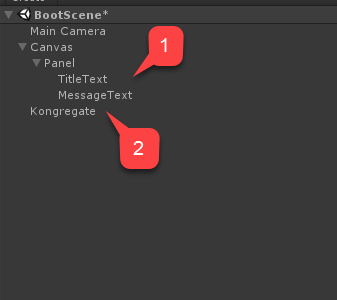 Ce `GameObject` contiendra un composant `KongregateHandler` relié à une étiquette de texte pour les messages de débogage.
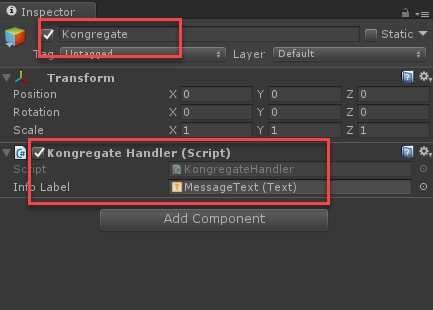 Le code du composant `KongregateHandler` est fourni ci-dessous.
```csharp theme={null}
// We are specifically interested in importing PlayFab related namespaces
using PlayFab;
using PlayFab.ClientModels;
using UnityEngine;
using UnityEngine.UI;
public class KongregateHandler : MonoBehaviour
{
// Standard unity callback, executed once for the script to start
public void Start()
{
// Utility: show feedback
SetMessage("Loading kongregate api...");
/*
* Important: execute Javascript in the external context to initialize
* Kongregate API, Unity Support and set up callback GameObject and Method.
* In this case, callback is set to a GameObject called Kongregate and a
* method called OnKongregateAPILoaded, which we define later in this class.
* Once Kongregate API is initialized, Unity will locate this object by name
* ("Kongregate") and execute a method "OnKongregateAPILoaded" passing in user
* info string as an argument.
*/
Application.ExternalEval(
"if(typeof(kongregateUnitySupport) != 'undefined'){" +
" kongregateUnitySupport.initAPI('Kongregate', 'OnKongregateAPILoaded');" +
"} else {" +
" console.error('No unity support!');" +
"};"
);
}
/*
* Executed once Kongregate API is ready. This method is invoked by KongregateAPI
* and receives a structured text with multiple pieces of data you must parse manually.
* The userInfo string parameter has the following structure: 'user_identifier|user_name|auth_token'
*/
public void OnKongregateAPILoaded(string userInfo)
{
SetMessage("Received user info! Logging though playfab...");
// We split userInfo string using '|' character to acquire auth token and Kongregate ID.
var userInfoArray = userInfo.Split('|');
var authTicket = userInfoArray[2];
var kongregateId = userInfoArray[0];
LogToBrowser("Auth Token: " + authTicket);
LogToBrowser("Kongregate Id: " + kongregateId);
/*
* We then execute PlayFab API call called LoginWithKongregate.
* LoginWithKongregate requires KongregateID and AuthTicket.
* We also pass CreateAccount flag, to automatically create player account.
*/
PlayFabClientAPI.LoginWithKongregate(new LoginWithKongregateRequest
{
KongregateId = kongregateId,
AuthTicket = authTicket,
CreateAccount = true
}, OnLoggedIn, OnFailed);
}
/*
* The rest of the code serves as a utility to process results, log debug statements
* and display them using Text message label.
*/
private void OnLoggedIn(LoginResult obj)
{
SetMessage("Logged in through PlayFab!");
}
private void OnFailed(PlayFabError error)
{
SetMessage("Failed to login in with PlayFab: " + error.GenerateErrorReport());
}
private void SetMessage(string message)
{
InfoLabel.text = message;
}
private void LogToBrowser(string message)
{
Application.ExternalEval(string.Format("console.log('{0}')", message));
}
public Text InfoLabel;
}
```
## Test
La seule façon de vraiment tester l'intégration est de téléverser votre prototype sur Kongregate.
1. Ouvrez la fenêtre **Build** et vérifiez que **WebGL** est sélectionné dans votre menu.
2. Ouvrez ensuite les **Player Settings** en sélectionnant le bouton.
Le code du composant `KongregateHandler` est fourni ci-dessous.
```csharp theme={null}
// We are specifically interested in importing PlayFab related namespaces
using PlayFab;
using PlayFab.ClientModels;
using UnityEngine;
using UnityEngine.UI;
public class KongregateHandler : MonoBehaviour
{
// Standard unity callback, executed once for the script to start
public void Start()
{
// Utility: show feedback
SetMessage("Loading kongregate api...");
/*
* Important: execute Javascript in the external context to initialize
* Kongregate API, Unity Support and set up callback GameObject and Method.
* In this case, callback is set to a GameObject called Kongregate and a
* method called OnKongregateAPILoaded, which we define later in this class.
* Once Kongregate API is initialized, Unity will locate this object by name
* ("Kongregate") and execute a method "OnKongregateAPILoaded" passing in user
* info string as an argument.
*/
Application.ExternalEval(
"if(typeof(kongregateUnitySupport) != 'undefined'){" +
" kongregateUnitySupport.initAPI('Kongregate', 'OnKongregateAPILoaded');" +
"} else {" +
" console.error('No unity support!');" +
"};"
);
}
/*
* Executed once Kongregate API is ready. This method is invoked by KongregateAPI
* and receives a structured text with multiple pieces of data you must parse manually.
* The userInfo string parameter has the following structure: 'user_identifier|user_name|auth_token'
*/
public void OnKongregateAPILoaded(string userInfo)
{
SetMessage("Received user info! Logging though playfab...");
// We split userInfo string using '|' character to acquire auth token and Kongregate ID.
var userInfoArray = userInfo.Split('|');
var authTicket = userInfoArray[2];
var kongregateId = userInfoArray[0];
LogToBrowser("Auth Token: " + authTicket);
LogToBrowser("Kongregate Id: " + kongregateId);
/*
* We then execute PlayFab API call called LoginWithKongregate.
* LoginWithKongregate requires KongregateID and AuthTicket.
* We also pass CreateAccount flag, to automatically create player account.
*/
PlayFabClientAPI.LoginWithKongregate(new LoginWithKongregateRequest
{
KongregateId = kongregateId,
AuthTicket = authTicket,
CreateAccount = true
}, OnLoggedIn, OnFailed);
}
/*
* The rest of the code serves as a utility to process results, log debug statements
* and display them using Text message label.
*/
private void OnLoggedIn(LoginResult obj)
{
SetMessage("Logged in through PlayFab!");
}
private void OnFailed(PlayFabError error)
{
SetMessage("Failed to login in with PlayFab: " + error.GenerateErrorReport());
}
private void SetMessage(string message)
{
InfoLabel.text = message;
}
private void LogToBrowser(string message)
{
Application.ExternalEval(string.Format("console.log('{0}')", message));
}
public Text InfoLabel;
}
```
## Test
La seule façon de vraiment tester l'intégration est de téléverser votre prototype sur Kongregate.
1. Ouvrez la fenêtre **Build** et vérifiez que **WebGL** est sélectionné dans votre menu.
2. Ouvrez ensuite les **Player Settings** en sélectionnant le bouton.
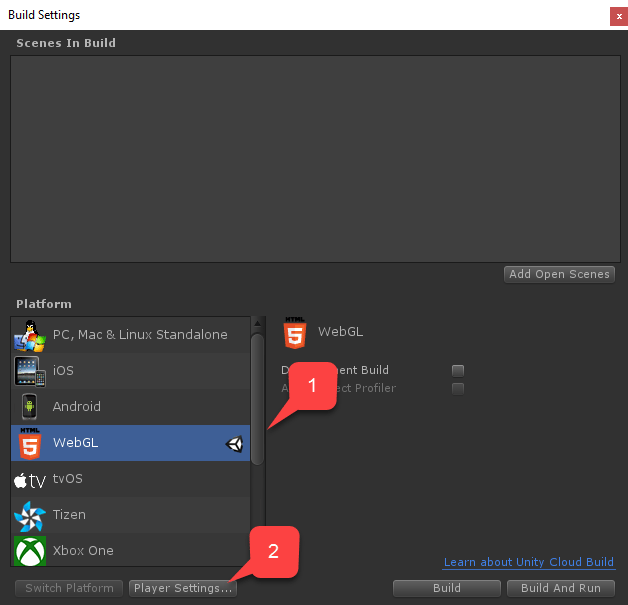 Dans l'écran **Player Settings**, repérez la section **Settings for WebGL** :
1. Vérifiez que la taille est correctement configurée.
2. Sélectionnez ensuite le **Kongregate Preloader Template**.
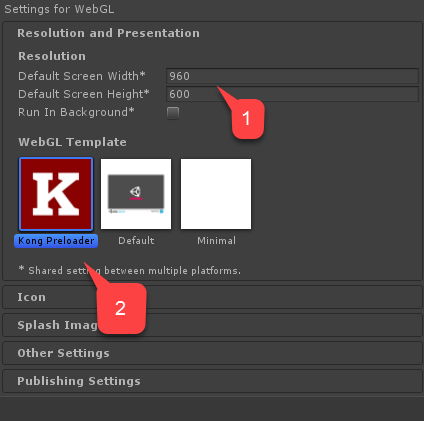
Dans l'écran **Player Settings**, repérez la section **Settings for WebGL** :
1. Vérifiez que la taille est correctement configurée.
2. Sélectionnez ensuite le **Kongregate Preloader Template**.
 Générez l'application et ouvrez le dossier **Build**.
* Vous obtiendrez un fichier **index.html** et plusieurs autres fichiers (selon la version de Unity).
* Prenez tous les fichiers à l'exception de **index.html** et placez-les dans une archive zip, comme indiqué dans l'exemple ci-dessous.
Générez l'application et ouvrez le dossier **Build**.
* Vous obtiendrez un fichier **index.html** et plusieurs autres fichiers (selon la version de Unity).
* Prenez tous les fichiers à l'exception de **index.html** et placez-les dans une archive zip, comme indiqué dans l'exemple ci-dessous.
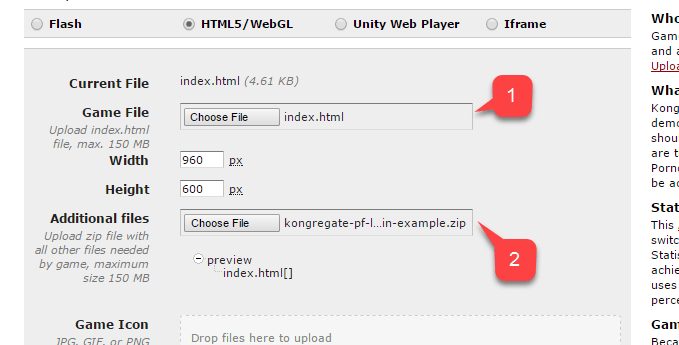
 Utilisez l'URL enregistrée précédemment pour accéder à votre page **Application Upload**.
1. Sélectionnez **index.html** comme **Game File**.
2. Sélectionnez ensuite l'archive zip comme **Additional files**.
* Acceptez les licences et téléversez.
Utilisez l'URL enregistrée précédemment pour accéder à votre page **Application Upload**.
1. Sélectionnez **index.html** comme **Game File**.
2. Sélectionnez ensuite l'archive zip comme **Additional files**.
* Acceptez les licences et téléversez.
 Une fois l'aperçu ouvert, vous devriez voir votre jeu en direct à mesure que le message change.
À la fin, le message doit indiquer une connexion réussie via PlayFab.
À ce stade, vous avez intégré avec succès PlayFab et Kongregate.
## Related topics
- [Authentification spécifique à la plateforme](/fr/services/playfab/identity/player-identity/platform-specific-authentication/index.md)
- [Configuration de l'authentification PlayFab avec Kongregate et HTML5](/fr/services/playfab/identity/player-identity/platform-specific-authentication/kongregate-html5.md)
- [Configuration de l'authentification PlayFab avec Steam et Unity](/fr/services/playfab/identity/player-identity/platform-specific-authentication/steam-unity.md)
- [Configuration de l'authentification PlayFab avec Facebook et Unity](/fr/services/playfab/identity/player-identity/platform-specific-authentication/facebook-unity.md)
- [Configuration de l'authentification PlayFab avec Google et HTML5](/fr/services/playfab/identity/player-identity/platform-specific-authentication/google-html5.md)
Une fois l'aperçu ouvert, vous devriez voir votre jeu en direct à mesure que le message change.
À la fin, le message doit indiquer une connexion réussie via PlayFab.
À ce stade, vous avez intégré avec succès PlayFab et Kongregate.
## Related topics
- [Authentification spécifique à la plateforme](/fr/services/playfab/identity/player-identity/platform-specific-authentication/index.md)
- [Configuration de l'authentification PlayFab avec Kongregate et HTML5](/fr/services/playfab/identity/player-identity/platform-specific-authentication/kongregate-html5.md)
- [Configuration de l'authentification PlayFab avec Steam et Unity](/fr/services/playfab/identity/player-identity/platform-specific-authentication/steam-unity.md)
- [Configuration de l'authentification PlayFab avec Facebook et Unity](/fr/services/playfab/identity/player-identity/platform-specific-authentication/facebook-unity.md)
- [Configuration de l'authentification PlayFab avec Google et HTML5](/fr/services/playfab/identity/player-identity/platform-specific-authentication/google-html5.md)