> ## Documentation Index
> Fetch the complete documentation index at: https://devdocs.xbox.com/llms.txt
> Use this file to discover all available pages before exploring further.

# Configuration de l'authentification PlayFab avec Kongregate et HTML5

> Tutoriel pas à pas pour ajouter l'authentification Kongregate à un titre PlayFab avec HTML5 et JavaScript, couvrant le téléversement de l'application Kongregate et la connexion des joueurs.

Ce tutoriel présente la configuration minimale requise pour authentifier vos joueurs dans PlayFab avec Kongregate et HTML5/JavaScript.

## Configuration requise

* Un compte [Kongregate](https://www.kongregate.com/) enregistré.
* Une bonne connaissance du [guide des développeurs Kongregate](https://www.kongregate.com/developer_center/docs/en/kongregate-api).
* Un titre PlayFab enregistré.
* Une bonne connaissance des [principes de base et meilleures pratiques de connexion](/fr/services/playfab/identity/player-identity/login/login-basics-best-practices).

## Configuration d'une application Kongregate

Kongregate exige que vous téléversiez une version préliminaire de l'application avant de pouvoir accéder aux informations d'API nécessaires.

Pour cela, nous devons préparer un fichier `index.html` avec le contenu suivant.

```html theme={null}
<!doctype html>
<html lang="en-us">
<head></head>
<body>
 <h1>Placeholder</h1>
</body>
</html>
```

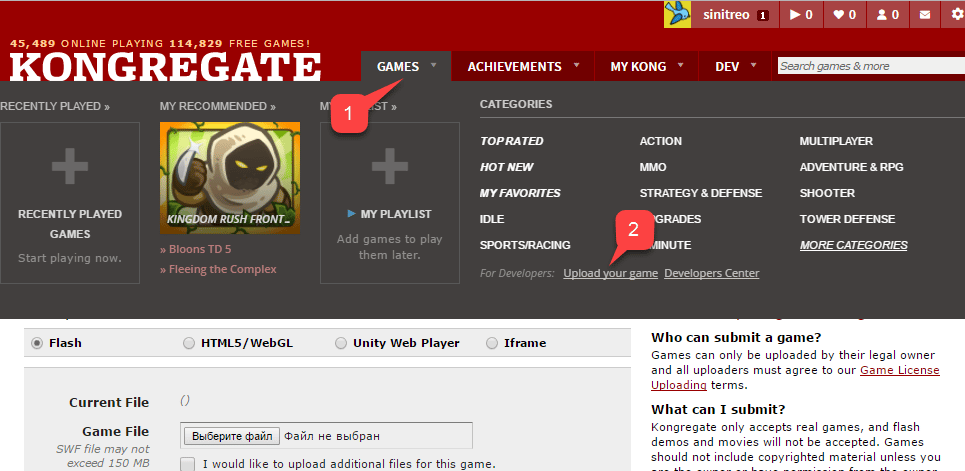
Accédez au [site web de Kongregate](https://www.kongregate.com/) :

1. Sélectionnez l'onglet **Games**.
2. Sélectionnez le bouton **Upload your game**.

<img src="https://mintcdn.com/microsoft-4404708b/mLCHf0iQv3VidfBe/images/playfab/identity/player-identity/platform-specific-authentication/tutorials/kongregate-games-tab.png?fit=max&auto=format&n=mLCHf0iQv3VidfBe&q=85&s=3af3bc93c645a3f8948701caf1f08d03" alt="Onglet Games de Kongregate" width="965" height="471" data-path="images/playfab/identity/player-identity/platform-specific-authentication/tutorials/kongregate-games-tab.png" />

Une page de configuration d'une nouvelle application s'ouvre.

1. Saisissez le **nom de l'application** dans le champ **Title**.
2. Saisissez ensuite une **description du jeu** dans le champ prévu à cet effet.
3. Sélectionnez une **catégorie**.
4. Soumettez la nouvelle application en sélectionnant le bouton **Continue**, comme indiqué dans l'exemple ci-dessous.
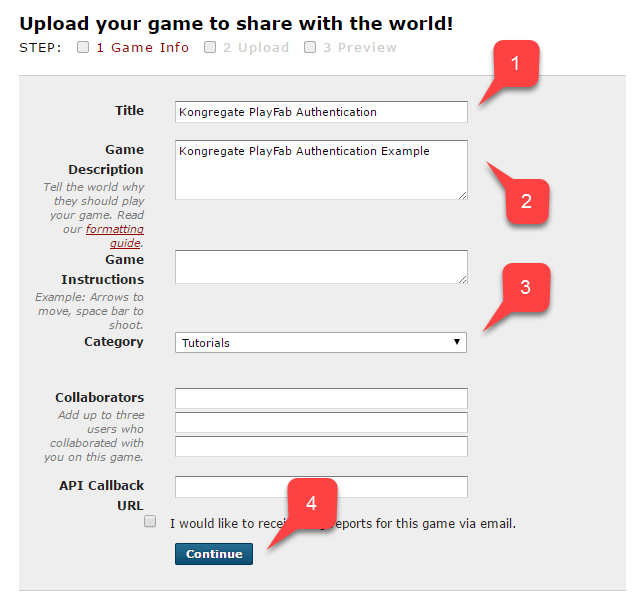
<img src="https://mintcdn.com/microsoft-4404708b/mLCHf0iQv3VidfBe/images/playfab/identity/player-identity/platform-specific-authentication/tutorials/kongregate-upload-your-game.png?fit=max&auto=format&n=mLCHf0iQv3VidfBe&q=85&s=0e66a21c81da6861bd59d2dddb82c22f" alt="Téléversement de votre jeu sur Kongregate" width="636" height="603" data-path="images/playfab/identity/player-identity/platform-specific-authentication/tutorials/kongregate-upload-your-game.png" />

Vous êtes redirigé vers la page **Application Upload**.

Première étape importante : veillez à enregistrer l'**URL** figurant dans la **barre d'adresse** de votre navigateur. Cela vous fera gagner beaucoup de temps pour retrouver l'accès à l'application une fois la page fermée.

1. Une fois cela fait, sélectionnez le fichier **index.html** préparé comme **Game File**.
2. Configurez ensuite la taille de l'écran.
3. Veillez à accepter toutes les licences requises.
4. Téléversez votre application en sélectionnant le bouton **Upload**, comme indiqué dans l'exemple ci-dessous.
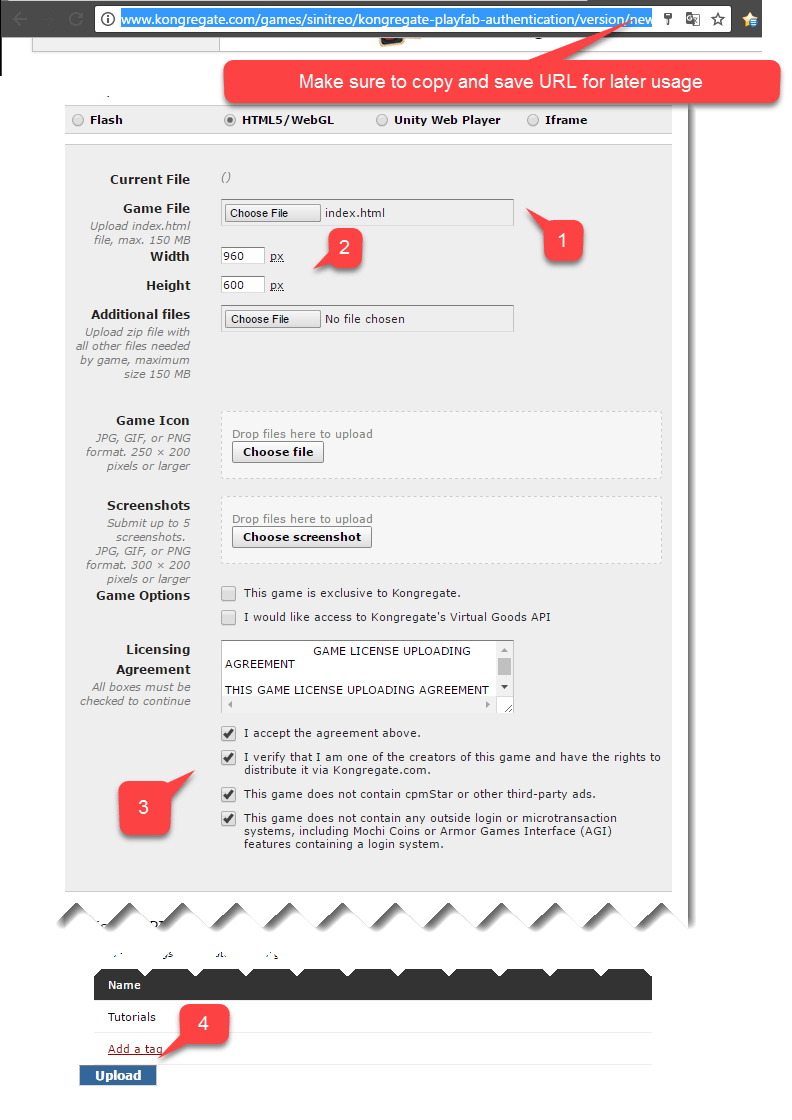
<img src="https://mintcdn.com/microsoft-4404708b/mLCHf0iQv3VidfBe/images/playfab/identity/player-identity/platform-specific-authentication/tutorials/kongregate-app-upload-page.png?fit=max&auto=format&n=mLCHf0iQv3VidfBe&q=85&s=893af9198a1deef8b7cdb6bcd4534cc9" alt="Page de téléversement d'application Kongregate" width="792" height="1120" data-path="images/playfab/identity/player-identity/platform-specific-authentication/tutorials/kongregate-app-upload-page.png" />

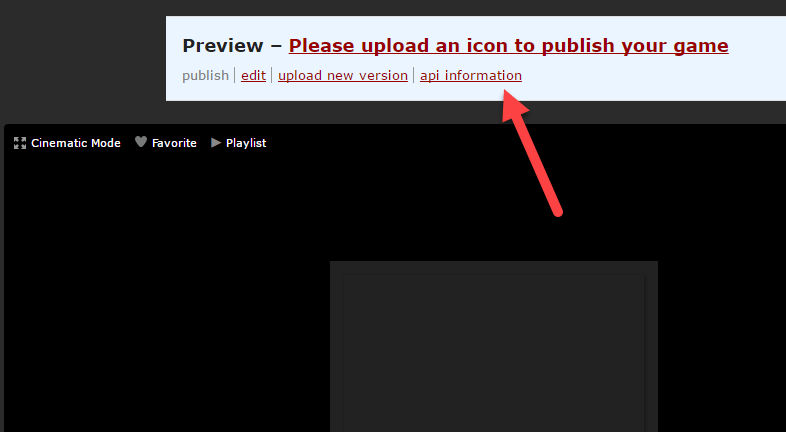
* Une fois l'aperçu ouvert, ignorez le contenu et ouvrez le lien **api information**.
<img src="https://mintcdn.com/microsoft-4404708b/mLCHf0iQv3VidfBe/images/playfab/identity/player-identity/platform-specific-authentication/tutorials/kongregate-preview-api-info.png?fit=max&auto=format&n=mLCHf0iQv3VidfBe&q=85&s=b136fa2e3dd827e4b6344921b500a8be" alt="Informations d'API de l'aperçu Kongregate" width="786" height="432" data-path="images/playfab/identity/player-identity/platform-specific-authentication/tutorials/kongregate-preview-api-info.png" />

<Note>
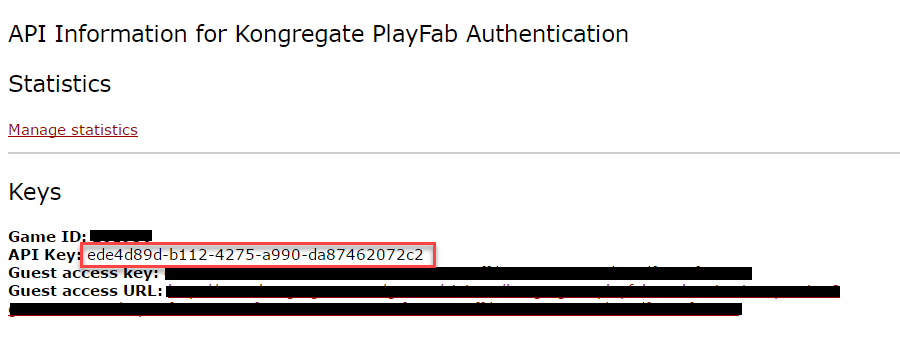
  Lorsque la page **API Information** s'ouvre, repérez l'**API Key** et conservez-la dans un endroit sûr et facilement accessible pour une utilisation ultérieure.
</Note>

<img src="https://mintcdn.com/microsoft-4404708b/mLCHf0iQv3VidfBe/images/playfab/identity/player-identity/platform-specific-authentication/tutorials/kongregate-api-key.png?fit=max&auto=format&n=mLCHf0iQv3VidfBe&q=85&s=a99770329d85ce86613cd0a32cdf28a4" alt="Clé API Kongregate" width="900" height="344" data-path="images/playfab/identity/player-identity/platform-specific-authentication/tutorials/kongregate-api-key.png" />

## Configuration du titre PlayFab

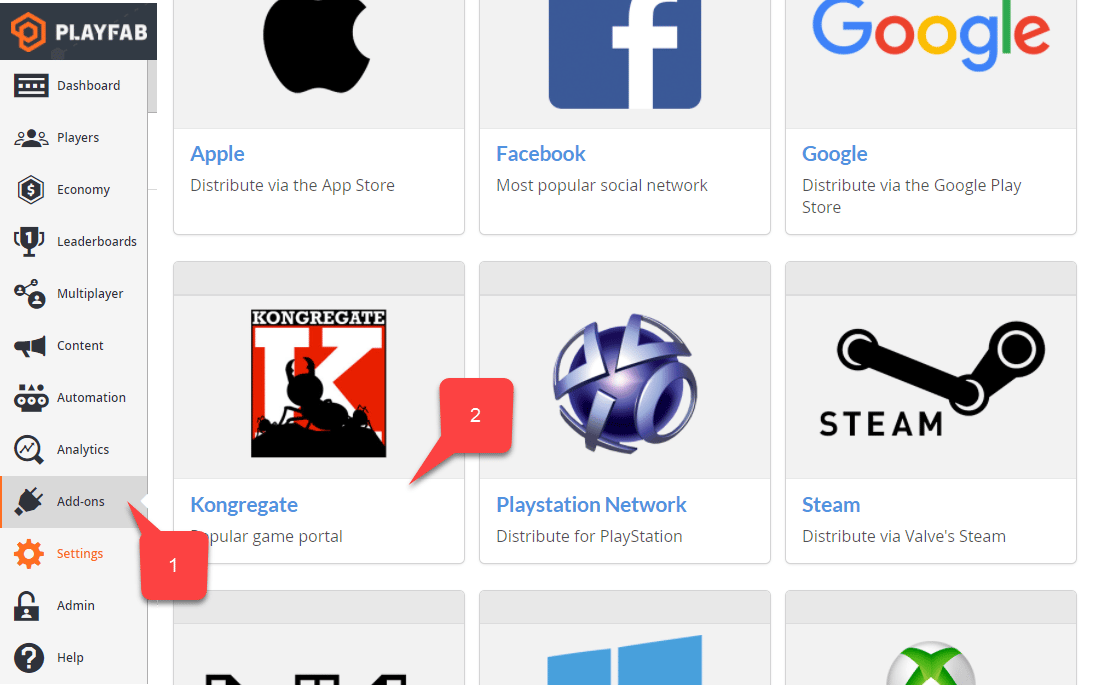
Dans le Game Manager de votre titre PlayFab :

1. Accédez à **Add-ons**.
2. Recherchez et sélectionnez **Kongregate**.
<img src="https://mintcdn.com/microsoft-4404708b/mLCHf0iQv3VidfBe/images/playfab/identity/player-identity/platform-specific-authentication/tutorials/playfab-select-kongregate-add-on.png?fit=max&auto=format&n=mLCHf0iQv3VidfBe&q=85&s=e25c251fc51474717d5b5a693ad1bf0c" alt="Sélection du module complémentaire Kongregate dans PlayFab" width="1100" height="685" data-path="images/playfab/identity/player-identity/platform-specific-authentication/tutorials/playfab-select-kongregate-add-on.png" />

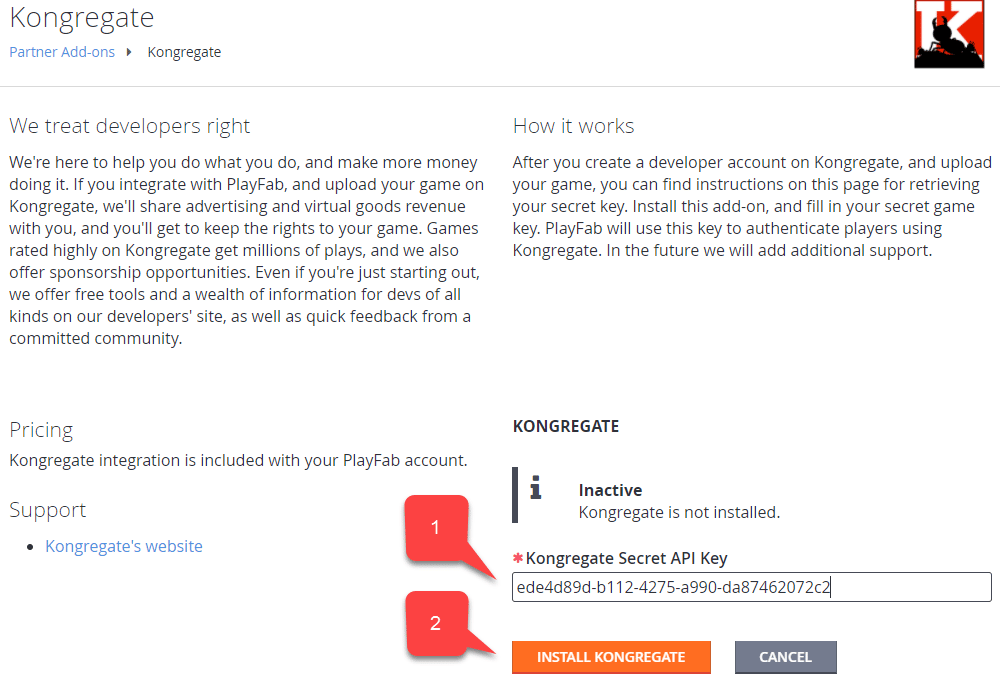
Une nouvelle page s'ouvre, vous permettant de configurer l'intégration **Kongregate**.

1. Saisissez l'**API Key** obtenue dans la section précédente.
2. Sélectionnez **Install Kongregate**.
<img src="https://mintcdn.com/microsoft-4404708b/mLCHf0iQv3VidfBe/images/playfab/identity/player-identity/platform-specific-authentication/tutorials/playfab-set-up-kongregate-integration.png?fit=max&auto=format&n=mLCHf0iQv3VidfBe&q=85&s=fa6dd5111bfe1bb60c6cf118622272c1" alt="Configuration de l'intégration Kongregate dans PlayFab" width="1000" height="693" data-path="images/playfab/identity/player-identity/platform-specific-authentication/tutorials/playfab-set-up-kongregate-integration.png" />

Si vous ne recevez aucun message d'erreur, l'intégration de votre titre PlayFab avec votre application Kongregate est configurée.

## Préparation du code

Utilisez l'exemple de code ci-dessous pour remplir le fichier `index.html` de votre jeu.

```html theme={null}
<!DOCTYPE html PUBLIC "-//W3C//DTD XHTML 1.0 Transitional//EN"
  "http://www.w3.org/TR/xhtml1/DTD/xhtml1-transitional.dtd">
<html xmlns='http://www.w3.org/1999/xhtml'>
<head>
  <title>Kongregate Javascript API example</title>
  <!-- Import PlayFab API -->
  <script src='https://download.playfab.com/PlayFabClientApi.js'></script>
  <!-- Import JQuery, required specifically by this example, does not effect either API -->
  <script src='https://ajax.googleapis.com/ajax/libs/jquery/2.2.0/jquery.min.js'></script>
  <!-- Import Kongregate API -->
  <script src='https://cdn1.kongregate.com/javascripts/kongregate_api.js'></script>
</head>

<!-- Define elements with IDs to show current state of things and a couple of buttons -->
<body style='background-color:white'>
  <span id='init'>Initializing...</span>
  <div id='content' style='display:none'>
    <div>Kongregate API Loaded!</div>
    <div id='username'></div>
    <div id='user_id'></div>
    <!-- This button will invoke Kongregate Auth Box -->
    <button id='login' style='display:none'
      onclick='kongregate.services.showRegistrationBox()'>Sign in/register</button>
    <!-- This button will invoke PlayFab authentication process -->
    <button id='login'
       onclick='loginInUsingPlayFab()'>PlayFab Login With Kongregate</button>
  </div>

  <script type='text/javascript'>

    // This function just updates UI, nothing else
    function updateFields() {
      $('#init').hide();
      $('#content').show();

      // Visualize Kongregate Auth Data
      $('#username').text('Username: ' + kongregate.services.getUsername());
      $('#user_id').text('User ID: ' + kongregate.services.getUserId());

      // If not authenticated in Kongregate, allow to use Login button
      if(kongregate.services.isGuest()) {
        $('#login').show();
      } else {
        $('#login').hide();
      }
    }

    // The function prepares and triggers PlayFab LoginWithKongregate API call
    function loginInUsingPlayFab() {
      // Setting up PlayFab title ID
      PlayFab.settings.titleId = "159F";

      // forming request
      var request = {
        TitleId: PlayFab.settings.titleId,
        AuthTicket: kongregate.services.getGameAuthToken(),
        KongregateId : kongregate.services.getUserId(),
        CreateAccount: true
      };

      console.log('logging in');
      // Invoke LoginWithKongregate API call and visualize both results (success or failure)
      PlayFabClientSDK.LoginWithKongregate(request,
      function(result){
        $('<div></div>').html('Authenticated via playfab').appendTo('#content')
        console.log("success");
      },
      function(err){
        $('<div></div>').html('Problem occurred: ' + PlayFab.GenerateErrorReport(err)).appendTo('#content')
        console.log("failure");
      });
    }

    // The entry point for Kongregate initialization
    kongregateAPI.loadAPI(function(){
      window.kongregate = kongregateAPI.getAPI();
      updateFields();
      kongregate.services.addEventListener('login', function(){
        updateFields();
      });
    });
  </script>
</body>
</html>
```

## Test

Vous vous souvenez de l'URL que nous vous avons demandé d'enregistrer dans un endroit sûr et accessible un peu plus tôt ? Utilisez-la maintenant pour accéder à votre page **Application Upload**.

1. Sélectionnez **index.html** comme **Game File**.
2. Configurez la taille de l'écran.
3. Veillez à accepter toutes les licences requises.
4. Téléversez votre application en sélectionnant le bouton **Upload**.

<img src="https://mintcdn.com/microsoft-4404708b/mLCHf0iQv3VidfBe/images/playfab/identity/player-identity/platform-specific-authentication/tutorials/kongregate-app-upload-page.png?fit=max&auto=format&n=mLCHf0iQv3VidfBe&q=85&s=893af9198a1deef8b7cdb6bcd4534cc9" alt="Page de téléversement d'application Kongregate" width="792" height="1120" data-path="images/playfab/identity/player-identity/platform-specific-authentication/tutorials/kongregate-app-upload-page.png" />

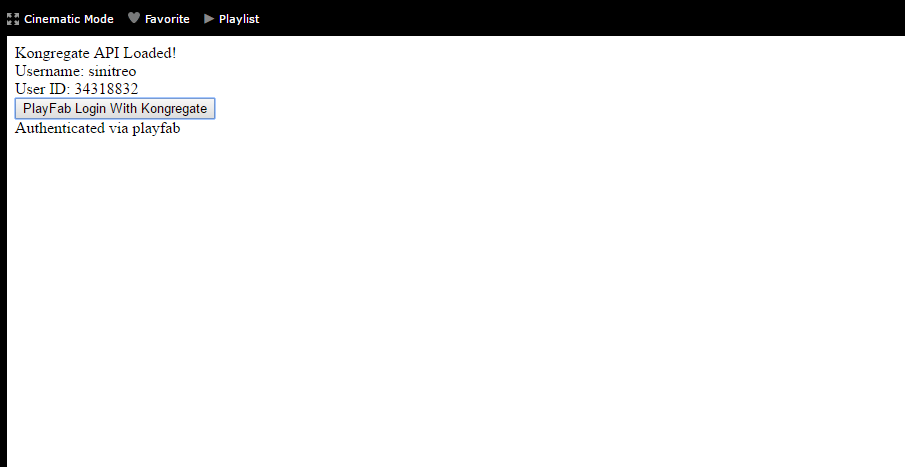
Une fois l'aperçu chargé, attendez que l'application obtienne le **Kongregate User ID** et le **Username**.

* Lorsque c'est fait, sélectionnez le bouton **PlayFab Login With Kongregate**.
* Après une courte pause, vous devriez recevoir un message **Authenticated via PlayFab**.
* À ce stade, vous vous êtes connecté avec succès à l'aide de PlayFab et de Kongregate !
<img src="https://mintcdn.com/microsoft-4404708b/mLCHf0iQv3VidfBe/images/playfab/identity/player-identity/platform-specific-authentication/tutorials/kongregate-html5/testing-playfab-login-with-kongregate.png?fit=max&auto=format&n=mLCHf0iQv3VidfBe&q=85&s=f0588d425c650246a5a9f8a041b3a078" alt="Test de la connexion PlayFab avec Kongregate" width="905" height="467" data-path="images/playfab/identity/player-identity/platform-specific-authentication/tutorials/kongregate-html5/testing-playfab-login-with-kongregate.png" />


## Related topics

- [Authentification spécifique à la plateforme](/fr/services/playfab/identity/player-identity/platform-specific-authentication/index.md)
- [Configuration de l'authentification PlayFab avec Google et HTML5](/fr/services/playfab/identity/player-identity/platform-specific-authentication/google-html5.md)
- [Configuration de l'authentification PlayFab avec Facebook et HTML5](/fr/services/playfab/identity/player-identity/platform-specific-authentication/facebook-html5.md)
- [Configuration de l'authentification PlayFab avec Twitch et HTML5](/fr/services/playfab/identity/player-identity/platform-specific-authentication/twitch-html5.md)
- [Configuration de l'authentification PlayFab avec Kongregate et Unity](/fr/services/playfab/identity/player-identity/platform-specific-authentication/kongregate-unity.md)