> ## Documentation Index
> Fetch the complete documentation index at: https://devdocs.xbox.com/llms.txt
> Use this file to discover all available pages before exploring further.
# Migrer de Google Sign-in vers Google Play Games dans Unity
> Étapes de migration détaillées pour faire passer les joueurs Unity de la connexion par compte Google à LoginWithGooglePlayGamesServices, y compris la liaison et la vérification.
# Procédure de migration vers l'API LoginWithGooglePlayGamesServices
La migration consiste à passer à LoginWithGooglePlayGamesServices, car Google encourage les développeurs à migrer vers ce mode d'authentification. Une fois les joueurs migrés, il n'y aura plus de dépendance à l'API LoginWithGoogleAccount et les développeurs devraient pouvoir passer à la dernière version du plug-in.
Pour plus d'informations, consultez la [documentation officielle de Google](https://developers.google.com/games/services/android/signin#migrate_to_play_games_services_sign_in_v2).
## Étapes générales
1. Choisir la bonne version de « Play Games Plugin for Unity ».
2. Initialiser la plateforme Play Games et authentifier l'utilisateur.
3. Se connecter à PlayFab à l'aide de LoginWithGoogleAccount.
4. Lier votre profil Google Play Games au compte de joueur PlayFab.
5. Vérifier que l'utilisateur peut se connecter à l'aide de l'API LoginWithGooglePlayGamesServices.
6. (Facultatif) Dissocier votre profil de compte Google du compte de joueur PlayFab.
## Étapes de migration
### Choisir la bonne version de « Play Games Plugin for Unity »
Les versions les plus récentes du plug-in ne fonctionnent pas pour la migration, car Google ne permet plus de demander des étendues supplémentaires ; l'API LoginWithGoogleAccount de PlayFab ne fonctionne donc plus.
Ces étapes de migration ont été testées et documentées avec la version 0.10.14 de « Play Games Plugin for Unity », disponible ici : [playgameservices/play-games-plugin-for-unity at v10.14 (github.com)](https://github.com/playgameservices/play-games-plugin-for-unity/tree/v10.14)
Pour les étapes d'installation et de configuration du plug-in, consultez le [README](https://github.com/playgameservices/play-games-plugin-for-unity/blob/v10.14/README.md) du plug-in
### Initialiser la plateforme Play Games et authentifier le joueur
Consultez la [section Configuration & Initialization Play Games Services du README](https://github.com/playgameservices/play-games-plugin-for-unity/blob/v10.14/README.md#configuration--initialization-play-game-services) et demandez l'étendue « profile » dans le cadre de PlayGamesClientConfiguration.
```csharp theme={null}
PlayGamesClientConfiguration config = new PlayGamesClientConfiguration.Builder()
.AddOauthScope("profile")
.RequestServerAuthCode(false)
.Build();
PlayGamesPlatform.InitializeInstance(config);
// recommended for debugging:
PlayGamesPlatform.DebugLogEnabled = true;
// Activate the Google Play Games platform
PlayGamesPlatform.Activate();
// authenticate user:
PlayGamesPlatform.Instance.Authenticate(SignInInteractivity.CanPromptOnce, (SignInStatus result) => {
if (result == SignInStatus.Success)
{
Debug.Log("Authentication Succeeded.");
}
else
{
Debug.Log("Authentication Failed. SignInStatus: " + result);
}
});
```
### Se connecter à PlayFab à l'aide de LoginWithGoogleAccount
Connectez-vous au compte du joueur existant à l'aide de l'API d'authentification [LoginWithGoogleAccount](https://learn.microsoft.com/en-us/rest/api/playfab/client/authentication/login-with-google-account?view=playfab-rest). Pour vous connecter correctement, vous devez fournir un Server Auth Token, qui peut être demandé via la méthode GetServerAuthCode.
```csharp theme={null}
public void PlayFabLoginWithGoogleAccount()
{
var serverAuthCode = PlayGamesPlatform.Instance.GetServerAuthCode();
var request = new LoginWithGoogleAccountRequest
{
ServerAuthCode = serverAuthCode,
TitleId = PlayFabSettings.TitleId
};
PlayFabClientAPI.LoginWithGoogleAccount(request, OnLoginWithGoogleAccountSuccess, OnLoginWithGoogleAccountFailure);
}
private void OnLoginWithGoogleAccountSuccess(LoginResult result)
{
Debug.Log("PlayFab LoginWithGoogleAccount Success.");
}
private void OnLoginWithGoogleAccountFailure(PlayFabError error)
{
Debug.Log("PlayFab LoginWithGoogleAccount Failure: " + error.GenerateErrorReport());
}
```
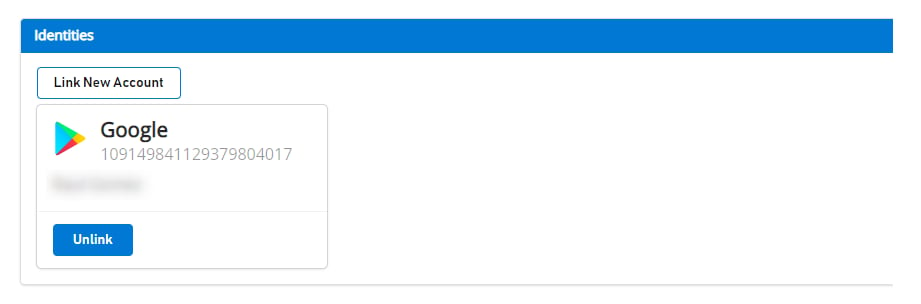
Avant toute migration, un utilisateur lié au compte Google apparaît ainsi dans [Game Manager](https://developer.playfab.com) :
 ### Lier le profil Google Play Games du joueur au compte de joueur PlayFab
Au cours de cette étape, vous liez le compte Google Play Games du joueur au compte PlayFab existant du joueur, qui n'était auparavant lié qu'au compte Google.
```csharp theme={null}
public void LinkGooglePlayGamesAccount()
{
PlayGamesPlatform.Instance.GetAnotherServerAuthCode(true, (serverAuthCode) => {
var linkRequest = new LinkGooglePlayGamesServicesAccountRequest
{
ServerAuthCode = serverAuthCode
};
PlayFabClientAPI.LinkGooglePlayGamesServicesAccount(linkRequest, OnLinkGooglePlayGamesServicesAccountSuccess, OnLinkGooglePlayGamesServicesAccountFailure);
});
}
private void OnLinkGooglePlayGamesServicesAccountSuccess(LinkGooglePlayGamesServicesAccountResult result)
{
Debug.Log("PlayFab LinkGooglePlayGamesServicesAccount Success");
}
private void OnLinkGooglePlayGamesServicesAccountFailure(PlayFabError error)
{
Debug.Log("PlayFab LinkGooglePlayGamesServicesAccount Failure: " + error.GenerateErrorReport());
}
```
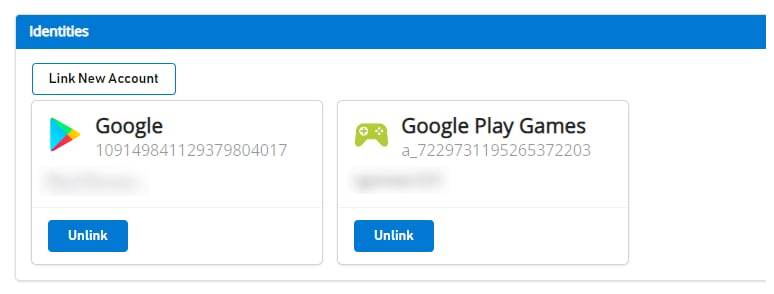
Après cette étape, les deux profils de compte du joueur devraient être associés côté PlayFab et le joueur devrait pouvoir commencer à utiliser l'API d'authentification [LoginWithGooglePlayGamesServices](https://learn.microsoft.com/en-us/rest/api/playfab/client/authentication/login-with-google-play-games-services?view=playfab-rest) à partir de maintenant.
Si vous accédez à [Game Manager](https://developer.playfab.com), vous voyez les deux comptes associés au joueur, comme illustré :
### Lier le profil Google Play Games du joueur au compte de joueur PlayFab
Au cours de cette étape, vous liez le compte Google Play Games du joueur au compte PlayFab existant du joueur, qui n'était auparavant lié qu'au compte Google.
```csharp theme={null}
public void LinkGooglePlayGamesAccount()
{
PlayGamesPlatform.Instance.GetAnotherServerAuthCode(true, (serverAuthCode) => {
var linkRequest = new LinkGooglePlayGamesServicesAccountRequest
{
ServerAuthCode = serverAuthCode
};
PlayFabClientAPI.LinkGooglePlayGamesServicesAccount(linkRequest, OnLinkGooglePlayGamesServicesAccountSuccess, OnLinkGooglePlayGamesServicesAccountFailure);
});
}
private void OnLinkGooglePlayGamesServicesAccountSuccess(LinkGooglePlayGamesServicesAccountResult result)
{
Debug.Log("PlayFab LinkGooglePlayGamesServicesAccount Success");
}
private void OnLinkGooglePlayGamesServicesAccountFailure(PlayFabError error)
{
Debug.Log("PlayFab LinkGooglePlayGamesServicesAccount Failure: " + error.GenerateErrorReport());
}
```
Après cette étape, les deux profils de compte du joueur devraient être associés côté PlayFab et le joueur devrait pouvoir commencer à utiliser l'API d'authentification [LoginWithGooglePlayGamesServices](https://learn.microsoft.com/en-us/rest/api/playfab/client/authentication/login-with-google-play-games-services?view=playfab-rest) à partir de maintenant.
Si vous accédez à [Game Manager](https://developer.playfab.com), vous voyez les deux comptes associés au joueur, comme illustré :
 ### Vérifier que le joueur peut se connecter à l'aide de l'API LoginWithGooglePlayGamesServices
```csharp theme={null}
public void PFLoginWithGooglePlayGames()
{
PlayGamesPlatform.Instance.GetAnotherServerAuthCode(true, (serverAuthCode) => {
var request = new LoginWithGooglePlayGamesServicesRequest
{
ServerAuthCode = serverAuthCode,
CreateAccount = false,
TitleId = PlayFabSettings.TitleId
};
PlayFabClientAPI.LoginWithGooglePlayGamesServices(request, OnLoginWithGooglePlayGamesServicesSuccess, OnLoginWithGooglePlayGamesServicesFailure);
});
}
private void OnLoginWithGooglePlayGamesServicesSuccess(LoginResult result)
{
Debug.Log("PlayFab LoginWithGooglePlayGamesServices Success.");
}
private void OnLoginWithGooglePlayGamesServicesFailure(PlayFabError error)
{
Debug.Log("PlayFab LoginWithGooglePlayGamesServices Failure: " + error.GenerateErrorReport());
}
```
### (Facultatif) Dissocier votre profil de compte Google du compte de joueur PlayFab
Cette étape est facultative. Toutefois, si vous avez déjà confirmé que le profil Google Play Games Services est lié au compte du joueur et qu'il peut se connecter correctement à PlayFab, vous souhaiterez probablement dissocier tous les anciens profils de compte Google liés au profil du joueur à l'aide de l'API [UnlinkGoogleAccount](https://learn.microsoft.com/en-us/rest/api/playfab/client/account-management/unlink-google-account?view=playfab-rest), et n'utiliser que l'API [LoginWithGooglePlayGamesServices](https://learn.microsoft.com/en-us/rest/api/playfab/client/authentication/login-with-google-play-games-services?view=playfab-rest).
```csharp theme={null}
public void UnlinkGoogleAccountFromPlayer()
{
PlayFabClientAPI.UnlinkGoogleAccount(new UnlinkGoogleAccountRequest(), OnUnlinkGoogleAccountSuccess, OnUnlinkGoogleAccountFailure);
}
private void OnUnlinkGoogleAccountSuccess(UnlinkGoogleAccountResult result)
{
Debug.Log("PlayFab UnlinkGoogleAccount Success.");
}
private void OnUnlinkGoogleAccountFailure(PlayFabError error)
{
Debug.Log("PlayFab UnlinkGoogleAccount Failure: " + error.GenerateErrorReport());
}
```
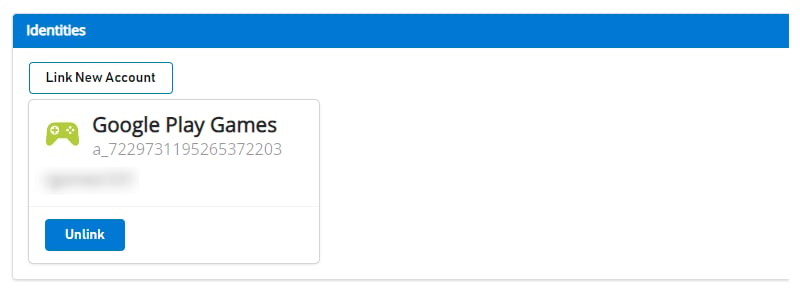
Après la dissociation, seule l'identité Google Play Games du joueur doit apparaître dans [Game Manager](https://developer.playfab.com) :
### Vérifier que le joueur peut se connecter à l'aide de l'API LoginWithGooglePlayGamesServices
```csharp theme={null}
public void PFLoginWithGooglePlayGames()
{
PlayGamesPlatform.Instance.GetAnotherServerAuthCode(true, (serverAuthCode) => {
var request = new LoginWithGooglePlayGamesServicesRequest
{
ServerAuthCode = serverAuthCode,
CreateAccount = false,
TitleId = PlayFabSettings.TitleId
};
PlayFabClientAPI.LoginWithGooglePlayGamesServices(request, OnLoginWithGooglePlayGamesServicesSuccess, OnLoginWithGooglePlayGamesServicesFailure);
});
}
private void OnLoginWithGooglePlayGamesServicesSuccess(LoginResult result)
{
Debug.Log("PlayFab LoginWithGooglePlayGamesServices Success.");
}
private void OnLoginWithGooglePlayGamesServicesFailure(PlayFabError error)
{
Debug.Log("PlayFab LoginWithGooglePlayGamesServices Failure: " + error.GenerateErrorReport());
}
```
### (Facultatif) Dissocier votre profil de compte Google du compte de joueur PlayFab
Cette étape est facultative. Toutefois, si vous avez déjà confirmé que le profil Google Play Games Services est lié au compte du joueur et qu'il peut se connecter correctement à PlayFab, vous souhaiterez probablement dissocier tous les anciens profils de compte Google liés au profil du joueur à l'aide de l'API [UnlinkGoogleAccount](https://learn.microsoft.com/en-us/rest/api/playfab/client/account-management/unlink-google-account?view=playfab-rest), et n'utiliser que l'API [LoginWithGooglePlayGamesServices](https://learn.microsoft.com/en-us/rest/api/playfab/client/authentication/login-with-google-play-games-services?view=playfab-rest).
```csharp theme={null}
public void UnlinkGoogleAccountFromPlayer()
{
PlayFabClientAPI.UnlinkGoogleAccount(new UnlinkGoogleAccountRequest(), OnUnlinkGoogleAccountSuccess, OnUnlinkGoogleAccountFailure);
}
private void OnUnlinkGoogleAccountSuccess(UnlinkGoogleAccountResult result)
{
Debug.Log("PlayFab UnlinkGoogleAccount Success.");
}
private void OnUnlinkGoogleAccountFailure(PlayFabError error)
{
Debug.Log("PlayFab UnlinkGoogleAccount Failure: " + error.GenerateErrorReport());
}
```
Après la dissociation, seule l'identité Google Play Games du joueur doit apparaître dans [Game Manager](https://developer.playfab.com) :
 ## Related topics
- [Solution de repli pour la migration de Google Sign-in vers la connexion Play Games](/fr/services/playfab/identity/player-identity/platform-specific-authentication/google-play-games-sign-in-migration-fallback.md)
- [Migrer les jeux Unity vers la connexion Google Play Games](/fr/services/playfab/identity/player-identity/platform-specific-authentication/google-play-games-sign-in-migration.md)
- [Authentification PlayFab avec la connexion Google Play Games dans Unity](/fr/services/playfab/identity/player-identity/platform-specific-authentication/google-sign-in-unity.md)
- [Authentification spécifique à la plateforme](/fr/services/playfab/identity/player-identity/platform-specific-authentication/index.md)
- [Configuration de l'authentification PlayFab avec Google et HTML5](/fr/services/playfab/identity/player-identity/platform-specific-authentication/google-html5.md)
## Related topics
- [Solution de repli pour la migration de Google Sign-in vers la connexion Play Games](/fr/services/playfab/identity/player-identity/platform-specific-authentication/google-play-games-sign-in-migration-fallback.md)
- [Migrer les jeux Unity vers la connexion Google Play Games](/fr/services/playfab/identity/player-identity/platform-specific-authentication/google-play-games-sign-in-migration.md)
- [Authentification PlayFab avec la connexion Google Play Games dans Unity](/fr/services/playfab/identity/player-identity/platform-specific-authentication/google-sign-in-unity.md)
- [Authentification spécifique à la plateforme](/fr/services/playfab/identity/player-identity/platform-specific-authentication/index.md)
- [Configuration de l'authentification PlayFab avec Google et HTML5](/fr/services/playfab/identity/player-identity/platform-specific-authentication/google-html5.md)