> ## Documentation Index
> Fetch the complete documentation index at: https://devdocs.xbox.com/llms.txt
> Use this file to discover all available pages before exploring further.
# Authentification à deux facteurs
> Ajoutez une couche de sécurité supplémentaire à votre compte PlayFab Game Manager en associant une application d'authentification sur votre appareil pour activer la vérification de connexion à deux facteurs.
L'authentification à deux facteurs vous permet de renforcer la sécurité de votre compte PlayFab Game Manager en ajoutant une étape supplémentaire au processus d'authentification.
Pour ce faire, elle ajoute un facteur lié à l'appareil au processus d'authentification, qui vous permet de vous authentifier uniquement si vous possédez un appareil spécifiquement enregistré à cet effet.
## Configuration de l'authentification à deux facteurs
Installez une application d'**authentification à deux facteurs** sur votre appareil. Vous pouvez rechercher vous-même une application, ou sélectionner votre plateforme dans la liste suivante :
* [iPhone, iPad et iPod Touch](https://itunes.apple.com/us/app/google-authenticator/id388497605?mt=8)
* [Téléphone ou tablette Android](https://play.google.com/store/apps/details?id=com.google.android.apps.authenticator2)
* [Téléphone ou tablette Windows](https://www.windowsphone.com/store/app/authenticator/e7994dbc-2336-4950-91ba-ca22d653759b)
Les étapes sont globalement similaires sur toutes les plateformes. Cet exemple montre un appareil Android et l'application Google Authenticator.
Une fois l'application téléchargée :
* Ouvrez-la et suivez les instructions.
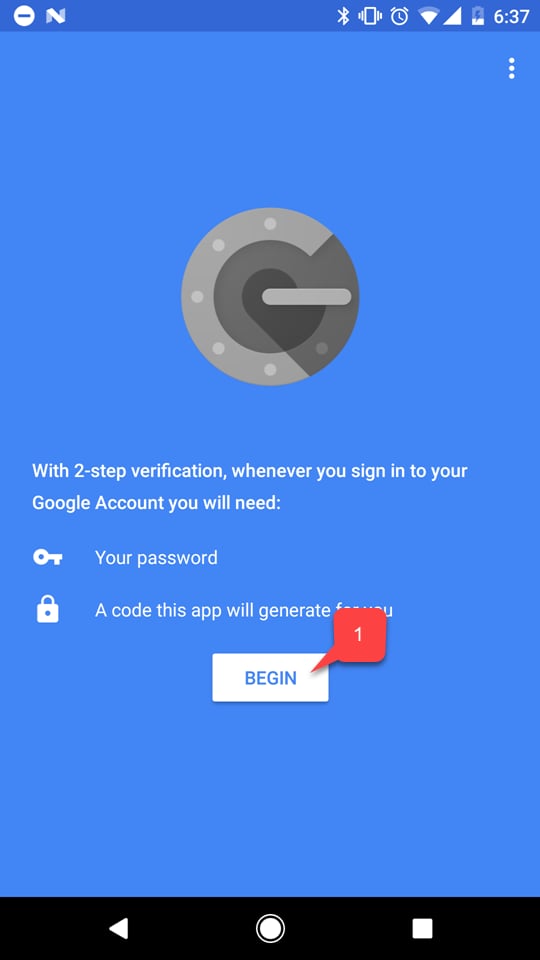
* Sélectionnez le bouton **Begin** **(1)**.
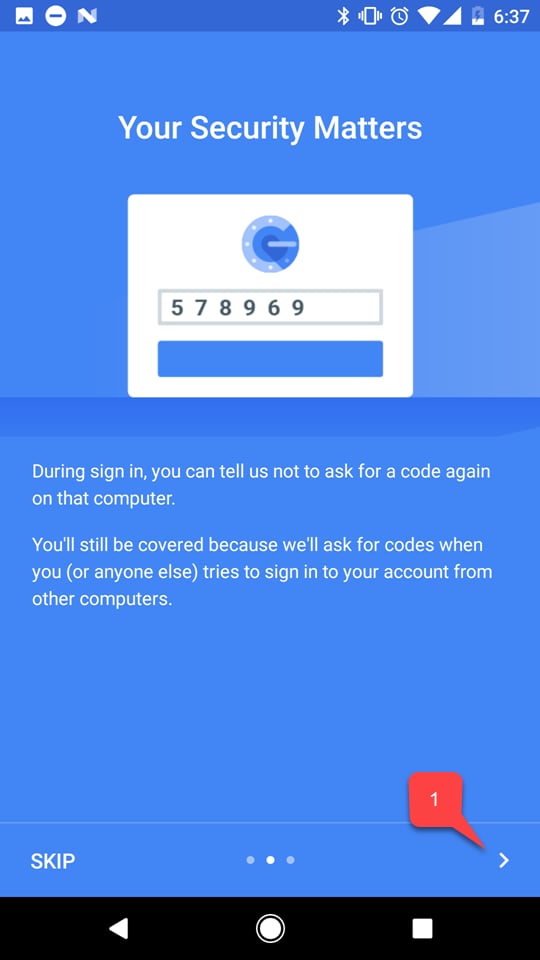
 Suivez le tutoriel de l'application, s'il y en a un **(1)**.
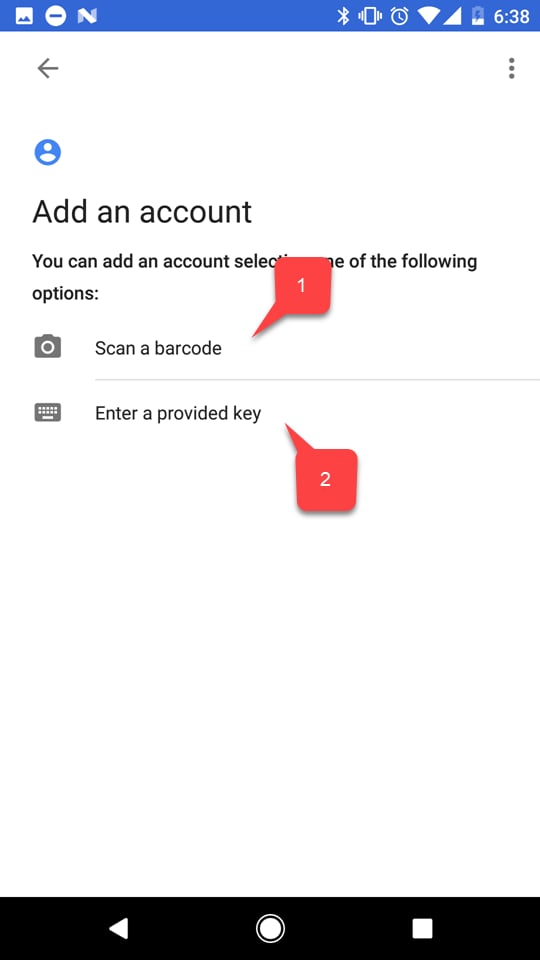
 * Sélectionnez ensuite l'une des deux options pour ajouter votre compte PlayFab :
* Scannez un **code-barres (1)**.
* Ou saisissez la **clé** manuellement **(2)**.
* Sélectionnez ensuite l'une des deux options pour ajouter votre compte PlayFab :
* Scannez un **code-barres (1)**.
* Ou saisissez la **clé** manuellement **(2)**.
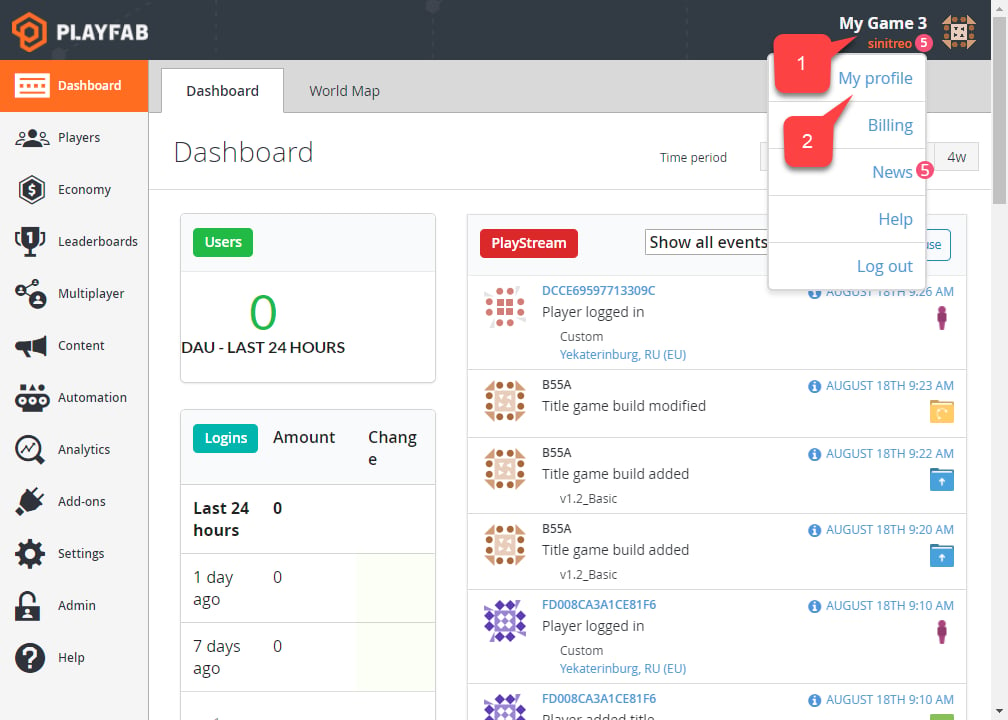
 Quelle que soit l'option choisie, rendez-vous sur le site web PlayFab et accédez à **Game Manager**. Dans l'onglet **Dashboard** :
* Sélectionnez le panneau **Account** **(1)**.
* Sélectionnez ensuite **My Profile (2)**.
Quelle que soit l'option choisie, rendez-vous sur le site web PlayFab et accédez à **Game Manager**. Dans l'onglet **Dashboard** :
* Sélectionnez le panneau **Account** **(1)**.
* Sélectionnez ensuite **My Profile (2)**.
 Les paramètres **Account** s'ouvrent.
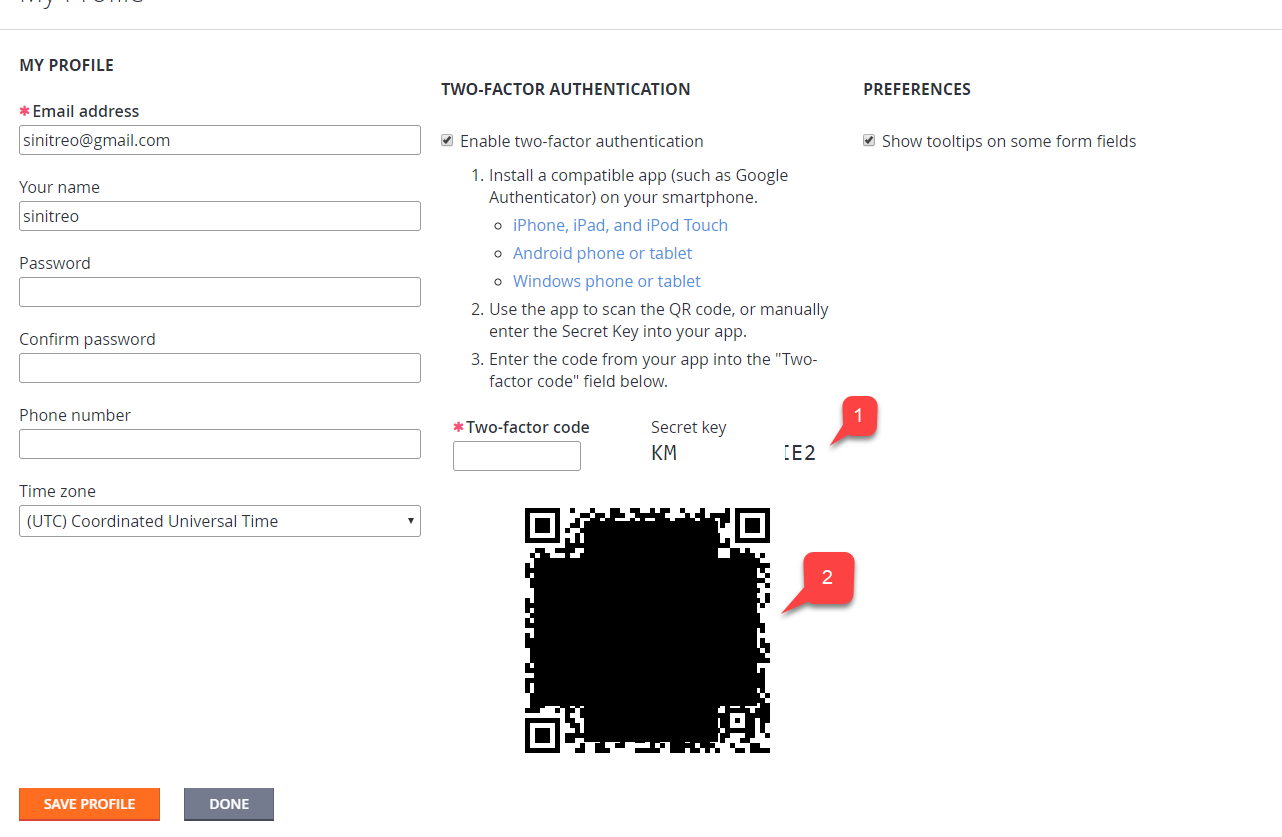
* Vérifiez que la case **Enable two-factor authentication** est cochée.
* Selon l'option choisie, utilisez le **code (1)** ou un **code-barres (2)** pour ajouter un nouveau compte à l'aide de l'application sur votre appareil.
Les paramètres **Account** s'ouvrent.
* Vérifiez que la case **Enable two-factor authentication** est cochée.
* Selon l'option choisie, utilisez le **code (1)** ou un **code-barres (2)** pour ajouter un nouveau compte à l'aide de l'application sur votre appareil.
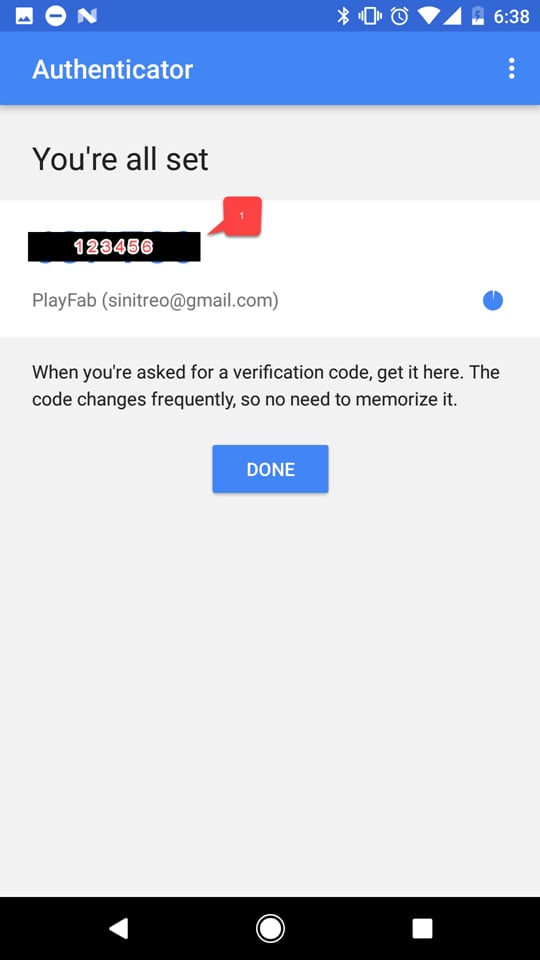
 Une fois cette opération effectuée, vous obtiendrez un code à deux facteurs.
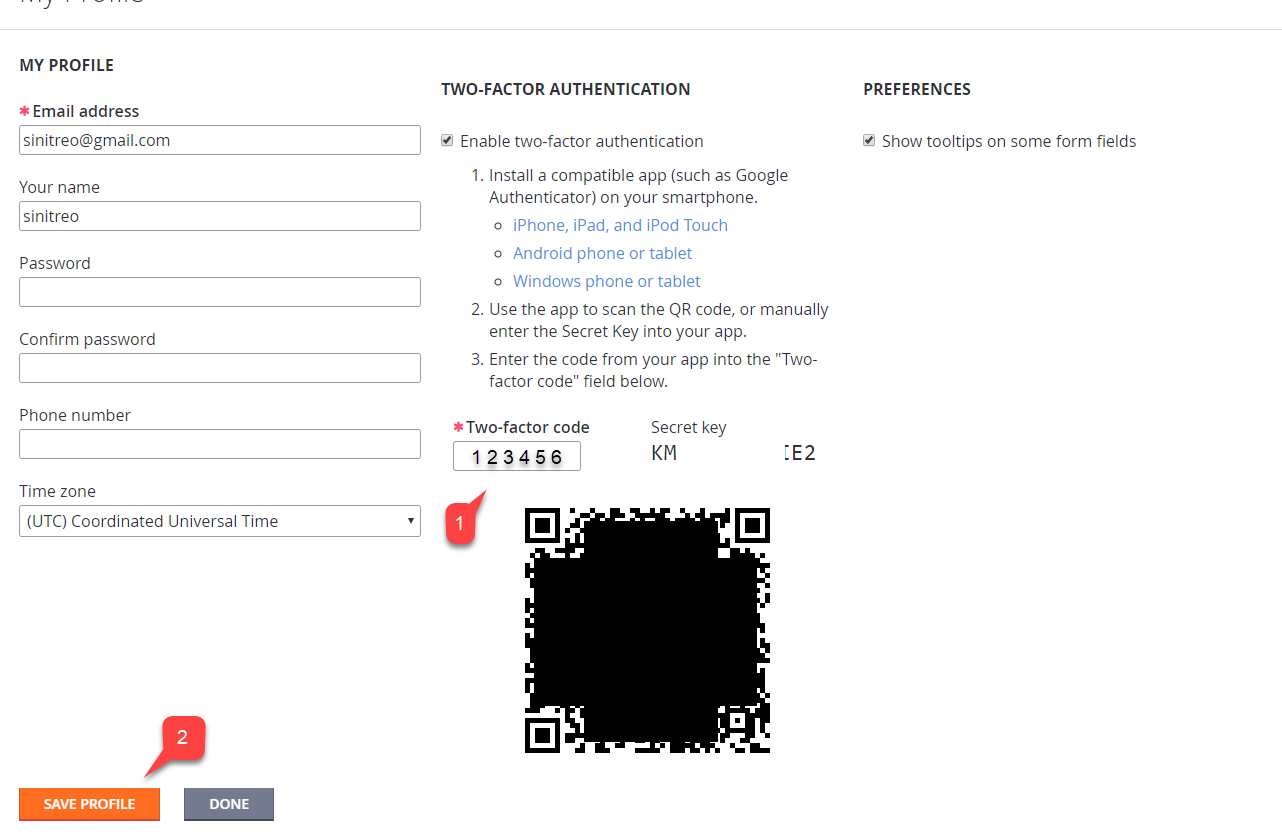
 Revenez aux paramètres **Profile** dans PlayFab **Game Manager** :
* Entrez le **code** que vous avez reçu **(1)**.
* Sélectionnez le bouton **Save Profile** **(2)**.
Revenez aux paramètres **Profile** dans PlayFab **Game Manager** :
* Entrez le **code** que vous avez reçu **(1)**.
* Sélectionnez le bouton **Save Profile** **(2)**.
 ## Test
Déconnectez-vous de votre compte PlayFab et essayez de vous reconnecter. La première étape du processus d'authentification aura l'aspect habituel (voir l'exemple ci-dessous).
## Test
Déconnectez-vous de votre compte PlayFab et essayez de vous reconnecter. La première étape du processus d'authentification aura l'aspect habituel (voir l'exemple ci-dessous).
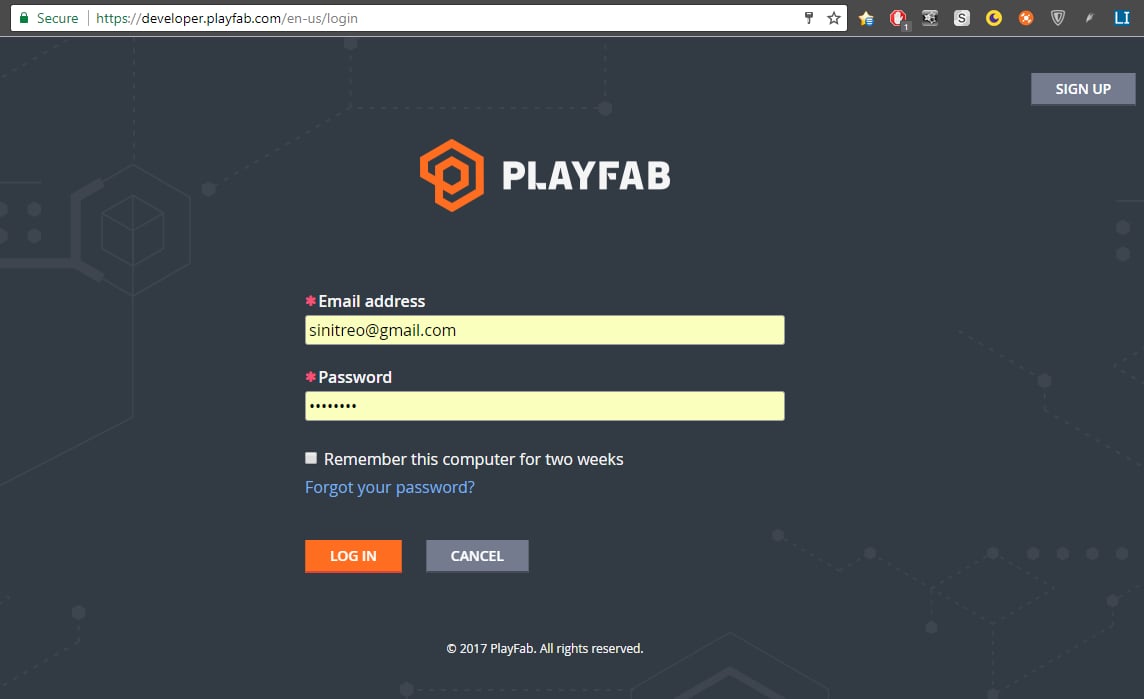 La deuxième étape vous demandera d'utiliser votre code à deux facteurs. Le code est disponible à tout moment, et vous pouvez y accéder à l'aide de l'application installée sur votre appareil.
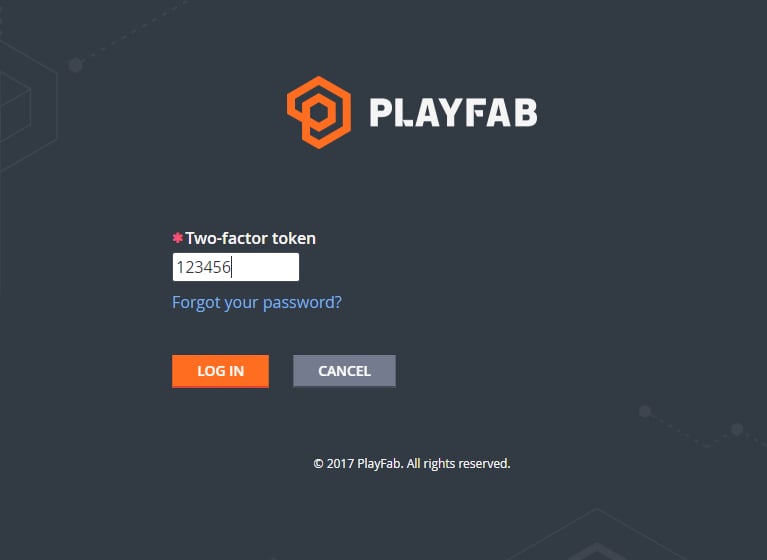 Une fois le code à deux facteurs correct saisi, vous devriez être connecté.
Ceci conclut la configuration de l'authentification à deux facteurs pour PlayFab.
## Related topics
- [Guide BVT de certification pour PC](/fr/publishing/game-publishing/concepts/certification/certification-pc-bvt-guide.md)
- [Intégration des partenaires XBOX : accès et publication](/fr/home/onboarding.md)
- [Référence de Game Manager](/fr/services/playfab/live-service-management/gamemanager/reference.md)
- [Configuration d'un serveur SMTP avec des modules complémentaires](/fr/services/playfab/live-service-management/game-configuration/title-communications/emails/setting-up-an-smtp-server-with-add-ons.md)
- [D3D12_SHADING_RATE (consoles XBOX Series)](/fr/reference/graphics/d3d12/enums/d3d12_shading_rate_public.md)
Une fois le code à deux facteurs correct saisi, vous devriez être connecté.
Ceci conclut la configuration de l'authentification à deux facteurs pour PlayFab.
## Related topics
- [Guide BVT de certification pour PC](/fr/publishing/game-publishing/concepts/certification/certification-pc-bvt-guide.md)
- [Intégration des partenaires XBOX : accès et publication](/fr/home/onboarding.md)
- [Référence de Game Manager](/fr/services/playfab/live-service-management/gamemanager/reference.md)
- [Configuration d'un serveur SMTP avec des modules complémentaires](/fr/services/playfab/live-service-management/game-configuration/title-communications/emails/setting-up-an-smtp-server-with-add-ons.md)
- [D3D12_SHADING_RATE (consoles XBOX Series)](/fr/reference/graphics/d3d12/enums/d3d12_shading_rate_public.md)