> ## Documentation Index
> Fetch the complete documentation index at: https://devdocs.xbox.com/llms.txt
> Use this file to discover all available pages before exploring further.
# Configuration de l'authentification PlayFab avec Facebook et Unity
> Tutoriel étape par étape pour intégrer la connexion Facebook dans un projet Unity avec le PlayFab SDK, couvrant la configuration de l'application Facebook et le code d'authentification des joueurs.
Ce tutoriel vous guide à travers un exemple d'authentification PlayFab à l'aide de Facebook et de Unity.
## Exigences
* [Unity 5+](https://unity3d.com/) et un projet créé.
* Un [compte Facebook](https://www.facebook.com/) pour les tests.
* Le [Facebook SDK](https://developers.facebook.com/docs/unity/) importé dans le projet.
* Un titre [PlayFab](https://developer.playfab.com/) inscrit.
* Le [PlayFab SDK](https://aka.ms/playfabunitysdkdownload) importé dans le projet avec une référence de titre configurée.
* Une bonne connaissance des [principes de base et meilleures pratiques de connexion](/fr-CA/services/playfab/identity/player-identity/login/login-basics-best-practices).
## Implémentation
### Inscription d'une application Facebook
Commencez par accéder au [portail des développeurs Facebook](https://developers.facebook.com/) :
1. Déplacez votre souris sur le bouton **My Apps**.
2. Sélectionnez **Add a New App**, comme illustré dans l'image ci-dessous.
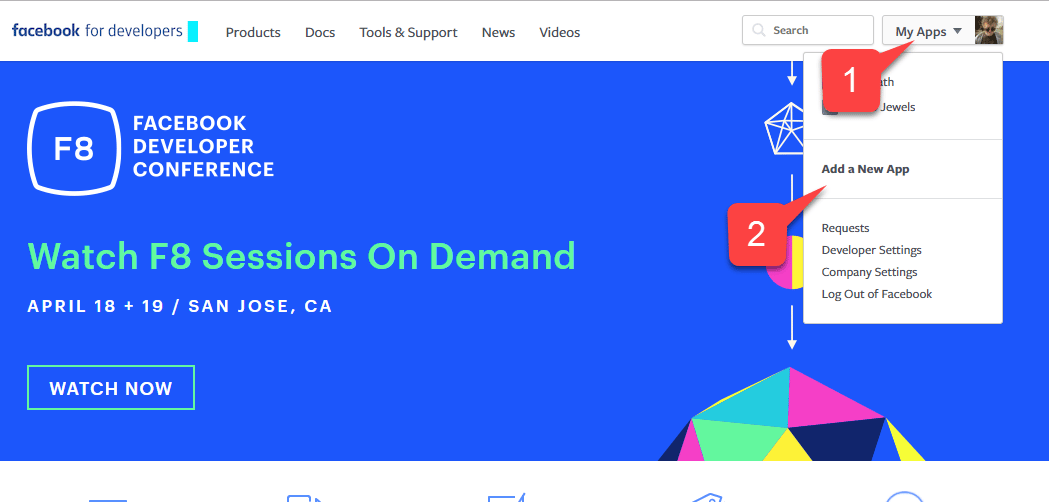 Une nouvelle fenêtre contextuelle **Application** s'ouvrira.
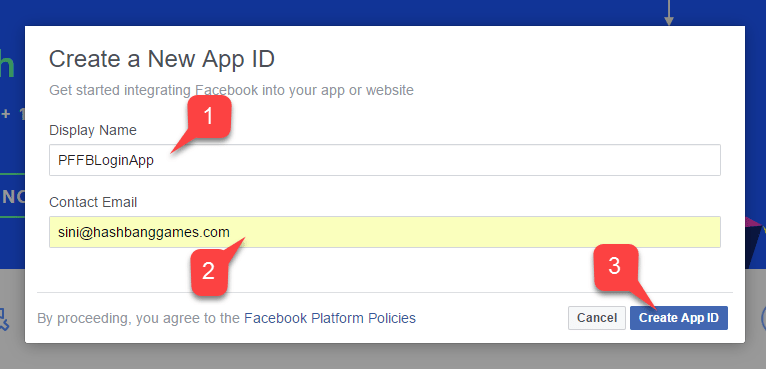
1. Entrez un nom pour votre **Application**.
2. Entrez une adresse courriel de contact (**Contact Email**).
Assurez-vous de choisir votre propre **Application Name** et votre propre **Email** *uniques*, comme illustré dans l'image ci-dessous.
Une nouvelle fenêtre contextuelle **Application** s'ouvrira.
1. Entrez un nom pour votre **Application**.
2. Entrez une adresse courriel de contact (**Contact Email**).
Assurez-vous de choisir votre propre **Application Name** et votre propre **Email** *uniques*, comme illustré dans l'image ci-dessous.
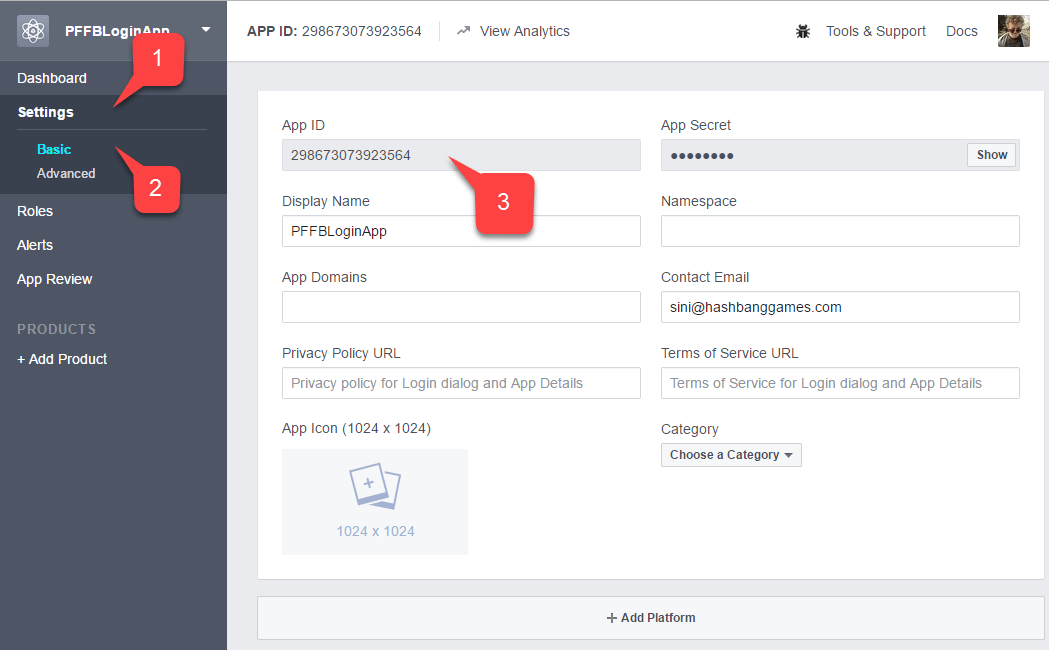
 1. Accédez à l'onglet **Settings**.
2. Passez ensuite au sous-onglet **Basic**.
3. Repérez votre **Application ID**.
* Copiez-le dans un endroit sûr et facilement accessible.
Nous l'utiliserons plus tard pour configurer le Facebook SDK.
1. Accédez à l'onglet **Settings**.
2. Passez ensuite au sous-onglet **Basic**.
3. Repérez votre **Application ID**.
* Copiez-le dans un endroit sûr et facilement accessible.
Nous l'utiliserons plus tard pour configurer le Facebook SDK.
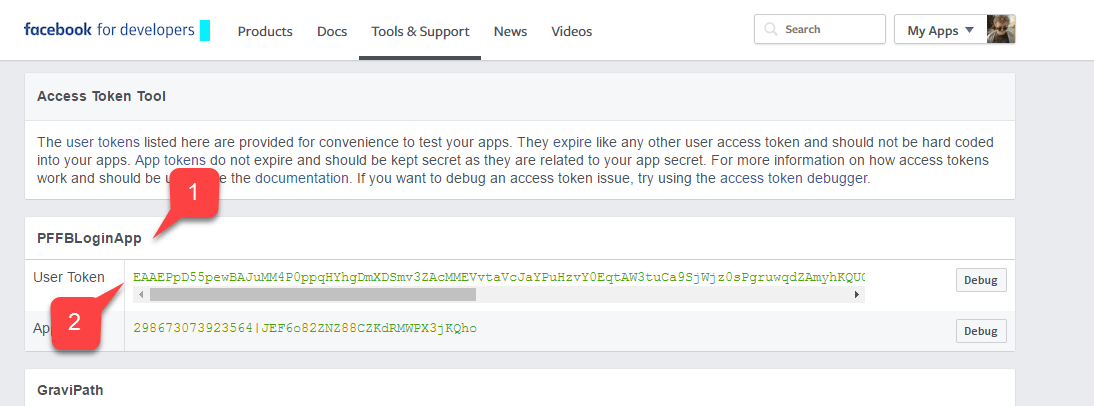
 Accédez au [Facebook Access Token Tool](https://developers.facebook.com/tools/accesstoken/).
1. Repérez votre **App** dans la liste.
2. Vérifiez qu'un **User Token** lui est attribué.
Si vous *n'avez pas* de jeton d'utilisateur attribué, demandez-en un à l'aide du bouton situé à droite de votre écran. Consultez cette page chaque fois que vous avez besoin d'un nouveau jeton d'utilisateur. Si l'autorisation échoue pendant les tests sur un PC, l'expiration du jeton en est probablement la cause. Actualisez la page pour obtenir un nouveau jeton d'utilisateur et testez de nouveau.
Accédez au [Facebook Access Token Tool](https://developers.facebook.com/tools/accesstoken/).
1. Repérez votre **App** dans la liste.
2. Vérifiez qu'un **User Token** lui est attribué.
Si vous *n'avez pas* de jeton d'utilisateur attribué, demandez-en un à l'aide du bouton situé à droite de votre écran. Consultez cette page chaque fois que vous avez besoin d'un nouveau jeton d'utilisateur. Si l'autorisation échoue pendant les tests sur un PC, l'expiration du jeton en est probablement la cause. Actualisez la page pour obtenir un nouveau jeton d'utilisateur et testez de nouveau.
 1. Sur votre page **Application Manager**, accédez à **+ Add Products**.
2. Repérez l'entrée **Facebook Login** et sélectionnez **Get Started**.
1. Sur votre page **Application Manager**, accédez à **+ Add Products**.
2. Repérez l'entrée **Facebook Login** et sélectionnez **Get Started**.
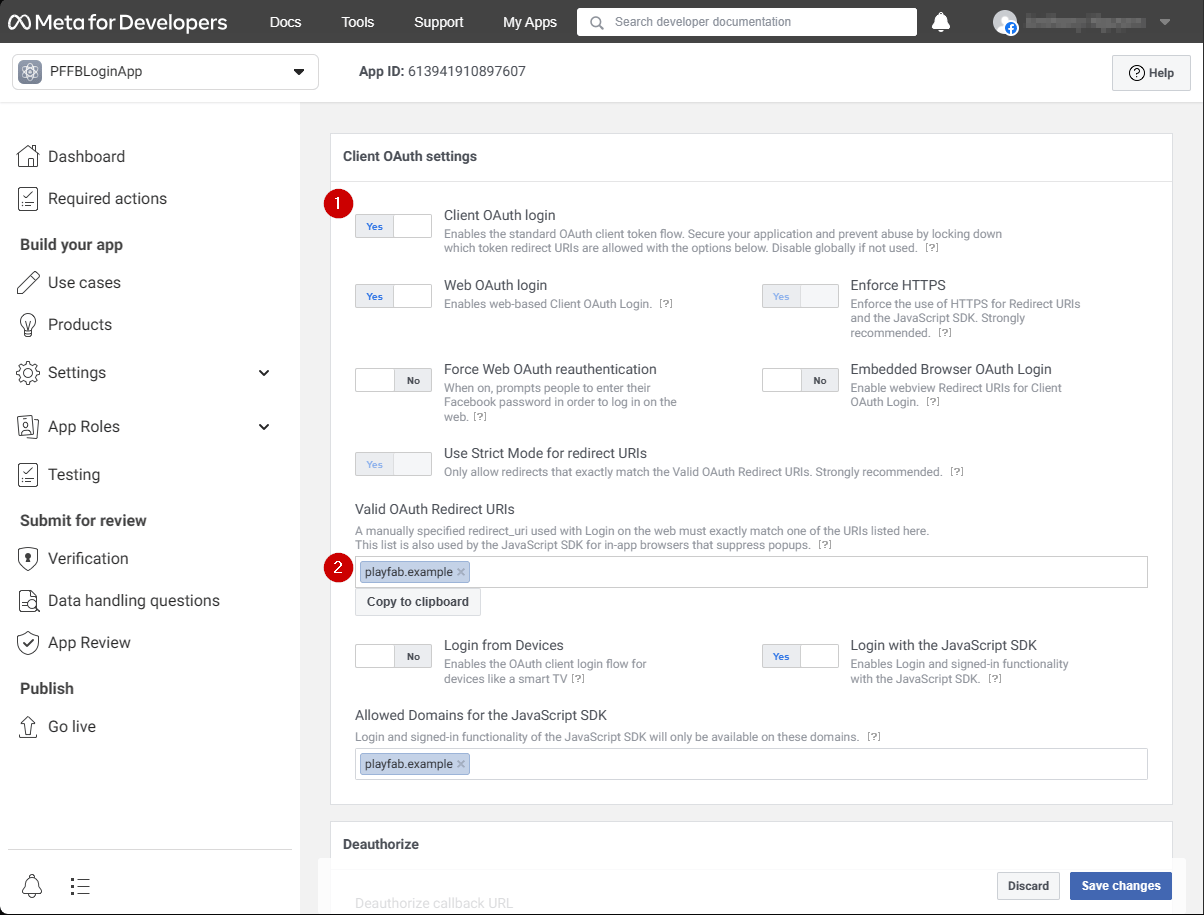
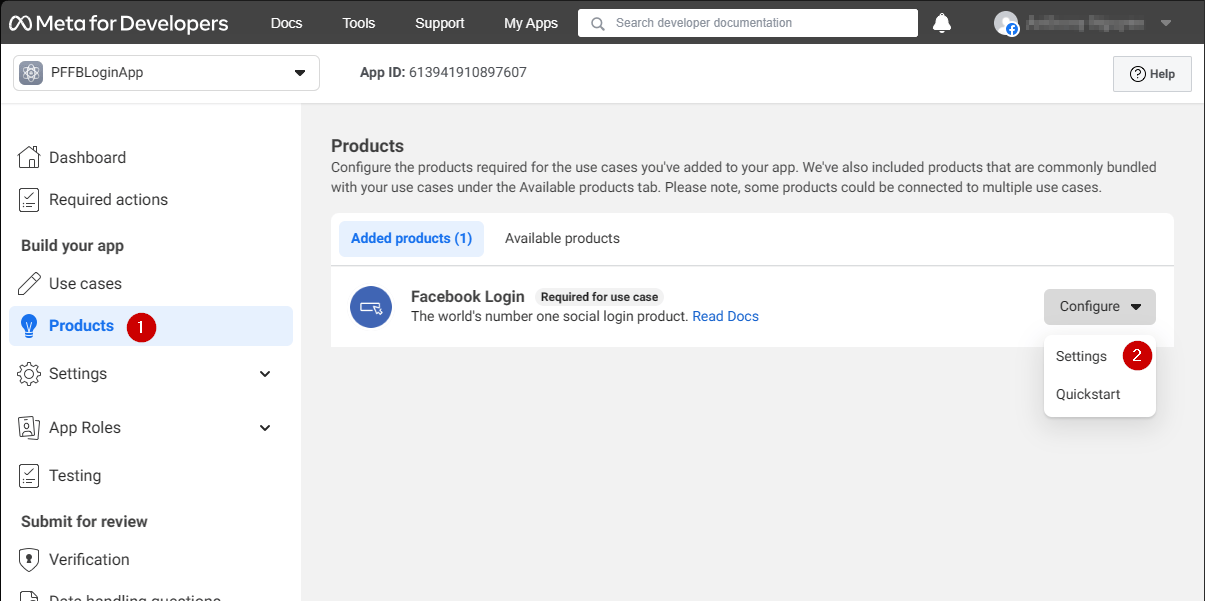 Une page affichant les paramètres du produit **Login** devrait s'ouvrir.
1. Assurez-vous que la page **Settings** du produit **Login** est ouverte.
2. Vérifiez que **Client OAuth** et **Web OAuth** sont tous deux activés.
Une page affichant les paramètres du produit **Login** devrait s'ouvrir.
1. Assurez-vous que la page **Settings** du produit **Login** est ouverte.
2. Vérifiez que **Client OAuth** et **Web OAuth** sont tous deux activés.
 ### Configuration du Facebook SDK
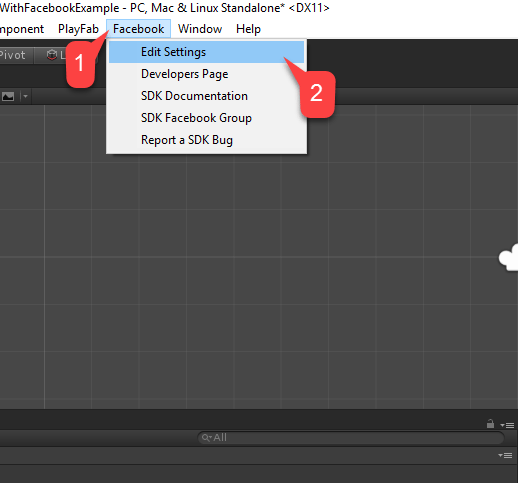
Ouvrez votre **projet Unity** :
1. Sélectionnez **Facebook** dans le menu Fichier.
2. Sélectionnez ensuite **Edit Settings**.
### Configuration du Facebook SDK
Ouvrez votre **projet Unity** :
1. Sélectionnez **Facebook** dans le menu Fichier.
2. Sélectionnez ensuite **Edit Settings**.
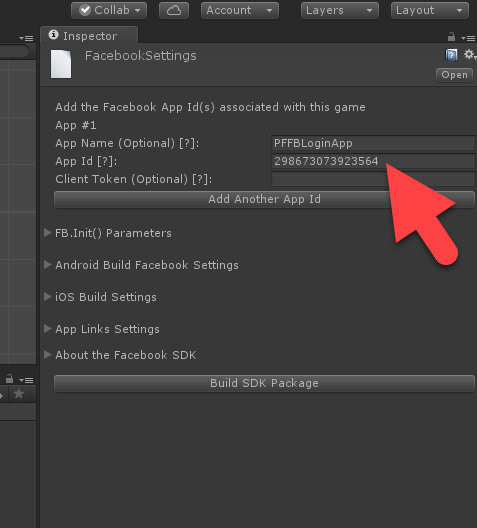
 La fenêtre **Inspector** affichera la configuration actuelle du **Facebook SDK**.
* Entrez votre **Application ID** dans le champ correspondant, comme illustré dans l'image suivante.
La fenêtre **Inspector** affichera la configuration actuelle du **Facebook SDK**.
* Entrez votre **Application ID** dans le champ correspondant, comme illustré dans l'image suivante.
 ### Script d'authentification simple
Créez un nouveau **Game Object** et renommez-le **PlayfabFacebookAuthExample**, comme illustré dans l'image suivante.
### Script d'authentification simple
Créez un nouveau **Game Object** et renommez-le **PlayfabFacebookAuthExample**, comme illustré dans l'image suivante.
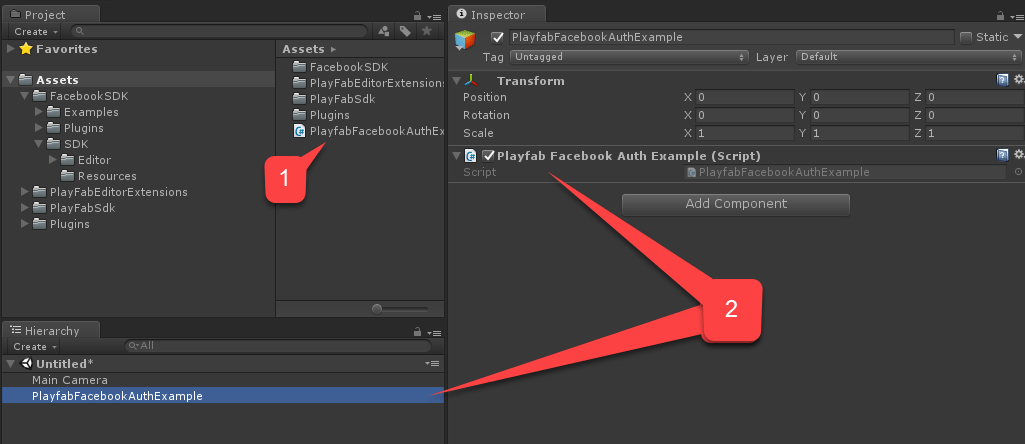
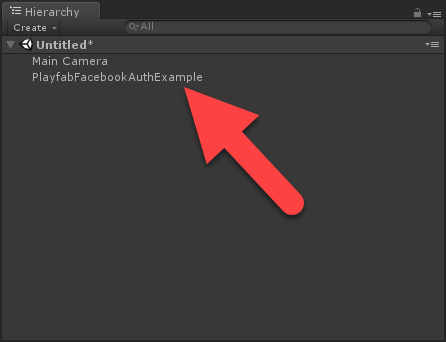 1. Créez un script nommé **PlayfabFacebookAuthExample.cs**.
2. Ajoutez-le au **Game Object**, comme illustré dans l'image ci-dessous.
1. Créez un script nommé **PlayfabFacebookAuthExample.cs**.
2. Ajoutez-le au **Game Object**, comme illustré dans l'image ci-dessous.
 Dans `PlayfabFacebookAuthExample.cs`, placez le code suivant.
```csharp theme={null}
// Import statements introduce all the necessary classes for this example.
using Facebook.Unity;
using PlayFab;
using PlayFab.ClientModels;
using UnityEngine;
using LoginResult = PlayFab.ClientModels.LoginResult;
public class PlayfabFacebookAuthExample : MonoBehaviour
{
// holds the latest message to be displayed on the screen
private string _message;
public void Start()
{
SetMessage("Initializing Facebook..."); // logs the given message and displays it on the screen using OnGUI method
// This call is required before any other calls to the Facebook API. We pass in the callback to be invoked once initialization is finished
FB.Init(OnFacebookInitialized);
}
private void OnFacebookInitialized()
{
SetMessage("Logging into Facebook...");
// Once Facebook SDK is initialized, if we are logged in, we log out to demonstrate the entire authentication cycle.
if (FB.IsLoggedIn)
FB.LogOut();
// We invoke basic login procedure and pass in the callback to process the result
FB.LogInWithReadPermissions(null, OnFacebookLoggedIn);
}
private void OnFacebookLoggedIn(ILoginResult result)
{
// If result has no errors, it means we have authenticated in Facebook successfully
if (result == null || string.IsNullOrEmpty(result.Error))
{
SetMessage("Facebook Auth Complete! Access Token: " + AccessToken.CurrentAccessToken.TokenString + "\nLogging into PlayFab...");
/*
* We proceed with making a call to PlayFab API. We pass in current Facebook AccessToken and let it create
* and account using CreateAccount flag set to true. We also pass the callback for Success and Failure results
*/
PlayFabClientAPI.LoginWithFacebook(new LoginWithFacebookRequest { CreateAccount = true, AccessToken = AccessToken.CurrentAccessToken.TokenString},
OnPlayfabFacebookAuthComplete, OnPlayfabFacebookAuthFailed);
}
else
{
// If Facebook authentication failed, we stop the cycle with the message
SetMessage("Facebook Auth Failed: " + result.Error + "\n" + result.RawResult, true);
}
}
// When processing both results, we just set the message, explaining what's going on.
private void OnPlayfabFacebookAuthComplete(LoginResult result)
{
SetMessage("PlayFab Facebook Auth Complete. Session ticket: " + result.SessionTicket);
}
private void OnPlayfabFacebookAuthFailed(PlayFabError error)
{
SetMessage("PlayFab Facebook Auth Failed: " + error.GenerateErrorReport(), true);
}
public void SetMessage(string message, bool error = false)
{
_message = message;
if (error)
Debug.LogError(_message);
else
Debug.Log(_message);
}
public void OnGUI()
{
var style = new GUIStyle { fontSize = 40, normal = new GUIStyleState { textColor = Color.white }, alignment = TextAnchor.MiddleCenter, wordWrap = true };
var area = new Rect(0,0,Screen.width,Screen.height);
GUI.Label(area, _message,style);
}
}
```
## Test
### Exécution de l'application dans l'éditeur
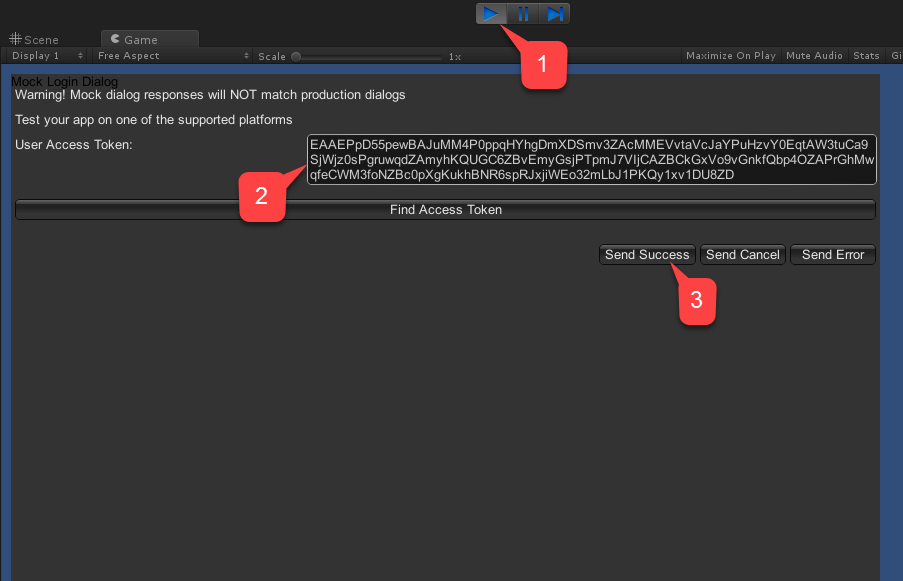
1. Sélectionnez le bouton **Play**. Une fois **Facebook** initialisé (et un appel d'authentification effectué), une boîte de dialogue d'authentification **Facebook** apparaîtra dans votre vue de jeu.
2. Entrez le **User Token**.
3. Sélectionnez le bouton **Send Success**, comme illustré dans l'image suivante.
Dans `PlayfabFacebookAuthExample.cs`, placez le code suivant.
```csharp theme={null}
// Import statements introduce all the necessary classes for this example.
using Facebook.Unity;
using PlayFab;
using PlayFab.ClientModels;
using UnityEngine;
using LoginResult = PlayFab.ClientModels.LoginResult;
public class PlayfabFacebookAuthExample : MonoBehaviour
{
// holds the latest message to be displayed on the screen
private string _message;
public void Start()
{
SetMessage("Initializing Facebook..."); // logs the given message and displays it on the screen using OnGUI method
// This call is required before any other calls to the Facebook API. We pass in the callback to be invoked once initialization is finished
FB.Init(OnFacebookInitialized);
}
private void OnFacebookInitialized()
{
SetMessage("Logging into Facebook...");
// Once Facebook SDK is initialized, if we are logged in, we log out to demonstrate the entire authentication cycle.
if (FB.IsLoggedIn)
FB.LogOut();
// We invoke basic login procedure and pass in the callback to process the result
FB.LogInWithReadPermissions(null, OnFacebookLoggedIn);
}
private void OnFacebookLoggedIn(ILoginResult result)
{
// If result has no errors, it means we have authenticated in Facebook successfully
if (result == null || string.IsNullOrEmpty(result.Error))
{
SetMessage("Facebook Auth Complete! Access Token: " + AccessToken.CurrentAccessToken.TokenString + "\nLogging into PlayFab...");
/*
* We proceed with making a call to PlayFab API. We pass in current Facebook AccessToken and let it create
* and account using CreateAccount flag set to true. We also pass the callback for Success and Failure results
*/
PlayFabClientAPI.LoginWithFacebook(new LoginWithFacebookRequest { CreateAccount = true, AccessToken = AccessToken.CurrentAccessToken.TokenString},
OnPlayfabFacebookAuthComplete, OnPlayfabFacebookAuthFailed);
}
else
{
// If Facebook authentication failed, we stop the cycle with the message
SetMessage("Facebook Auth Failed: " + result.Error + "\n" + result.RawResult, true);
}
}
// When processing both results, we just set the message, explaining what's going on.
private void OnPlayfabFacebookAuthComplete(LoginResult result)
{
SetMessage("PlayFab Facebook Auth Complete. Session ticket: " + result.SessionTicket);
}
private void OnPlayfabFacebookAuthFailed(PlayFabError error)
{
SetMessage("PlayFab Facebook Auth Failed: " + error.GenerateErrorReport(), true);
}
public void SetMessage(string message, bool error = false)
{
_message = message;
if (error)
Debug.LogError(_message);
else
Debug.Log(_message);
}
public void OnGUI()
{
var style = new GUIStyle { fontSize = 40, normal = new GUIStyleState { textColor = Color.white }, alignment = TextAnchor.MiddleCenter, wordWrap = true };
var area = new Rect(0,0,Screen.width,Screen.height);
GUI.Label(area, _message,style);
}
}
```
## Test
### Exécution de l'application dans l'éditeur
1. Sélectionnez le bouton **Play**. Une fois **Facebook** initialisé (et un appel d'authentification effectué), une boîte de dialogue d'authentification **Facebook** apparaîtra dans votre vue de jeu.
2. Entrez le **User Token**.
3. Sélectionnez le bouton **Send Success**, comme illustré dans l'image suivante.
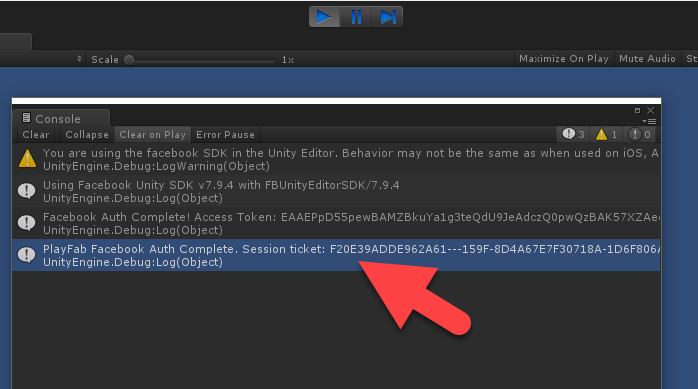
 * Vérifiez la sortie de la console. Elle devrait afficher nos instructions de débogage, comme illustré dans l'image ci-dessous.
* Si vous ne voyez aucune erreur, cela signifie que l'authentification a réussi.
* Vérifiez la sortie de la console. Elle devrait afficher nos instructions de débogage, comme illustré dans l'image ci-dessous.
* Si vous ne voyez aucune erreur, cela signifie que l'authentification a réussi.
 ### Exécution de l'application sur Android
Avant de lancer l'application sur Android, vous devez effectuer des étapes de configuration supplémentaires :
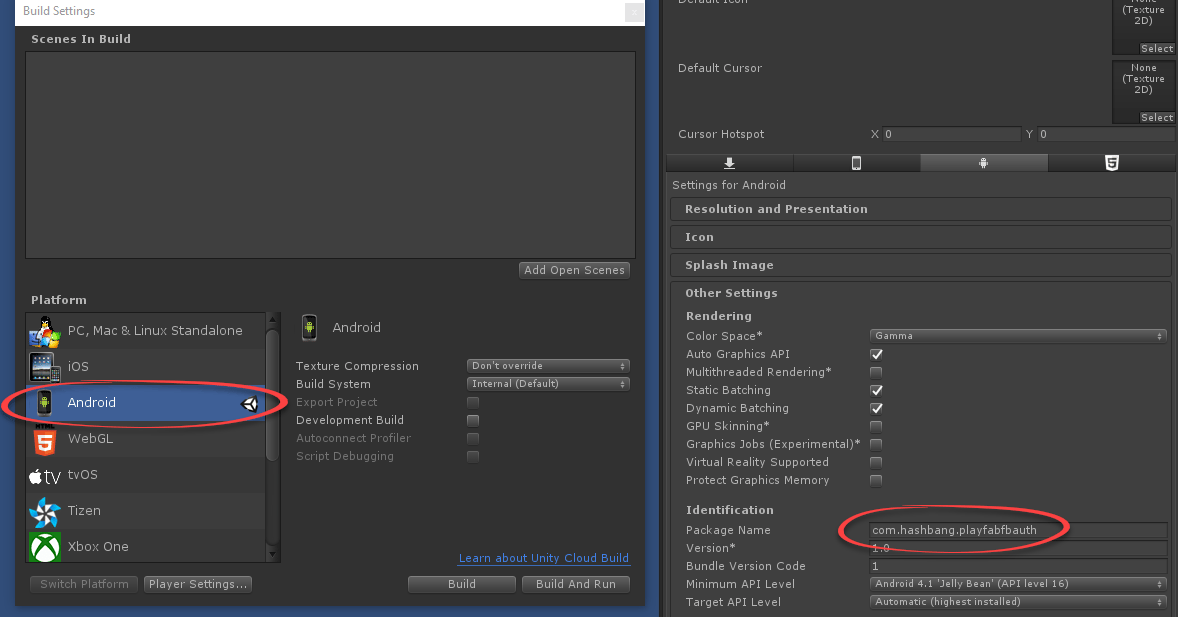
* Tout d'abord, vous devez vous assurer que la plateforme Android est sélectionnée et que le **Package ID** unique est défini (comme indiqué dans l'exemple ci-dessous).
Assurez-vous de créer votre propre **Package ID** *unique*.
### Exécution de l'application sur Android
Avant de lancer l'application sur Android, vous devez effectuer des étapes de configuration supplémentaires :
* Tout d'abord, vous devez vous assurer que la plateforme Android est sélectionnée et que le **Package ID** unique est défini (comme indiqué dans l'exemple ci-dessous).
Assurez-vous de créer votre propre **Package ID** *unique*.
 **Étape facultative** : installez [Open SSL](https://wiki.openssl.org/index.php/Binaries) et ajoutez-le à la variable d'environnement **PATH**. S'il est absent, Unity produira une erreur sans conséquence pendant la génération. Cette erreur n'arrête pas la génération et n'affecte pas l'exécution.
Ensuite, dans la console de votre **application Facebook** :
1. Accédez aux paramètres **Basic**.
2. Sélectionnez **+ Add Platform**, comme indiqué dans l'exemple ci-dessous.
**Étape facultative** : installez [Open SSL](https://wiki.openssl.org/index.php/Binaries) et ajoutez-le à la variable d'environnement **PATH**. S'il est absent, Unity produira une erreur sans conséquence pendant la génération. Cette erreur n'arrête pas la génération et n'affecte pas l'exécution.
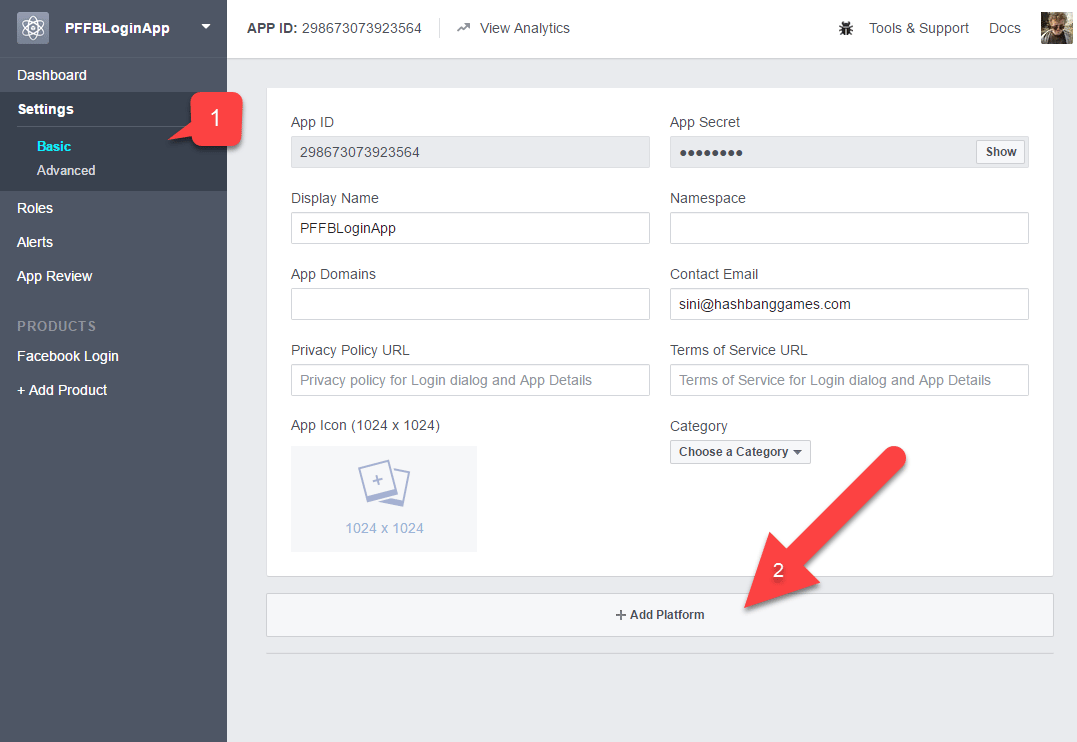
Ensuite, dans la console de votre **application Facebook** :
1. Accédez aux paramètres **Basic**.
2. Sélectionnez **+ Add Platform**, comme indiqué dans l'exemple ci-dessous.
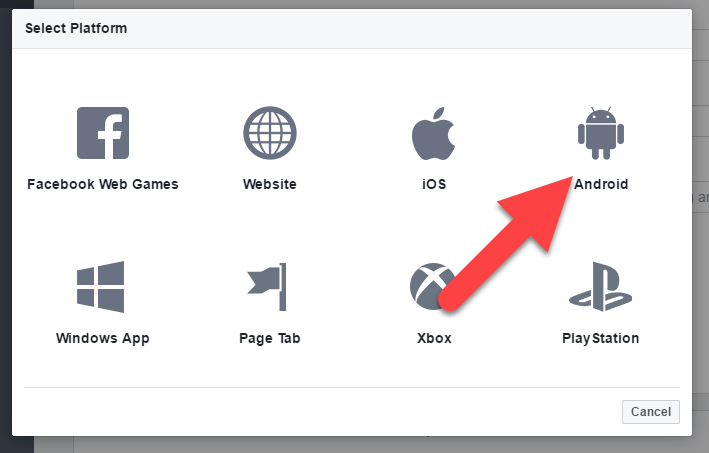
 * Sélectionnez ensuite **Android** dans la liste des plateformes disponibles.
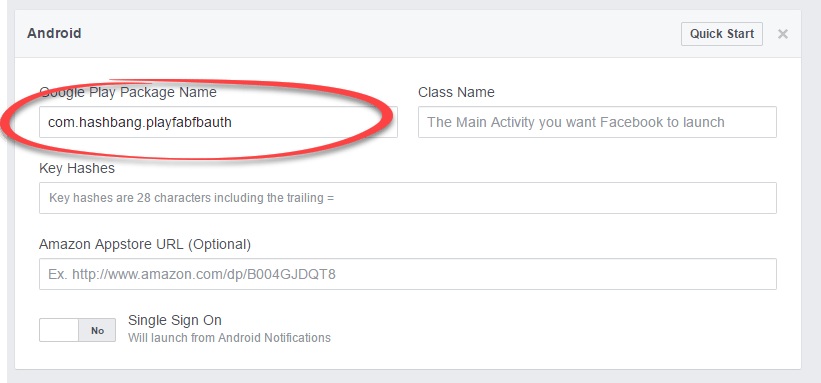
 Un panneau contenant les paramètres propres à la plateforme apparaîtra.
* Remplissez votre **Package ID**.
* Sélectionnez **Save** (le bouton **Save** est caché dans le coin inférieur droit de la page).
Un panneau contenant les paramètres propres à la plateforme apparaîtra.
* Remplissez votre **Package ID**.
* Sélectionnez **Save** (le bouton **Save** est caché dans le coin inférieur droit de la page).
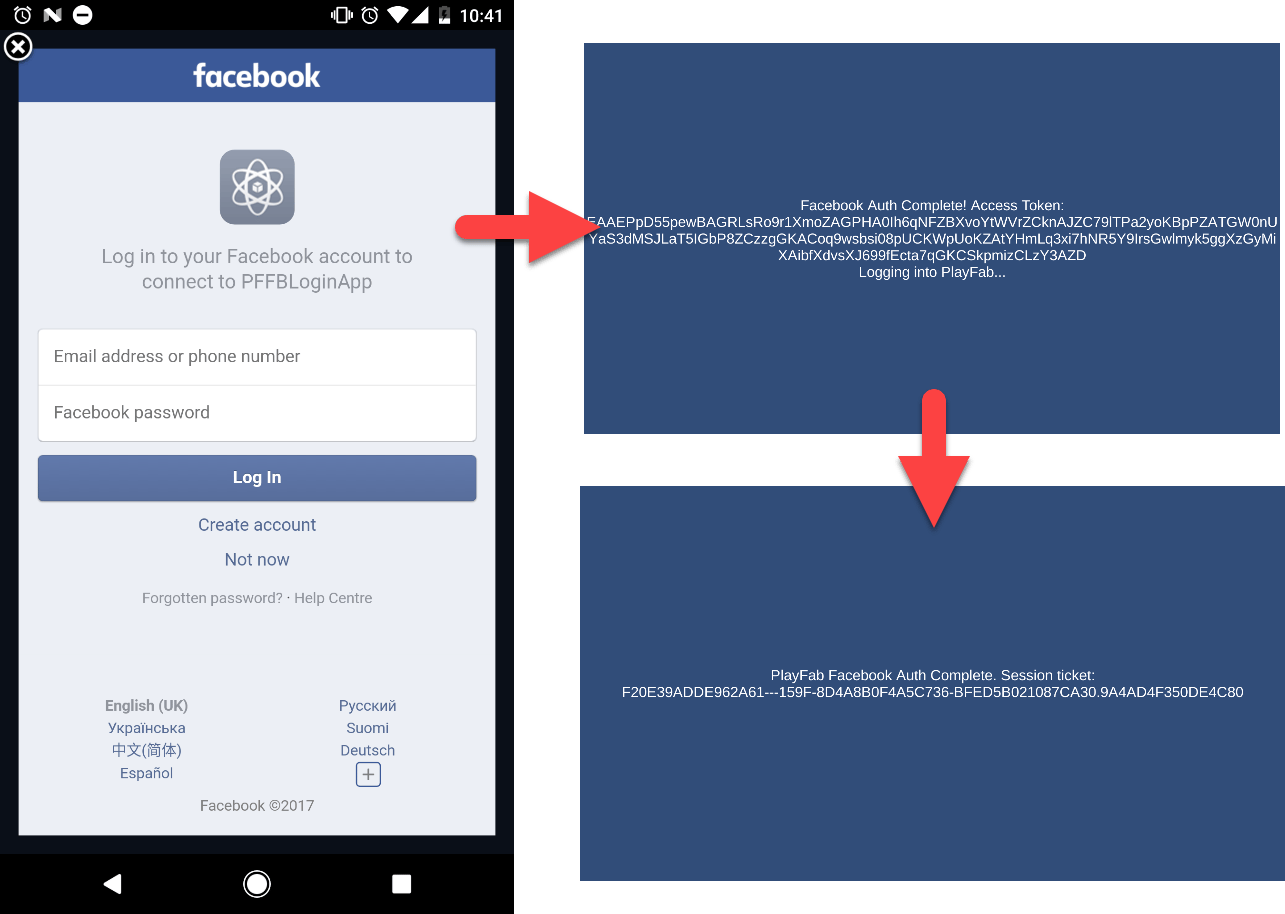
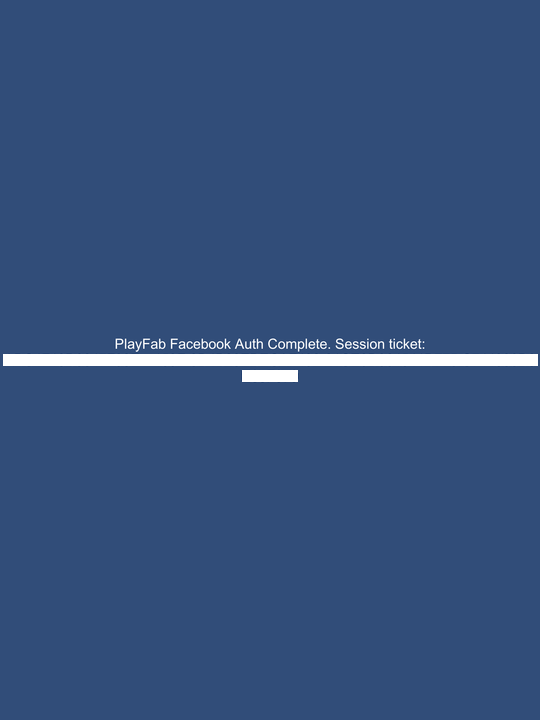
 Générez et exécutez l'application normalement sur votre appareil Android.
* L'application devrait vous accueillir avec une page de connexion Facebook.
* Une fois connecté, observez le message à l'écran à mesure qu'il change.
* Enfin, un message devrait vous indiquer que l'authentification dans PlayFab a réussi. L'ensemble de la procédure est illustré dans l'exemple ci-dessous.
Générez et exécutez l'application normalement sur votre appareil Android.
* L'application devrait vous accueillir avec une page de connexion Facebook.
* Une fois connecté, observez le message à l'écran à mesure qu'il change.
* Enfin, un message devrait vous indiquer que l'authentification dans PlayFab a réussi. L'ensemble de la procédure est illustré dans l'exemple ci-dessous.
 ### Exécution de l'application sur iOS
Avant de lancer l'application sur iOS, vous devez effectuer des étapes de configuration supplémentaires.
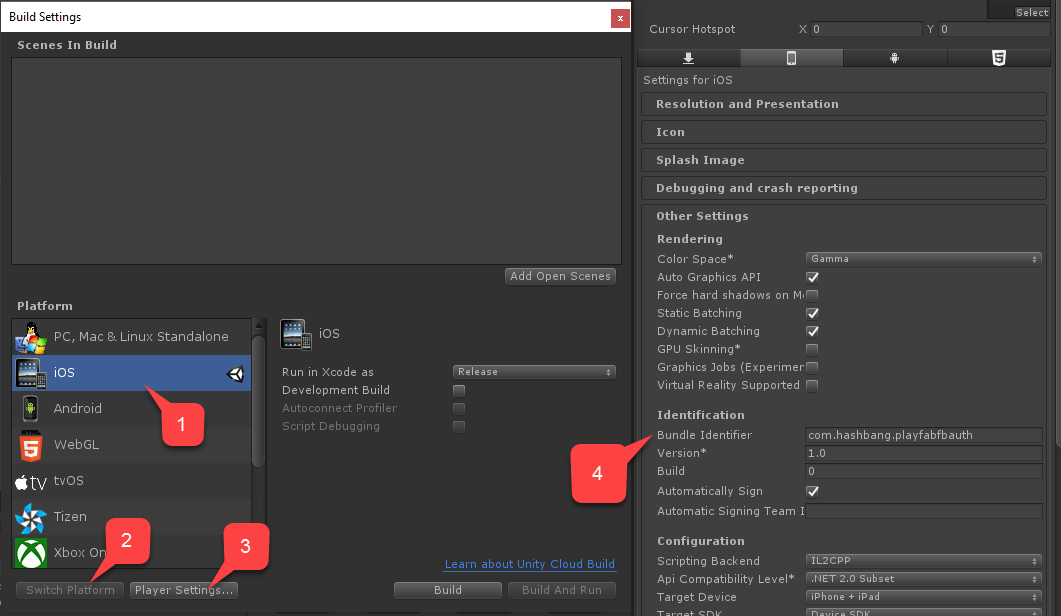
* Tout d'abord, assurez-vous que la plateforme **iOS** est sélectionnée.
* Définissez ensuite un **Bundle ID** unique, comme indiqué dans l'exemple ci-dessous.
* Assurez-vous de créer votre propre **Package ID** *unique*.
### Exécution de l'application sur iOS
Avant de lancer l'application sur iOS, vous devez effectuer des étapes de configuration supplémentaires.
* Tout d'abord, assurez-vous que la plateforme **iOS** est sélectionnée.
* Définissez ensuite un **Bundle ID** unique, comme indiqué dans l'exemple ci-dessous.
* Assurez-vous de créer votre propre **Package ID** *unique*.
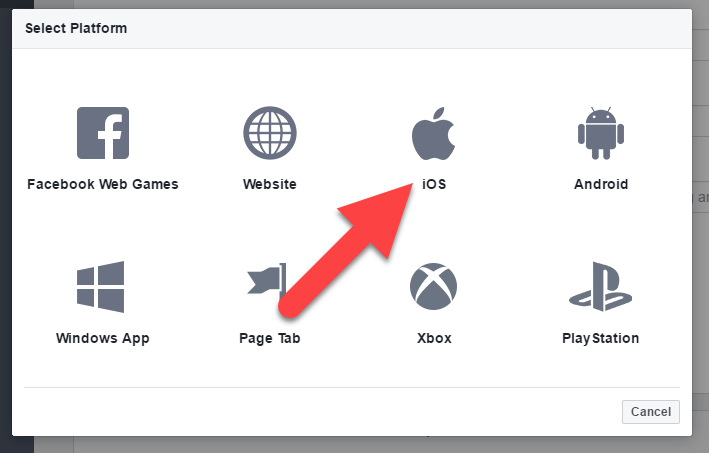
 Ensuite, dans votre **console d'application Facebook** :
1. Accédez aux paramètres **Basic**.
2. Sélectionnez **+ Add Platform**, comme indiqué dans l'exemple ci-dessous.
* Sélectionnez **iOS** dans la liste des plateformes disponibles.
Ensuite, dans votre **console d'application Facebook** :
1. Accédez aux paramètres **Basic**.
2. Sélectionnez **+ Add Platform**, comme indiqué dans l'exemple ci-dessous.
* Sélectionnez **iOS** dans la liste des plateformes disponibles.
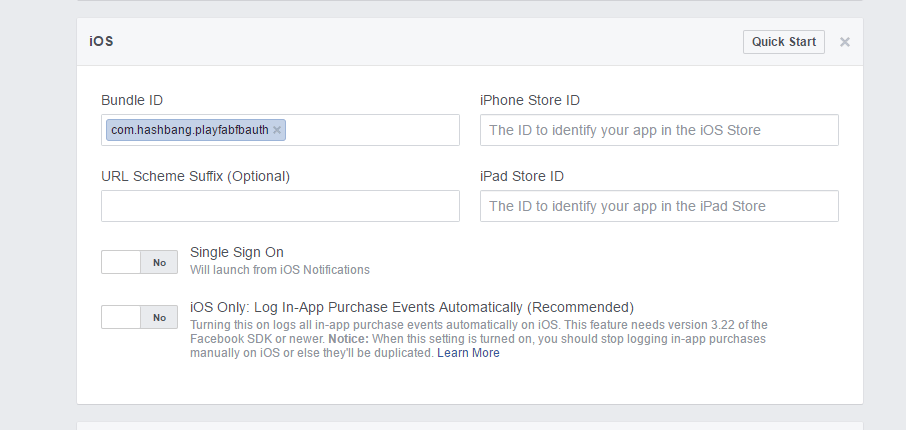
 Un panneau contenant les paramètres propres à la plateforme apparaîtra.
* Remplissez votre **Package ID**.
* Sélectionnez le bouton **Save** (le bouton **Save** est caché dans le coin inférieur droit de la page).
Un panneau contenant les paramètres propres à la plateforme apparaîtra.
* Remplissez votre **Package ID**.
* Sélectionnez le bouton **Save** (le bouton **Save** est caché dans le coin inférieur droit de la page).
 * Générez ensuite l'application comme d'habitude.
* Une fois cela fait, ouvrez le **projet** à l'aide de **XCode**.
* Générez ensuite l'application comme d'habitude.
* Une fois cela fait, ouvrez le **projet** à l'aide de **XCode**.
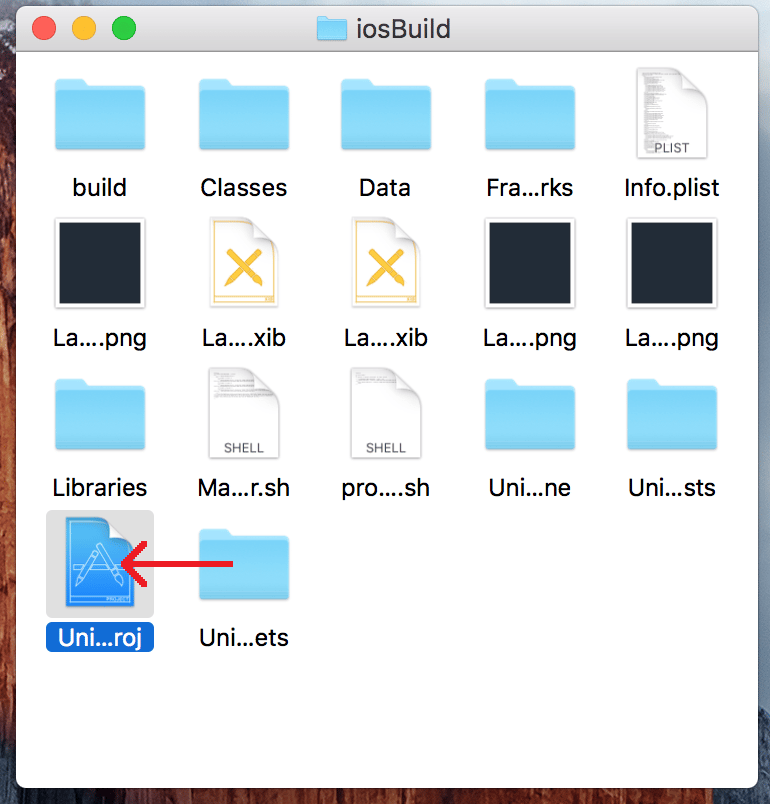 * Sélectionnez le **projet** pour ouvrir les **Project Settings**.
* Vérifiez que le **Bundle ID** correspond à votre **Package ID** unique.
* Sélectionnez le **projet** pour ouvrir les **Project Settings**.
* Vérifiez que le **Bundle ID** correspond à votre **Package ID** unique.
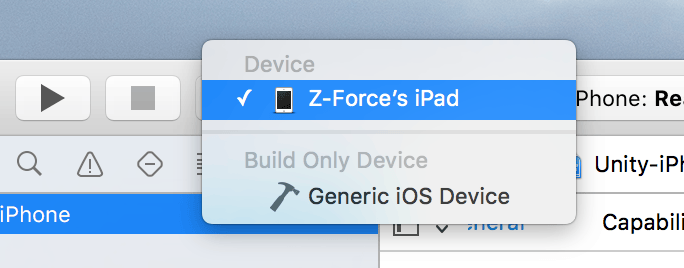
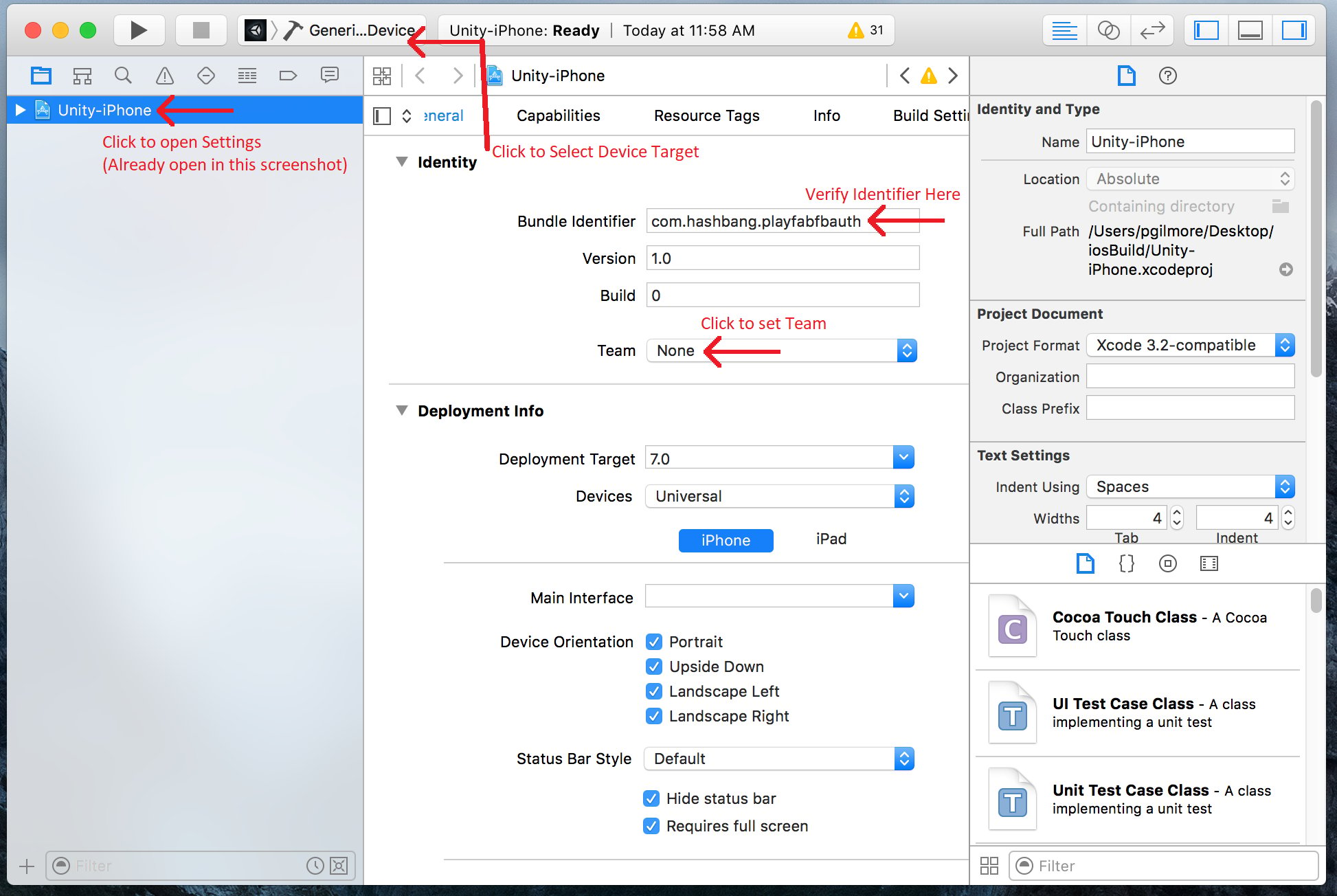 * Assurez-vous de sélectionner le bon appareil.
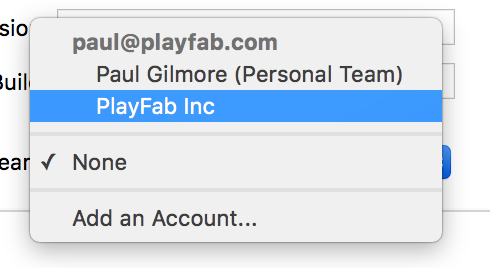
 * Et sélectionnez la bonne **Identity Team**.
 Enfin, exécutez l'application normalement.
* Une fois démarrée, l'application vous permettra de vous connecter à Facebook à l'aide du navigateur Web.
* Une fois cela fait, l'authentification PlayFab sera appelée et un message en indiquera le résultat.
Enfin, exécutez l'application normalement.
* Une fois démarrée, l'application vous permettra de vous connecter à Facebook à l'aide du navigateur Web.
* Une fois cela fait, l'authentification PlayFab sera appelée et un message en indiquera le résultat.
 ### Vérification dans PlayFab Game Manager
Ouvrez votre titre PlayFab dans Game Manager.
* Accédez au tableau de bord.
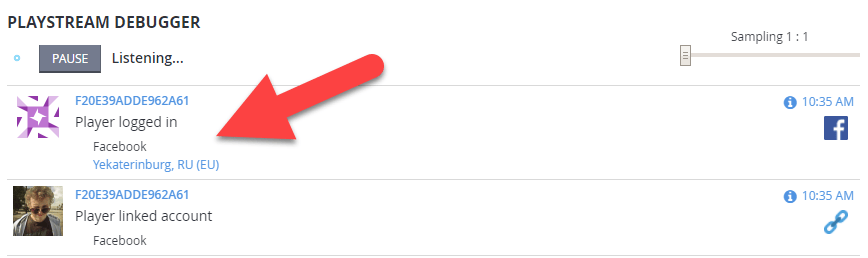
* Consultez le panneau **PlayStream Debugger** pour vérifier les événements les plus récents. Vous devriez voir l'événement d'authentification Facebook, comme illustré dans l'exemple suivant.
### Vérification dans PlayFab Game Manager
Ouvrez votre titre PlayFab dans Game Manager.
* Accédez au tableau de bord.
* Consultez le panneau **PlayStream Debugger** pour vérifier les événements les plus récents. Vous devriez voir l'événement d'authentification Facebook, comme illustré dans l'exemple suivant.
 À ce stade, vous avez intégré avec succès l'authentification Facebook pour PlayFab.
## Related topics
- [Authentification propre à la plateforme](/fr-CA/services/playfab/identity/player-identity/platform-specific-authentication/index.md)
- [Configuration de l'authentification PlayFab avec Facebook et HTML5](/fr-CA/services/playfab/identity/player-identity/platform-specific-authentication/facebook-html5.md)
- [Configuration de l'authentification PlayFab avec Kongregate et Unity](/fr-CA/services/playfab/identity/player-identity/platform-specific-authentication/kongregate-unity.md)
- [Configuration de l'authentification PlayFab avec Steam et Unity](/fr-CA/services/playfab/identity/player-identity/platform-specific-authentication/steam-unity.md)
- [Configuration de l'authentification PlayFab avec Kongregate et HTML5](/fr-CA/services/playfab/identity/player-identity/platform-specific-authentication/kongregate-html5.md)
À ce stade, vous avez intégré avec succès l'authentification Facebook pour PlayFab.
## Related topics
- [Authentification propre à la plateforme](/fr-CA/services/playfab/identity/player-identity/platform-specific-authentication/index.md)
- [Configuration de l'authentification PlayFab avec Facebook et HTML5](/fr-CA/services/playfab/identity/player-identity/platform-specific-authentication/facebook-html5.md)
- [Configuration de l'authentification PlayFab avec Kongregate et Unity](/fr-CA/services/playfab/identity/player-identity/platform-specific-authentication/kongregate-unity.md)
- [Configuration de l'authentification PlayFab avec Steam et Unity](/fr-CA/services/playfab/identity/player-identity/platform-specific-authentication/steam-unity.md)
- [Configuration de l'authentification PlayFab avec Kongregate et HTML5](/fr-CA/services/playfab/identity/player-identity/platform-specific-authentication/kongregate-html5.md)