> ## Documentation Index
> Fetch the complete documentation index at: https://devdocs.xbox.com/llms.txt
> Use this file to discover all available pages before exploring further.
# Configurer la connexion avec Battle.net pour PlayFab
> Configurez l'authentification PlayFab avec Battle.net à l'aide de HTML5 et JavaScript, y compris la configuration de l'application Blizzard, le flux OAuth et l'intégration de la connexion des joueurs.
# Configurer l'authentification PlayFab avec Battle.net
Ce tutoriel vous guide tout au long du processus de configuration de l'authentification PlayFab à l'aide de Battle.net et de HTML5/JavaScript.
## Exigences
Vous avez besoin de :
* Un [compte Battle.net](https://developer.battle.net) à des fins de test.
* Un titre [PlayFab](https://developer.playfab.com/) enregistré.
* Une bonne connaissance des [notions de base et pratiques exemplaires de connexion](/fr-CA/services/playfab/identity/player-identity/login/login-basics-best-practices).
* Un serveur doté d'un nom de domaine valide pour servir un fichier HTML statique. Consultez le tutoriel [Exécution d'un serveur HTTP à des fins de test](/fr-CA/services/playfab/identity/player-identity/platform-specific-authentication/running-an-http-server-for-testing) pour savoir comment en configurer un.
## Serveur et domaine
Pour suivre ce guide, vous avez besoin d'un serveur doté d'un domaine valide. Si vous n'avez pas encore de domaine enregistré ni de serveur Web distant, suivez notre tutoriel [Exécution d'un serveur HTTP à des fins de test](/fr-CA/services/playfab/identity/player-identity/platform-specific-authentication/running-an-http-server-for-testing) pour savoir comment exécuter un serveur Web local doté d'un nom de domaine valide.
Tout au long de ce guide, nous supposons que votre domaine est [http://playfab.example](http://playfab.example).
## Récupérer l'ID client du titre Battle.net
Commencez par accéder à [Battle.net](https://developer.battle.net) et créez un compte de développeur Battle.net. Une fois votre compte créé, vous devez créer un titre et vous faire attribuer des ID clients.
## Installer le module complémentaire Battle.net
Accédez à la page **Game Manager** de PlayFab pour votre titre.
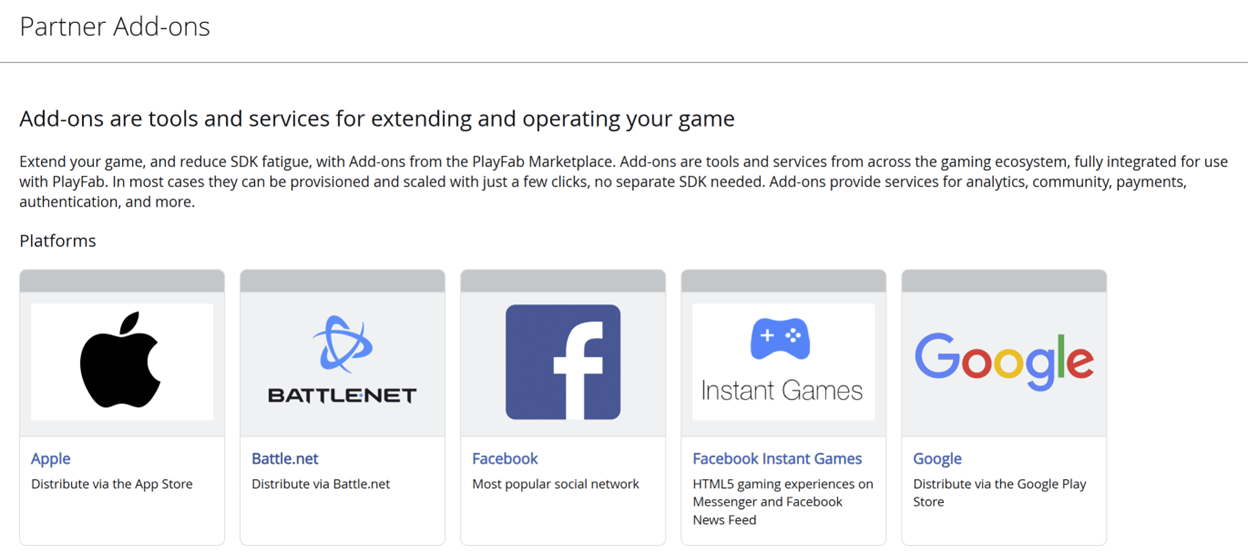
1. Accédez à **Add-ons** dans le menu.
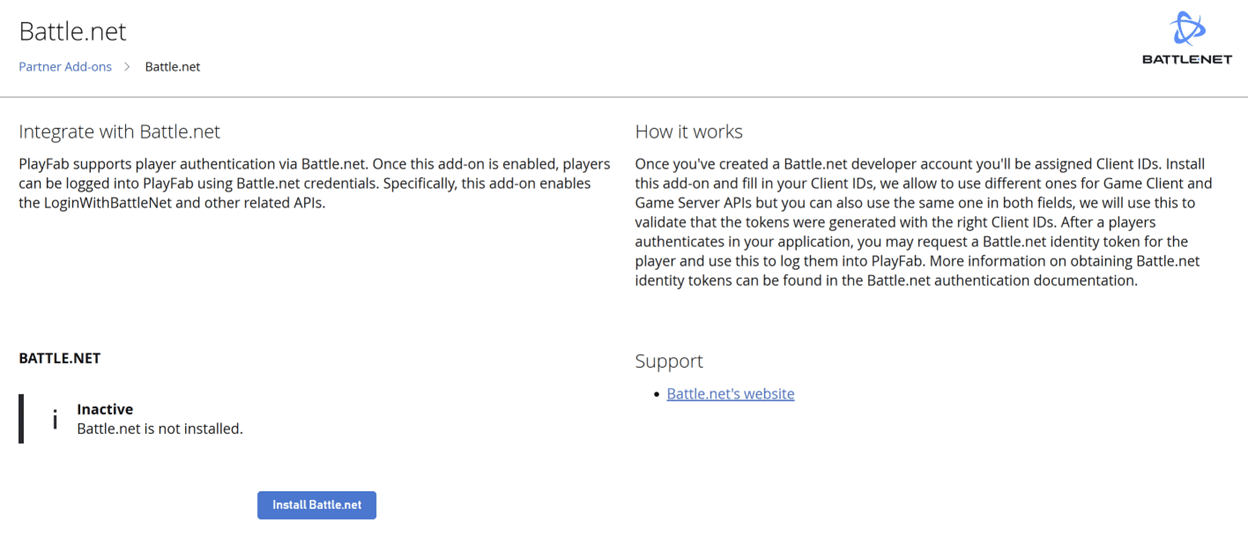
2. Repérez et ouvrez l'icône ou le lien **Battle.net Add-on**.
3. Sélectionnez **Install Battle.net**.
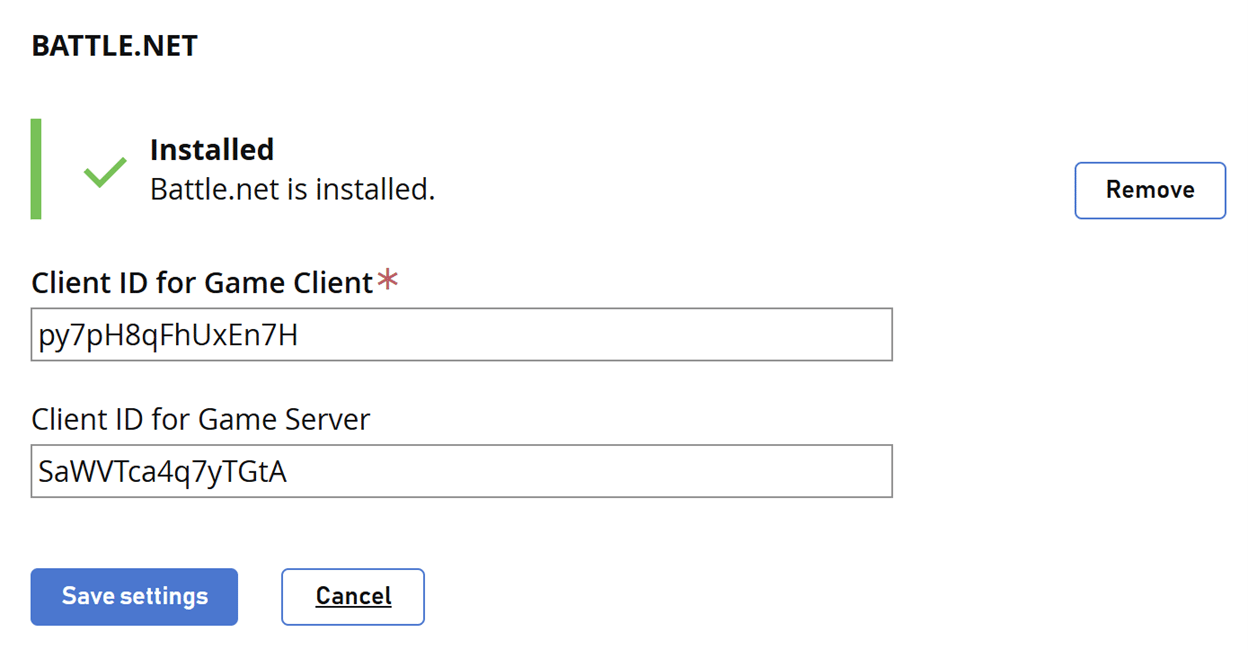
4. Remplissez le champ **Client ID for Game Client**.
5. Vous pouvez également remplir le champ **Client ID for Game Server**.
6. Sélectionnez ensuite le bouton **Save settings**.
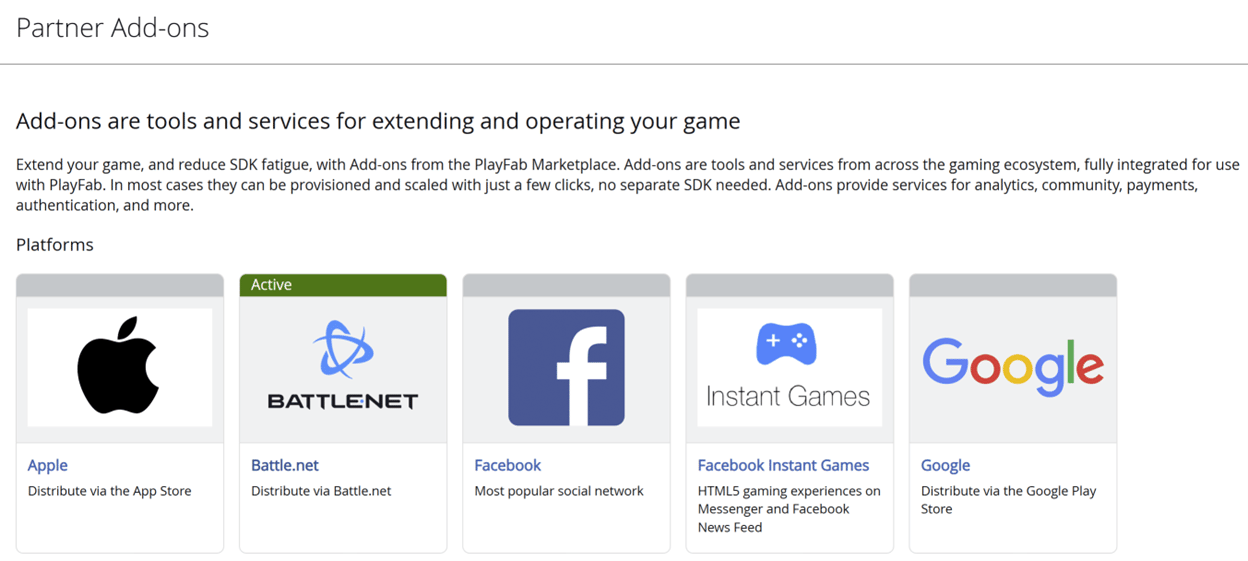
Battle.net apparaît comme actif dans la page Add-on.
## Tests à l'aide d'un jeton d'accès
Dans cet exemple, nous montrons comment tester l'API LoginWithBattleNet à l'aide de l'approche classique par jeton d'accès. Utilisez le code HTML fourni pour vos tests.
*Assurez-vous* de remplacer `YOUR_CLIENT_ID`, `YOUR_PLAYFAB_TITLE_ID`, `YOUR_BNET_TITLE_NAME` et `YOUR_CLIENT_SECRET` par vos propres valeurs.
```html theme={null}
Battle.net SSO Token Demo (Manual Flow)
After login, copy the ST value from the URL (e.g. ST=US-xxxx-xxxx) and paste it here:
Click "Exchange SSO Token for id_token"
Click "Login to PlayFab" to complete the flow
```
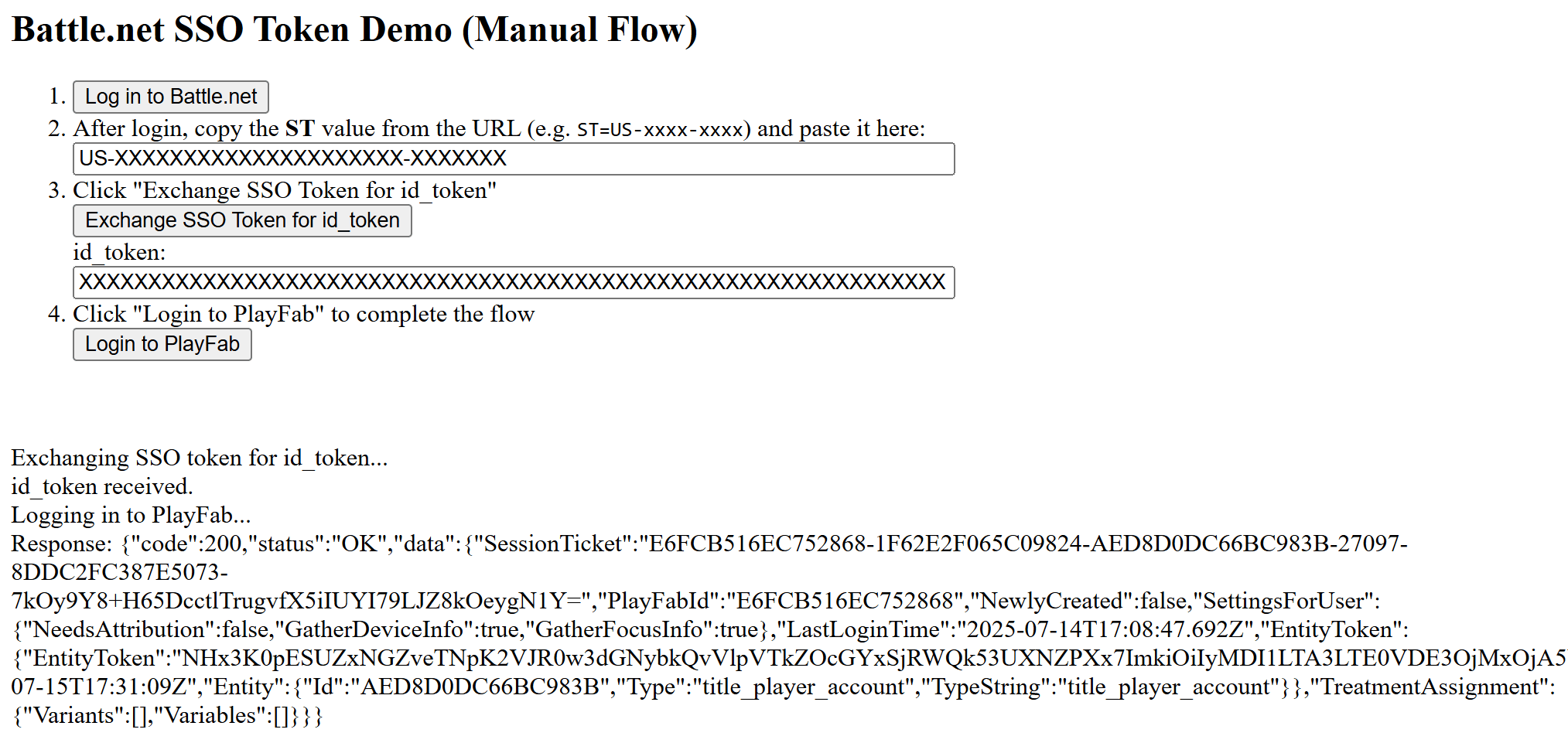
N'oubliez pas d'ouvrir la page HTML à l'aide de votre serveur Web, et assurez-vous d'accéder à cette page au moyen de l'URL que vous avez spécifiée.
1. Une fois la page ouverte, sélectionnez **Log in to Battle.net**.
2. Après la connexion, copiez la valeur **ST** de l'URL (par exemple : ST=US-xxxx-xxxx) et entrez-la dans la boîte de dialogue.
3. Sélectionnez **Exchange SSO Token for id\_token** et copiez la valeur dans la boîte de dialogue.
4. Sélectionnez **Login to PlayFab** pour terminer le flux de connexion.
5. Une fois terminé, le script tente de s'authentifier du côté de PlayFab et affiche le résultat.
## Related topics
- [Connexion avec Battle.net](/fr-CA/services/playfab/api-references/rest/client/authentication/login-with-battle-net.md)
- [Version 0.2.0 de l'exemple XBOX Godot](/fr-CA/build/gdk-and-engines/godot-release-notes/godot-release-notes-0-2-0.md)
- [Notes de version du SDK PlayFab Services 2025](/fr-CA/services/playfab/release-notes/2025.md)
- [PFAuthenticationLoginWithBattleNetRequest](/fr-CA/services/playfab/api-references/c/pfauthenticationtypes/structs/pfauthenticationloginwithbattlenetrequest.md)
- [PFAuthenticationServerLoginWithBattleNetRequest](/fr-CA/services/playfab/api-references/c/pfauthenticationtypes/structs/pfauthenticationserverloginwithbattlenetrequest.md)
 3. Sélectionnez **Install Battle.net**.
 4. Remplissez le champ **Client ID for Game Client**.
5. Vous pouvez également remplir le champ **Client ID for Game Server**.
6. Sélectionnez ensuite le bouton **Save settings**.
4. Remplissez le champ **Client ID for Game Client**.
5. Vous pouvez également remplir le champ **Client ID for Game Server**.
6. Sélectionnez ensuite le bouton **Save settings**.
 Battle.net apparaît comme actif dans la page Add-on.
 ## Tests à l'aide d'un jeton d'accès
Dans cet exemple, nous montrons comment tester l'API LoginWithBattleNet à l'aide de l'approche classique par jeton d'accès. Utilisez le code HTML fourni pour vos tests.
## Tests à l'aide d'un jeton d'accès
Dans cet exemple, nous montrons comment tester l'API LoginWithBattleNet à l'aide de l'approche classique par jeton d'accès. Utilisez le code HTML fourni pour vos tests.
 ## Related topics
- [Connexion avec Battle.net](/fr-CA/services/playfab/api-references/rest/client/authentication/login-with-battle-net.md)
- [Version 0.2.0 de l'exemple XBOX Godot](/fr-CA/build/gdk-and-engines/godot-release-notes/godot-release-notes-0-2-0.md)
- [Notes de version du SDK PlayFab Services 2025](/fr-CA/services/playfab/release-notes/2025.md)
- [PFAuthenticationLoginWithBattleNetRequest](/fr-CA/services/playfab/api-references/c/pfauthenticationtypes/structs/pfauthenticationloginwithbattlenetrequest.md)
- [PFAuthenticationServerLoginWithBattleNetRequest](/fr-CA/services/playfab/api-references/c/pfauthenticationtypes/structs/pfauthenticationserverloginwithbattlenetrequest.md)
## Related topics
- [Connexion avec Battle.net](/fr-CA/services/playfab/api-references/rest/client/authentication/login-with-battle-net.md)
- [Version 0.2.0 de l'exemple XBOX Godot](/fr-CA/build/gdk-and-engines/godot-release-notes/godot-release-notes-0-2-0.md)
- [Notes de version du SDK PlayFab Services 2025](/fr-CA/services/playfab/release-notes/2025.md)
- [PFAuthenticationLoginWithBattleNetRequest](/fr-CA/services/playfab/api-references/c/pfauthenticationtypes/structs/pfauthenticationloginwithbattlenetrequest.md)
- [PFAuthenticationServerLoginWithBattleNetRequest](/fr-CA/services/playfab/api-references/c/pfauthenticationtypes/structs/pfauthenticationserverloginwithbattlenetrequest.md)