> ## Documentation Index
> Fetch the complete documentation index at: https://devdocs.xbox.com/llms.txt
> Use this file to discover all available pages before exploring further.
# Authentification à deux facteurs
> Ajoutez une couche de sécurité supplémentaire à votre compte PlayFab Game Manager en jumelant une application d'authentification sur votre appareil pour activer la vérification de connexion à deux facteurs.
L'authentification à deux facteurs vous permet de renforcer la sécurité de votre compte PlayFab Game Manager en ajoutant une étape de plus au processus d'authentification.
Pour ce faire, elle ajoute un facteur lié à l'appareil au processus d'authentification, qui vous permet de vous authentifier seulement si vous possédez un appareil précis enregistré spécifiquement à cette fin.
## Configuration de l'authentification à deux facteurs
Installez une application d'**authentification à deux facteurs** sur votre appareil. Vous pouvez rechercher votre propre application ou sélectionner votre plateforme dans la liste suivante :
* [iPhone, iPad et iPod Touch](https://itunes.apple.com/us/app/google-authenticator/id388497605?mt=8)
* [Téléphone ou tablette Android](https://play.google.com/store/apps/details?id=com.google.android.apps.authenticator2)
* [Téléphone ou tablette Windows](https://www.windowsphone.com/store/app/authenticator/e7994dbc-2336-4950-91ba-ca22d653759b)
Les étapes sont essentiellement semblables sur toutes les plateformes. Cet exemple montre un appareil Android et l'application Google Authenticator.
Une fois l'application téléchargée :
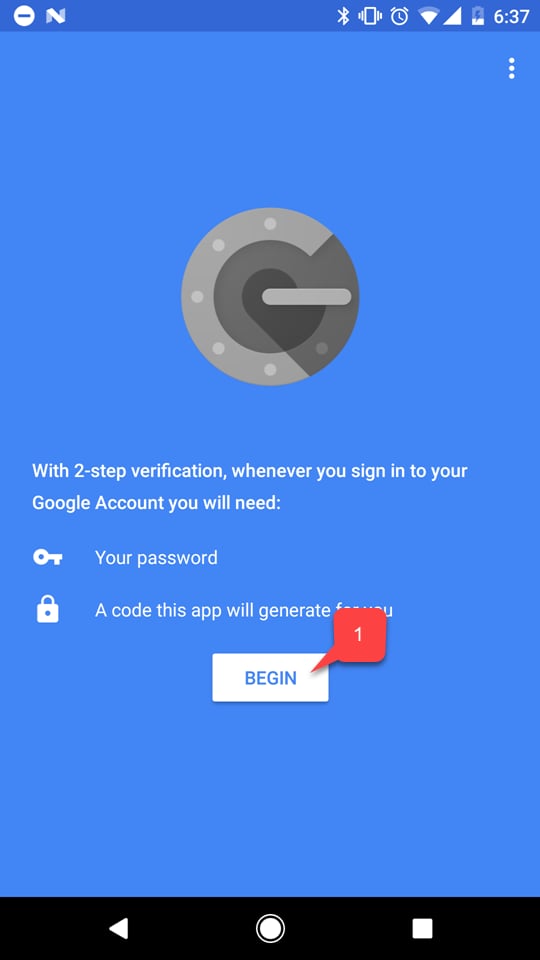
* Ouvrez-la et suivez les instructions.
* Sélectionnez le bouton **Begin** **(1)**.
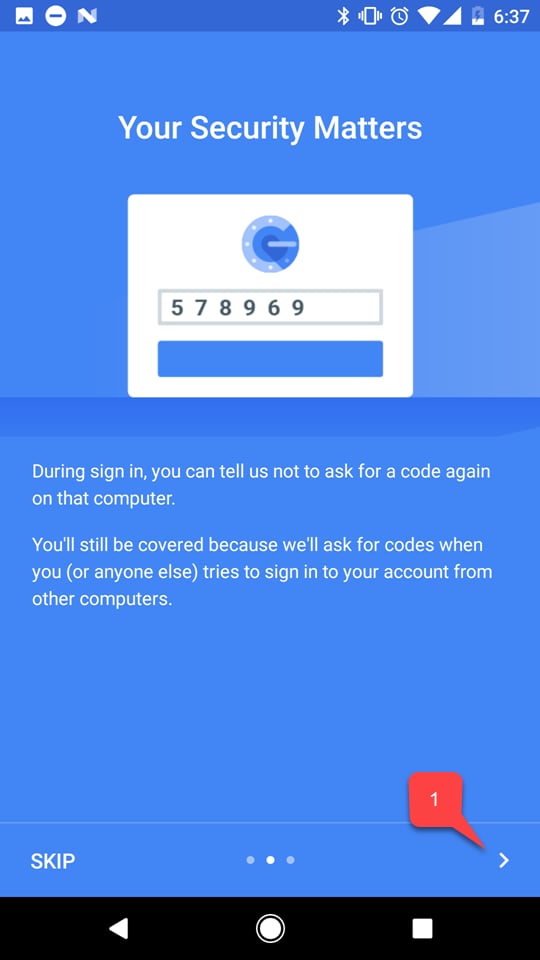
 Suivez le tutoriel de l'application, s'il y en a un **(1)**.
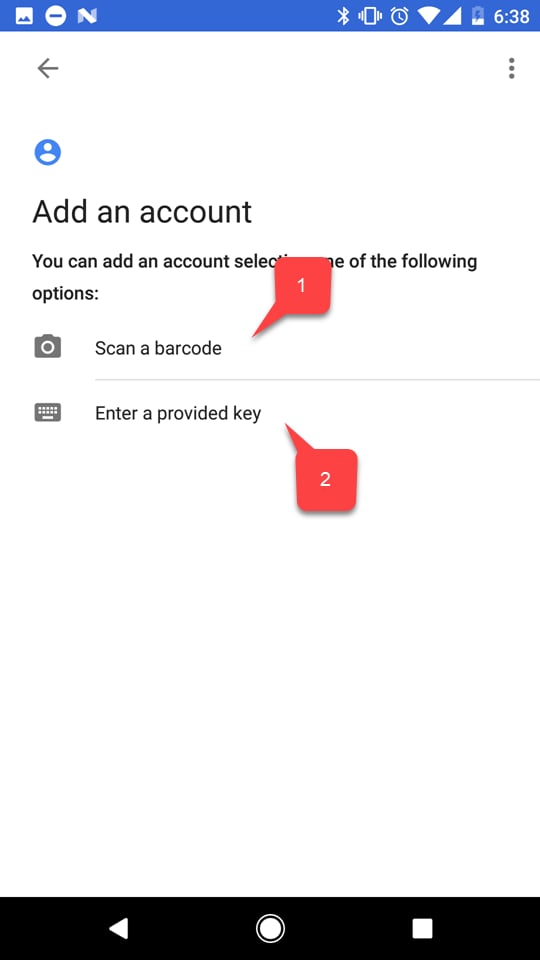
 * Sélectionnez ensuite l'une des deux options pour ajouter votre compte PlayFab :
* Soit numériser un **code-barres (1)**.
* Soit entrer la **clé** manuellement **(2)**.
* Sélectionnez ensuite l'une des deux options pour ajouter votre compte PlayFab :
* Soit numériser un **code-barres (1)**.
* Soit entrer la **clé** manuellement **(2)**.
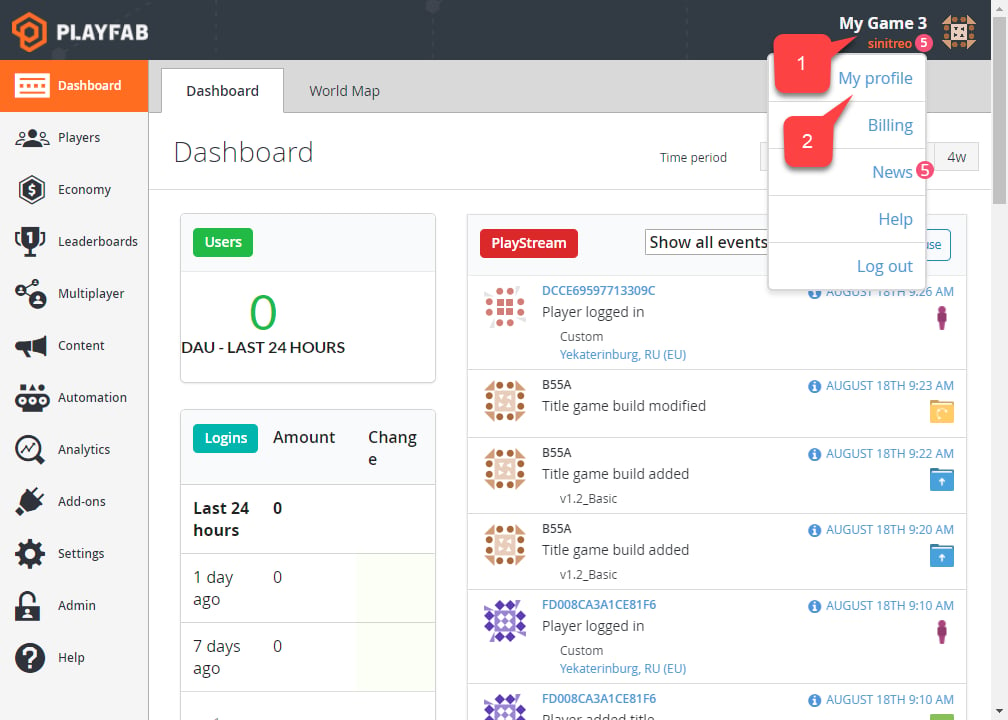
 Quelle que soit l'option choisie, rendez-vous sur le site Web de PlayFab et accédez à **Game Manager**. Dans l'onglet **Dashboard** :
* Sélectionnez le panneau **Account** **(1)**.
* Sélectionnez ensuite **My Profile (2)**.
Quelle que soit l'option choisie, rendez-vous sur le site Web de PlayFab et accédez à **Game Manager**. Dans l'onglet **Dashboard** :
* Sélectionnez le panneau **Account** **(1)**.
* Sélectionnez ensuite **My Profile (2)**.
 Les paramètres **Account** s'ouvrent.
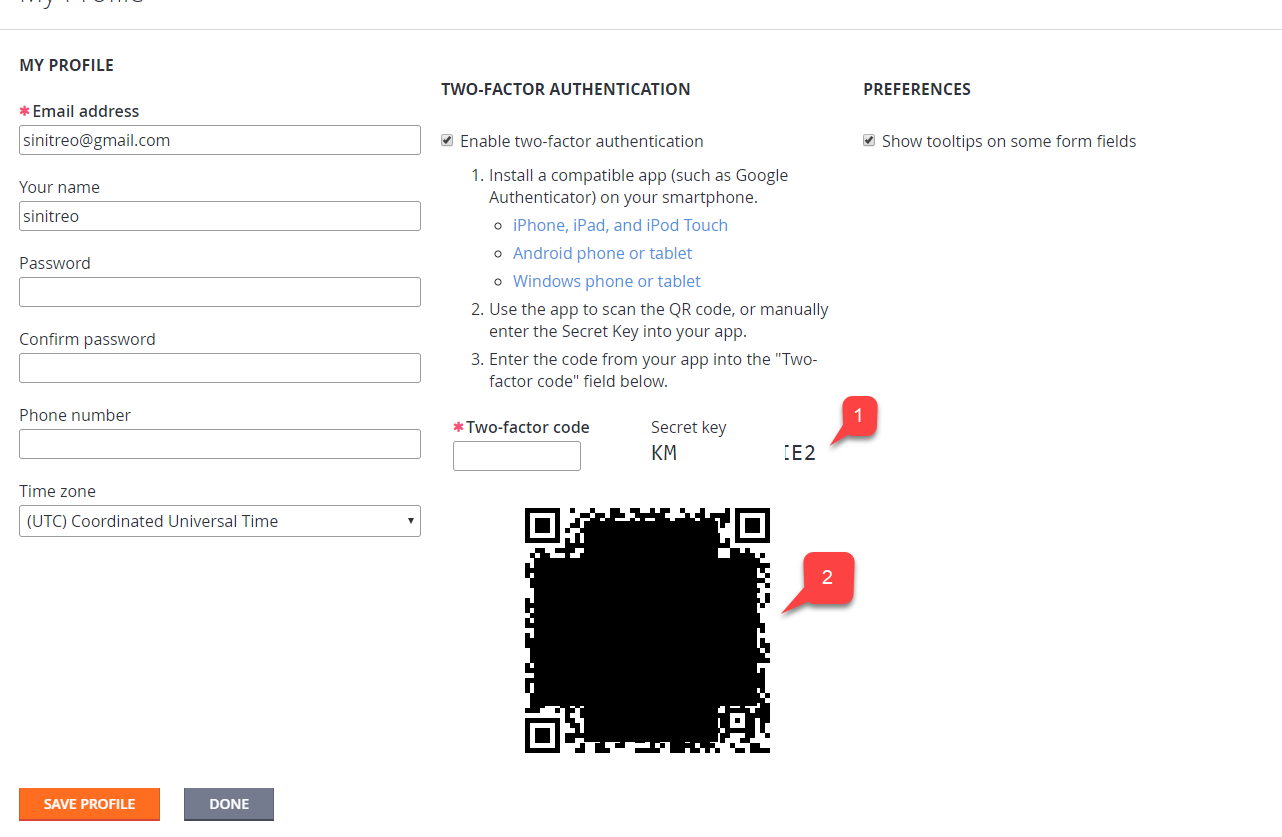
* Vérifiez que la case **Enable two-factor authentication** est cochée.
* Selon l'option choisie, utilisez le **code (1)** ou un **code-barres (2)** pour ajouter un nouveau compte à l'aide de l'application sur votre appareil.
Les paramètres **Account** s'ouvrent.
* Vérifiez que la case **Enable two-factor authentication** est cochée.
* Selon l'option choisie, utilisez le **code (1)** ou un **code-barres (2)** pour ajouter un nouveau compte à l'aide de l'application sur votre appareil.
 Une fois cette étape terminée, vous obtiendrez un code à deux facteurs.
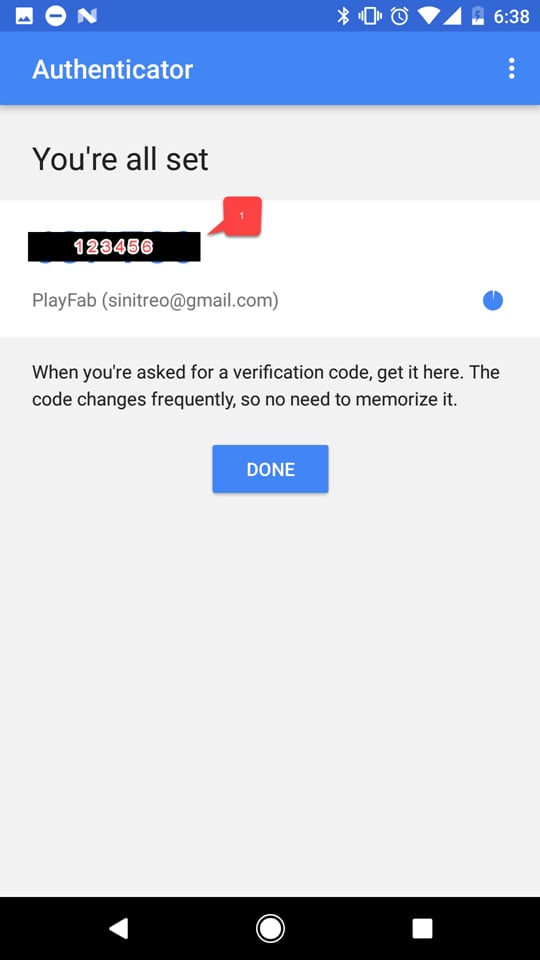 Retournez aux paramètres **Profile** dans PlayFab **Game Manager** :
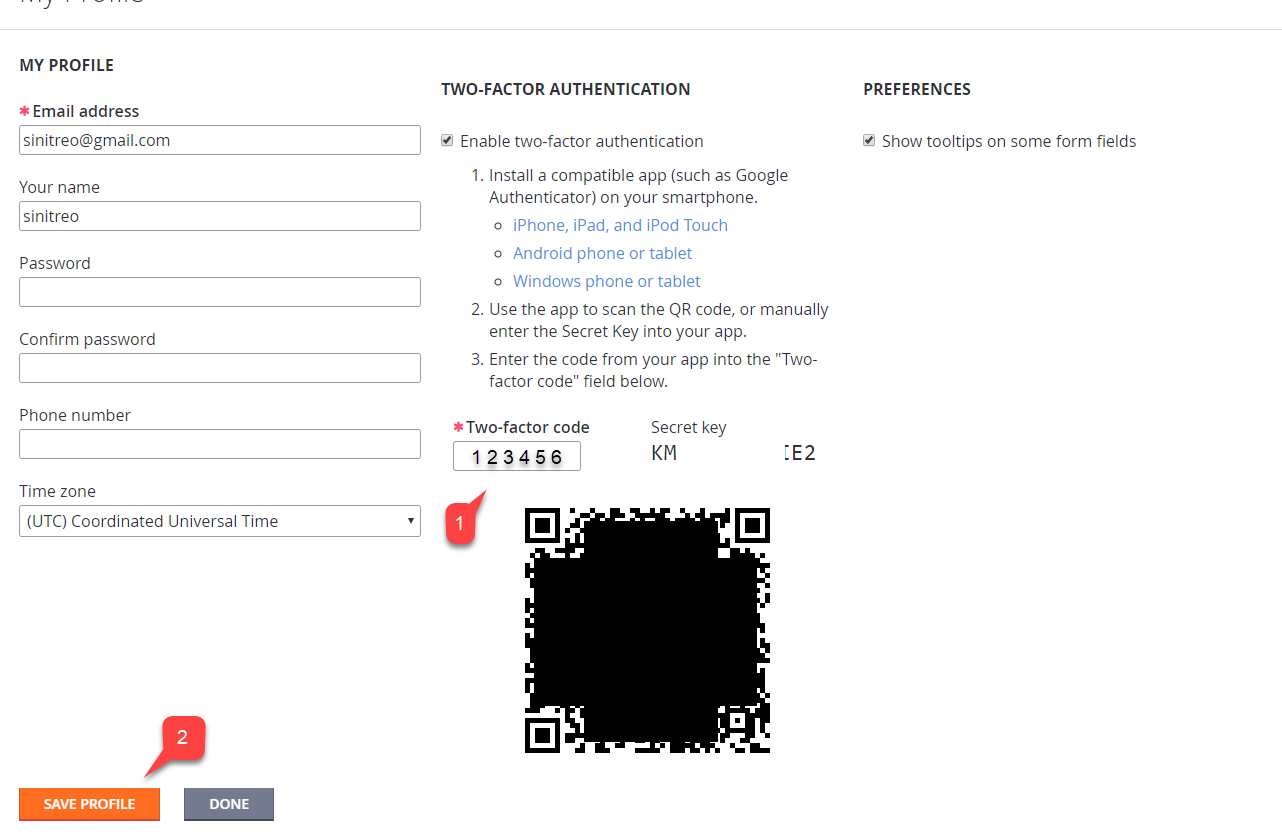
* Entrez le **code** que vous avez reçu **(1)**.
* Sélectionnez le bouton **Save Profile** **(2)**.
Retournez aux paramètres **Profile** dans PlayFab **Game Manager** :
* Entrez le **code** que vous avez reçu **(1)**.
* Sélectionnez le bouton **Save Profile** **(2)**.
 ## Test
Déconnectez-vous de votre compte PlayFab et essayez de vous reconnecter. La première étape du processus d'authentification semblera normale (voir l'exemple ci-dessous).
## Test
Déconnectez-vous de votre compte PlayFab et essayez de vous reconnecter. La première étape du processus d'authentification semblera normale (voir l'exemple ci-dessous).
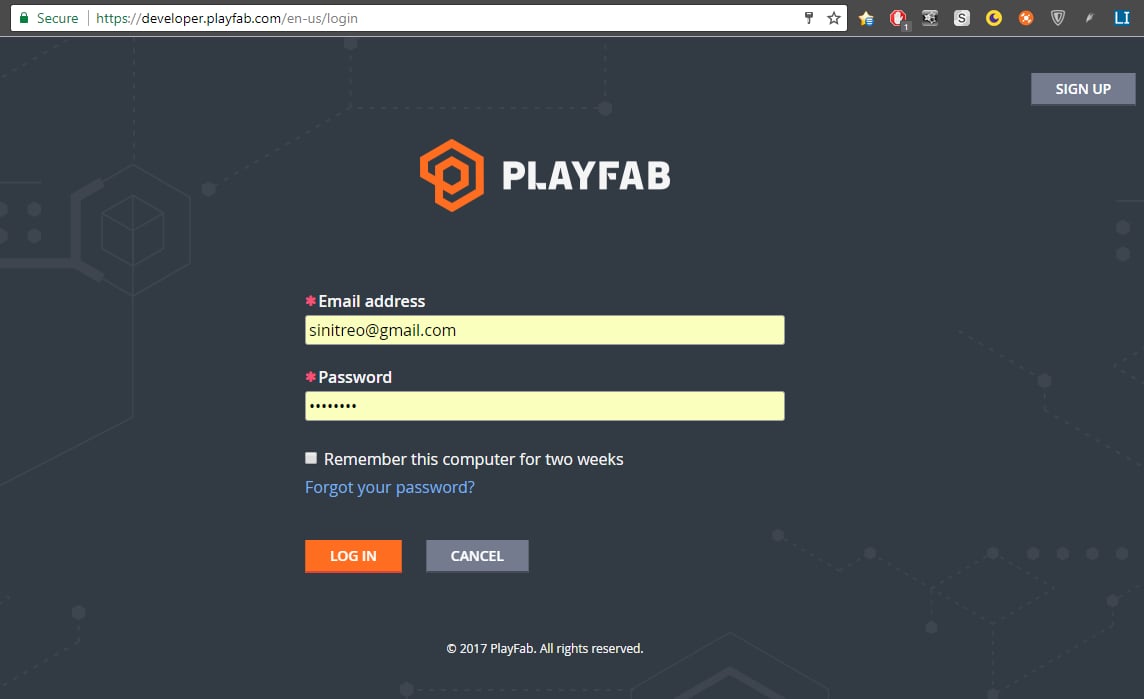 La deuxième étape vous demandera d'utiliser votre code à deux facteurs. Le code est accessible en tout temps au moyen de l'application que vous avez installée sur votre appareil.
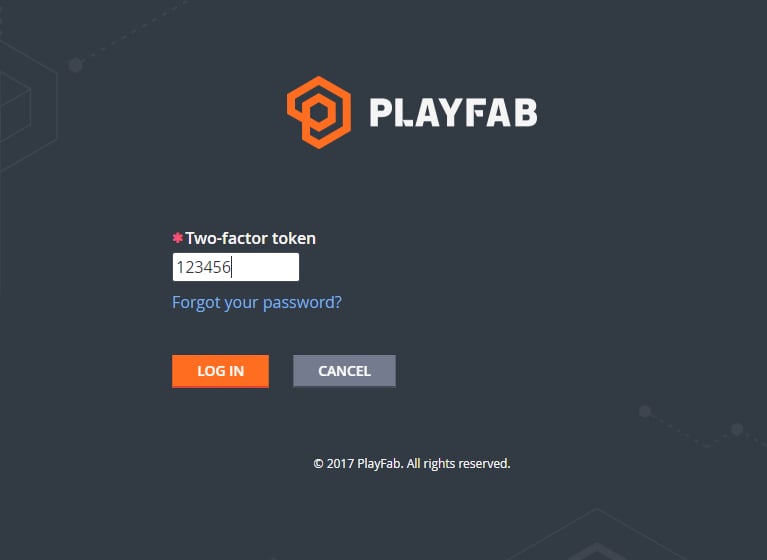 Une fois le bon code à deux facteurs entré, vous devriez être connecté.
Ceci conclut la configuration de l'authentification à deux facteurs pour PlayFab.
## Related topics
- [Guide des BVT de certification pour PC](/fr-CA/publishing/game-publishing/concepts/certification/certification-pc-bvt-guide.md)
- [Intégration des partenaires XBOX pour l'accès au GDK](/fr-CA/home/onboarding.md)
- [Référence de Game Manager](/fr-CA/services/playfab/live-service-management/gamemanager/reference.md)
- [Configuration d'un serveur SMTP avec des modules complémentaires](/fr-CA/services/playfab/live-service-management/game-configuration/title-communications/emails/setting-up-an-smtp-server-with-add-ons.md)
- [D3D12_SHADING_RATE (consoles XBOX Series)](/fr-CA/reference/graphics/d3d12/enums/d3d12_shading_rate_public.md)
Une fois le bon code à deux facteurs entré, vous devriez être connecté.
Ceci conclut la configuration de l'authentification à deux facteurs pour PlayFab.
## Related topics
- [Guide des BVT de certification pour PC](/fr-CA/publishing/game-publishing/concepts/certification/certification-pc-bvt-guide.md)
- [Intégration des partenaires XBOX pour l'accès au GDK](/fr-CA/home/onboarding.md)
- [Référence de Game Manager](/fr-CA/services/playfab/live-service-management/gamemanager/reference.md)
- [Configuration d'un serveur SMTP avec des modules complémentaires](/fr-CA/services/playfab/live-service-management/game-configuration/title-communications/emails/setting-up-an-smtp-server-with-add-ons.md)
- [D3D12_SHADING_RATE (consoles XBOX Series)](/fr-CA/reference/graphics/d3d12/enums/d3d12_shading_rate_public.md)