> ## Documentation Index
> Fetch the complete documentation index at: https://devdocs.xbox.com/llms.txt
> Use this file to discover all available pages before exploring further.
# Configuración de la autenticación de PlayFab con aplicaciones para UWP
> Tutorial paso a paso para agregar la autenticación de PlayFab a una aplicación para la Plataforma universal de Windows mediante Windows Hello para la creación de cuentas y el inicio de sesión de los jugadores.
En este tutorial se le guía por el procedimiento de autenticación de PlayFab con la Plataforma universal de Windows (UWP).
Este procedimiento sirve como introducción básica sobre cómo obtener todas las entidades y confirmar la autenticación mediante Windows Hello y PlayFab. Para ver un ejemplo más sofisticado de autenticación con Windows Hello y PlayFab, considere nuestro `[UWPExample project](https://github.com/PlayFab/UWPExample)`.
## Requisitos
* Siga la [guía "Get Set Up" de MSDN](https://learn.microsoft.com/en-us/windows/apps/windows-app-sdk/set-up-your-development-environment) para preparar Windows y Visual Studio para el desarrollo para UWP.
* Tenga un título de [PlayFab](https://developer.playfab.com/) registrado.
* Familiarícese con los [conceptos básicos y procedimientos recomendados de inicio de sesión](/services/playfab/identity/player-identity/login/login-basics-best-practices).
Es *muy* importante que use el sistema operativo Windows 10, haya iniciado sesión con una cuenta Microsoft verificada y haya configurado una interfaz de acceso como un PIN. Si estos requisitos no\* se cumplen, la aplicación fallará sin ninguna explicación útil del motivo.
## Preparación de un proyecto de Visual Studio
Inicie Visual Studio y cree un proyecto.
1. En **Templates**, seleccione **Windows Universal**.
2. A continuación, seleccione el tipo **Blank App (Universal Windows)**.
3. Asígnele el nombre **GettingStartedPlayfabUWP**.
4. Seleccione el botón **OK** para enviarlo.
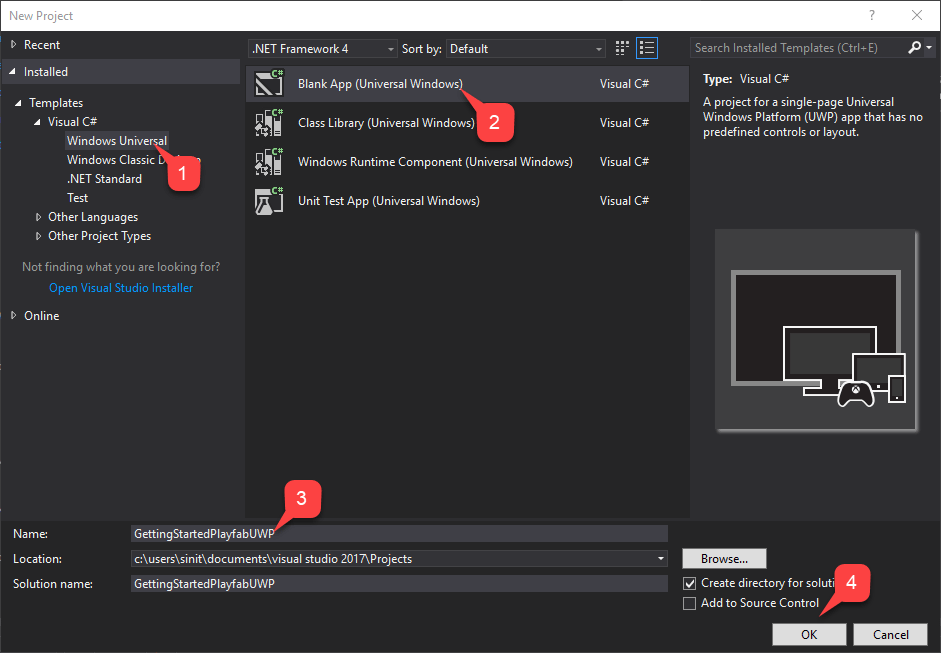
1. Seleccione la **Target Version** y la **Minimum Version** que coincidan con su **proyecto**.
2. Seleccione el botón **OK**.
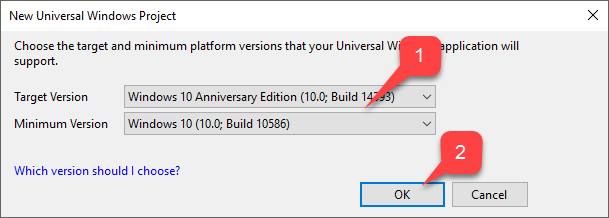
Una vez creado el **proyecto**, agregue el **PlayFab SDK** mediante el **NuGet Package Manager**.
1. En primer lugar, seleccione la pestaña **Tools**.
2. En el menú desplegable, seleccione **NuGet Package Manager**.
3. A continuación, seleccione **Manage NuGet Packages for Solution**.
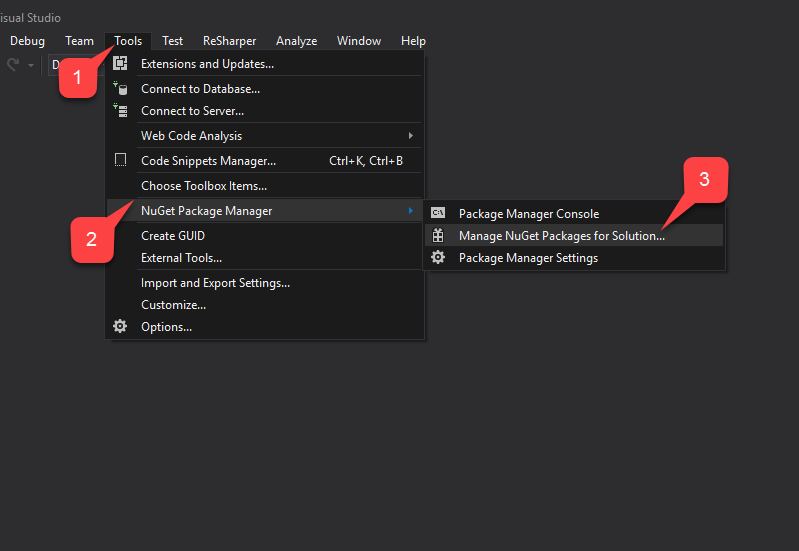
En la ventana del **administrador de NuGet**:
1. Seleccione **Browse** y busque el paquete **PlayFabAllSDK**.
2. Seleccione el **proyecto** de destino.
3. A continuación, seleccione el botón **Install**.
Una vez finalizado, la configuración básica del proyecto está completa. En la siguiente sección modificaremos dos clases que deberían generarse automáticamente al crear el proyecto:
1. **App**
2. **MainPage**
## Implementación
### App.xaml.cs
Esta clase simplemente configura nuestro PlayFab SDK estableciendo un identificador de título adecuado. No olvide reemplazar el identificador de título por el suyo.
```csharp theme={null}
using System;
using Windows.ApplicationModel;
using Windows.ApplicationModel.Activation;
using Windows.UI.Xaml;
using Windows.UI.Xaml.Controls;
using Windows.UI.Xaml.Navigation;
namespace GettingStartedPlayfabUWP
{
// This class is generated upon project creation.
// While template on it's own contains a lot of xml comments, we are only interested in lines 17 and 27
sealed partial class App : Application
{
// Replace PLAYFAB_TITLE_ID with your own
public const string PlayfabTitleId = "PLAYFAB_TITLE_ID";
///
/// Initializes the singleton application object. This is the first line of authored code
/// executed, and as such is the logical equivalent of main() or WinMain().
///
public App()
{
// This is the only line of functional code we need to add to this class.
PlayFab.PlayFabSettings.TitleId = PlayfabTitleId;
this.InitializeComponent();
this.Suspending += OnSuspending;
}
///
/// Invoked when the application is launched normally by the end user. Other entry points
/// will be used such as when the application is launched to open a specific file.
///
/// Details about the launch request and process.
protected override void OnLaunched(LaunchActivatedEventArgs e)
{
Frame rootFrame = Window.Current.Content as Frame;
// Do not repeat app initialization when the Window already has content,
// just ensure that the window is active
if (rootFrame == null)
{
// Create a Frame to act as the navigation context and navigate to the first page
rootFrame = new Frame();
rootFrame.NavigationFailed += OnNavigationFailed;
if (e.PreviousExecutionState == ApplicationExecutionState.Terminated)
{
//TODO: Load state from previously suspended application
}
// Place the frame in the current Window
Window.Current.Content = rootFrame;
}
if (e.PrelaunchActivated == false)
{
if (rootFrame.Content == null)
{
// When the navigation stack isn't restored navigate to the first page,
// configuring the new page by passing required information as a navigation
// parameter
rootFrame.Navigate(typeof(MainPage), e.Arguments);
}
// Ensure the current window is active
Window.Current.Activate();
}
}
///
/// Invoked when Navigation to a certain page fails
///
/// The Frame which failed navigation
/// Details about the navigation failure
void OnNavigationFailed(object sender, NavigationFailedEventArgs e)
{
throw new Exception("Failed to load Page " + e.SourcePageType.FullName);
}
///
/// Invoked when application execution is being suspended. Application state is saved
/// without knowing whether the application will be terminated or resumed with the contents
/// of memory still intact.
///
/// The source of the suspend request.
/// Details about the suspend request.
private void OnSuspending(object sender, SuspendingEventArgs e)
{
var deferral = e.SuspendingOperation.GetDeferral();
//TODO: Save application state and stop any background activity
deferral.Complete();
}
}
}
```
### MainPage.xaml
Este archivo contiene el diseño de nuestra página principal. Es un diseño *muy sencillo* con dos botones y una entrada de texto combinados en una cuadrícula orientada verticalmente.
Los botones están enlazados a métodos específicos, y el cuadro de texto es accesible mediante su nombre `UsernameInput`.
```xaml theme={null}
```
### MainPage.xaml.cs
Esta es la clase funcional de la página principal y es el corazón del ejemplo. Consulte los comentarios del código y revise los distintos métodos diseñados para guiarle por el registro y el inicio de sesión con PlayFab+Hello.
El enfoque más sencillo para empezar a estudiar el código es revisar los métodos que desencadenan los botones correspondientes:
* **RegisterRequest**
* **LogInRequest**.
```csharp theme={null}
using System;
using System.Linq;
using System.Threading.Tasks;
using Windows.Foundation;
using Windows.Networking.Connectivity;
using Windows.Security.Credentials;
using Windows.Security.Cryptography;
using Windows.Security.Cryptography.Core;
using Windows.Storage.Streams;
using Windows.UI.Popups;
using Windows.UI.Xaml;
using Windows.UI.Xaml.Controls;
using PlayFab;
using PlayFab.ClientModels;
namespace GettingStartedPlayfabUWP
{
public sealed partial class MainPage : Page
{
// Shortcut to get current value of UsernameInput
public string Username => UsernameInput.Text;
public MainPage()
{
this.InitializeComponent();
}
///
/// This method is invoked when you select the Register button
/// This method illustrates the flow for Registration process.
/// We operate on 2 entities:
/// - User Credentials of type KeyCredential
/// - Public Key of type String
/// We first check if user with this id already has Credentials. If so, we redirect to login procedure.
/// Then we create new User Credentials. Check CreateKeyCredential for implementation details
/// Then we get Base64 encoded Public Key using the new User Credentials. Check GetPublicKeyBase64 for implementation details
/// Then we execute RegisterWithHello api call call. Check CallPlayFabRegisterWithHello for implementation details
///
private async void RegisterRequest(object sender, RoutedEventArgs e)
{
// Check if the user already exists and if so log them in.
KeyCredentialRetrievalResult retrieveResult = await KeyCredentialManager.OpenAsync(Username);
if (retrieveResult.Status == KeyCredentialStatus.Success)
{
// Redirect to login procedure
LogInRequest(sender, e);
return;
}
// Create a new KeyCredential for the user on the device.
var credential = await CreateKeyCredential(Username);
if (credential == null) return;
var publicKey = await GetPublicKeyBase64(credential);
if (string.IsNullOrEmpty(publicKey)) return;
// Include the name of the current device for the benefit of the user.
// The server could support a Web interface that shows the user all the devices they
// have signed in from and revoke access from devices they have lost.
var registerResponse = await CallPlayFabRegisterWithHello(publicKey, Username);
await ShowMessage("Registered and signed in with Session Ticket " + registerResponse.Result.SessionTicket);
}
//
///
/// This method is invoked when you select the Log In button
/// This method shows entities flow during the sign in process.
/// We have 4 different entities:
/// - User Credentials of type KeyCredential
/// - Public Key Hint of type String
/// - Challenge of type String
/// - SignedChallenge of type String
///
/// We first acquire the User Credentials. We do it based on Username. Check GetUserCredentials method for implementation details
/// Next, we get Public Key Hint based on those credentials. Check GetPublicKeyHint for implementation details.
/// Next we request a Challenge from PlayFab. Check GetPlayFabHelloChallenge for implementation details
/// Next we sign the Challenge using User Credentials, so we obtain Signed Challenge. Check GetPlayFabHelloChallenge for implementation details
/// Finally we use Signed Challenge and Public Key Hint to log into PlayFab. Check CallPlayFabLoginWithHello for implementation details
///
private async void LogInRequest(object sender, RoutedEventArgs e)
{
// Get credentials based on current Username.
var credentials = await GetUserCredentials(Username);
if (credentials == null) return;
// Credentials will give us Public Key. We use it to construct Public Key Hint, which is first important entity for PlayFab+UWP authentication.
var publicKeyHint = GetPublicKeyHintBase64(credentials);
if (string.IsNullOrEmpty(publicKeyHint)) return;
// Get PlayFab Challenge to sign for Windows Hello.
var challenge = await GetPlayFabHelloChallenge(publicKeyHint);
if (string.IsNullOrEmpty(challenge)) return;
// Request user to sign the challenge.
var signedChallenge = await RequestUserSignChallenge(credentials, challenge);
if (string.IsNullOrEmpty(signedChallenge)) return;
// Send the signature back to the server to confirm our identity.
// The publicKeyHint tells the server which public key to use to verify the signature.
var result = await CallPlayFabLoginWithHello(publicKeyHint, signedChallenge);
if (result == null) return;
// Report the result.
await ShowMessage("Signed in with Session Ticket " + result.Result.SessionTicket);
}
public async Task GetPublicKeyBase64(KeyCredential userCredential)
{
IBuffer publicKey = userCredential.RetrievePublicKey();
if (publicKey == null)
{
await ShowMessage("Failed to get public key for credential");
return null;
}
return CryptographicBuffer.EncodeToBase64String(publicKey);
}
public string GetPublicKeyHintBase64(KeyCredential userCredential)
{
HashAlgorithmProvider hashProvider = HashAlgorithmProvider.OpenAlgorithm(HashAlgorithmNames.Sha256);
var publicKey = userCredential.RetrievePublicKey();
IBuffer publicKeyHash = hashProvider.HashData(publicKey);
return CryptographicBuffer.EncodeToBase64String(publicKeyHash);
}
public async Task GetUserCredentials(string userId)
{
// Open credential based on our Username and make sure it is successful
KeyCredentialRetrievalResult retrieveResult = await KeyCredentialManager.OpenAsync(userId);
if (retrieveResult.Status != KeyCredentialStatus.Success)
{
await ShowMessage("Error: Unable to open credentials! " + retrieveResult.Status);
return null;
}
return retrieveResult.Credential;
}
public async Task GetPlayFabHelloChallenge(string publicKeyHint)
{
// Request challenge from PlayFab and make sure response has no errors
var challengeResponse = await PlayFab.PlayFabClientAPI.GetWindowsHelloChallengeAsync(new GetWindowsHelloChallengeRequest
{
PublicKeyHint = publicKeyHint,
TitleId = PlayFab.PlayFabSettings.TitleId
});
if (challengeResponse.Error != null)
{
await ShowMessage($"Error during getting challenge: {challengeResponse.Error.Error}");
return null;
}
return challengeResponse.Result.Challenge;
}
public async Task RequestUserSignChallenge(KeyCredential credentials, string challenge)
{
IBuffer challengeBuffer = CryptographicBuffer.DecodeFromBase64String(challenge);
KeyCredentialOperationResult opResult = await credentials.RequestSignAsync(challengeBuffer);
if (opResult.Status != KeyCredentialStatus.Success)
{
await ShowMessage("Failed sign the challenge string: " + opResult.Status);
return null;
}
return CryptographicBuffer.EncodeToBase64String(opResult.Result);
}
public async Task> CallPlayFabLoginWithHello(string publicKeyHint, string signedChallenge)
{
var loginResponse = await PlayFab.PlayFabClientAPI.LoginWithWindowsHelloAsync(new LoginWithWindowsHelloRequest
{
ChallengeSignature = signedChallenge,
PublicKeyHint = publicKeyHint
});
if (loginResponse.Error != null)
{
await ShowMessage($"Failed to log in: {loginResponse.Error.Error}");
return null;
}
return loginResponse;
}
public IAsyncOperation ShowMessage(string messageString)
{
MessageDialog message = new MessageDialog($"{messageString}");
return message.ShowAsync();
}
public async Task> CallPlayFabRegisterWithHello(string publicKey, string username)
{
var hostNames = NetworkInformation.GetHostNames();
var localName = hostNames.FirstOrDefault(name => name.DisplayName.Contains(".local"));
string computerName = localName.DisplayName.Replace(".local", "");
var registerResult = await PlayFab.PlayFabClientAPI.RegisterWithWindowsHelloAsync(new RegisterWithWindowsHelloRequest
{
DeviceName = computerName,
PublicKey = publicKey,
UserName = username
});
if (registerResult.Error != null)
{
await ShowMessage(registerResult.Error.GenerateErrorReport());
return null;
}
return registerResult;
}
public async Task CreateKeyCredential(string username)
{
KeyCredentialRetrievalResult keyCreationResult = await KeyCredentialManager.RequestCreateAsync(username, KeyCredentialCreationOption.ReplaceExisting);
if (keyCreationResult.Status != KeyCredentialStatus.Success)
{
// User has authenticated with Windows Hello and the key credential is created.
await ShowMessage("Failed to create key credential: " + keyCreationResult.Status);
return null;
}
return keyCreationResult.Credential;
}
}
}
```
## Pruebas
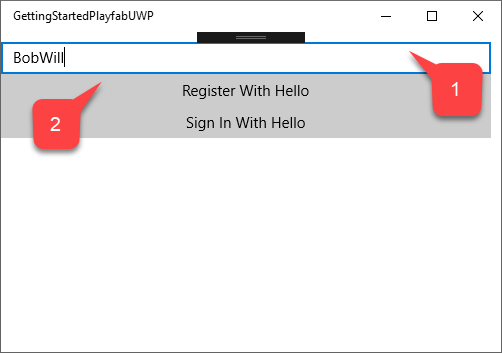
Para ejecutar la aplicación:
1. Escriba su nombre de usuario.
2. Seleccione el botón **Register With Hello**.
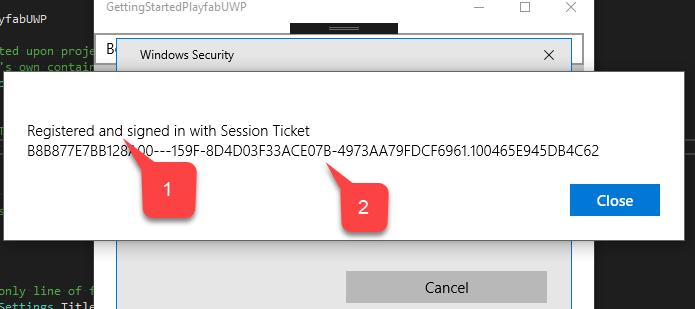
Siga las instrucciones que ofrece **Windows** para la autenticación.
1. Una vez confirmada su identidad, verá el mensaje de confirmación que indica que la cuenta se **registró y ha iniciado sesión**.
2. Con un **Session Ticket**.
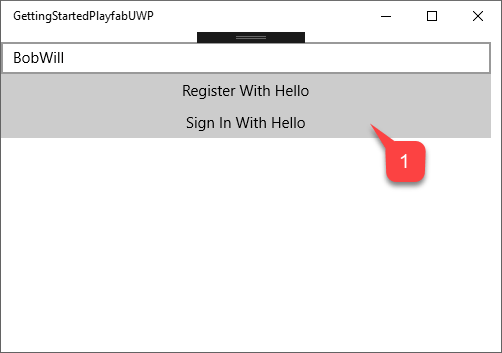
1. Seleccione el botón **Sign in With Hello**.
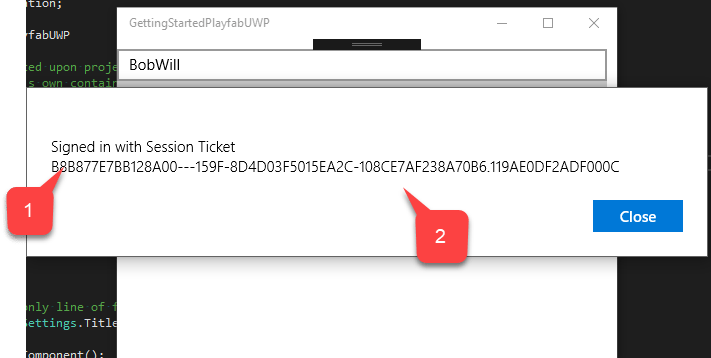
Siga las instrucciones que ofrece Windows para la autenticación.
1. Una vez confirmada su identidad, verá el mensaje de confirmación que indica que la cuenta ha **iniciado sesión**.
2. Con un **Session Ticket**.
En este punto, ha integrado correctamente PlayFab en su aplicación para UWP.
## Related topics
- [Configuración de la autenticación de PlayFab con Facebook y Unity](/es/services/playfab/identity/player-identity/platform-specific-authentication/facebook-unity.md)
- [Configuración de la autenticación de PlayFab con Steam y Unity](/es/services/playfab/identity/player-identity/platform-specific-authentication/steam-unity.md)
- [Configuración de la autenticación de PlayFab con Kongregate y Unity](/es/services/playfab/identity/player-identity/platform-specific-authentication/kongregate-unity.md)
- [Autenticación de Microsoft Entra ID para las API de PlayFab](/es/services/playfab/identity/dev-identity/authentication/entra-id-api-authentication.md)
- [Configuración de la autenticación de PlayFab con Google y HTML5](/es/services/playfab/identity/player-identity/platform-specific-authentication/google-html5.md)
 1. Seleccione la **Target Version** y la **Minimum Version** que coincidan con su **proyecto**.
2. Seleccione el botón **OK**.
1. Seleccione la **Target Version** y la **Minimum Version** que coincidan con su **proyecto**.
2. Seleccione el botón **OK**.
 Una vez creado el **proyecto**, agregue el **PlayFab SDK** mediante el **NuGet Package Manager**.
1. En primer lugar, seleccione la pestaña **Tools**.
2. En el menú desplegable, seleccione **NuGet Package Manager**.
3. A continuación, seleccione **Manage NuGet Packages for Solution**.
Una vez creado el **proyecto**, agregue el **PlayFab SDK** mediante el **NuGet Package Manager**.
1. En primer lugar, seleccione la pestaña **Tools**.
2. En el menú desplegable, seleccione **NuGet Package Manager**.
3. A continuación, seleccione **Manage NuGet Packages for Solution**.
 En la ventana del **administrador de NuGet**:
1. Seleccione **Browse** y busque el paquete **PlayFabAllSDK**.
2. Seleccione el **proyecto** de destino.
3. A continuación, seleccione el botón **Install**.
En la ventana del **administrador de NuGet**:
1. Seleccione **Browse** y busque el paquete **PlayFabAllSDK**.
2. Seleccione el **proyecto** de destino.
3. A continuación, seleccione el botón **Install**.
 Una vez finalizado, la configuración básica del proyecto está completa. En la siguiente sección modificaremos dos clases que deberían generarse automáticamente al crear el proyecto:
1. **App**
2. **MainPage**
## Implementación
### App.xaml.cs
Esta clase simplemente configura nuestro PlayFab SDK estableciendo un identificador de título adecuado. No olvide reemplazar el identificador de título por el suyo.
```csharp theme={null}
using System;
using Windows.ApplicationModel;
using Windows.ApplicationModel.Activation;
using Windows.UI.Xaml;
using Windows.UI.Xaml.Controls;
using Windows.UI.Xaml.Navigation;
namespace GettingStartedPlayfabUWP
{
// This class is generated upon project creation.
// While template on it's own contains a lot of xml comments, we are only interested in lines 17 and 27
sealed partial class App : Application
{
// Replace PLAYFAB_TITLE_ID with your own
public const string PlayfabTitleId = "PLAYFAB_TITLE_ID";
///
Una vez finalizado, la configuración básica del proyecto está completa. En la siguiente sección modificaremos dos clases que deberían generarse automáticamente al crear el proyecto:
1. **App**
2. **MainPage**
## Implementación
### App.xaml.cs
Esta clase simplemente configura nuestro PlayFab SDK estableciendo un identificador de título adecuado. No olvide reemplazar el identificador de título por el suyo.
```csharp theme={null}
using System;
using Windows.ApplicationModel;
using Windows.ApplicationModel.Activation;
using Windows.UI.Xaml;
using Windows.UI.Xaml.Controls;
using Windows.UI.Xaml.Navigation;
namespace GettingStartedPlayfabUWP
{
// This class is generated upon project creation.
// While template on it's own contains a lot of xml comments, we are only interested in lines 17 and 27
sealed partial class App : Application
{
// Replace PLAYFAB_TITLE_ID with your own
public const string PlayfabTitleId = "PLAYFAB_TITLE_ID";
///  Siga las instrucciones que ofrece **Windows** para la autenticación.
1. Una vez confirmada su identidad, verá el mensaje de confirmación que indica que la cuenta se **registró y ha iniciado sesión**.
2. Con un **Session Ticket**.
Siga las instrucciones que ofrece **Windows** para la autenticación.
1. Una vez confirmada su identidad, verá el mensaje de confirmación que indica que la cuenta se **registró y ha iniciado sesión**.
2. Con un **Session Ticket**.
 1. Seleccione el botón **Sign in With Hello**.
 Siga las instrucciones que ofrece Windows para la autenticación.
1. Una vez confirmada su identidad, verá el mensaje de confirmación que indica que la cuenta ha **iniciado sesión**.
2. Con un **Session Ticket**.
Siga las instrucciones que ofrece Windows para la autenticación.
1. Una vez confirmada su identidad, verá el mensaje de confirmación que indica que la cuenta ha **iniciado sesión**.
2. Con un **Session Ticket**.
 En este punto, ha integrado correctamente PlayFab en su aplicación para UWP.
## Related topics
- [Configuración de la autenticación de PlayFab con Facebook y Unity](/es/services/playfab/identity/player-identity/platform-specific-authentication/facebook-unity.md)
- [Configuración de la autenticación de PlayFab con Steam y Unity](/es/services/playfab/identity/player-identity/platform-specific-authentication/steam-unity.md)
- [Configuración de la autenticación de PlayFab con Kongregate y Unity](/es/services/playfab/identity/player-identity/platform-specific-authentication/kongregate-unity.md)
- [Autenticación de Microsoft Entra ID para las API de PlayFab](/es/services/playfab/identity/dev-identity/authentication/entra-id-api-authentication.md)
- [Configuración de la autenticación de PlayFab con Google y HTML5](/es/services/playfab/identity/player-identity/platform-specific-authentication/google-html5.md)
En este punto, ha integrado correctamente PlayFab en su aplicación para UWP.
## Related topics
- [Configuración de la autenticación de PlayFab con Facebook y Unity](/es/services/playfab/identity/player-identity/platform-specific-authentication/facebook-unity.md)
- [Configuración de la autenticación de PlayFab con Steam y Unity](/es/services/playfab/identity/player-identity/platform-specific-authentication/steam-unity.md)
- [Configuración de la autenticación de PlayFab con Kongregate y Unity](/es/services/playfab/identity/player-identity/platform-specific-authentication/kongregate-unity.md)
- [Autenticación de Microsoft Entra ID para las API de PlayFab](/es/services/playfab/identity/dev-identity/authentication/entra-id-api-authentication.md)
- [Configuración de la autenticación de PlayFab con Google y HTML5](/es/services/playfab/identity/player-identity/platform-specific-authentication/google-html5.md)