> ## Documentation Index
> Fetch the complete documentation index at: https://devdocs.xbox.com/llms.txt
> Use this file to discover all available pages before exploring further.

# Configuración de la autenticación de PlayFab con Kongregate y HTML5

> Tutorial paso a paso para agregar la autenticación de Kongregate a un título de PlayFab con HTML5 y JavaScript, que abarca la carga de la aplicación en Kongregate y el inicio de sesión de los jugadores.

Este tutorial le muestra la configuración mínima necesaria para autenticar a sus jugadores en PlayFab mediante Kongregate y HTML5/JavaScript.

## Requisitos

* Una cuenta de [Kongregate](https://www.kongregate.com/) registrada.
* Familiaridad con la [guía para desarrolladores de Kongregate](https://www.kongregate.com/developer_center/docs/en/kongregate-api).
* Un título de PlayFab registrado.
* Familiaridad con [Conceptos básicos de inicio de sesión y procedimientos recomendados](/services/playfab/identity/player-identity/login/login-basics-best-practices).

## Configuración de una aplicación de Kongregate

Kongregate requiere que cargue una versión preliminar de la aplicación antes de obtener acceso a la información necesaria de la API.

Para ello, debemos preparar un archivo `index.html` con el contenido siguiente.

```html theme={null}
<!doctype html>
<html lang="en-us">
<head></head>
<body>
 <h1>Placeholder</h1>
</body>
</html>
```

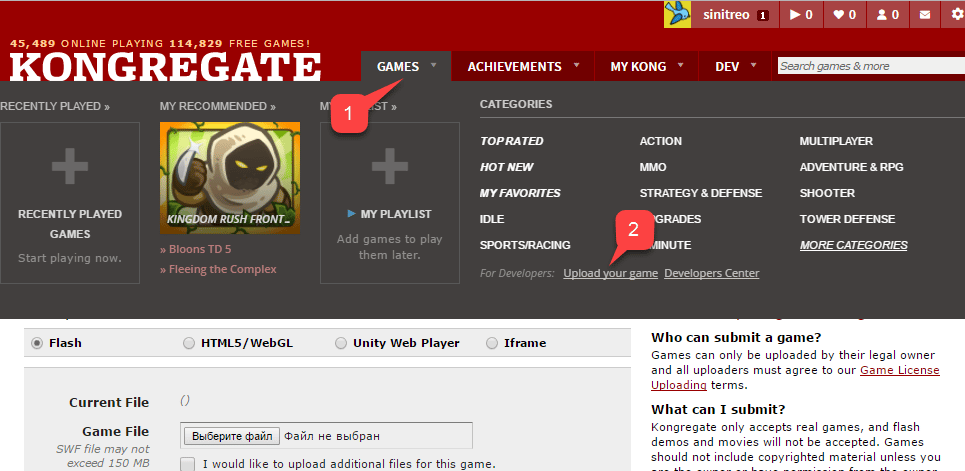
Vaya al [sitio web de Kongregate](https://www.kongregate.com/):

1. Seleccione la pestaña **Games**.
2. Seleccione el botón **Upload your game**.

<img src="https://mintcdn.com/microsoft-4404708b/mLCHf0iQv3VidfBe/images/playfab/identity/player-identity/platform-specific-authentication/tutorials/kongregate-games-tab.png?fit=max&auto=format&n=mLCHf0iQv3VidfBe&q=85&s=3af3bc93c645a3f8948701caf1f08d03" alt="Pestaña Games de Kongregate" width="965" height="471" data-path="images/playfab/identity/player-identity/platform-specific-authentication/tutorials/kongregate-games-tab.png" />

Se abre una página para configurar una nueva aplicación.

1. Escriba el **nombre de la aplicación** en el campo **Title**.
2. A continuación, escriba una **descripción del juego** en el campo correspondiente.
3. Seleccione una **categoría**.
4. Envíe la nueva aplicación seleccionando el botón **Continue**, como se indica en el ejemplo siguiente.
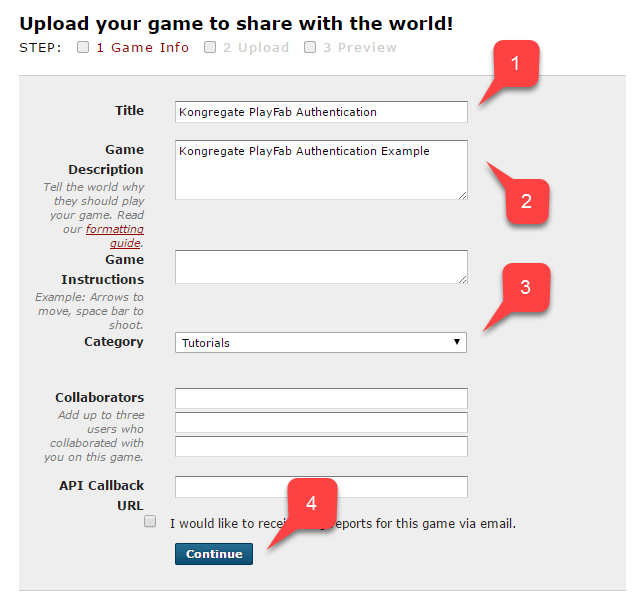
<img src="https://mintcdn.com/microsoft-4404708b/mLCHf0iQv3VidfBe/images/playfab/identity/player-identity/platform-specific-authentication/tutorials/kongregate-upload-your-game.png?fit=max&auto=format&n=mLCHf0iQv3VidfBe&q=85&s=0e66a21c81da6861bd59d2dddb82c22f" alt="Cargar su juego en Kongregate" width="636" height="603" data-path="images/playfab/identity/player-identity/platform-specific-authentication/tutorials/kongregate-upload-your-game.png" />

Pasará a la página de **carga de la aplicación**.

Como primer paso importante, asegúrese de guardar la **URL** de la **barra de direcciones web**. Esto le ahorrará mucho tiempo al intentar restaurar el acceso a la aplicación una vez que cierre la página.

1. Una vez hecho esto, seleccione el archivo **index.html** preparado como su **Game File**.
2. A continuación, configure el tamaño de la pantalla.
3. Asegúrese de aceptar todas las licencias necesarias.
4. Cargue la aplicación seleccionando el botón **Upload**, como se muestra en el ejemplo siguiente.
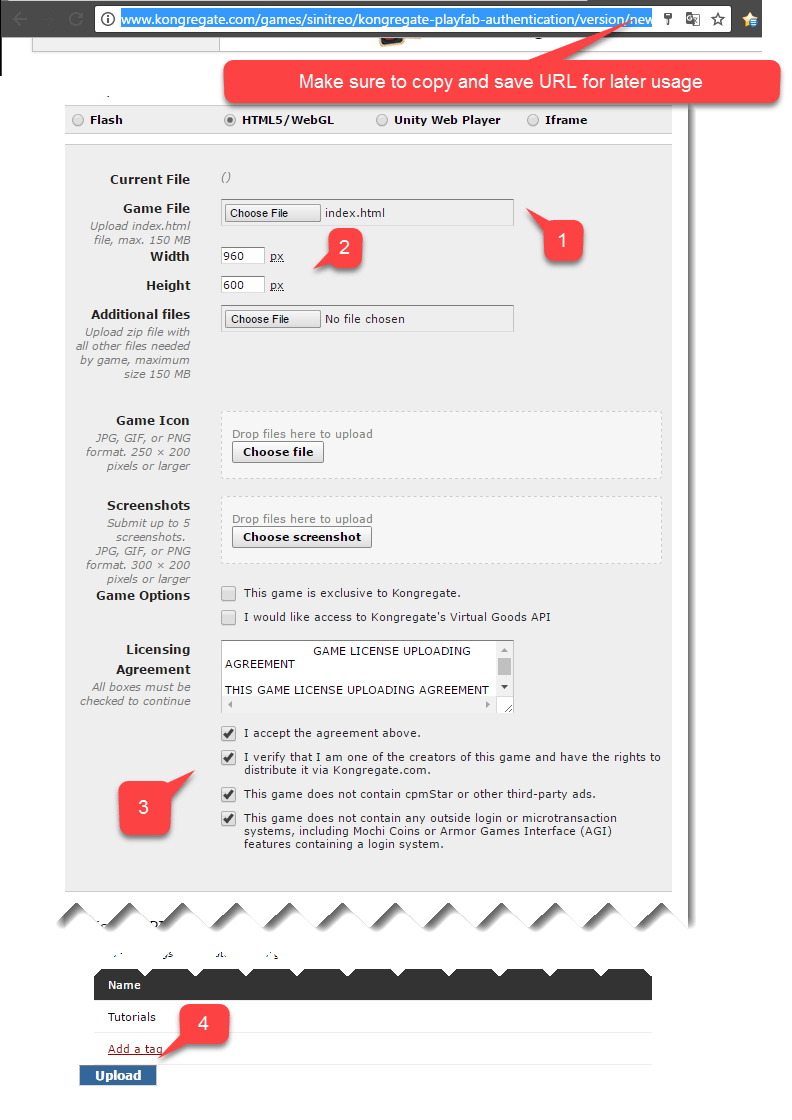
<img src="https://mintcdn.com/microsoft-4404708b/mLCHf0iQv3VidfBe/images/playfab/identity/player-identity/platform-specific-authentication/tutorials/kongregate-app-upload-page.png?fit=max&auto=format&n=mLCHf0iQv3VidfBe&q=85&s=893af9198a1deef8b7cdb6bcd4534cc9" alt="Página de carga de la aplicación de Kongregate" width="792" height="1120" data-path="images/playfab/identity/player-identity/platform-specific-authentication/tutorials/kongregate-app-upload-page.png" />

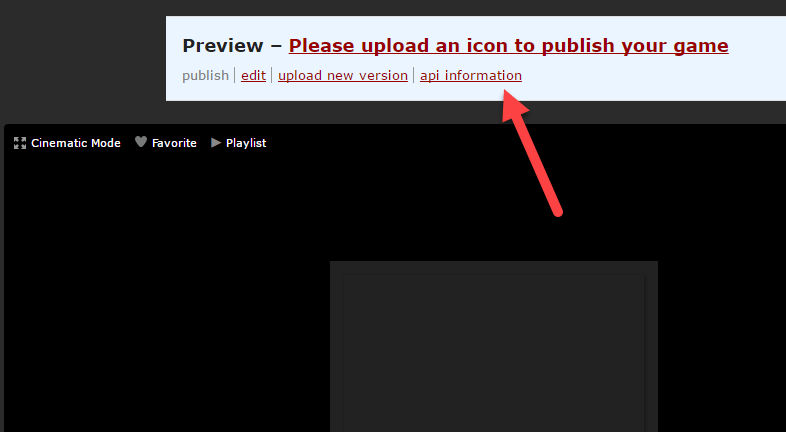
* Cuando se abra la vista previa, ignore el contenido y abra el vínculo **api information**.
<img src="https://mintcdn.com/microsoft-4404708b/mLCHf0iQv3VidfBe/images/playfab/identity/player-identity/platform-specific-authentication/tutorials/kongregate-preview-api-info.png?fit=max&auto=format&n=mLCHf0iQv3VidfBe&q=85&s=b136fa2e3dd827e4b6344921b500a8be" alt="Información de la API en la vista previa de Kongregate" width="786" height="432" data-path="images/playfab/identity/player-identity/platform-specific-authentication/tutorials/kongregate-preview-api-info.png" />

<Note>
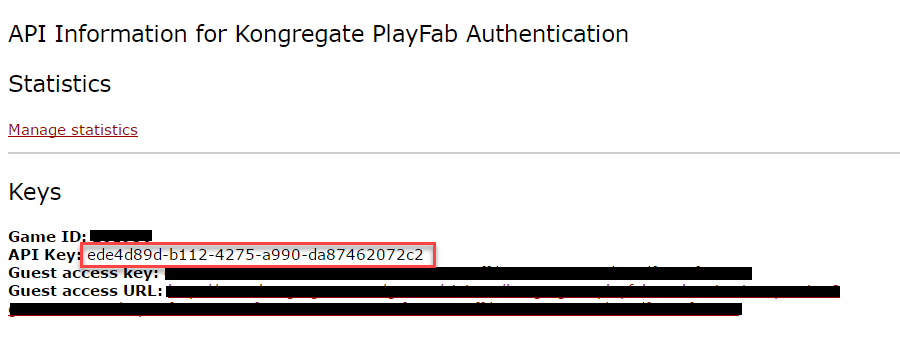
  Cuando se abra la página **API Information**, busque la **clave de API** y guárdela en un lugar seguro y de fácil acceso para usarla más adelante.
</Note>

<img src="https://mintcdn.com/microsoft-4404708b/mLCHf0iQv3VidfBe/images/playfab/identity/player-identity/platform-specific-authentication/tutorials/kongregate-api-key.png?fit=max&auto=format&n=mLCHf0iQv3VidfBe&q=85&s=a99770329d85ce86613cd0a32cdf28a4" alt="Clave de API de Kongregate" width="900" height="344" data-path="images/playfab/identity/player-identity/platform-specific-authentication/tutorials/kongregate-api-key.png" />

## Configuración del título de PlayFab

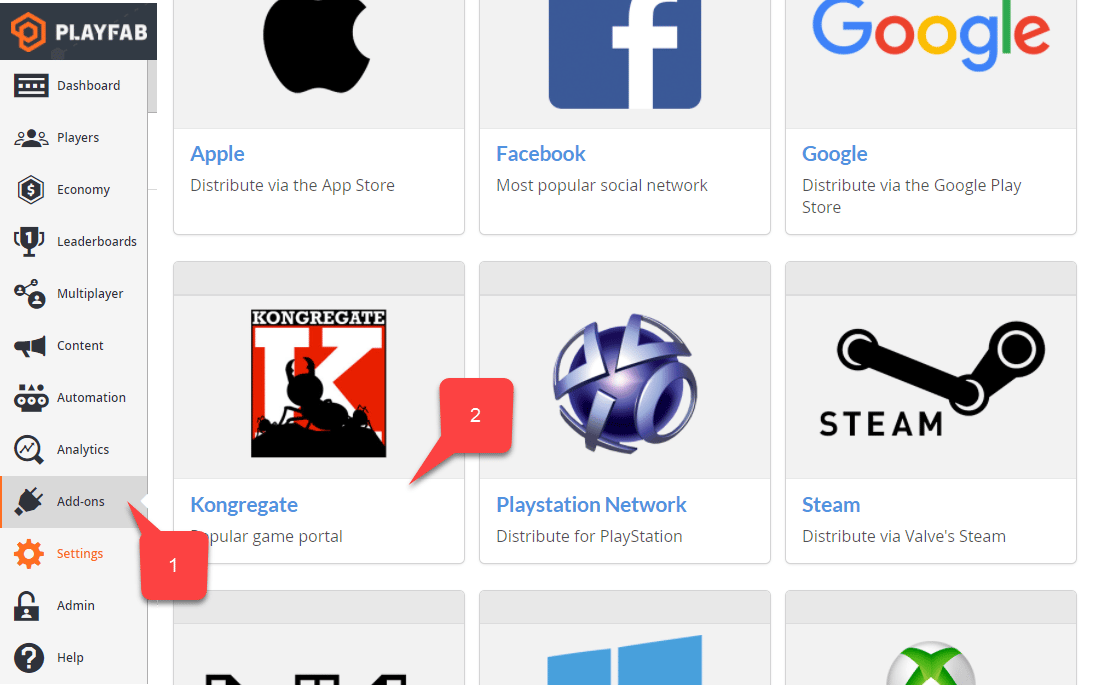
En Game Manager de su título de PlayFab:

1. Vaya a **Add-ons**.
2. Busque y seleccione **Kongregate**.
<img src="https://mintcdn.com/microsoft-4404708b/mLCHf0iQv3VidfBe/images/playfab/identity/player-identity/platform-specific-authentication/tutorials/playfab-select-kongregate-add-on.png?fit=max&auto=format&n=mLCHf0iQv3VidfBe&q=85&s=e25c251fc51474717d5b5a693ad1bf0c" alt="Seleccionar el complemento de Kongregate en PlayFab" width="1100" height="685" data-path="images/playfab/identity/player-identity/platform-specific-authentication/tutorials/playfab-select-kongregate-add-on.png" />

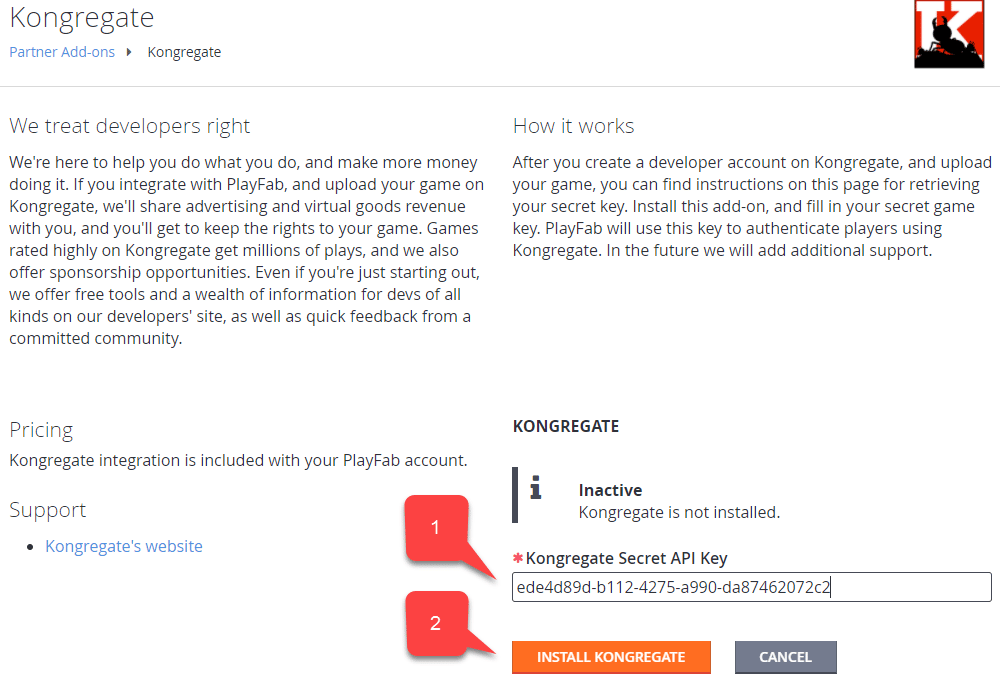
Se abre una nueva página que le permite configurar la integración con **Kongregate**.

1. Escriba la **clave de API** que adquirió en la sección anterior.
2. Seleccione **Install Kongregate**.
<img src="https://mintcdn.com/microsoft-4404708b/mLCHf0iQv3VidfBe/images/playfab/identity/player-identity/platform-specific-authentication/tutorials/playfab-set-up-kongregate-integration.png?fit=max&auto=format&n=mLCHf0iQv3VidfBe&q=85&s=fa6dd5111bfe1bb60c6cf118622272c1" alt="Configurar la integración de Kongregate en PlayFab" width="1000" height="693" data-path="images/playfab/identity/player-identity/platform-specific-authentication/tutorials/playfab-set-up-kongregate-integration.png" />

Si no recibe ningún mensaje de error, significa que ha configurado la integración del título de PlayFab con su aplicación de Kongregate.

## Preparación del código

Use el código de ejemplo que se muestra a continuación para rellenar el archivo `index.html` de su juego.

```html theme={null}
<!DOCTYPE html PUBLIC "-//W3C//DTD XHTML 1.0 Transitional//EN"
  "http://www.w3.org/TR/xhtml1/DTD/xhtml1-transitional.dtd">
<html xmlns='http://www.w3.org/1999/xhtml'>
<head>
  <title>Kongregate Javascript API example</title>
  <!-- Import PlayFab API -->
  <script src='https://download.playfab.com/PlayFabClientApi.js'></script>
  <!-- Import JQuery, required specifically by this example, does not effect either API -->
  <script src='https://ajax.googleapis.com/ajax/libs/jquery/2.2.0/jquery.min.js'></script>
  <!-- Import Kongregate API -->
  <script src='https://cdn1.kongregate.com/javascripts/kongregate_api.js'></script>
</head>

<!-- Define elements with IDs to show current state of things and a couple of buttons -->
<body style='background-color:white'>
  <span id='init'>Initializing...</span>
  <div id='content' style='display:none'>
    <div>Kongregate API Loaded!</div>
    <div id='username'></div>
    <div id='user_id'></div>
    <!-- This button will invoke Kongregate Auth Box -->
    <button id='login' style='display:none'
      onclick='kongregate.services.showRegistrationBox()'>Sign in/register</button>
    <!-- This button will invoke PlayFab authentication process -->
    <button id='login'
       onclick='loginInUsingPlayFab()'>PlayFab Login With Kongregate</button>
  </div>

  <script type='text/javascript'>

    // This function just updates UI, nothing else
    function updateFields() {
      $('#init').hide();
      $('#content').show();

      // Visualize Kongregate Auth Data
      $('#username').text('Username: ' + kongregate.services.getUsername());
      $('#user_id').text('User ID: ' + kongregate.services.getUserId());

      // If not authenticated in Kongregate, allow to use Login button
      if(kongregate.services.isGuest()) {
        $('#login').show();
      } else {
        $('#login').hide();
      }
    }

    // The function prepares and triggers PlayFab LoginWithKongregate API call
    function loginInUsingPlayFab() {
      // Setting up PlayFab title ID
      PlayFab.settings.titleId = "159F";

      // forming request
      var request = {
        TitleId: PlayFab.settings.titleId,
        AuthTicket: kongregate.services.getGameAuthToken(),
        KongregateId : kongregate.services.getUserId(),
        CreateAccount: true
      };

      console.log('logging in');
      // Invoke LoginWithKongregate API call and visualize both results (success or failure)
      PlayFabClientSDK.LoginWithKongregate(request,
      function(result){
        $('<div></div>').html('Authenticated via playfab').appendTo('#content')
        console.log("success");
      },
      function(err){
        $('<div></div>').html('Problem occurred: ' + PlayFab.GenerateErrorReport(err)).appendTo('#content')
        console.log("failure");
      });
    }

    // The entry point for Kongregate initialization
    kongregateAPI.loadAPI(function(){
      window.kongregate = kongregateAPI.getAPI();
      updateFields();
      kongregate.services.addEventListener('login', function(){
        updateFields();
      });
    });
  </script>
</body>
</html>
```

## Pruebas

¿Recuerda la URL que le pedimos que guardara en un lugar seguro y accesible un poco antes? Úsela ahora para acceder a su página de **carga de la aplicación**.

1. Seleccione **index.html** como su **Game File**.
2. Configure el tamaño de la pantalla.
3. Asegúrese de aceptar todas las licencias necesarias.
4. Cargue la aplicación seleccionando el botón **Upload**.

<img src="https://mintcdn.com/microsoft-4404708b/mLCHf0iQv3VidfBe/images/playfab/identity/player-identity/platform-specific-authentication/tutorials/kongregate-app-upload-page.png?fit=max&auto=format&n=mLCHf0iQv3VidfBe&q=85&s=893af9198a1deef8b7cdb6bcd4534cc9" alt="Página de carga de la aplicación de Kongregate" width="792" height="1120" data-path="images/playfab/identity/player-identity/platform-specific-authentication/tutorials/kongregate-app-upload-page.png" />

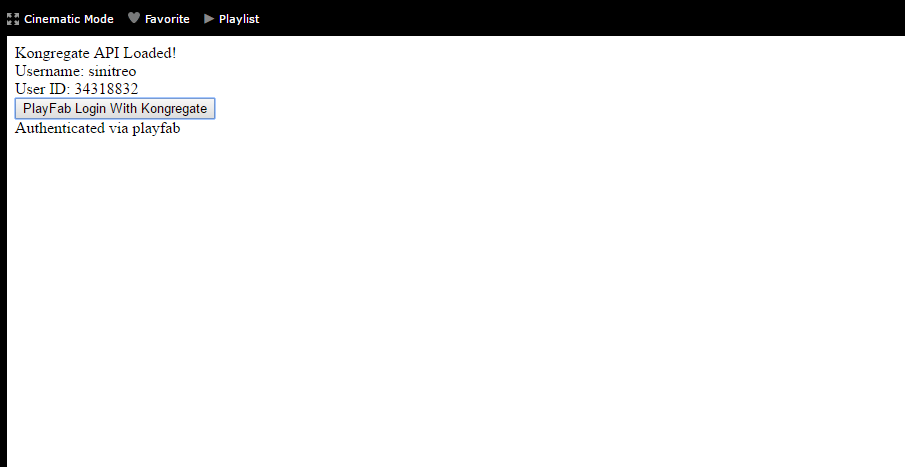
Cuando se cargue la vista previa, espere a que la aplicación obtenga el **identificador de usuario de Kongregate** y el **nombre de usuario**.

* Cuando esto suceda, seleccione el botón **PlayFab Login With Kongregate**.
* Tras una breve pausa, debería recibir el mensaje **Authenticated via PlayFab**.
* En este punto, ha iniciado sesión correctamente con PlayFab y Kongregate.
<img src="https://mintcdn.com/microsoft-4404708b/mLCHf0iQv3VidfBe/images/playfab/identity/player-identity/platform-specific-authentication/tutorials/kongregate-html5/testing-playfab-login-with-kongregate.png?fit=max&auto=format&n=mLCHf0iQv3VidfBe&q=85&s=f0588d425c650246a5a9f8a041b3a078" alt="Prueba del inicio de sesión de PlayFab con Kongregate" width="905" height="467" data-path="images/playfab/identity/player-identity/platform-specific-authentication/tutorials/kongregate-html5/testing-playfab-login-with-kongregate.png" />


## Related topics

- [Autenticación específica de la plataforma](/es/services/playfab/identity/player-identity/platform-specific-authentication/index.md)
- [Configuración de la autenticación de PlayFab con Google y HTML5](/es/services/playfab/identity/player-identity/platform-specific-authentication/google-html5.md)
- [Configuración de la autenticación de PlayFab con Twitch y HTML5](/es/services/playfab/identity/player-identity/platform-specific-authentication/twitch-html5.md)
- [Configuración de la autenticación de PlayFab mediante Facebook y HTML5](/es/services/playfab/identity/player-identity/platform-specific-authentication/facebook-html5.md)
- [Configuración del inicio de sesión con Battle.net para PlayFab](/es/services/playfab/identity/player-identity/platform-specific-authentication/battlenet-login.md)