> ## Documentation Index
> Fetch the complete documentation index at: https://devdocs.xbox.com/llms.txt
> Use this file to discover all available pages before exploring further.
# Migración del inicio de sesión de Google al de Google Play Games en Unity
> Pasos detallados de migración para cambiar a los jugadores de Unity del inicio de sesión con cuenta de Google a LoginWithGooglePlayGamesServices, incluidas la vinculación y la comprobación.
# Procedimiento de migración a la API LoginWithGooglePlayGamesServices
La migración consiste en cambiar a LoginWithGooglePlayGamesServices, ya que Google anima a los desarrolladores a migrar a esta forma de autenticación. Después de migrar a los jugadores, no habrá ninguna dependencia de la API LoginWithGoogleAccount y los desarrolladores deberían poder actualizar a la versión más reciente del complemento.
Para obtener más información, consulte la [documentación oficial de Google](https://developers.google.com/games/services/android/signin#migrate_to_play_games_services_sign_in_v2).
## Pasos generales
1. Elija la versión correcta de "Play Games Plugin for Unity".
2. Inicialice Play Games Platform y autentique al usuario.
3. Inicie sesión en PlayFab mediante LoginWithGoogleAccount.
4. Vincule su perfil de Google Play Games con la cuenta de jugador de PlayFab.
5. Compruebe que el usuario puede iniciar sesión mediante la API LoginWithGooglePlayGamesServices.
6. (Opcional) Desvincule su perfil de cuenta de Google de la cuenta de jugador de PlayFab.
## Pasos de migración
### Elija la versión correcta de "Play Games Plugin for Unity"
Las versiones más recientes del complemento no funcionan para la migración, ya que Google ya no permite solicitar ámbitos adicionales, por lo que la API LoginWithGoogleAccount de PlayFab ya no funciona.
Estos pasos de migración se probaron y documentaron con la versión 0.10.14 de "Play Games Plugin for Unity", que se puede encontrar aquí: [playgameservices/play-games-plugin-for-unity en v10.14 (github.com)](https://github.com/playgameservices/play-games-plugin-for-unity/tree/v10.14)
Para conocer los pasos de instalación y configuración del complemento, consulte el [README](https://github.com/playgameservices/play-games-plugin-for-unity/blob/v10.14/README.md) del complemento.
### Inicialice Play Games Platform y autentique al jugador
Consulte la [sección Configuration & Initialization Play Games Services del README](https://github.com/playgameservices/play-games-plugin-for-unity/blob/v10.14/README.md#configuration--initialization-play-game-services) y solicite el ámbito "profile" como parte de PlayGamesClientConfiguration.
```csharp theme={null}
PlayGamesClientConfiguration config = new PlayGamesClientConfiguration.Builder()
.AddOauthScope("profile")
.RequestServerAuthCode(false)
.Build();
PlayGamesPlatform.InitializeInstance(config);
// recommended for debugging:
PlayGamesPlatform.DebugLogEnabled = true;
// Activate the Google Play Games platform
PlayGamesPlatform.Activate();
// authenticate user:
PlayGamesPlatform.Instance.Authenticate(SignInInteractivity.CanPromptOnce, (SignInStatus result) => {
if (result == SignInStatus.Success)
{
Debug.Log("Authentication Succeeded.");
}
else
{
Debug.Log("Authentication Failed. SignInStatus: " + result);
}
});
```
### Inicie sesión en PlayFab mediante LoginWithGoogleAccount
Inicie sesión en la cuenta del jugador existente mediante la API de autenticación [LoginWithGoogleAccount](https://learn.microsoft.com/en-us/rest/api/playfab/client/authentication/login-with-google-account?view=playfab-rest). Para iniciar sesión correctamente, debe proporcionar un token de autenticación de servidor, que se puede solicitar mediante el método GetServerAuthCode.
```csharp theme={null}
public void PlayFabLoginWithGoogleAccount()
{
var serverAuthCode = PlayGamesPlatform.Instance.GetServerAuthCode();
var request = new LoginWithGoogleAccountRequest
{
ServerAuthCode = serverAuthCode,
TitleId = PlayFabSettings.TitleId
};
PlayFabClientAPI.LoginWithGoogleAccount(request, OnLoginWithGoogleAccountSuccess, OnLoginWithGoogleAccountFailure);
}
private void OnLoginWithGoogleAccountSuccess(LoginResult result)
{
Debug.Log("PlayFab LoginWithGoogleAccount Success.");
}
private void OnLoginWithGoogleAccountFailure(PlayFabError error)
{
Debug.Log("PlayFab LoginWithGoogleAccount Failure: " + error.GenerateErrorReport());
}
```
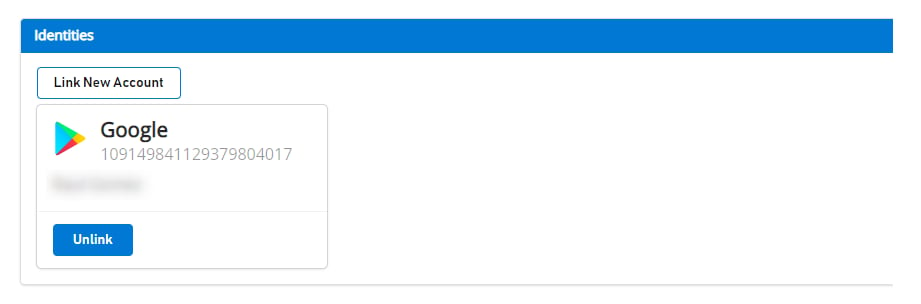
Antes de realizar cualquier migración, un usuario vinculado a la cuenta de Google aparece así en [Game Manager](https://developer.playfab.com):
 ### Vincule el perfil de Google Play Games del jugador con la cuenta de jugador de PlayFab
En este paso, se vincula la cuenta de Google Play Games del jugador con la cuenta de PlayFab del jugador existente que anteriormente estaba vinculada solo a la cuenta de Google.
```csharp theme={null}
public void LinkGooglePlayGamesAccount()
{
PlayGamesPlatform.Instance.GetAnotherServerAuthCode(true, (serverAuthCode) => {
var linkRequest = new LinkGooglePlayGamesServicesAccountRequest
{
ServerAuthCode = serverAuthCode
};
PlayFabClientAPI.LinkGooglePlayGamesServicesAccount(linkRequest, OnLinkGooglePlayGamesServicesAccountSuccess, OnLinkGooglePlayGamesServicesAccountFailure);
});
}
private void OnLinkGooglePlayGamesServicesAccountSuccess(LinkGooglePlayGamesServicesAccountResult result)
{
Debug.Log("PlayFab LinkGooglePlayGamesServicesAccount Success");
}
private void OnLinkGooglePlayGamesServicesAccountFailure(PlayFabError error)
{
Debug.Log("PlayFab LinkGooglePlayGamesServicesAccount Failure: " + error.GenerateErrorReport());
}
```
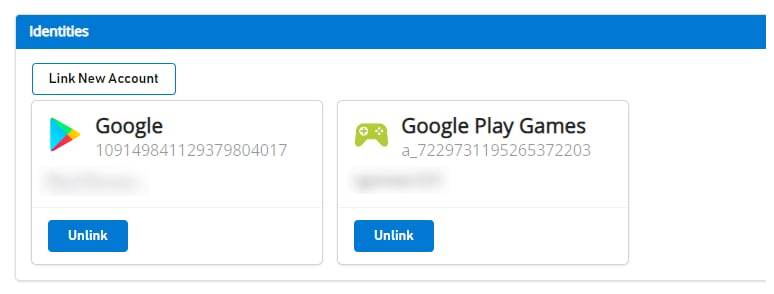
Después de este paso, el jugador debería tener ambos perfiles de cuenta asociados en PlayFab y debería poder empezar a usar la API de autenticación [LoginWithGooglePlayGamesServices](https://learn.microsoft.com/en-us/rest/api/playfab/client/authentication/login-with-google-play-games-services?view=playfab-rest) de ahora en adelante.
Si va a [Game Manager](https://developer.playfab.com), verá ambas cuentas asociadas al jugador, como se muestra:
### Vincule el perfil de Google Play Games del jugador con la cuenta de jugador de PlayFab
En este paso, se vincula la cuenta de Google Play Games del jugador con la cuenta de PlayFab del jugador existente que anteriormente estaba vinculada solo a la cuenta de Google.
```csharp theme={null}
public void LinkGooglePlayGamesAccount()
{
PlayGamesPlatform.Instance.GetAnotherServerAuthCode(true, (serverAuthCode) => {
var linkRequest = new LinkGooglePlayGamesServicesAccountRequest
{
ServerAuthCode = serverAuthCode
};
PlayFabClientAPI.LinkGooglePlayGamesServicesAccount(linkRequest, OnLinkGooglePlayGamesServicesAccountSuccess, OnLinkGooglePlayGamesServicesAccountFailure);
});
}
private void OnLinkGooglePlayGamesServicesAccountSuccess(LinkGooglePlayGamesServicesAccountResult result)
{
Debug.Log("PlayFab LinkGooglePlayGamesServicesAccount Success");
}
private void OnLinkGooglePlayGamesServicesAccountFailure(PlayFabError error)
{
Debug.Log("PlayFab LinkGooglePlayGamesServicesAccount Failure: " + error.GenerateErrorReport());
}
```
Después de este paso, el jugador debería tener ambos perfiles de cuenta asociados en PlayFab y debería poder empezar a usar la API de autenticación [LoginWithGooglePlayGamesServices](https://learn.microsoft.com/en-us/rest/api/playfab/client/authentication/login-with-google-play-games-services?view=playfab-rest) de ahora en adelante.
Si va a [Game Manager](https://developer.playfab.com), verá ambas cuentas asociadas al jugador, como se muestra:
 ### Compruebe que el jugador puede iniciar sesión mediante la API LoginWithGooglePlayGamesServices
```csharp theme={null}
public void PFLoginWithGooglePlayGames()
{
PlayGamesPlatform.Instance.GetAnotherServerAuthCode(true, (serverAuthCode) => {
var request = new LoginWithGooglePlayGamesServicesRequest
{
ServerAuthCode = serverAuthCode,
CreateAccount = false,
TitleId = PlayFabSettings.TitleId
};
PlayFabClientAPI.LoginWithGooglePlayGamesServices(request, OnLoginWithGooglePlayGamesServicesSuccess, OnLoginWithGooglePlayGamesServicesFailure);
});
}
private void OnLoginWithGooglePlayGamesServicesSuccess(LoginResult result)
{
Debug.Log("PlayFab LoginWithGooglePlayGamesServices Success.");
}
private void OnLoginWithGooglePlayGamesServicesFailure(PlayFabError error)
{
Debug.Log("PlayFab LoginWithGooglePlayGamesServices Failure: " + error.GenerateErrorReport());
}
```
### (Opcional) Desvincule su perfil de cuenta de Google de la cuenta de jugador de PlayFab
Este paso es opcional. Sin embargo, si ya confirmó que el perfil de Google Play Games Services está vinculado a la cuenta del jugador y que puede iniciar sesión correctamente en PlayFab, probablemente querrá desvincular cualquier perfil anterior de cuenta de Google vinculado al perfil del jugador mediante la API [UnlinkGoogleAccount](https://learn.microsoft.com/en-us/rest/api/playfab/client/account-management/unlink-google-account?view=playfab-rest) y pasar a usar únicamente la API [LoginWithGooglePlayGamesServices](https://learn.microsoft.com/en-us/rest/api/playfab/client/authentication/login-with-google-play-games-services?view=playfab-rest).
```csharp theme={null}
public void UnlinkGoogleAccountFromPlayer()
{
PlayFabClientAPI.UnlinkGoogleAccount(new UnlinkGoogleAccountRequest(), OnUnlinkGoogleAccountSuccess, OnUnlinkGoogleAccountFailure);
}
private void OnUnlinkGoogleAccountSuccess(UnlinkGoogleAccountResult result)
{
Debug.Log("PlayFab UnlinkGoogleAccount Success.");
}
private void OnUnlinkGoogleAccountFailure(PlayFabError error)
{
Debug.Log("PlayFab UnlinkGoogleAccount Failure: " + error.GenerateErrorReport());
}
```
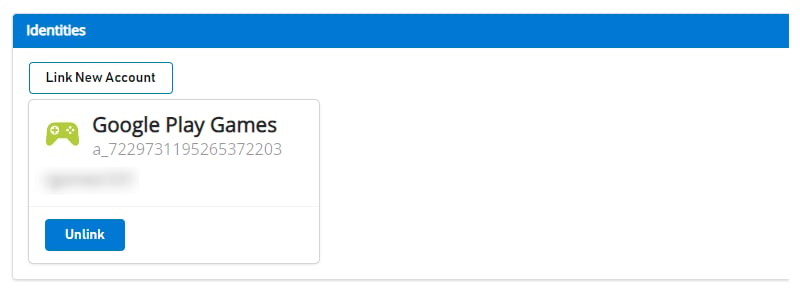
Después de la desvinculación, solo debería ver la identidad de Google Play Games en [Game Manager](https://developer.playfab.com) para el jugador:
### Compruebe que el jugador puede iniciar sesión mediante la API LoginWithGooglePlayGamesServices
```csharp theme={null}
public void PFLoginWithGooglePlayGames()
{
PlayGamesPlatform.Instance.GetAnotherServerAuthCode(true, (serverAuthCode) => {
var request = new LoginWithGooglePlayGamesServicesRequest
{
ServerAuthCode = serverAuthCode,
CreateAccount = false,
TitleId = PlayFabSettings.TitleId
};
PlayFabClientAPI.LoginWithGooglePlayGamesServices(request, OnLoginWithGooglePlayGamesServicesSuccess, OnLoginWithGooglePlayGamesServicesFailure);
});
}
private void OnLoginWithGooglePlayGamesServicesSuccess(LoginResult result)
{
Debug.Log("PlayFab LoginWithGooglePlayGamesServices Success.");
}
private void OnLoginWithGooglePlayGamesServicesFailure(PlayFabError error)
{
Debug.Log("PlayFab LoginWithGooglePlayGamesServices Failure: " + error.GenerateErrorReport());
}
```
### (Opcional) Desvincule su perfil de cuenta de Google de la cuenta de jugador de PlayFab
Este paso es opcional. Sin embargo, si ya confirmó que el perfil de Google Play Games Services está vinculado a la cuenta del jugador y que puede iniciar sesión correctamente en PlayFab, probablemente querrá desvincular cualquier perfil anterior de cuenta de Google vinculado al perfil del jugador mediante la API [UnlinkGoogleAccount](https://learn.microsoft.com/en-us/rest/api/playfab/client/account-management/unlink-google-account?view=playfab-rest) y pasar a usar únicamente la API [LoginWithGooglePlayGamesServices](https://learn.microsoft.com/en-us/rest/api/playfab/client/authentication/login-with-google-play-games-services?view=playfab-rest).
```csharp theme={null}
public void UnlinkGoogleAccountFromPlayer()
{
PlayFabClientAPI.UnlinkGoogleAccount(new UnlinkGoogleAccountRequest(), OnUnlinkGoogleAccountSuccess, OnUnlinkGoogleAccountFailure);
}
private void OnUnlinkGoogleAccountSuccess(UnlinkGoogleAccountResult result)
{
Debug.Log("PlayFab UnlinkGoogleAccount Success.");
}
private void OnUnlinkGoogleAccountFailure(PlayFabError error)
{
Debug.Log("PlayFab UnlinkGoogleAccount Failure: " + error.GenerateErrorReport());
}
```
Después de la desvinculación, solo debería ver la identidad de Google Play Games en [Game Manager](https://developer.playfab.com) para el jugador:
 ## Related topics
- [Migración de juegos de Unity al inicio de sesión de Google Play Games](/es/services/playfab/identity/player-identity/platform-specific-authentication/google-play-games-sign-in-migration.md)
- [Método alternativo para la migración del inicio de sesión de Google al inicio de sesión de Play Games](/es/services/playfab/identity/player-identity/platform-specific-authentication/google-play-games-sign-in-migration-fallback.md)
- [Autenticación de PlayFab con el inicio de sesión de Google Play Games en Unity](/es/services/playfab/identity/player-identity/platform-specific-authentication/google-sign-in-unity.md)
- [PFAuthenticationLoginWithGooglePlayGamesServicesAsync](/es/services/playfab/api-references/c/pfauthentication/functions/pfauthenticationloginwithgoogleplaygamesservicesasync.md)
- [Conceptos básicos y prácticas recomendadas de inicio de sesión](/es/services/playfab/identity/player-identity/login/login-basics-best-practices.md)
## Related topics
- [Migración de juegos de Unity al inicio de sesión de Google Play Games](/es/services/playfab/identity/player-identity/platform-specific-authentication/google-play-games-sign-in-migration.md)
- [Método alternativo para la migración del inicio de sesión de Google al inicio de sesión de Play Games](/es/services/playfab/identity/player-identity/platform-specific-authentication/google-play-games-sign-in-migration-fallback.md)
- [Autenticación de PlayFab con el inicio de sesión de Google Play Games en Unity](/es/services/playfab/identity/player-identity/platform-specific-authentication/google-sign-in-unity.md)
- [PFAuthenticationLoginWithGooglePlayGamesServicesAsync](/es/services/playfab/api-references/c/pfauthentication/functions/pfauthenticationloginwithgoogleplaygamesservicesasync.md)
- [Conceptos básicos y prácticas recomendadas de inicio de sesión](/es/services/playfab/identity/player-identity/login/login-basics-best-practices.md)