> ## Documentation Index
> Fetch the complete documentation index at: https://devdocs.xbox.com/llms.txt
> Use this file to discover all available pages before exploring further.
# XGameSaveFiles API overview
> Reference for XBOX XGameSaveFiles covering XGameSaveFilesGetFolderWithUIAsync, Win32 cloud-sync behavior, quotas, debugging, and performance best practices.
This article explains how to initialize `XGameSaveFilesGetFolderWithUIAsync`. It also describes the recommended Win32 automatic cloud‑sync behavior, debugging steps, quota and diagnostic guidance, performance best practices, and answers to common questions.
`XGameSaveFiles` provides APIs that enable your title to read and write user data, persist it across sessions, and sync it seamlessly with the cloud so players can use their data on any device. Use `XGameSaveFiles` for game saves in Microsoft Game Development Kit (GDK) titles. Use `XGameSave` only when `XGameSaveFiles` isn't available for your scenario.
For the system API reference for `XGameSaveFiles`, see [XGameSaveFiles (API contents)](/reference/system/xgamesavefiles/xgamesavefiles_members).
The following terms appear often in `XGameSaveFiles`.
* **Lock:** A mechanism that grants exclusive access to a title's Game Saves for a specific user on the device they're actively using. It ensures that no other device can modify the game saves for the user while the lock is held.
* For example, if a user plays Title T on device A, it has a lock for Title T for the user.
* **Provider:** The intermediary process that communicates with the Game Save system and is responsible for managing the title data. The provider also manages the lock for a user on a device.
* **Containers**: Analogous to folders.
* **Blobs**: Analogous to individual files.
## XGameSaveFiles path logic
`XGameSaveFiles` provides a file path that you can use to interact with the Game Saves system. The file path integrates with cloud synchronization, so data saved to the path automatically syncs to the cloud. Use Win32 `FileIO` APIs on the provided path. For GDK titles, use `XGameSaveFiles` as the Game Saves approach. `XGameSaveFiles` maps the concepts of containers to folders and blobs to files.
While `XGameSaveFiles` hides most of the cloud‑save system’s complexity, it still enforces directory and file‑name limits because the feature relies on Microsoft Azure Blob Storage. Consider the following example code of what a title might use for its save.
```
[ROOT]/Save1/WingtipToys/state001.dat
```
* `XGameSaveFilesGetFolderWithUiAsync` returns the \[ROOT].
* Everything following \[ROOT], up to and including the final slash, maps to a container.
* Container names are limited to uppercase letters (A-Z), lowercase letters (a-z), numbers (0-9), underscores (\_), periods (.), hyphens (-), and slashes (/).
* Container names are limited to 256 characters.
* Container names can't end in a period, contain two consecutive periods, or start with a period or hyphen.
* Everything following the final slash in the file name maps to a blob.
* File names are limited to 65 characters but can otherwise be Unicode characters that the New Technology File System (NTFS) supports.
* The full resulting path, including the file name (but not the \[ROOT]), must be less than `MAX_PATH` (260 characters).
For more information on Win32 and file management, see [File Management (Local File Systems)](https://learn.microsoft.com/windows/win32/fileio/file-management).
## Implementation of XGameSaveFiles
The following steps show the general implementation of `XGameSaveFiles`.
1. On title launch or resume, call `XGameSaveFilesGetFolderWithUIAsync` to initialize the provider and get the file path.
2. Freely read and write to the file path during game play.
`XGameSaveFilesGetFolderWithUIAsync` automatically manages the lifetime of the Game Saves provider and sets up the Game Saves local storage space.
Call `XGameSaveFilesGetFolderWithUIAsync` when the title starts and when it resumes. This call initializes the Game Saves provider and keeps it active while the game session runs. If you skip this step, the system can behave unpredictably.
### Code sample
For a code sample that shows how to use the `XGameSaveFiles` APIs to access folders on XBOX, see [GameSaveFilesCombo](https://learn.microsoft.com/samples/microsoft/xbox-gdk-samples/gamesavefilescombo/).
## Game Saves flow
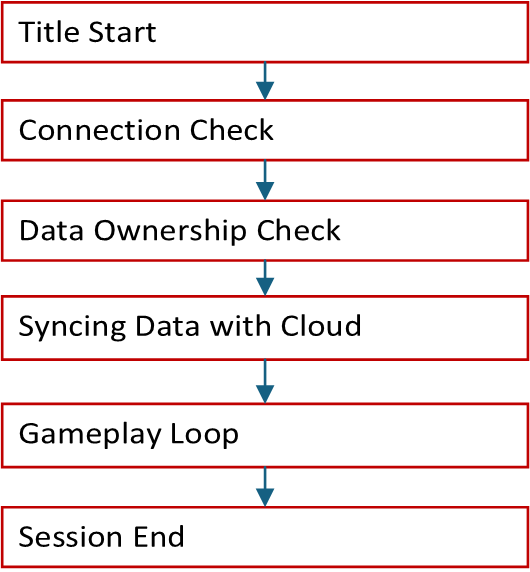
Here’s a flowchart of the simplified Game Saves flow.
 ### Title start
Title start occurs when the user launches or resumes the title.
### User sign in
The title begins the user sign-in process. This operation is also where you call `XGameSaveFilesGetFolderWithUIAsync`. For more information about user setup, see [User Models](/build/core-features/common/game-save/game-saves-developer-guide#user-models).
### Connection check
The title determines if it can connect to the XBOX network. If it can't, you need to enable [offline mode](/build/core-features/common/game-save/game-saves-syncing#connection-check) for the title.
### Data ownership check
The device checks if the user is currently playing on other devices. Only one device at a time can access the user's data for a specific title.
### Sync data with the cloud
The device syncs the Game Saves local storage data with the cloud. If there's a conflict, the system prompts the user with a conflict resolution dialog.
Dialog: [Which one do you want to use?](/build/core-features/common/game-save/game-saves-dialogues#which-one-do-you-want-to-use)
If the data on the device is newer than the cloud data, the title prompts the user to choose between using the local data or the cloud data.
### Gameplay loop
The title can freely read and write to the folder path provided by `XGameSaveFilesGetFolderWithUIAsync`.
### Game session end
When the game session ends, the system automatically attempts to upload the data to the cloud. This process occurs around 10–30 seconds after the title ends.
For detailed sync information, see [Understanding the Game Saves sync flow](/build/core-features/common/game-save/game-saves-syncing).
## Limits and quotas
### Limits
The maximum file size that you can save by using `XGameSaveFiles` is 64 MB. This behavior differs from `XGameSave`, which limits each file to 16 MB.
### Quotas
The maximum data that a user can save per title is 256 MB. Use [XGameSaveFilesGetRemainingQuota](/reference/system/xgamesavefiles/functions/xgamesavefilesgetremainingquota) to get the remaining quota. To get a storage extension so that your title has a larger per-user storage limit, contact your Developer Program Manager (DPM).
## FAQs
### Can I use XGameSaveFiles with XGameSave?
Yes. However, use this approach only for migrations. For detailed information, see [Interoperability between XGameSave and XGameSaveFiles](/build/core-features/common/game-save/game-saves-walkthroughs-and-samples#interop-between-xgamesave-and-xgamesavefiles).
### What file path does XGameSaveFiles save to?
**Console**: The title provides a temporary path while it's active. You can't access console files by using File Explorer.
**PC**: `%AppData%\Local\Packages\\SystemAppData\xgs\_\`
The PC path for `XGameSaveFiles` is different from `XGameSave`. It uses `wgs`.
### Can I specify the path where the data should be saved?
Yes, but only for PC. We recommend this approach only if you’re porting your solution from another title. This solution uses [no code cloud saves](/build/core-features/common/game-save/game-saves-walkthroughs-and-samples#porting-previous-titles-to-pc-game-saves-with-no-code-cloud-saves).
## Reference API documentation
* [XGameSaveFiles (API contents)](/reference/system/xgamesavefiles/xgamesavefiles_members)
* Functions
* [XGameSaveFilesGetRemainingQuota](/reference/system/xgamesavefiles/functions/xgamesavefilesgetremainingquota)
## See also
[Game Saves TOC](/build/core-features/common/game-save/game-saves-toc)
Yes, but only for PC. Porting your solution from another title might require this approach. This solution uses [no code cloud saves](/build/core-features/common/game-save/game-saves-walkthroughs-and-samples#porting-previous-titles-to-pc-game-saves-with-no-code-cloud-saves).
No-code cloud saves require the title to be launched as a packaged build by using `wdapp install`. Launching the .exe directly doesn't activate cloud save redirection. Alternating between packaged and direct .exe launches can cause save data to appear missing. For more information, see [Porting previous titles to PC Game Saves with no-code cloud saves](/build/core-features/common/game-save/game-saves-walkthroughs-and-samples#porting-previous-titles-to-pc-game-saves-with-no-code-cloud-saves).
## Related topics
- [Game Saves overview](/build/core-features/common/game-save/game-saves-overview.md)
- [XGameSaveFilesGetRemainingQuota](/reference/system/xgamesavefiles/functions/xgamesavefilesgetremainingquota.md)
- [XGameSaveFiles](/reference/system/xgamesavefiles/xgamesavefiles_members.md)
- [XGameSave API overview](/build/core-features/common/game-save/xgamesave.md)
- [Game Saves walkthroughs and samples](/build/core-features/common/game-save/game-saves-walkthroughs-and-samples.md)
### Title start
Title start occurs when the user launches or resumes the title.
### User sign in
The title begins the user sign-in process. This operation is also where you call `XGameSaveFilesGetFolderWithUIAsync`. For more information about user setup, see [User Models](/build/core-features/common/game-save/game-saves-developer-guide#user-models).
### Connection check
The title determines if it can connect to the XBOX network. If it can't, you need to enable [offline mode](/build/core-features/common/game-save/game-saves-syncing#connection-check) for the title.
### Data ownership check
The device checks if the user is currently playing on other devices. Only one device at a time can access the user's data for a specific title.
### Sync data with the cloud
The device syncs the Game Saves local storage data with the cloud. If there's a conflict, the system prompts the user with a conflict resolution dialog.
Dialog: [Which one do you want to use?](/build/core-features/common/game-save/game-saves-dialogues#which-one-do-you-want-to-use)
If the data on the device is newer than the cloud data, the title prompts the user to choose between using the local data or the cloud data.
### Gameplay loop
The title can freely read and write to the folder path provided by `XGameSaveFilesGetFolderWithUIAsync`.
### Game session end
When the game session ends, the system automatically attempts to upload the data to the cloud. This process occurs around 10–30 seconds after the title ends.
For detailed sync information, see [Understanding the Game Saves sync flow](/build/core-features/common/game-save/game-saves-syncing).
## Limits and quotas
### Limits
The maximum file size that you can save by using `XGameSaveFiles` is 64 MB. This behavior differs from `XGameSave`, which limits each file to 16 MB.
### Quotas
The maximum data that a user can save per title is 256 MB. Use [XGameSaveFilesGetRemainingQuota](/reference/system/xgamesavefiles/functions/xgamesavefilesgetremainingquota) to get the remaining quota. To get a storage extension so that your title has a larger per-user storage limit, contact your Developer Program Manager (DPM).
## FAQs
### Can I use XGameSaveFiles with XGameSave?
Yes. However, use this approach only for migrations. For detailed information, see [Interoperability between XGameSave and XGameSaveFiles](/build/core-features/common/game-save/game-saves-walkthroughs-and-samples#interop-between-xgamesave-and-xgamesavefiles).
### What file path does XGameSaveFiles save to?
**Console**: The title provides a temporary path while it's active. You can't access console files by using File Explorer.
**PC**: `%AppData%\Local\Packages\\SystemAppData\xgs\_\`
The PC path for `XGameSaveFiles` is different from `XGameSave`. It uses `wgs`.
### Can I specify the path where the data should be saved?
Yes, but only for PC. We recommend this approach only if you’re porting your solution from another title. This solution uses [no code cloud saves](/build/core-features/common/game-save/game-saves-walkthroughs-and-samples#porting-previous-titles-to-pc-game-saves-with-no-code-cloud-saves).
## Reference API documentation
* [XGameSaveFiles (API contents)](/reference/system/xgamesavefiles/xgamesavefiles_members)
* Functions
* [XGameSaveFilesGetRemainingQuota](/reference/system/xgamesavefiles/functions/xgamesavefilesgetremainingquota)
## See also
[Game Saves TOC](/build/core-features/common/game-save/game-saves-toc)
Yes, but only for PC. Porting your solution from another title might require this approach. This solution uses [no code cloud saves](/build/core-features/common/game-save/game-saves-walkthroughs-and-samples#porting-previous-titles-to-pc-game-saves-with-no-code-cloud-saves).
No-code cloud saves require the title to be launched as a packaged build by using `wdapp install`. Launching the .exe directly doesn't activate cloud save redirection. Alternating between packaged and direct .exe launches can cause save data to appear missing. For more information, see [Porting previous titles to PC Game Saves with no-code cloud saves](/build/core-features/common/game-save/game-saves-walkthroughs-and-samples#porting-previous-titles-to-pc-game-saves-with-no-code-cloud-saves).
## Related topics
- [Game Saves overview](/build/core-features/common/game-save/game-saves-overview.md)
- [XGameSaveFilesGetRemainingQuota](/reference/system/xgamesavefiles/functions/xgamesavefilesgetremainingquota.md)
- [XGameSaveFiles](/reference/system/xgamesavefiles/xgamesavefiles_members.md)
- [XGameSave API overview](/build/core-features/common/game-save/xgamesave.md)
- [Game Saves walkthroughs and samples](/build/core-features/common/game-save/game-saves-walkthroughs-and-samples.md)