> ## Documentation Index
> Fetch the complete documentation index at: https://devdocs.xbox.com/llms.txt
> Use this file to discover all available pages before exploring further.
# MicrosoftGame.config overview
> MicrosoftGame.config overview
*MicrosoftGame.config* is a manifest file that's used to store game-specific configuration information. It's used during the packaging of your game for ingestion and publishing through Microsoft Store, as well as for registering information about the game during local iteration on loose-file builds during game development.
This topic explains the purpose and use of *MicrosoftGame.config*, as well as its relationship to *AppXManifest.xml*. It also explains some caveats that are related to the use of *MicrosoftGame.config* in this release of the Microsoft Game Development Kit (GDK).
## What is MicrosoftGame.config?
Each game that's distributed through Microsoft Store must include a manifest that declares at a minimum the title's identity, the publisher name, and a set of title-specific shell visuals (strings, icons, and images) that are used to display the game's name and graphical representation in Microsoft Store and shell (for console) and Start menu, taskbar, and other places in the Windows Shell (for PC). Additionally, a game can implement optional features such as downloadable content (DLC), which rely on configuration values that are also stored in the game's manifest. The name of the manifest file is *MicrosoftGame.config*.
## Why create a new manifest schema?
Each package in Microsoft Store contains a manifest called *AppXManifest.xml*. Its schema has evolved over many years to accommodate a broad range of application features and scenarios.
With *MicrosoftGame.config*, game developers interact with a simpler, [gaming-centric manifest schema](/reference/system/microsoftgameconfig/microsoftgameconfig-schema) that is more accessible, less error-prone, and more productive. When the developer packages or registers a game, tools perform validation on the contents of the *MicrosoftGame.config* and generate a well-formed *AppXManifest.xml* on behalf of the game developer. The generated `AppXManifest` is included in the resulting package.
As of the March 2022 Microsoft Game Development Kit (GDK), the Game configVersion has been updated from 0 to 1 for new titles created with this Microsoft Game Development Kit (GDK) and future releases. Existing titles may opt into this version update to take advantage of these improvements. For more information, please see [MicrosoftGame.config Reference (sample MicrosoftGame.config and schema)](/reference/system/microsoftgameconfig/microsoftgameconfig-schema).
## Available documentation
In the offline documentation file for the Microsoft Game Development Kit (GDK) (GDK.chm), you can find documentation about *MicrosoftGame.config* in the locations that are shown in the following table.
| Topic location | What's covered |
| ------------------------------------------------------------------------------------------------- | ------------------------------------------------------------------------------------------------------------------------------------------------------------------------------------------------------------------------------------------------------------------------------------------- |
| [MicrosoftGame.config](/build/core-features/common/game-config/MicrosoftGameConfig-toc) | Provides overview information about *MicrosoftGame.config* and its role in game registration and packaging |
| [MicrosoftGame.config Editor](/build/core-features/common/game-config/MicrosoftGameConfig-Editor) | Provides an overview of the UI tool that allows for easier editing of the *MicrosoftGame.config* file, in addition to automatically syncing title Ids, names and key values from its associated Partner Center project |
| [Development environment and tools](https://learn.microsoft.com/build/archive/gc-tools-toc) | Discusses the use of [wdapp.exe](/tools/tools-pc/commandlinetools/gr-wdapp) and [xbapp.exe (NDA topic)](/tools/tools-console/commandlinetools/xbapp) to register loose-file builds and to launch your game |
| [Reference](/reference/gc-reference-toc) | Provides [Reference details](/reference/system/microsoftgameconfig/microsoftgameconfig-schema) about the sample .config and schema for *MicrosoftGame.config* |
| [Packaging](/build/core-features/common/packaging/overviews/packaging) | Discusses the use of makepkg.exe to generate a package by using your *MicrosoftGame.config* for [Console](/build/core-features/common/packaging/overviews/packaging-getting-started-for-console) and [PC](/build/core-features/common/packaging/overviews/packaging-getting-started-for-PC) |
## MicrosoftGame.config creation
When creating a new project for the Gaming.Desktop.x64, Gaming.Xbox.XboxOne.x64, or Gaming.Xbox.Scarlett.x64 platform, a *MicrosoftGameConfig.mgc* is associated with your project in Visual Studio. It has default values that allow early development on PC and XBOX without the need for further configuration until you start to use features in the Gaming Runtime, Microsoft Store, and title identity.
When your project is built, the *MicrosoftGameConfig.mgc* is renamed to *MicrosoftGame.config* when copied to your project's output directory.
An example of this default *MicrosoftGameConfig.mgc*, for XBOX, is as follows.
```xml theme={null}
```
For more information on MicrosoftGame.config elements, please refer to online GDK documentation found at [MicrosoftGame.config](/build/core-features/common/game-config/MicrosoftGameConfig-toc) or you can find the MicrosoftGame.config topic in the System section of the offline GDK documentation.
If you manually add a *Microsoftgame.config* file to your project, you must make sure to change the file properties to be a `copy` file type.
### Manually adding a MicrosoftGame.config file
One or more MicrosoftGame.config files can also be added to your project manually. Adding a file manually can be done in two ways:
* By setting the appropriate properties on an existing file such that Visual Studio recognizes it as a MicrosoftGame.config file.
* By using an Item Template provided with the Microsoft Game Development Kit (GDK) C++ project system.
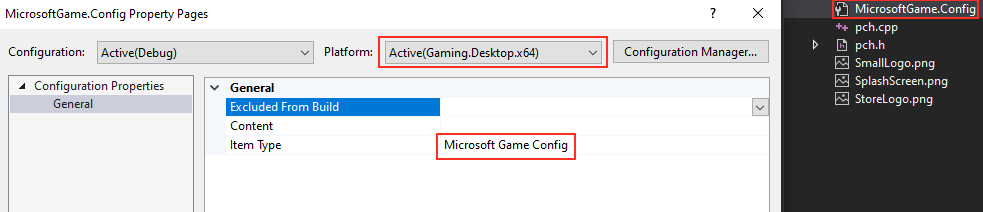
To use an existing file as a MicrosoftGame.config file:
* Set your configuration to the "Gaming.Xbox.XboxOne.x64", "Gaming.Xbox.Scarlett.x64" or "Gaming.Desktop.x64" platform.
* Add the *MicrosoftGame.config* file for your game as a file in your Visual Studio project.
* In the properties for the *MicrosoftGame.config* file, set Item Type to **Microsoft Game Config**, shown as follows.
 To add a new *MicrosoftGameConfig.mgc* file using the Item Template:
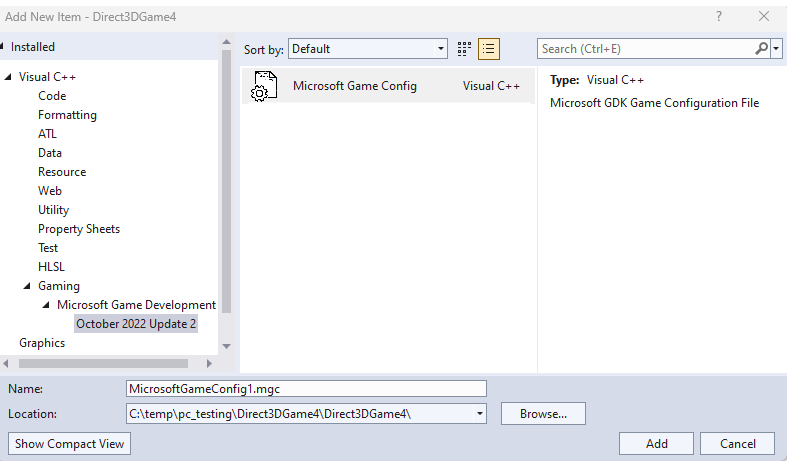
* Right click on a project and select Add->New Item.
* The MicrosoftGameConfig.mgc template can be found in the Visual C++->Gaming->Microsoft Game Development Kit->Edition node of the tree, shown as follows.
To add a new *MicrosoftGameConfig.mgc* file using the Item Template:
* Right click on a project and select Add->New Item.
* The MicrosoftGameConfig.mgc template can be found in the Visual C++->Gaming->Microsoft Game Development Kit->Edition node of the tree, shown as follows.
 ### Visual Studio project property for MicrosoftGame.config
Whenever a *MicrosoftGameConfig.mgc* file is added to a project, either automatically when the project is created, or manually, a property (`MGCCompile`) is added to your Visual Studio project. The `MGCCompile` property is used by the project system to automate the following:
* Generation of a .pri file if you have localized string resources
* Renaming the *MicrosoftGameConfig.mgc* file to *MicrosoftGame.config* if necessary
* Copying your *MicrosoftGame.config* to your output folder
* Registration of your *MicrosoftGame.config* after the build
* Launching of your game with identity in the debugger
After this property is added, it should be included in your Visual Studio project file and can be seen as the following item group when inspecting the file directly.
```xml theme={null}
```
### Managing multiple MicrosoftGameConfig.mgc files in Visual Studio and MSBuild
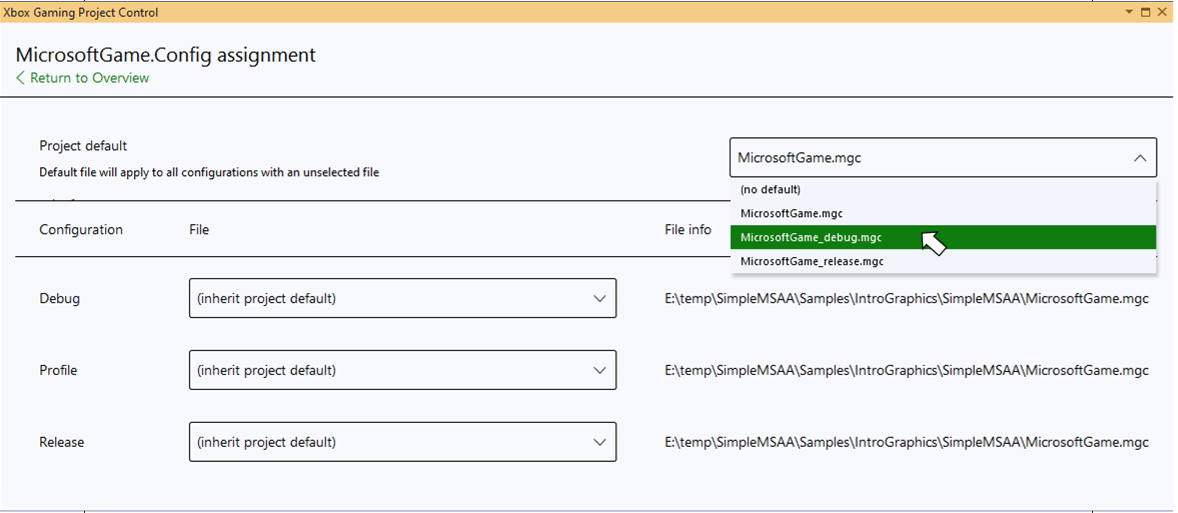
A Microsoft Game Development Kit (GDK) Visual Studio project may have several MicrosoftGameConfig.mgc files associated with it. It's common to use different MicrosoftGameConfig.mgc files for different build configurations, or for XBOX and PC builds, for example. If you had previously used custom-build logic to manage multiple MicrosoftGameConfig.mgc files, this scenario is now directly supported by the project system.
A MicrosoftGameConfig.mgc file can be assigned to individual build configurations in two ways. First, the **XBOX Gaming Project Control tool window** includes support for [managing multiple MicrosoftGameConfig.mgc files (NDA topic)](/tools/tools-console/visualstudio/xbox-gaming-project-control#multiple_game_configs), shown as follows.
### Visual Studio project property for MicrosoftGame.config
Whenever a *MicrosoftGameConfig.mgc* file is added to a project, either automatically when the project is created, or manually, a property (`MGCCompile`) is added to your Visual Studio project. The `MGCCompile` property is used by the project system to automate the following:
* Generation of a .pri file if you have localized string resources
* Renaming the *MicrosoftGameConfig.mgc* file to *MicrosoftGame.config* if necessary
* Copying your *MicrosoftGame.config* to your output folder
* Registration of your *MicrosoftGame.config* after the build
* Launching of your game with identity in the debugger
After this property is added, it should be included in your Visual Studio project file and can be seen as the following item group when inspecting the file directly.
```xml theme={null}
```
### Managing multiple MicrosoftGameConfig.mgc files in Visual Studio and MSBuild
A Microsoft Game Development Kit (GDK) Visual Studio project may have several MicrosoftGameConfig.mgc files associated with it. It's common to use different MicrosoftGameConfig.mgc files for different build configurations, or for XBOX and PC builds, for example. If you had previously used custom-build logic to manage multiple MicrosoftGameConfig.mgc files, this scenario is now directly supported by the project system.
A MicrosoftGameConfig.mgc file can be assigned to individual build configurations in two ways. First, the **XBOX Gaming Project Control tool window** includes support for [managing multiple MicrosoftGameConfig.mgc files (NDA topic)](/tools/tools-console/visualstudio/xbox-gaming-project-control#multiple_game_configs), shown as follows.
 Alternatively, MicrosoftGameConfig.mgc files can be assigned to configurations by editing the project file directly. Use the `DefaultApplyTo` element of the `MGCCompile` property to specify a default MicrosoftGameConfig.mgc file. This default file will be used for all configurations unless explicitly overridden. Use the `ApplyTo` element of the `MGCCompile` property to assign a configuration file to a particular build configuration.
The following snippet from a project file specifies MicrosoftGameConfig\_dev.mgc as the default configuration file. MicrosoftGameConfig\_dev.mgc will be used for all build configurations other than *Release*, for which an override (MicrosoftGameConfig\_release.mgc) has been specified.
```xml theme={null}
True
True
```
### IntelliSense support for MicrosoftGame.config
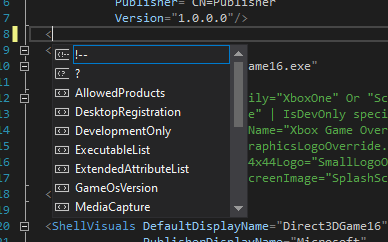
Modification of a *MicrosoftGame.config* within Visual Studio now supports [IntelliSense](https://learn.microsoft.com/visualstudio/ide/using-intellisense) features. This allows for additional insights as shown in the following two screenshots.
Valid element names are automatically listed when an element is being authored.
Alternatively, MicrosoftGameConfig.mgc files can be assigned to configurations by editing the project file directly. Use the `DefaultApplyTo` element of the `MGCCompile` property to specify a default MicrosoftGameConfig.mgc file. This default file will be used for all configurations unless explicitly overridden. Use the `ApplyTo` element of the `MGCCompile` property to assign a configuration file to a particular build configuration.
The following snippet from a project file specifies MicrosoftGameConfig\_dev.mgc as the default configuration file. MicrosoftGameConfig\_dev.mgc will be used for all build configurations other than *Release*, for which an override (MicrosoftGameConfig\_release.mgc) has been specified.
```xml theme={null}
True
True
```
### IntelliSense support for MicrosoftGame.config
Modification of a *MicrosoftGame.config* within Visual Studio now supports [IntelliSense](https://learn.microsoft.com/visualstudio/ide/using-intellisense) features. This allows for additional insights as shown in the following two screenshots.
Valid element names are automatically listed when an element is being authored.
 Warnings are present when an invalid element or invalid element value is present.
 ### Platform requirements for MicrosoftGame.config
When creating a *MicrosoftGame.config* file for your title, you'll need to create one for each Microsoft Game Development Kit (GDK) platform (Gaming.Xbox.XboxOne.x64, Gaming.Xbox.Scarlett.x64, and Gaming.Desktop.x64). This is required to ensure that the element values being stored in the *MicrosoftGame.config* have a one-to-one mapping with the platform that your executable is built against. This is primarily specified by the `TargetDeviceFamily` attribute in the `Executable` element within the *MicrosoftGame.config* file. For more information, see the [Additional Element Details](/reference/system/microsoftgameconfig/microsoftgameconfig-schema) section in the reference topic.
When launching your title, it behaves differently based on the platform requirements, the device the title is being launched on, and the executable type, as seen in the following table.
| MicrosoftGame.config presence | TargetDeviceFamily setting | Launch device | Action | Notes | | |
| ----------------------------- | -------------------------- | ------------- | ----------------------------------------------- | ------------------------------------------------------------------------------------------------------- | -------------------------------------------- | - |
| Yes | XBOX Series X | S | XBOX Series X | S | Launch natively on the XBOX Series X Dev Kit | |
| Yes | XBOX Series X | S | XBOX One | Returns an error (0x887e0002), indicating that the incorrect platform was launched on the launch device | | |
| Yes | XboxOne | XBOX Series X | S | Launch with Microsoft Game Development Kit (GDK) back-compat VM on the XBOX Series X Dev Kit | | |
| Yes | XboxOne | XBOX One | Launch natively on the XBOX One Development Kit | | | |
| Yes | Not defined | XBOX Series X | S | Launch natively on the XBOX Series X Dev Kit | | |
| Yes | Not defined | XBOX One | Launch natively on the XBOX One dev kit | | | |
| No | N/A | XBOX Series X | S | Launch natively on the XBOX Series X Dev Kit | | |
| No | N/A | XboxOne | Launch natively on the XBOX One dev kit | | | |
| Yes | PC | PC | Launch as a Win32 x64 with identity on PC | | | |
| Yes | Not defined | PC | Launch as a Win32 x64 with identity on PC | | | |
| No | N/A | PC | Launch as a Win32 x64 without identity on PC | | | |
In the scenario where a XBOX Series X|S title launches on a XBOX Series X Dev Kit without a MicrosoftGame.config, it will re-use existing Microsoft Game Development Kit (GDK) VM state if applicable. As an example, if a back-compat Microsoft Game Development Kit (GDK) title (XBOX One on XBOX Series X|S) had launched prior to attempting to launch a XBOX Series X|S native title, it will run it using that same back-compat Microsoft Game Development Kit (GDK) VM. We recommended using a MicrosoftGame.config with TargetDeviceFamily configured to indicate the proper intent if you run into this scenario. ERA titles will run in a separate VM state and as such will not influence the Microsoft Game Development Kit (GDK) VM behavior in this scenario.
### Creating and editing a MicrosoftGame.config outside of Visual Studio
As noted above, Visual Studio provides many ways to create and manage your title's MicrosoftGame.config file. In addition to creating and editing within Visual Studio, there is a stand-alone tool that provides creation and authoring of the MicrosoftGame.config directly.
The [MicrosoftGame.config Editor](/build/core-features/common/game-config/MicrosoftGameConfig-Editor) is a UI tool that enables easier authoring and editing of .config files. This editor also includes hooks into your title information in Partner Center to automatically pull down and sync information, such as your TitleId, MSAAppId and StoreId, by way of a Store Association Wizard. Feedback is welcome so please use the suggestion tool within the editor to let us know your thoughts.
## Launching a game without MicrosoftGame.config
In the Microsoft Game Development Kit (GDK), you can launch a PC game or an XBOX game without having a *MicrosoftGame.config* present. This is allowed for early development ahead of creating a *MicrosoftGame.config* and is intended to provide flexibility for when you want to opt in to features within the Gaming Runtime, Microsoft Store, and title identity. To ship a title with the Microsoft Game Development Kit (GDK), a *MicrosoftGame.config* is required to create your title package ahead of submission to Microsoft Store. It is recommended to adopt and configure your title's *MicrosoftGame.config* as soon as you start developing features that require the Gaming Runtime, XBOX services, Microsoft Store or title identity.
PC games that do not have a *MicrosoftGame.config* can be built and launched by double clicking the built executable. They will run with no integration of Gaming Runtime features. For support of Gaming Runtime features, Title Identity, MSIXVC Packaging support and the capability to submit to the Microsoft Store - a *MicrosoftGame.config* is required.
XBOX games that do not have a *MicrosoftGame.config* will be able to utilize GDK tooling to deploy loose file builds, launch, debug and utilize a sub-set of Microsoft Game Development Kit (GDK) functionality out of the box. For supporting full Microsoft Game Development Kit (GDK) features, Title Identity, XVC Packaging support and the capability to submit to the Microsoft store - a *MicrosoftGame.config* is required.
To launch your title, on XBOX, without a *MicrosoftGame.config*, you can:
* [xbapp.exe (NDA topic)](/tools/tools-console/commandlinetools/xbapp) launch.
* Use the XBOX Manager deploy/launch functionality.
* Launch the title from Developer Home (Dev Home) on your XBOX.
For more information about launching a Win32 PC game, see the following section.
## Launching a Win32 game
A Win32 PC game that uses no Gaming Runtime or gaming cloud services can be launched and/or debugged just like any other Windows executable. Simply click the game executable with your mouse or run the executable directly in a command-prompt window, and the game process is created.
Gaming services perform work on a game's behalf. To use Gaming Runtime or gaming cloud services, a game must provide contextual data. For example, a game can pass XBOX services a unique identifier called title identity, which allows the service to identify which game is granting achievements to players. Contextual information like title identity can be persistently stored in the Windows App Repository through a process called registration. It's through registration that a game also specifies which strings and logos the Windows Shell should use to represent the game in the application list of the Start menu.
Through an action called app-launch, a game process is created and the game is provided with access to its persistent contextual information from the app repository. If you don't app-launch the game, a process is created to run the game, but its context will be unavailable. This prevents the game from properly using Gaming Runtime and gaming cloud services.
You can app-launch your game in any of the following ways.
* Start menu (app list, app tile)
* Taskbar search (search results list/detail panel)
* [wdapp.exe](/tools/tools-pc/commandlinetools/gr-wdapp) launch
* Windows Device Portal (WDP): **Installed Apps** > **Start**
## Debugging a Win32 game
In the Microsoft Game Development Kit (GDK), Win32 PC games go through the registration and app-launch paths when selecting F5 to build and run. This brings this workflow up to the same standard that exists on XBOX.
With regards to Debug Installed App Package on Win32 PC, the Debug Installed App Package in Visual Studio doesn't add your game to its list of packages that can be debugged if the manifest with your game is called *MicrosoftGame.config*. Debug Installed App Package only recognizes your game as a package if a file named *AppXManifest.xml* is present in the folder with your executable. To work around this, you can create a simple `AppXManifest` that contains valid values for your game and manually save it in the folder with your executable and *MicrosoftGame.config*.
## See also
[MicrosoftGame.config](/build/core-features/common/game-config/MicrosoftGameConfig-toc)
[MicrosoftGame.config localization](/build/core-features/common/game-config/MicrosoftGameConfig-Localization)
[MicrosoftGame.config Editor](/build/core-features/common/game-config/MicrosoftGameConfig-Editor)
[MicrosoftGame.config Reference (sample MicrosoftGame.config and schema)](/reference/system/microsoftgameconfig/microsoftgameconfig-schema)
[Overview of packaging](/build/core-features/common/packaging/overviews/packaging)
## Related topics
- [MicrosoftGame.config localization](/build/core-features/common/game-config/MicrosoftGameConfig-Localization.md)
- [MicrosoftGame.config Editor](/build/core-features/common/game-config/MicrosoftGameConfig-Editor.md)
- [MicrosoftGame.config](/build/core-features/common/game-config/MicrosoftGameConfig-toc.md)
- [Use the GDK with GameMaker](/build/gdk-and-engines/gamemaker.md)
- [XtfStartTitleOSByGameConfig](/reference/tools/xtf/xtfapi/functions/xtfstarttitleosbygameconfig-xtfapi-xbox-windows-m.md)
### Platform requirements for MicrosoftGame.config
When creating a *MicrosoftGame.config* file for your title, you'll need to create one for each Microsoft Game Development Kit (GDK) platform (Gaming.Xbox.XboxOne.x64, Gaming.Xbox.Scarlett.x64, and Gaming.Desktop.x64). This is required to ensure that the element values being stored in the *MicrosoftGame.config* have a one-to-one mapping with the platform that your executable is built against. This is primarily specified by the `TargetDeviceFamily` attribute in the `Executable` element within the *MicrosoftGame.config* file. For more information, see the [Additional Element Details](/reference/system/microsoftgameconfig/microsoftgameconfig-schema) section in the reference topic.
When launching your title, it behaves differently based on the platform requirements, the device the title is being launched on, and the executable type, as seen in the following table.
| MicrosoftGame.config presence | TargetDeviceFamily setting | Launch device | Action | Notes | | |
| ----------------------------- | -------------------------- | ------------- | ----------------------------------------------- | ------------------------------------------------------------------------------------------------------- | -------------------------------------------- | - |
| Yes | XBOX Series X | S | XBOX Series X | S | Launch natively on the XBOX Series X Dev Kit | |
| Yes | XBOX Series X | S | XBOX One | Returns an error (0x887e0002), indicating that the incorrect platform was launched on the launch device | | |
| Yes | XboxOne | XBOX Series X | S | Launch with Microsoft Game Development Kit (GDK) back-compat VM on the XBOX Series X Dev Kit | | |
| Yes | XboxOne | XBOX One | Launch natively on the XBOX One Development Kit | | | |
| Yes | Not defined | XBOX Series X | S | Launch natively on the XBOX Series X Dev Kit | | |
| Yes | Not defined | XBOX One | Launch natively on the XBOX One dev kit | | | |
| No | N/A | XBOX Series X | S | Launch natively on the XBOX Series X Dev Kit | | |
| No | N/A | XboxOne | Launch natively on the XBOX One dev kit | | | |
| Yes | PC | PC | Launch as a Win32 x64 with identity on PC | | | |
| Yes | Not defined | PC | Launch as a Win32 x64 with identity on PC | | | |
| No | N/A | PC | Launch as a Win32 x64 without identity on PC | | | |
In the scenario where a XBOX Series X|S title launches on a XBOX Series X Dev Kit without a MicrosoftGame.config, it will re-use existing Microsoft Game Development Kit (GDK) VM state if applicable. As an example, if a back-compat Microsoft Game Development Kit (GDK) title (XBOX One on XBOX Series X|S) had launched prior to attempting to launch a XBOX Series X|S native title, it will run it using that same back-compat Microsoft Game Development Kit (GDK) VM. We recommended using a MicrosoftGame.config with TargetDeviceFamily configured to indicate the proper intent if you run into this scenario. ERA titles will run in a separate VM state and as such will not influence the Microsoft Game Development Kit (GDK) VM behavior in this scenario.
### Creating and editing a MicrosoftGame.config outside of Visual Studio
As noted above, Visual Studio provides many ways to create and manage your title's MicrosoftGame.config file. In addition to creating and editing within Visual Studio, there is a stand-alone tool that provides creation and authoring of the MicrosoftGame.config directly.
The [MicrosoftGame.config Editor](/build/core-features/common/game-config/MicrosoftGameConfig-Editor) is a UI tool that enables easier authoring and editing of .config files. This editor also includes hooks into your title information in Partner Center to automatically pull down and sync information, such as your TitleId, MSAAppId and StoreId, by way of a Store Association Wizard. Feedback is welcome so please use the suggestion tool within the editor to let us know your thoughts.
## Launching a game without MicrosoftGame.config
In the Microsoft Game Development Kit (GDK), you can launch a PC game or an XBOX game without having a *MicrosoftGame.config* present. This is allowed for early development ahead of creating a *MicrosoftGame.config* and is intended to provide flexibility for when you want to opt in to features within the Gaming Runtime, Microsoft Store, and title identity. To ship a title with the Microsoft Game Development Kit (GDK), a *MicrosoftGame.config* is required to create your title package ahead of submission to Microsoft Store. It is recommended to adopt and configure your title's *MicrosoftGame.config* as soon as you start developing features that require the Gaming Runtime, XBOX services, Microsoft Store or title identity.
PC games that do not have a *MicrosoftGame.config* can be built and launched by double clicking the built executable. They will run with no integration of Gaming Runtime features. For support of Gaming Runtime features, Title Identity, MSIXVC Packaging support and the capability to submit to the Microsoft Store - a *MicrosoftGame.config* is required.
XBOX games that do not have a *MicrosoftGame.config* will be able to utilize GDK tooling to deploy loose file builds, launch, debug and utilize a sub-set of Microsoft Game Development Kit (GDK) functionality out of the box. For supporting full Microsoft Game Development Kit (GDK) features, Title Identity, XVC Packaging support and the capability to submit to the Microsoft store - a *MicrosoftGame.config* is required.
To launch your title, on XBOX, without a *MicrosoftGame.config*, you can:
* [xbapp.exe (NDA topic)](/tools/tools-console/commandlinetools/xbapp) launch.
* Use the XBOX Manager deploy/launch functionality.
* Launch the title from Developer Home (Dev Home) on your XBOX.
For more information about launching a Win32 PC game, see the following section.
## Launching a Win32 game
A Win32 PC game that uses no Gaming Runtime or gaming cloud services can be launched and/or debugged just like any other Windows executable. Simply click the game executable with your mouse or run the executable directly in a command-prompt window, and the game process is created.
Gaming services perform work on a game's behalf. To use Gaming Runtime or gaming cloud services, a game must provide contextual data. For example, a game can pass XBOX services a unique identifier called title identity, which allows the service to identify which game is granting achievements to players. Contextual information like title identity can be persistently stored in the Windows App Repository through a process called registration. It's through registration that a game also specifies which strings and logos the Windows Shell should use to represent the game in the application list of the Start menu.
Through an action called app-launch, a game process is created and the game is provided with access to its persistent contextual information from the app repository. If you don't app-launch the game, a process is created to run the game, but its context will be unavailable. This prevents the game from properly using Gaming Runtime and gaming cloud services.
You can app-launch your game in any of the following ways.
* Start menu (app list, app tile)
* Taskbar search (search results list/detail panel)
* [wdapp.exe](/tools/tools-pc/commandlinetools/gr-wdapp) launch
* Windows Device Portal (WDP): **Installed Apps** > **Start**
## Debugging a Win32 game
In the Microsoft Game Development Kit (GDK), Win32 PC games go through the registration and app-launch paths when selecting F5 to build and run. This brings this workflow up to the same standard that exists on XBOX.
With regards to Debug Installed App Package on Win32 PC, the Debug Installed App Package in Visual Studio doesn't add your game to its list of packages that can be debugged if the manifest with your game is called *MicrosoftGame.config*. Debug Installed App Package only recognizes your game as a package if a file named *AppXManifest.xml* is present in the folder with your executable. To work around this, you can create a simple `AppXManifest` that contains valid values for your game and manually save it in the folder with your executable and *MicrosoftGame.config*.
## See also
[MicrosoftGame.config](/build/core-features/common/game-config/MicrosoftGameConfig-toc)
[MicrosoftGame.config localization](/build/core-features/common/game-config/MicrosoftGameConfig-Localization)
[MicrosoftGame.config Editor](/build/core-features/common/game-config/MicrosoftGameConfig-Editor)
[MicrosoftGame.config Reference (sample MicrosoftGame.config and schema)](/reference/system/microsoftgameconfig/microsoftgameconfig-schema)
[Overview of packaging](/build/core-features/common/packaging/overviews/packaging)
## Related topics
- [MicrosoftGame.config localization](/build/core-features/common/game-config/MicrosoftGameConfig-Localization.md)
- [MicrosoftGame.config Editor](/build/core-features/common/game-config/MicrosoftGameConfig-Editor.md)
- [MicrosoftGame.config](/build/core-features/common/game-config/MicrosoftGameConfig-toc.md)
- [Use the GDK with GameMaker](/build/gdk-and-engines/gamemaker.md)
- [XtfStartTitleOSByGameConfig](/reference/tools/xtf/xtfapi/functions/xtfstarttitleosbygameconfig-xtfapi-xbox-windows-m.md)